Referencia para agentes
A medida que crees agentes personalizados, consulta este artículo para obtener más información sobre configuraciones clave, como instrucciones y esquemas de salida. Para una configuración paso a paso, consulta Crear agentes personalizados. Para una introducción, consulta Agentes de Braze y Preguntas frecuentes.
Modelos
Cuando configuras un agente, puedes elegir el modelo que utiliza para generar respuestas. Tienes dos opciones: usar un modelo proporcionado por Braze o traer tu propia clave de API.

El modelo Auto proporcionado por Braze está optimizado para modelos cuyas capacidades de razonamiento bastan para realizar tareas como recuperar datos de catálogo mediante fuentes de conocimiento y comprobar la pertenencia a un Segment. Si utilizas otros modelos, te recomendamos hacer pruebas para confirmar que tu modelo funciona bien en tu caso de uso. Es posible que tengas que ajustar tus instrucciones para dar distintos niveles de detalle o de razonamiento paso a paso a modelos con diferentes velocidades y capacidades.
Opción 1: Usar un modelo proporcionado por Braze
Esta es la opción más sencilla y no requiere configuración adicional. Braze proporciona acceso directo a grandes modelos de lenguaje (LLM). Para usar esta opción, selecciona Auto, que utiliza modelos Gemini.
Opción 2: Traer tu propia clave de API
Con esta opción, puedes conectar tu cuenta de Braze con proveedores como OpenAI, Anthropic o Google Gemini. Si traes tu propia clave de API de un proveedor de LLM, los costes de tokens se facturan directamente a través de tu proveedor, no a través de Braze.
Te recomendamos probar con regularidad los modelos más recientes, ya que los modelos heredados pueden retirarse o quedar obsoletos al cabo de unos meses. Asegúrate de tener suficientes créditos con tu proveedor para ejecutar tus agentes a escala. También puedes suscribirte a las notificaciones de Agent Console en Preferencias de notificación para recibir una alerta cuando Braze detecte que un modelo ya no está disponible o encuentre problemas de facturación con tu proveedor de LLM.
Para configurarlo:
- Ve a Integraciones de partners > Partners tecnológicos y busca tu proveedor.
- Introduce la clave de API de tu proveedor.
- Selecciona Guardar.
Después, puedes volver a tu agente y seleccionar tu modelo.
Cuando utilizas un LLM proporcionado por Braze, los proveedores de dicho modelo actúan como subencargados del tratamiento de Braze, sujetos a los términos del Anexo de Tratamiento de Datos (DPA) entre tú y Braze. Si eliges traer tu propia clave de API, el proveedor de tu suscripción de LLM se considera un Proveedor Externo en virtud del contrato entre tú y Braze.
Niveles de razonamiento
Algunos proveedores de LLM pueden permitirte ajustar el nivel de razonamiento del modelo seleccionado. Los niveles de razonamiento definen el alcance del razonamiento que utiliza el modelo antes de responder: desde respuestas rápidas y directas hasta cadenas de razonamiento más largas. Esto afecta a la calidad de las respuestas, a la latencia y al uso de tokens.
| Nivel | Cuándo usarlo |
|---|---|
| Mínimo | Tareas sencillas y bien definidas (como búsquedas en catálogos o clasificaciones directas). Respuestas más rápidas y menor coste. |
| Bajo | Tareas que se benefician de algo más de razonamiento, pero no necesitan un análisis profundo. |
| Medio | Tareas de varios pasos o con matices (como analizar varias entradas para recomendar una acción). |
| Alto | Razonamiento complejo, casos extremos o cuando necesitas que el modelo trabaje los pasos antes de responder. |
Te recomendamos empezar con Mínimo y probar las respuestas de tu agente. Después, puedes ajustar el nivel de razonamiento a Bajo o Medio si ves que al agente le cuesta dar respuestas precisas. En casos poco frecuentes, puede ser necesario un nivel de razonamiento Alto, aunque usar este nivel puede generar costes de tokens elevados y tiempos de respuesta más largos, o un mayor riesgo de errores de tiempo de espera. Si a tu agente le cuesta equilibrar el razonamiento de varios pasos con unos tiempos de respuesta razonables, plantéate dividir tu caso de uso en más de un agente que puedan trabajar juntos en un Canvas o un catálogo.
Braze utiliza los mismos rangos de IP para las llamadas salientes a LLM que para el contenido conectado. Los rangos aparecen en la lista de IP permitidas del contenido conectado. Si tu proveedor admite listas de IP permitidas, puedes restringir la clave a esos rangos para que solo Braze pueda usarla.
Cuando utilizas un LLM proporcionado por Braze, los proveedores de dicho modelo actúan como subencargados del tratamiento de Braze, sujetos a los términos del Anexo de Tratamiento de Datos (DPA) entre tú y Braze. Si eliges traer tu propia clave de API, el proveedor de tu suscripción de LLM se considera un Proveedor Externo en virtud del contrato entre tú y Braze.
Determinar qué modelo usar
Cada proveedor de LLM ofrece una combinación ligeramente distinta de capacidades, costes y niveles de razonamiento de los modelos. Estas son algunas pautas generales y prácticas recomendadas:
- Para ahorrar costes, prioriza probar modelos con un coste de tokens más bajo antes que modelos más caros. Pasa a modelos más caros solo si a los modelos más económicos les cuesta resolver el caso de uso o generan resultados incoherentes o imprecisos.
- Para ganar en velocidad y rendimiento, prioriza probar niveles de razonamiento más bajos antes que niveles más altos. Pasa a niveles de razonamiento más altos solo si a los niveles más bajos les cuesta resolver el caso de uso o generan resultados incoherentes o imprecisos.
- Si a los modelos más económicos o a los niveles de razonamiento más bajos les cuesta resolver el caso de uso o generan resultados incoherentes o imprecisos, plantéate pasar a modelos más caros o a niveles de razonamiento más altos.
- Durante las pruebas, asegúrate de equilibrar la fiabilidad y la precisión con el uso de tokens y la duración de las invocaciones.
- Cada caso de uso puede tener un modelo y un nivel de razonamiento óptimos diferentes. Te recomendamos hacer pruebas exhaustivas para comprobar que la calidad es constante y sin tiempos de espera agotados.
Controles del flujo de invocaciones
Los siguientes controles del flujo de invocaciones se aplican por espacio de trabajo:
- Modelo proporcionado por Braze: 5000 invocaciones por minuto
- Con tu propia clave de API: 5000 invocaciones por minuto
Cuando muchos usuarios entran a la vez en un paso Agente, Braze pone en cola las invocaciones según estos límites, por lo que el procesamiento puede tardar más durante envíos de gran volumen.
Límites diarios de invocaciones y créditos
Cada agente tiene un límite diario de invocaciones (250 000 de forma predeterminada; máximo 1 000 000, salvo que tu contrato permita más). Todas las invocaciones (incluidas las vistas previas de Agent Console y las ejecuciones de prueba de Canvas que usan Simular respuesta) cuentan para este límite.
En Agent Console, el Límite diario de coste de créditos por acción estima el máximo de créditos que puede consumir un agente al día. Braze multiplica la proporción de créditos por invocación de tu espacio de trabajo para el modelo seleccionado por el límite diario de invocaciones.
Cuándo se consumen créditos
Braze solo cobra créditos por las invocaciones que completan el procesamiento. No se consumen créditos cuando una invocación falla debido a:
- Un error de límite de velocidad del proveedor de LLM (incluidos los reintentos que acaban fallando)
- Que el modelo seleccionado no esté disponible
- Que el agente alcance su límite diario de invocaciones
Se consumen créditos cuando se agota el tiempo de espera de una invocación, aunque el agente no devuelva un resultado utilizable.
Supervisar el uso de créditos
Ve a Configuración > Facturación > Uso de créditos > Agent Console para ver el consumo de créditos, el número de invocaciones y las proporciones de créditos por agente.
Las proporciones de créditos proceden de tu contrato y aparecen en el panel Uso de créditos (pestaña Proporciones de créditos y pestaña Agent Console). La estimación se actualiza cuando cambias el modelo o el límite de invocaciones.
Para controlar el gasto, reduce el límite diario de invocaciones. En el caso de los modelos con tu propia clave (BYO), también puedes elegir un modelo más económico o reducir el nivel de razonamiento para bajar los costes de tokens del proveedor. Braze Auto no permite ajustar el nivel de razonamiento.
Errores de límite de velocidad
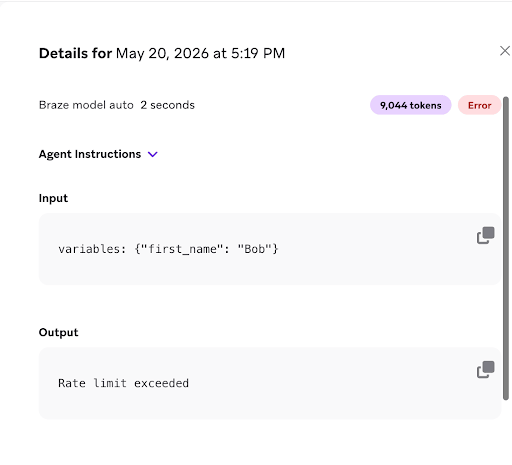
Si el proveedor de LLM devuelve un error de límite de velocidad durante una invocación de un agente de paso en Canvas o de un agente de catálogo, Braze reintenta continuamente la solicitud mediante retirada exponencial hasta que la llamada tiene éxito o Braze determina que no se puede completar.
Cuando se agotan los reintentos de Canvas o del catálogo, el panel de detalles de Registros muestra Error y el mensaje del proveedor (como Rate limit exceeded) en Salida. Los reintentos son visibles en los registros, incluida la primera invocación, independientemente de que acabe teniendo éxito o no. Para un usuario concreto, si hacen falta cuatro reintentos para conseguir finalmente un resultado correcto, puedes buscar el ID de usuario y ver las cinco invocaciones (la original más los cuatro reintentos) en Registros, y la original más los tres primeros reintentos mostrarán Error con Rate limit exceeded.
Los errores de límite de velocidad no consumen créditos de Braze, incluidos los reintentos fallidos que se muestran en Registros.
Redactar instrucciones
Las instrucciones son las reglas o directrices que le das al agente (prompt del sistema). Definen cómo debe comportarse el agente cada vez que se ejecuta. Las instrucciones del sistema pueden ocupar hasta 25 KB.
Si creaste tu agente con BrazeAI Operator a partir de una plantilla inicial, revisa las instrucciones precargadas y edítalas según sea necesario.
Estas son algunas prácticas recomendadas generales para empezar a escribir prompts:
- Empieza pensando en el resultado final. Indica primero el objetivo.
- Asigna al modelo un rol o personaje (“Eres un…”).
- Establece un contexto y unas restricciones claras (audiencia, longitud, tono, formato).
- Pide una estructura (“Devuelve JSON/una lista con viñetas/una tabla…”).
- Muestra, no te limites a contar. Incluye algunos ejemplos de alta calidad.
- Divide las tareas complejas en pasos ordenados (“Paso 1… Paso 2…”).
- Fomenta el razonamiento (“Piensa los pasos internamente y luego da una respuesta final concisa” o “explica brevemente tu decisión”).
- Prueba, inspecciona e itera. Pequeños ajustes pueden suponer grandes mejoras de calidad.
- Gestiona los casos extremos con reglas positivas y explícitas, y añade instrucciones de rechazo cuando sea necesario.
- Mide y documenta internamente lo que funciona para reutilizarlo y escalarlo.
Escribe instrucciones positivas y explícitas siempre que sea posible. Dile al agente qué tiene que hacer y expresa cualquier restricción en términos concretos. Si un agente ignora tus reglas, consulta ¿Por qué mi agente no siguió mis instrucciones o reglas?.
Ejemplos
Para ver configuraciones iniciales en la Consola de agentes, consulta Plantillas de agentes creadas con Operator.
Para ver ejemplos completos de instrucciones que puedes copiar o adaptar, consulta la biblioteca de casos de uso de Braze Agents.
| Ejemplo | Categoría | Tipo de agente | Qué hace |
|---|---|---|---|
| Redactar mensajes personalizados basados en el contexto de un usuario | Generación de contenido | Agente de paso en Canvas | Genera un asunto y un preencabezado de correo electrónico coordinados, junto con el título y el cuerpo de una notificación push, para usuarios que buscaron pero no reservaron. |
| Analizar los comentarios de los usuarios para determinar los siguientes pasos | Estandarización de datos | Agente de paso en Canvas | Clasifica el sentimiento y el tema de un cuestionario posterior al viaje y recomienda un siguiente paso de CRM. |
| Clasificar a los usuarios en contenedores de intereses a partir de atributos existentes | Agente de afinidad | Agente de paso en Canvas | Clasifica a los usuarios en contenedores de intereses a partir de atributos y señales de alta intención, y recomienda la mejor experiencia o artículo siguiente. |
| Dirigir a los usuarios a la ruta de Canvas más relevante según su comportamiento reciente | Agente de afinidad | Agente de paso en Canvas | Deduce la motivación a partir del comportamiento reciente y devuelve la mejor clave de ruta para el siguiente paso en Canvas del usuario. |
| Asignar a los usuarios categorías de intereses a partir de acciones de alta intención en tiempo real | Agente de afinidad | Agente de paso en Canvas | Asigna categorías de intereses a partir de acciones de alta intención y recomienda la mejor experiencia o artículo siguiente. |
| Clasificar los mensajes entrantes según la intención de cancelar la suscripción | Clasificación y enrutamiento | Agente de paso en Canvas | Devuelve un booleano estricto que indica si un mensaje es una solicitud de cancelación de suscripción. |
| Estandarizar los mensajes entrantes en datos estructurados para la automatización | Estandarización de datos | Agente de paso en Canvas | Normaliza los SMS o chats entrantes en intenciones, entidades e indicadores de cumplimiento estructurados para la automatización posterior. |
| Redactar descripciones de alta conversión alineadas con las directrices de marca | Generación de contenido | Agente de catálogo | Genera descripciones breves y fieles a la marca para cada fila del catálogo. |
| Proporcionar traducciones según el idioma usado en cada región | Enriquecimiento del catálogo | Agente de catálogo | Localiza cadenas de interfaz y de marketing según la configuración regional y el límite de caracteres. |
| Enriquecer los artículos del catálogo con descripciones, categorías y etiquetas | Enriquecimiento del catálogo | Agente de catálogo | Genera descripciones mejoradas, categorías y etiquetas a partir de los datos existentes de los artículos del catálogo. |
Uso de Liquid
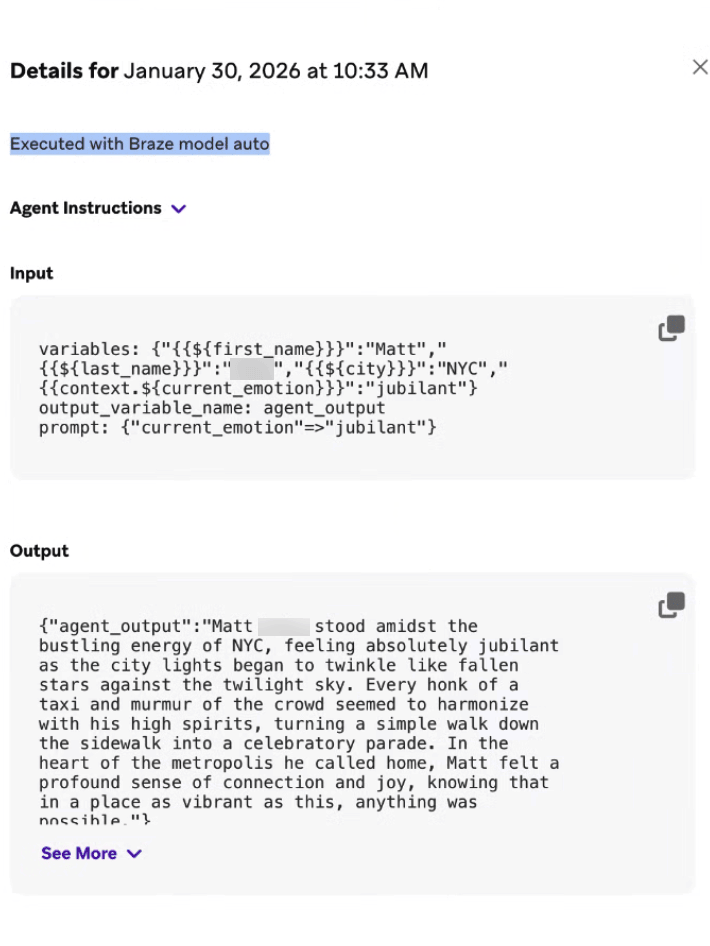
Incluir Liquid en las instrucciones de tu agente puede añadir una capa extra de personalización a su respuesta. Puedes especificar la variable de Liquid exacta que recibe el agente e incluirla en el contexto de tu prompt. Por ejemplo, en lugar de escribir explícitamente “nombre”, puedes usar el fragmento de código de Liquid {{${first_name}}}:
Tell a one-paragraph short story about this user, integrating their {{${first_name}}}, {{${last_name}}}, and {{${city}}}. Also integrate any context you receive about how they are currently thinking, feeling, or doing. For example, you may receive {{context.${current_emotion}}}, which is the user's current emotion. You should work that into the story.
En la sección Registros de la Consola de agentes, puedes revisar los detalles de la entrada y la salida del agente para entender qué valor se renderiza a partir de Liquid.
Qué datos reciben los agentes
El contexto del agente no es una memoria conversacional abierta. A diferencia de un asistente de chat, un agente solo ve los datos que le pasas explícitamente en el momento de invocarlo: no explora perfiles de usuario, no deduce campos que faltan ni te avisa cuando falta información necesaria.
Diseña cada agente como una canalización deliberada de entrada a salida. Conecta cada punto de datos que necesite el agente mediante uno o varios de los siguientes métodos:
- Liquid en las instrucciones: Usa plantillas con atributos de usuario (
{{${first_name}}}) y variables de contexto de Canvas ({{context.${variable_name}}}) directamente en el prompt del agente. - + Contexto del agente: Selecciona fuentes de conocimiento, la pertenencia a un Segment, las directrices de marca, Todo el contexto de Canvas o los datos de interacción del usuario en la Consola de agentes.
- Pasos de contexto: Establece o actualiza variables
context.*en una etapa anterior del Canvas, antes de que se ejecute un paso de agente. - Contexto adicional en el paso de agente: Pasa al agente en el momento del envío, desde la configuración del paso, cualquier valor adicional con plantilla de Liquid que no hayas especificado ya con los otros métodos.
Asegúrate de usar plantillas de Liquid para estas variables de contexto en las instrucciones del agente, de adjuntar los archivos de contexto que el agente debe consultar o de seleccionar Añadir todo el contexto de Canvas. Si un valor no se pasa por uno de estos canales, el agente no lo recibe. Enumera las entradas necesarias en tus instrucciones o en los requisitos previos del caso de uso, y verifica las entradas en Consola de agentes > Registros después de hacer pruebas.
Para los agentes de catálogo, usa Campos en la sección Salida en lugar de un esquema JSON; aun así, puedes escribir instrucciones que pidan al modelo una salida de pares clave-valor que coincida con esos nombres de campo.
Para obtener más información sobre las prácticas recomendadas para escribir prompts, consulta las guías de los siguientes proveedores de modelos:
Salidas
Si creaste tu agente con BrazeAI Operator a partir de una plantilla inicial, revisa el esquema de salida rellenado previamente y edítalo según sea necesario.
Esquemas básicos
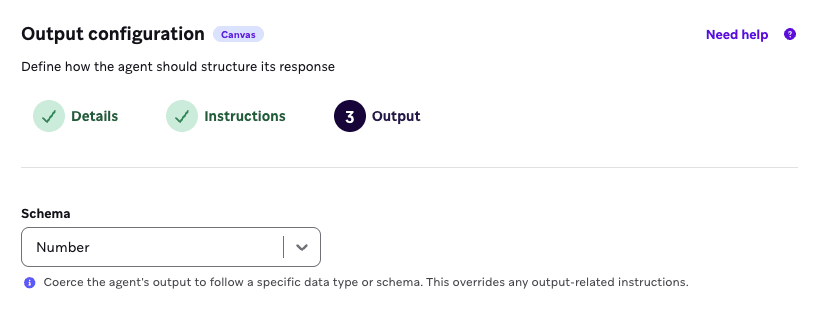
Los esquemas básicos son una salida sencilla que devuelve un agente. Puede ser una cadena, un número, un booleano, una matriz de cadenas o una matriz de números.
Por ejemplo, si quieres recopilar puntuaciones de sentimiento de los usuarios a partir de un cuestionario de opinión sencillo para saber lo satisfechos que están tus clientes después de recibir un producto, puedes seleccionar Número como esquema básico para estructurar el formato de salida.
Las matrices solo están disponibles para los agentes de paso en Canvas, no para los agentes de catálogo.
Esquemas avanzados
Las opciones de esquema avanzado incluyen estructurar campos manualmente o usar JSON.
- Campos: Una forma sin código de imponer una salida del agente que puedes usar de forma coherente.
- JSON: Un enfoque con código para crear un formato de salida preciso, en el que puedes anidar variables y objetos dentro del esquema JSON. Solo está disponible para los agentes de paso en Canvas, no para los agentes de catálogo.
Te recomendamos usar esquemas avanzados cuando quieras que el agente devuelva una estructura de datos con varios valores definidos de forma estructurada, en lugar de una salida de un solo valor. Así, la salida tiene un formato más adecuado como variable de contexto coherente.
Salida alternativa
Los valores alternativos solo están disponibles para los agentes de paso en Canvas. En la sección Salida de la Consola de agentes de un agente de paso en Canvas, puedes definir los valores que Braze usa cuando falla una invocación.
Para los esquemas JSON, Braze lee el esquema y genera un campo de entrada para cada propiedad, de modo que puedas establecer un valor alternativo por clave. Para los esquemas de Campos, introduces un valor alternativo para cada campo. Para los esquemas básicos, introduces un único valor alternativo. Los agentes de paso en Canvas admiten Liquid en los valores alternativos.
Para ver los pasos de configuración, consulta Configurar valores alternativos. Para conocer el comportamiento en tiempo de ejecución en Canvas, consulta Gestión de errores y comportamiento alternativo.
Por ejemplo, puedes usar un formato de salida en un agente pensado para crear un itinerario de viaje de muestra para un usuario a partir de un formulario que haya enviado. El formato de salida te permite definir que cada respuesta del agente devuelva valores para tripStartDate, tripEndDate y destination. Cada uno de estos valores puede extraerse de las variables de contexto y colocarse en un paso de mensaje para personalizarlo con Liquid.
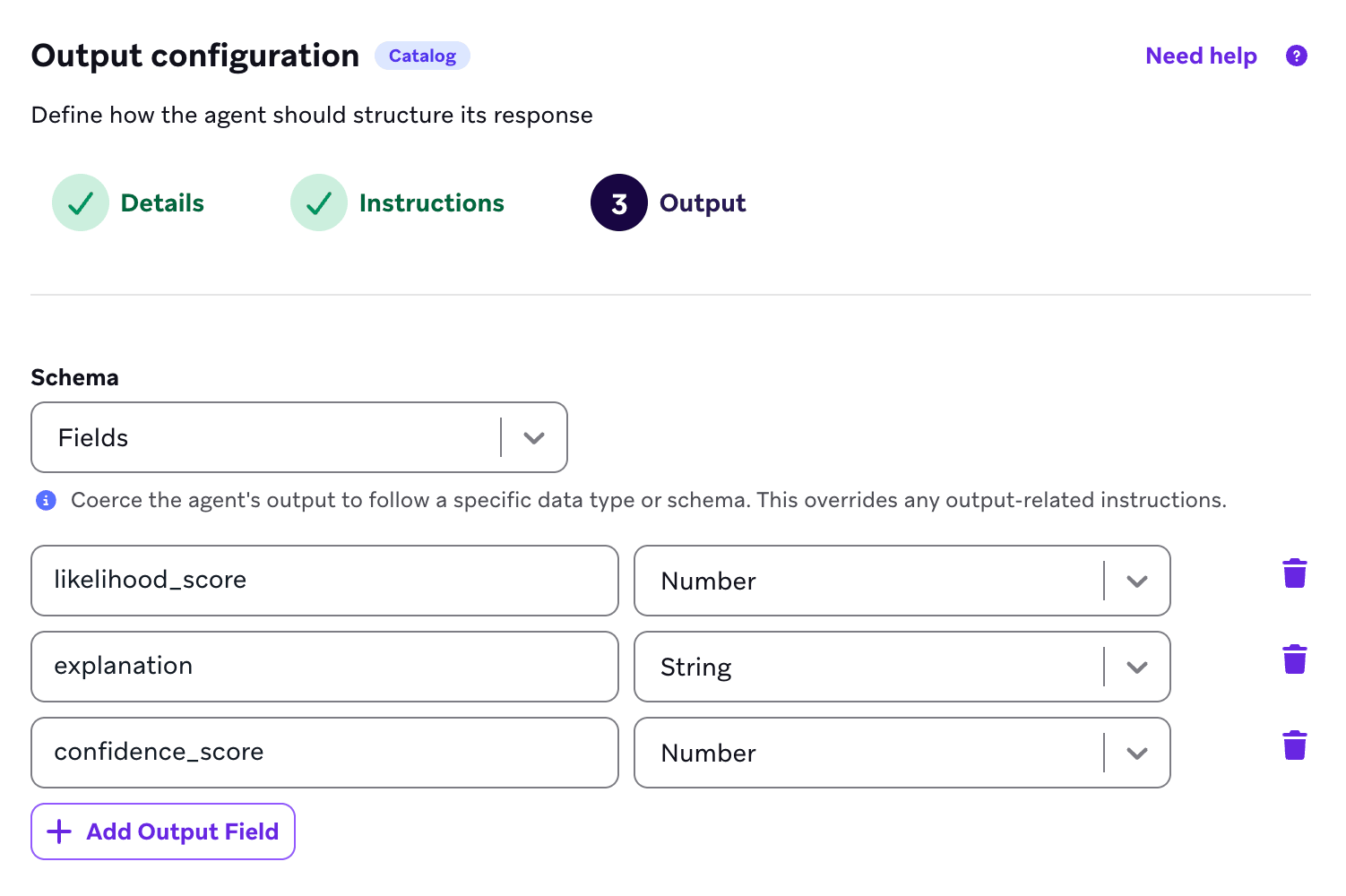
Si quieres dar formato a las respuestas de un cuestionario de opinión sencillo para saber qué probabilidad hay de que los encuestados recomienden el sabor de helado más nuevo de tu restaurante, puedes configurar los siguientes campos para estructurar el formato de salida:
| Nombre del campo | Valor |
|---|---|
| likelihood_score | Número |
| explanation | Cadena |
| confidence_score | Número |
Si quieres recopilar las opiniones de los usuarios sobre su experiencia más reciente en tu cadena de restaurantes, puedes seleccionar Esquema JSON como formato de salida e insertar el siguiente JSON para devolver un objeto de datos que incluya una variable de sentimiento y una variable de razonamiento.
{
"type": "object",
"properties": {
"sentiment": {
"type": "string"
},
"reasoning": {
"type": "string"
}
},
"required": [
"sentiment",
"reasoning"
]
}
Contexto de catálogo y campos
Para dar a un agente de paso en Canvas acceso a los datos de un catálogo, crea una fuente de conocimiento a partir del catálogo y añádela como + Agent context. El agente consulta la fuente de conocimiento para recuperar las filas coincidentes y envía solo los datos relevantes del catálogo al LLM, lo que minimiza el uso de tokens y mejora la precisión de la recuperación. No puedes adjuntar el catálogo directamente como contexto del agente. Los agentes configurados con la opción heredada Add catalog fields antes de que existieran las fuentes de conocimiento pueden seguir usando ese contexto hasta que los migres.
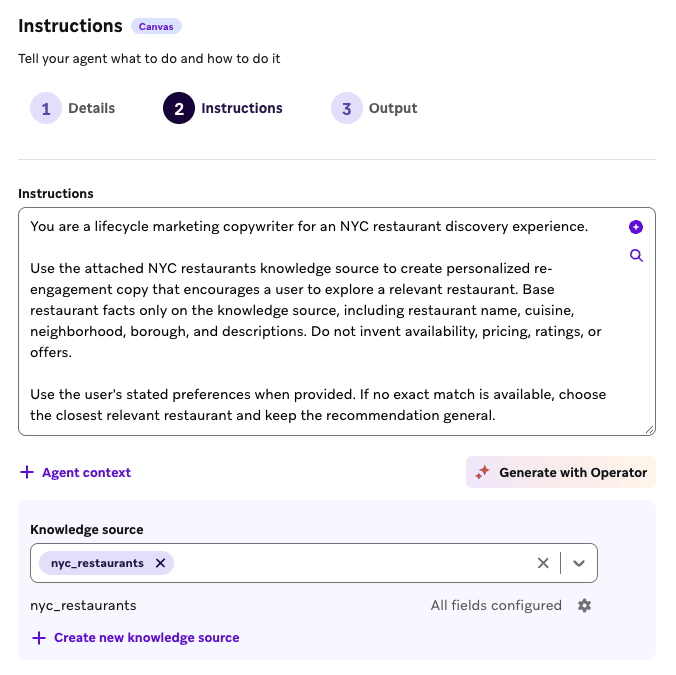
Cuando despliegas un agente de catálogo en un campo de catálogo, habilita el control de entrada obligatoria y elige qué columnas seleccionadas deben tener valor antes de que se invoque el agente. El agente omite una fila solo cuando una de esas columnas obligatorias está vacía o no existe; por ejemplo, un campo gender que aún no se ha rellenado. Las columnas seleccionadas son obligatorias de forma predeterminada, pero puedes quitar las columnas que puedan estar vacías para que no bloqueen la ejecución. Así evitas desperdiciar tokens en datos incompletos.
Los agentes de catálogo también respetan el orden de las columnas cuando los campos de entrada dependen unos de otros. Si la columna D debe generarse a partir de las columnas B y C, el agente no se ejecuta en la columna D hasta que B y C tengan valores para esa fila.
Para ver escenarios de despliegue y ejemplos, consulta Usar agentes de catálogo y Prácticas recomendadas para agentes de catálogo.
Contexto de pertenencia a Segment
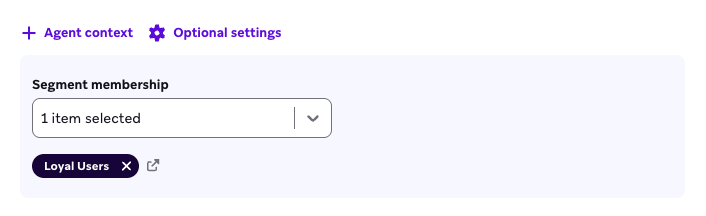
Puedes seleccionar hasta cinco segmentos con los que el agente compare la pertenencia de cada usuario cuando el agente se utiliza en un Canvas. Supongamos que tu agente tiene seleccionada la pertenencia al segmento “Loyalty Users” y que el agente se utiliza en un Canvas. Cuando los usuarios entran en un paso de agente, el agente puede comprobar si cada usuario es miembro de cada segmento que especificaste en la consola del agente, y utilizar la pertenencia (o no pertenencia) de cada usuario como contexto para el LLM.
Directrices de marca
Puedes seleccionar directrices de marca para que tu agente las siga en sus respuestas. Por ejemplo, si quieres que tu agente genere textos de SMS para animar a los usuarios a suscribirse a un gimnasio, puedes usar este campo para hacer referencia a tu directriz predefinida de tono audaz y motivador.
Archivos de contexto
Sube documentos de referencia para que un agente pueda consultar material estático en cada invocación; por ejemplo, una guía de tono, un documento de políticas o una especificación de producto. Los archivos de contexto están disponibles para agentes de paso en Canvas y agentes de catálogo.
Para adjuntar archivos:
- En el paso Instructions, selecciona + Agent context > Upload files.
- Añade uno o más archivos. Los tipos compatibles son PDF, TXT, MD y CSV.
- Guarda el agente. Los archivos se suben cuando guardas. Permanecen preparados en el navegador y se incluyen cuando previsualizas el agente.
Puedes adjuntar hasta 10 archivos por agente. Todos los archivos adjuntos juntos pueden sumar hasta 15 MB. Cuando adjuntes archivos de contexto, indica al agente en tus instrucciones cómo utilizarlos. Por ejemplo, puedes incluir: “Sigue el tono y la terminología de la guía de estilo adjunta.” Una sección Files vacía cuenta para la advertencia de needs setup hasta que adjuntes al menos un archivo.
Braze envía los archivos adjuntos con cada invocación del agente, incluidas las vistas previas de la consola del agente. Dado que los archivos se incluyen en cada ejecución, los archivos adjuntos de mayor tamaño pueden aumentar el uso de tokens y la latencia.
Los archivos de contexto difieren de las directrices de marca: las directrices de marca son configuraciones de espacio de trabajo sintetizadas, mientras que los archivos de contexto son documentos que subes directamente a un solo agente. Para los pasos de configuración, consulta Añadir contexto.
Historial de interacción específico del usuario
Los datos de interacción de un usuario incluyen las Campaign y los mensajes de Canvas recibidos recientemente por canal, el contenido de cada mensaje y si el usuario interactuó con cada mensaje. Puedes incluir esto como contexto específico del usuario para que un agente lo consulte cuando se invoca para un usuario en Canvas. El historial de interacción específico del usuario puede ayudar a influir en un agente para que redacte textos que conecten con cada usuario cuando su tarea es escribir textos de mensajes personalizados.
Historial de versiones
La Consola de Agente registra una nueva versión cada vez que guardas cambios en el agente. La pestaña Historial de versiones enumera cada versión guardada y las ediciones entre guardados.
- Abre el agente en la Consola de Agente.
- Selecciona la pestaña Historial de versiones.
- Selecciona una versión para revisar su configuración.
Para inspeccionar qué cambió en una versión, selecciona Ver. Braze muestra una diferencia en línea de estilo código que resalta las adiciones y eliminaciones. El contenido eliminado aparece con estilo de tachado en rojo. Cuando añades o eliminas archivos de contexto, la diferencia muestra los nombres de los archivos adjuntos.
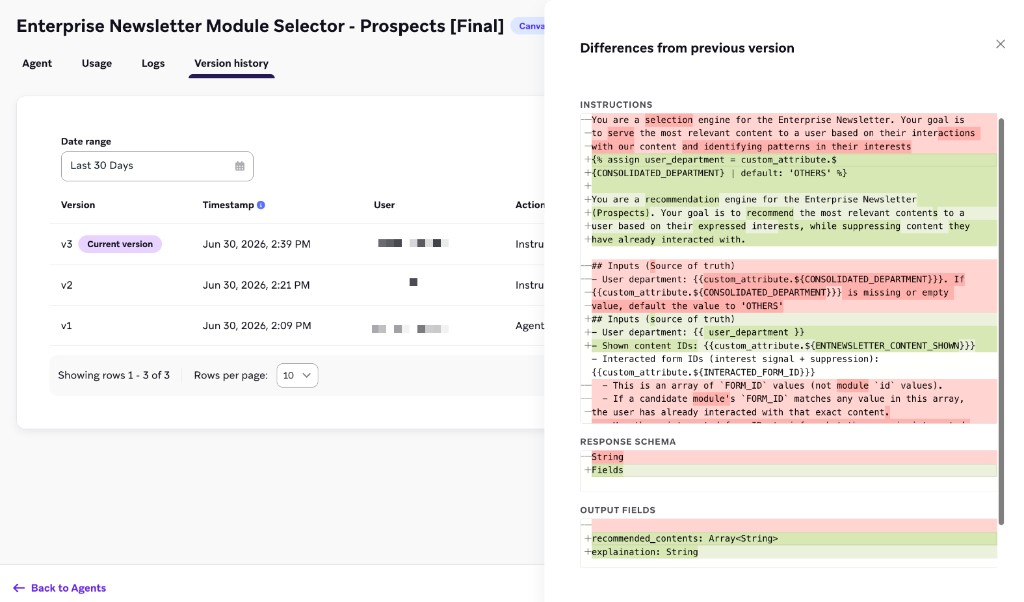
Si necesitas restaurar instrucciones de una versión anterior, abre Ver para esa versión, copia el texto de las instrucciones y pégalo en tu campo Instrucciones actual.

En la vista de diferencias en línea, presiona ⌘ + A (macOS) o Ctrl + A (Windows) para seleccionar todas las instrucciones sin el marcado de eliminación en rojo, de modo que puedas copiar y restaurar el texto limpio.
Duplicar agentes
Duplica un agente para probar mejoras o iteraciones en paralelo con el original. Usa el historial de versiones para revisar o restaurar configuraciones anteriores. Para duplicar un agente:
- Pasa el cursor por encima de la fila del agente y selecciona el menú .
- Selecciona Duplicar.
Archivar agentes
A medida que creas más agentes personalizados, puedes organizar la página Gestión de agentes archivando los agentes que no se estén utilizando activamente. Para archivar un agente:
- Pasa el cursor por encima de la fila del agente y selecciona el menú .
- Selecciona Archivar.