Criar Feature Flags
As Feature Flags permitem ativar ou desativar remotamente a funcionalidade para uma seleção de usuários. Crie uma nova Feature Flag no dashboard da Braze. Forneça um nome e um
ID, um público-alvo e uma porcentagem de usuários para os quais ativar esse recurso. Em seguida, usando o mesmoIDno código do seu app ou site, você pode executar condicionalmente determinadas partes da sua lógica de negócios. Para saber mais sobre as Feature Flags e como você pode usá-las na Braze, consulte Sobre as Feature Flags.
Pré-requisitos
Versão do SDK
Para usar Feature Flags, certifique-se de que seus SDKs estão atualizados com pelo menos estas versões mínimas:
Permissões da Braze
Para gerenciar Feature Flags no dashboard, você precisa ser administrador ou ter as seguintes permissões:
| Permissão | O que você pode fazer |
|---|---|
| Manage Feature Flags | Visualizar, criar e editar Feature Flags. |
| Access Campaigns, Canvases, Cards, Feature Flags, Segments, Media Library | Visualizar a lista de Feature Flags disponíveis. |
Criando um Feature Flag
Etapa 1: Criar um novo Feature Flag
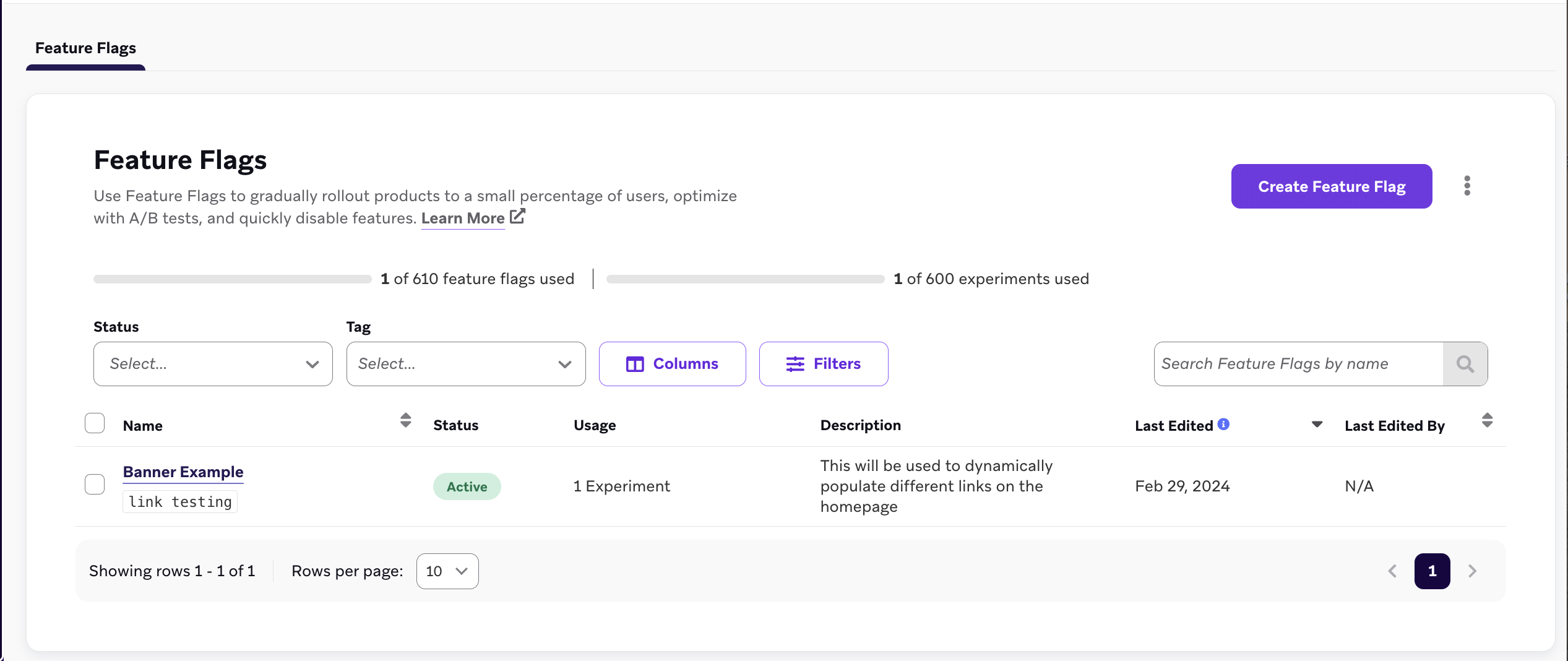
Acesse Messaging > Feature Flags e selecione Create Feature Flag.
Etapa 2: Preencher os detalhes
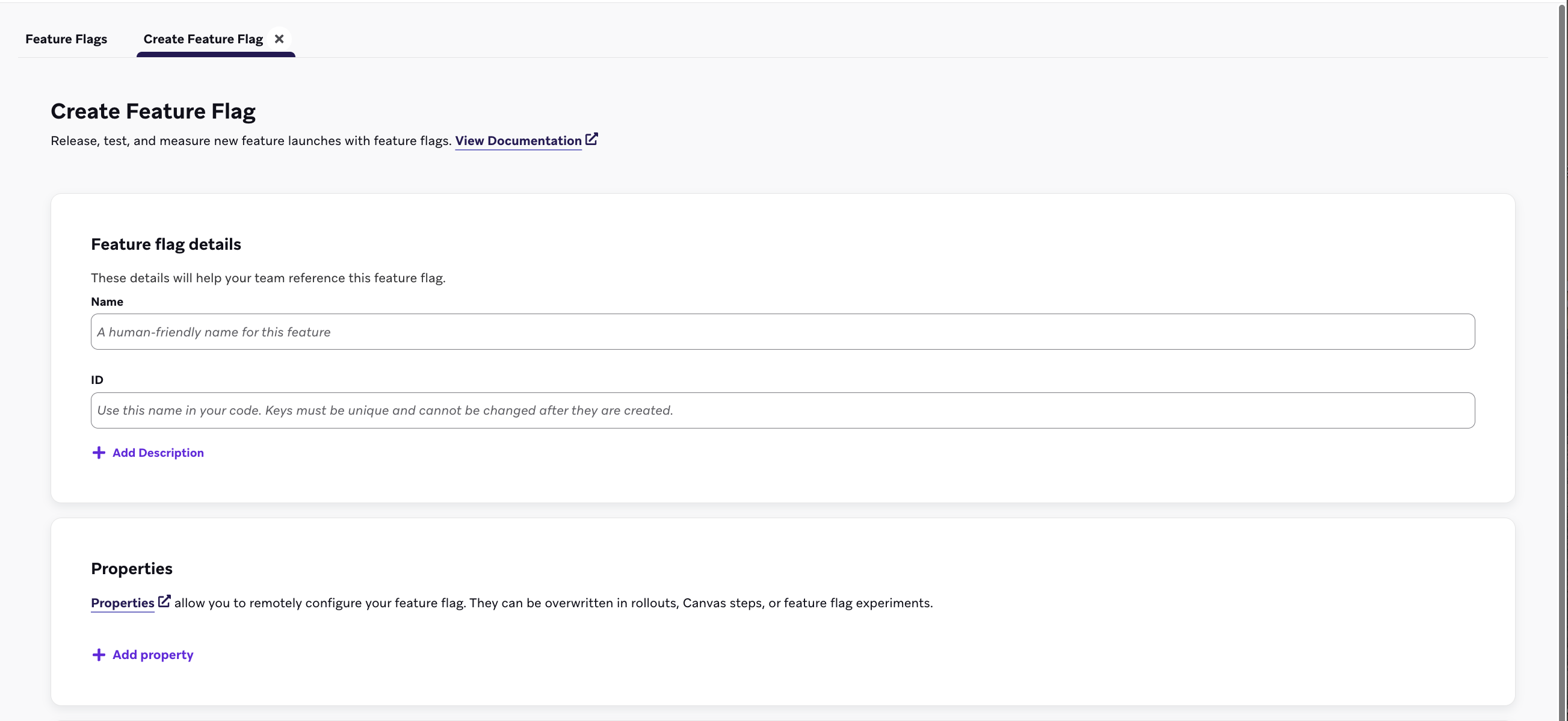
Em Feature flag details, insira um nome, ID e descrição para o seu Feature Flag.
| Campo | Descrição |
|---|---|
| Nome | Um título legível para seus profissionais de marketing e administradores. |
| ID | O ID exclusivo que você usará no seu código para verificar se esse recurso está ativado para um usuário. Esse ID não pode ser alterado posteriormente, então revise as práticas recomendadas de nomenclatura de ID antes de continuar. |
| Descrição | Uma descrição opcional que fornece contexto sobre o seu Feature Flag. |
| Propriedades | Propriedades opcionais que configuram remotamente o seu Feature Flag. Elas podem ser substituídas em etapas do Canvas ou experimentos de Feature Flag. |
Etapa 2a: Criar propriedades personalizadas
Em Properties, você pode opcionalmente criar propriedades personalizadas que seu app pode acessar por meio do SDK da Braze quando o recurso está ativado. Você pode atribuir um valor de string, booleano, imagem, timestamp, JSON ou número a cada variável, além de definir um valor padrão.
No exemplo a seguir, o Feature Flag exibe um banner de produto fora de estoque para uma loja de eCommerce usando as propriedades personalizadas listadas:
| Nome da propriedade | Tipo | Valor |
|---|---|---|
banner_height |
number |
75 |
banner_color |
string |
blue |
banner_text |
string |
Widgets are out of stock until July 1. |
dismissible |
boolean |
false |
homepage_icon |
image |
http://s3.amazonaws.com/[bucket_name]/ |
account_start |
timestamp |
2011-01-01T12:00:00Z |
footer_settings |
JSON |
{ "colors": [ "red", "blue", "green" ], "placement": 123 } |

Não há limite para o número de propriedades que você pode adicionar. No entanto, as propriedades de um Feature Flag são limitadas a um total de 10.000 caracteres.
Etapa 4: Escolher os Segments a segmentar
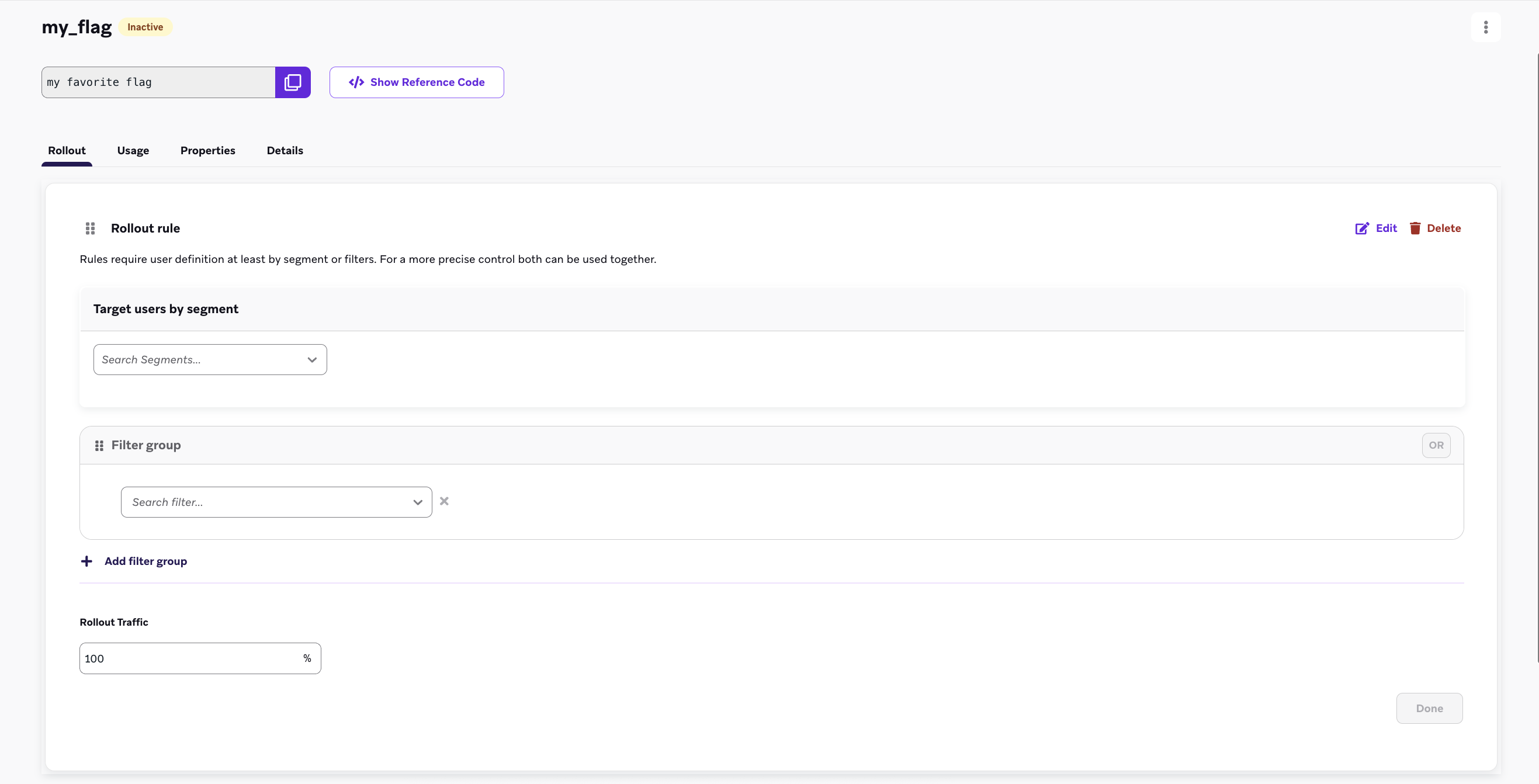
Antes de lançar um Feature Flag, você precisa escolher um Segment de usuários para segmentar. Selecione Add Rule no flag recém-criado e use os menus suspensos de grupo de filtros e Segment para filtrar usuários do seu público-alvo. Adicione múltiplos filtros para refinar ainda mais o seu público.
Etapa 5: Definir o tráfego de lançamento
Por padrão, os Feature Flags são sempre inativos, o que permite separar a data de lançamento do recurso da ativação total de usuários. Para iniciar o lançamento, use a seção Rollout Traffic para inserir uma porcentagem na caixa de texto. Isso escolherá a porcentagem de usuários aleatórios no Segment selecionado para receber esse novo recurso.

Não defina o tráfego de lançamento acima de 0% até que o seu novo recurso esteja pronto para entrar em operação. Ao definir inicialmente o Feature Flag no dashboard, deixe essa configuração em 0%.
Para lançar um flag com apenas uma regra ou para um público único, adicione sua primeira regra com critérios de segmentação e porcentagens de lançamento selecionados. Por fim, confirme que a regra Everyone Else está desativada e salve o flag.
Lançamentos de Feature Flag com múltiplas regras
Use lançamentos de Feature Flag com múltiplas regras para definir uma sequência de regras de avaliação de usuários, o que permite segmentação precisa e lançamentos controlados de recursos. Esse método é ideal para disponibilizar o mesmo recurso para públicos diversos.
Ordem de avaliação
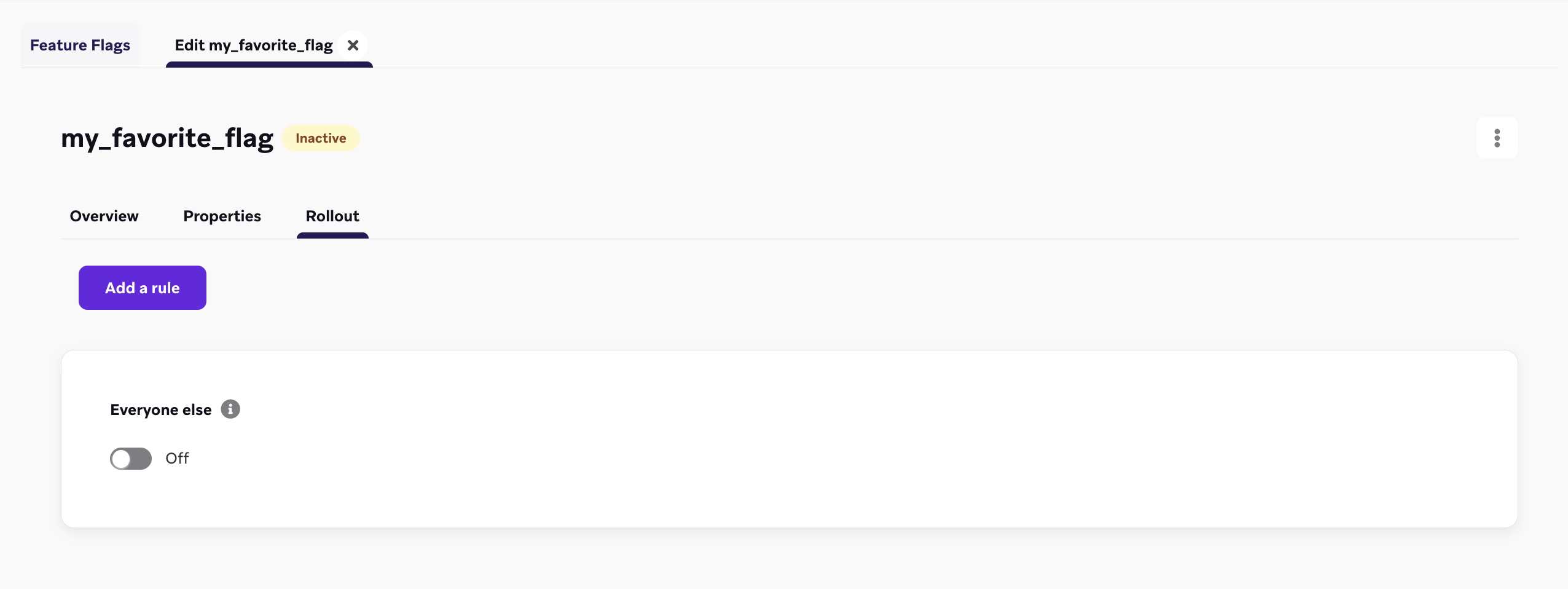
As regras de Feature Flag são avaliadas de cima para baixo, na ordem em que estão listadas. O usuário se qualifica para a primeira regra que atender. Se um usuário não atender a nenhuma regra, sua elegibilidade é determinada pela regra padrão “Everyone Else”.
Qualificação do usuário
- Se um usuário atender aos critérios da primeira regra, ele será imediatamente elegível para receber o Feature Flag.
- Se um usuário não se qualificar para a primeira regra, ele será avaliado pela segunda regra, e assim por diante.
A avaliação sequencial continua até que o usuário se qualifique para uma regra ou alcance a regra “Everyone Else” no final da lista.
Regra “Everyone Else”
A regra “Everyone Else” funciona como padrão. Se um usuário não se qualificar para nenhuma das regras anteriores, sua elegibilidade para o Feature Flag será determinada pela configuração de alternância da regra “Everyone Else”. Por exemplo, se a regra “Everyone Else” estiver com a alternância em “Off”, no estado padrão, um usuário que não atender aos critérios de nenhuma outra regra não receberá o Feature Flag ao iniciar sua sessão.
Reordenando regras
Por padrão, as regras são ordenadas na sequência em que foram criadas, mas você pode reordená-las arrastando e soltando no dashboard.
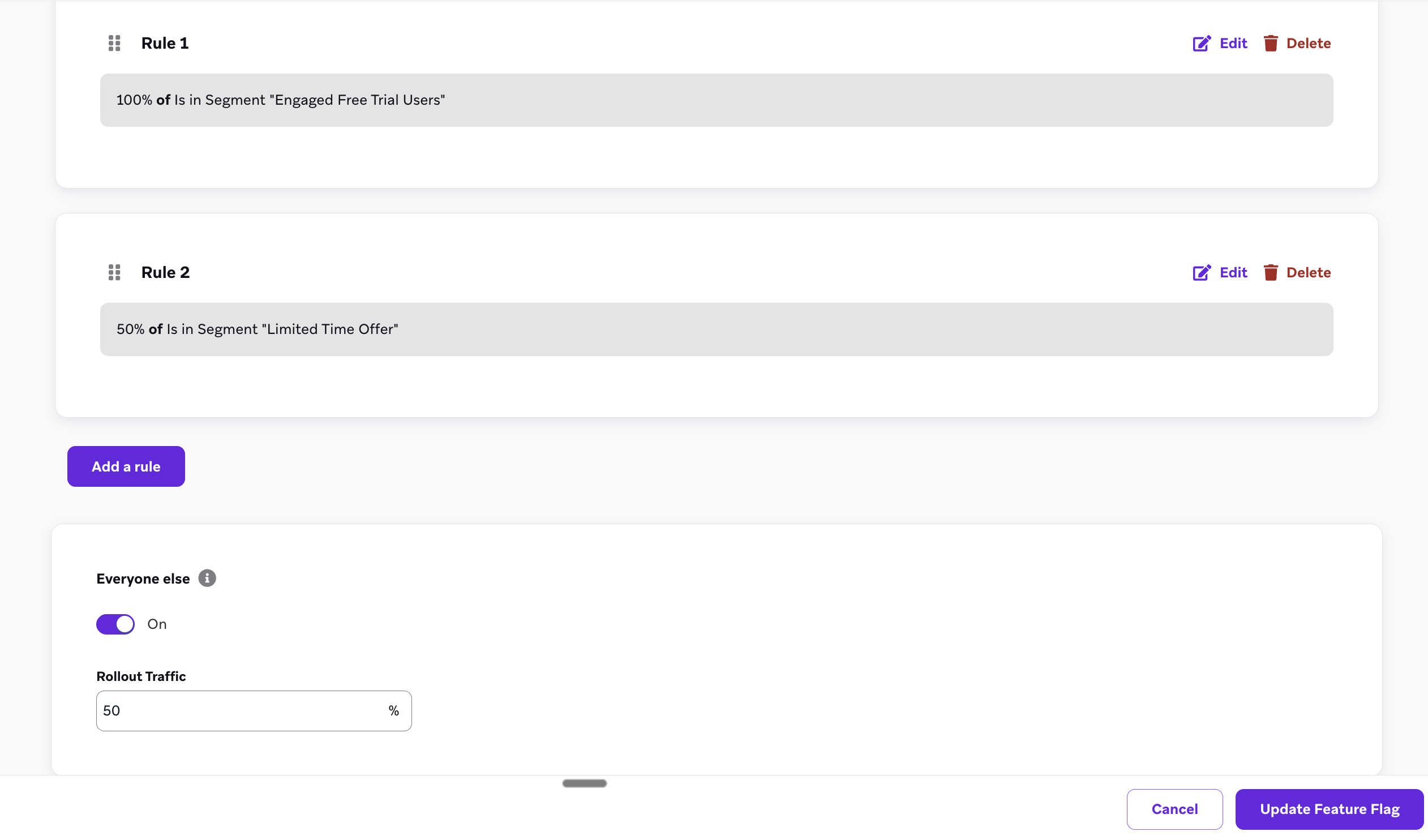
Casos de uso de Feature Flag com múltiplas regras
Lançar gradualmente uma página de checkout
Digamos que você trabalhe para uma marca de e-commerce e tenha uma nova página de checkout que deseja lançar em diferentes regiões geográficas para garantir estabilidade. Usando Feature Flags com múltiplas regras, você pode configurar o seguinte:
- Regra 1: Seu Segment de usuários dos EUA está definido como 100%.
- Regra 2: Seu Segment está definido como 50% dos seus usuários brasileiros, então nem todos recebem o fluxo ao mesmo tempo.
- Regra 3 (Everyone Else): Para todos os outros usuários, ative a regra “Everyone Else” e defina como 15%, para que uma parcela de todos os usuários possa fazer o checkout com o novo fluxo.
Alcançar testadores internos primeiro
Digamos que você seja um gerente de produto e queira garantir que seus testadores internos sempre recebam o Feature Flag quando você lançar um novo produto. Você pode adicionar o Segment de testadores internos à sua primeira regra e defini-lo como 100%, para que seus testadores internos sejam elegíveis em todo lançamento de recurso.
Usando o campo “enabled” para suas Feature Flags
Depois de definir sua Feature Flag, configure seu app ou site para verificar se ela está ativada para um usuário específico. Quando estiver ativada, você definirá alguma ação ou fará referência às propriedades variáveis da Feature Flag com base no seu caso de uso. O SDK da Braze fornece métodos getter para obter o status da Feature Flag e suas propriedades em seu app.
As Feature Flags são atualizadas automaticamente no início da sessão para que você possa exibir a versão mais atualizada do seu recurso no lançamento. O SDK armazena esses valores em cache para que possam ser usados off-line.

Digamos que você esteja implementando um novo tipo de perfil de usuário para o seu app. Você pode definir o ID como expanded_user_profile. Em seguida, o app verificaria se deve exibir esse novo perfil de usuário para um usuário específico. Por exemplo:
const featureFlag = braze.getFeatureFlag("expanded_user_profile");
if (featureFlag?.enabled) {
console.log(`expanded_user_profile is enabled`);
} else {
console.log(`expanded_user_profile is not enabled`);
}
let featureFlag = braze.featureFlags.featureFlag(id: "expanded_user_profile")
if featureFlag?.enabled == true {
print("expanded_user_profile is enabled")
} else {
print("expanded_user_profile is not enabled")
}
FeatureFlag featureFlag = braze.getFeatureFlag("expanded_user_profile");
if (featureFlag != null && featureFlag.getEnabled()) {
Log.i(TAG, "expanded_user_profile is enabled");
} else {
Log.i(TAG, "expanded_user_profile is not enabled");
}
val featureFlag = braze.getFeatureFlag("expanded_user_profile")
if (featureFlag?.enabled == true) {
Log.i(TAG, "expanded_user_profile is enabled.")
} else {
Log.i(TAG, "expanded_user_profile is not enabled.")
}
const featureFlag = await Braze.getFeatureFlag("expanded_user_profile");
if (featureFlag?.enabled) {
console.log(`expanded_user_profile is enabled`);
} else {
console.log(`expanded_user_profile is not enabled`);
}
var featureFlag = Appboy.AppboyBinding.GetFeatureFlag("expanded_user_profile");
if (featureFlag != null && featureFlag.Enabled) {
Console.WriteLine("expanded_user_profile is enabled");
} else {
Console.WriteLine("expanded_user_profile is not enabled");
}
const featureFlag = await BrazePlugin.getFeatureFlag("expanded_user_profile");
if (featureFlag?.enabled) {
console.log(`expanded_user_profile is enabled`);
} else {
console.log(`expanded_user_profile is not enabled`);
}
BrazeFeatureFlag? featureFlag = await braze.getFeatureFlagByID("expanded_user_profile");
if (featureFlag?.enabled == true) {
print("expanded_user_profile is enabled");
} else {
print("expanded_user_profile is not enabled");
}
featureFlag = m.braze.getFeatureFlag("expanded_user_profile")
if featureFlag <> invalid and featureFlag.enabled
print "expanded_user_profile is enabled"
else
print "expanded_user_profile is not enabled"
end if
Registro da impressão de uma Feature Flag
Rastreie a impressão de uma Feature Flag sempre que um usuário tiver a oportunidade de interagir com seu novo recurso ou quando ele poderia ter interagido se o recurso estivesse desativado (no caso de um grupo de controle em um teste A/B). As impressões de Feature Flags são registradas apenas uma vez por sessão.
Normalmente, você pode colocar essa linha de código diretamente abaixo de onde faz referência à Feature Flag em seu app:
braze.logFeatureFlagImpression("expanded_user_profile");
braze.featureFlags.logFeatureFlagImpression(id: "expanded_user_profile")
braze.logFeatureFlagImpression("expanded_user_profile");
braze.logFeatureFlagImpression("expanded_user_profile")
Braze.logFeatureFlagImpression("expanded_user_profile");
Appboy.AppboyBinding.LogFeatureFlagImpression("expanded_user_profile");
BrazePlugin.logFeatureFlagImpression("expanded_user_profile");
braze.logFeatureFlagImpression("expanded_user_profile");
m.Braze.logFeatureFlagImpression("expanded_user_profile");
Acesso a propriedades
Para acessar as propriedades de uma Feature Flag, use um dos seguintes métodos, dependendo do tipo que você definiu no dashboard.
Se não houver tal propriedade do tipo correspondente para a chave que você forneceu, esses métodos retornarão null.
// Returns the Feature Flag instance
const featureFlag = braze.getFeatureFlag("expanded_user_profile");
// Returns the String property
const stringProperty = featureFlag.getStringProperty("color");
// Returns the boolean property
const booleanProperty = featureFlag.getBooleanProperty("expanded");
// Returns the number property
const numberProperty = featureFlag.getNumberProperty("height");
// Returns the Unix UTC millisecond timestamp property as a number
const timestampProperty = featureFlag.getTimestampProperty("account_start");
// Returns the image property as a String of the image URL
const imageProperty = featureFlag.getImageProperty("homepage_icon");
// Returns the JSON object property as a FeatureFlagJsonPropertyValue
const jsonProperty = featureFlag.getJsonProperty("footer_settings");
// Returns the Feature Flag instance
let featureFlag: FeatureFlag = braze.featureFlags.featureFlag(id: "expanded_user_profile")
// Returns the string property
let stringProperty: String? = featureFlag.stringProperty(key: "color")
// Returns the boolean property
let booleanProperty: Bool? = featureFlag.boolProperty(key: "expanded")
// Returns the number property as a double
let numberProperty: Double? = featureFlag.numberProperty(key: "height")
// Returns the Unix UTC millisecond timestamp property as an integer
let timestampProperty: Int? = featureFlag.timestampProperty(key: "account_start")
// Returns the image property as a String of the image URL
let imageProperty: String? = featureFlag.imageProperty(key: "homepage_icon")
// Returns the JSON object property as a [String: Any] dictionary
let jsonObjectProperty: [String: Any]? = featureFlag.jsonObjectProperty(key: "footer_settings")
// Returns the Feature Flag instance
FeatureFlag featureFlag = braze.getFeatureFlag("expanded_user_profile");
// Returns the String property
String stringProperty = featureFlag.getStringProperty("color");
// Returns the boolean property
Boolean booleanProperty = featureFlag.getBooleanProperty("expanded");
// Returns the number property
Number numberProperty = featureFlag.getNumberProperty("height");
// Returns the Unix UTC millisecond timestamp property as a long
Long timestampProperty = featureFlag.getTimestampProperty("account_start");
// Returns the image property as a String of the image URL
String imageProperty = featureFlag.getImageProperty("homepage_icon");
// Returns the JSON object property as a JSONObject
JSONObject jsonObjectProperty = featureFlag.getJSONProperty("footer_settings");
// Returns the Feature Flag instance
val featureFlag = braze.getFeatureFlag("expanded_user_profile")
// Returns the String property
val stringProperty: String? = featureFlag.getStringProperty("color")
// Returns the boolean property
val booleanProperty: Boolean? = featureFlag.getBooleanProperty("expanded")
// Returns the number property
val numberProperty: Number? = featureFlag.getNumberProperty("height")
// Returns the Unix UTC millisecond timestamp property as a long
val timestampProperty: Long? = featureFlag.getTimestampProperty("account_start")
// Returns the image property as a String of the image URL
val imageProperty: String? = featureFlag.getImageProperty("homepage_icon")
// Returns the JSON object property as a JSONObject
val jsonObjectProperty: JSONObject? = featureFlag.getJSONProperty("footer_settings")
// Returns the String property
const stringProperty = await Braze.getFeatureFlagStringProperty("expanded_user_profile", "color");
// Returns the boolean property
const booleanProperty = await Braze.getFeatureFlagBooleanProperty("expanded_user_profile", "expanded");
// Returns the number property
const numberProperty = await Braze.getFeatureFlagNumberProperty("expanded_user_profile", "height");
// Returns the Unix UTC millisecond timestamp property as a number
const timestampProperty = await Braze.getFeatureFlagTimestampProperty("expanded_user_profile", "account_start");
// Returns the image property as a String of the image URL
const imageProperty = await Braze.getFeatureFlagImageProperty("expanded_user_profile", "homepage_icon");
// Returns the JSON object property as an object
const jsonObjectProperty = await Braze.getFeatureFlagJSONProperty("expanded_user_profile", "footer_settings");
// Returns the Feature Flag instance
var featureFlag = Appboy.AppboyBinding.GetFeatureFlag("expanded_user_profile");
// Returns the String property
var stringProperty = featureFlag.GetStringProperty("color");
// Returns the boolean property
var booleanProperty = featureFlag.GetBooleanProperty("expanded");
// Returns the number property as an integer
var integerProperty = featureFlag.GetIntegerProperty("height");
// Returns the number property as a double
var doubleProperty = featureFlag.GetDoubleProperty("height");
// Returns the Unix UTC millisecond timestamp property as a long
var timestampProperty = featureFlag.GetTimestampProperty("account_start");
// Returns the image property as a String of the image URL
var imageProperty = featureFlag.GetImageProperty("homepage_icon");
// Returns the JSON object property as a JSONObject
var jsonObjectProperty = featureFlag.GetJSONProperty("footer_settings");
// Returns the String property
const stringProperty = await BrazePlugin.getFeatureFlagStringProperty("expanded_user_profile", "color");
// Returns the boolean property
const booleanProperty = await BrazePlugin.getFeatureFlagBooleanProperty("expanded_user_profile", "expanded");
// Returns the number property
const numberProperty = await BrazePlugin.getFeatureFlagNumberProperty("expanded_user_profile", "height");
// Returns the Unix UTC millisecond timestamp property as a number
const timestampProperty = await BrazePlugin.getFeatureFlagTimestampProperty("expanded_user_profile", "account_start");
// Returns the image property as a String of the image URL
const imageProperty = await BrazePlugin.getFeatureFlagImageProperty("expanded_user_profile", "homepage_icon");
// Returns the JSON object property as an object
const jsonObjectProperty = await BrazePlugin.getFeatureFlagJSONProperty("expanded_user_profile", "footer_settings");
// Returns the Feature Flag instance
BrazeFeatureFlag featureFlag = await braze.getFeatureFlagByID("expanded_user_profile");
// Returns the String property
var stringProperty = featureFlag.getStringProperty("color");
// Returns the boolean property
var booleanProperty = featureFlag.getBooleanProperty("expanded");
// Returns the number property
var numberProperty = featureFlag.getNumberProperty("height");
// Returns the Unix UTC millisecond timestamp property as an integer
var timestampProperty = featureFlag.getTimestampProperty("account_start");
// Returns the image property as a String of the image URL
var imageProperty = featureFlag.getImageProperty("homepage_icon");
// Returns the JSON object property as a Map<String, dynamic> collection
var jsonObjectProperty = featureFlag.getJSONProperty("footer_settings");
' Returns the String property
color = featureFlag.getStringProperty("color")
' Returns the boolean property
expanded = featureFlag.getBooleanProperty("expanded")
' Returns the number property
height = featureFlag.getNumberProperty("height")
' Returns the Unix UTC millisecond timestamp property
account_start = featureFlag.getTimestampProperty("account_start")
' Returns the image property as a String of the image URL
homepage_icon = featureFlag.getImageProperty("homepage_icon")
' Returns the JSON object property
footer_settings = featureFlag.getJSONProperty("footer_settings")
Obter uma lista de todas as Feature Flags
const features = getAllFeatureFlags();
for(const feature of features) {
console.log(`Feature: ${feature.id}`, feature.enabled);
}
let features = braze.featureFlags.featureFlags
for let feature in features {
print("Feature: \(feature.id)", feature.enabled)
}
List<FeatureFlag> features = braze.getAllFeatureFlags();
for (FeatureFlag feature: features) {
Log.i(TAG, "Feature: ", feature.getId(), feature.getEnabled());
}
val featureFlags = braze.getAllFeatureFlags()
featureFlags.forEach { feature ->
Log.i(TAG, "Feature: ${feature.id} ${feature.enabled}")
}
const features = await Braze.getAllFeatureFlags();
for(const feature of features) {
console.log(`Feature: ${feature.id}`, feature.enabled);
}
List<FeatureFlag> features = Appboy.AppboyBinding.GetAllFeatureFlags();
foreach (FeatureFlag feature in features) {
Console.WriteLine("Feature: {0} - enabled: {1}", feature.ID, feature.Enabled);
}
const features = await BrazePlugin.getAllFeatureFlags();
for(const feature of features) {
console.log(`Feature: ${feature.id}`, feature.enabled);
}
List<BrazeFeatureFlag> featureFlags = await braze.getAllFeatureFlags();
featureFlags.forEach((feature) {
print("Feature: ${feature.id} ${feature.enabled}");
});
features = m.braze.getAllFeatureFlags()
for each feature in features
print "Feature: " + feature.id + " enabled: " + feature.enabled.toStr()
end for
Atualizar as Feature Flags
É possível atualizar as Feature Flags do usuário atual no meio da sessão para obter os valores mais recentes da Braze.
A atualização ocorre automaticamente no início da sessão. A atualização só é necessária antes de ações importantes do usuário, como antes de carregar uma página de checkout, ou se você souber que uma Feature Flag será referenciada.
braze.refreshFeatureFlags(() => {
console.log(`Feature flags have been refreshed.`);
}, () => {
console.log(`Failed to refresh feature flags.`);
});
braze.featureFlags.requestRefresh { result in
switch result {
case .success(let features):
print("Feature flags have been refreshed:", features)
case .failure(let error):
print("Failed to refresh feature flags:", error)
}
}
braze.refreshFeatureFlags();
braze.refreshFeatureFlags()
Braze.refreshFeatureFlags();
Appboy.AppboyBinding.RefreshFeatureFlags();
BrazePlugin.refreshFeatureFlags();
braze.refreshFeatureFlags();
m.Braze.refreshFeatureFlags()
Ouvindo as mudanças
Você pode configurar o SDK da Braze para ouvir e atualizar seu app quando o SDK atualizar qualquer Feature Flag.
Isso é útil se você quiser atualizar seu app quando um usuário não for mais elegível para um recurso. Por exemplo, definir algum estado em seu app com base no fato de um recurso estar ou não ativado ou em um de seus valores de propriedade.
Use subscribeToFeatureFlagsEvents para ouvir eventos de Feature Flags. O SDK chama seu handler com um objeto de evento. Use event.type para tratar cada tipo de evento. Para saber mais sobre os valores dos eventos, consulte Inscrições em eventos.
import * as braze from "@braze/web-sdk";
// - Available in version 7.0.0+
// Register an event listener
const subscriptionId = braze.subscribeToFeatureFlagsEvents((event) => {
switch (event.type) {
case braze.ChannelEventType.CACHE_REPLAY:
// Sent once, right away, with the feature flags that are already cached.
// Evaluate your flags now instead of waiting for the network.
console.log("Cached feature flags:", event.cacheSnapshot.featureFlags);
break;
case braze.ChannelEventType.CACHE_LOAD:
// The cache changed without a refresh, such as after changeUser().
// The snapshot can be empty, so reset any state from the previous user.
console.log("Feature flags reloaded:", event.cacheSnapshot.featureFlags);
break;
case braze.ChannelEventType.DATA_UPDATED:
// A refresh finished, even if no feature flags changed.
console.log("Feature flags were updated:", event.cacheSnapshot.featureFlags);
break;
case braze.ChannelEventType.ERROR:
switch (event.retryState) {
case braze.RetryState.SDK_WILL_RETRY:
// The SDK is retrying. Keep the current values and wait.
break;
case braze.RetryState.INTEGRATOR_MAY_RETRY: {
// The SDK stopped retrying. Try again later, and limit how often you retry.
const delayMs = event.rateLimitedUntil
? Math.max(event.rateLimitedUntil.getTime() - Date.now(), 0)
: 30000;
setTimeout(() => braze.refreshFeatureFlags(), delayMs);
break;
}
case braze.RetryState.DO_NOT_RETRY:
// The failure is final. For example, feature flags are disabled for this workspace.
if (event.reason === braze.ChannelErrorReason.FEATURE_DISABLED) {
// Fall back to the default behavior in your app.
}
break;
}
break;
}
});
// Register an event listener
const deprecatedSubscriptionId = braze.subscribeToFeatureFlagsUpdates((features) => {
console.log(`Features were updated`, features);
});
// Unregister this event listener
braze.removeSubscription(subscriptionId);
braze.removeSubscription(deprecatedSubscriptionId);
Para saber quando cada evento é disparado e o que significam cada motivo de atualização, estado de nova tentativa, ação de análise de dados e motivo de erro, consulte Inscrições em eventos.
Use subscribeToFeatureFlagsEvents no Web SDK 7.0.0 e versões posteriores. subscribeToFeatureFlagsUpdates é o padrão anterior, descontinuado a partir da versão 7.0.0. O padrão anterior entrega apenas as Feature Flags atuais, então não é possível saber por que as flags mudaram ou quando uma atualização falhou.
// Create the feature flags subscription
// - You must keep a strong reference to the subscription to keep it active
// - Available in version 19.0.0+
let subscription = braze.featureFlags.subscribeToEvents { event in
switch event {
case .cacheReplay(let cacheSnapshot), .cacheLoad(let cacheSnapshot):
print("Feature flags were updated:", cacheSnapshot.featureFlags)
case .dataUpdated(let cacheSnapshot, _):
print("Feature flags were updated:", cacheSnapshot.featureFlags)
default:
break
}
}
// Cancel the subscription
subscription.cancel()
// - Available in version 44.0.0+
braze.subscribeToFeatureFlagsEvents(event -> {
if (event instanceof FeatureFlagsEvent.CacheReplay) {
logFeatureFlags(((FeatureFlagsEvent.CacheReplay) event).getCacheSnapshot());
} else if (event instanceof FeatureFlagsEvent.CacheLoad) {
logFeatureFlags(((FeatureFlagsEvent.CacheLoad) event).getCacheSnapshot());
} else if (event instanceof FeatureFlagsEvent.DataUpdated) {
logFeatureFlags(((FeatureFlagsEvent.DataUpdated) event).getCacheSnapshot());
}
});
braze.subscribeToFeatureFlagsUpdates(event -> {
for (FeatureFlag feature : event.getFeatureFlags()) {
Log.i(TAG, "Feature: " + feature.getId() + " " + feature.getEnabled());
}
});
private void logFeatureFlags(FeatureFlagsCacheSnapshot cacheSnapshot) {
for (FeatureFlag feature : cacheSnapshot.getFeatureFlags()) {
Log.i(TAG, "Feature: " + feature.getId() + " " + feature.getEnabled());
}
}
// - Available in version 44.0.0+
braze.subscribeToFeatureFlagsEvents { event ->
when (event) {
is FeatureFlagsEvent.CacheReplay -> logFeatureFlags(event.cacheSnapshot)
is FeatureFlagsEvent.CacheLoad -> logFeatureFlags(event.cacheSnapshot)
is FeatureFlagsEvent.DataUpdated -> logFeatureFlags(event.cacheSnapshot)
else -> {}
}
}
braze.subscribeToFeatureFlagsUpdates { event ->
event.featureFlags.forEach { feature ->
Log.i(TAG, "Feature: ${feature.id} ${feature.enabled}")
}
}
private fun logFeatureFlags(cacheSnapshot: FeatureFlagsCacheSnapshot) {
cacheSnapshot.featureFlags.forEach { feature ->
Log.i(TAG, "Feature: ${feature.id} ${feature.enabled}")
}
}
Os eventos chegam em uma thread em segundo plano. Alterne para a thread principal antes de atualizar views.
Use subscribeToFeatureFlagsEvents no Android SDK 44.0.0 e versões posteriores. subscribeToFeatureFlagsUpdates é o padrão anterior, descontinuado a partir da versão 44.0.0.
// Register an event listener
Braze.addListener(braze.Events.FEATURE_FLAGS_UPDATED, (featureFlags) => {
console.log(`featureFlagUpdates`, JSON.stringify(featureFlags));
});
Para ouvir as alterações, defina os valores de Game Object Name e Callback Method Name em Braze Configuration > Feature Flags para os valores correspondentes em seu aplicativo.
// Register an event listener
BrazePlugin.subscribeToFeatureFlagUpdates((featureFlags) => {
console.log(`featureFlagUpdates`, JSON.stringify(featureFlags));
});
No código Dart em seu app, use o seguinte código de exemplo:
// Create stream subscription
StreamSubscription featureFlagsStreamSubscription;
featureFlagsStreamSubscription = braze.subscribeToFeatureFlags((featureFlags) {
print("Feature flags were updated");
});
// Cancel stream subscription
featureFlagsStreamSubscription.cancel();
Os dados de Feature Flags são encaminhados automaticamente a partir das camadas nativas Android e iOS. Nenhuma configuração adicional é necessária.
Se você estiver usando o Flutter SDK 17.1.0 ou anterior, o encaminhamento de dados de Feature Flags a partir da camada nativa iOS requer configuração manual. Seu aplicativo provavelmente contém um retorno de chamada featureFlags.subscribeToUpdates que chama BrazePlugin.processFeatureFlags(featureFlags). Para migrar para o Flutter SDK 18.0.0, remova a chamada BrazePlugin.processFeatureFlags(_:) — o encaminhamento de dados agora é feito automaticamente.
Para ver um exemplo, consulte AppDelegate.swift no aplicativo de exemplo do SDK Flutter da Braze.
' Define a function called `onFeatureFlagChanges` to be called when feature flags are refreshed
m.BrazeTask.ObserveField("BrazeFeatureFlags", "onFeatureFlagChanges")
import { useEffect, useState } from "react";
import {
ChannelEventType,
FeatureFlag,
getFeatureFlag,
removeSubscription,
subscribeToFeatureFlagsEvents,
subscribeToFeatureFlagsUpdates,
} from "@braze/web-sdk";
export const useFeatureFlag = (id: string): FeatureFlag => {
const [featureFlag, setFeatureFlag] = useState<FeatureFlag>(
getFeatureFlag(id)
);
useEffect(() => {
// - Available in version 7.0.0+
const listener = subscribeToFeatureFlagsEvents((event) => {
switch (event.type) {
case ChannelEventType.CACHE_REPLAY:
case ChannelEventType.CACHE_LOAD:
case ChannelEventType.DATA_UPDATED:
setFeatureFlag(getFeatureFlag(id));
break;
}
});
const deprecatedListener = subscribeToFeatureFlagsUpdates(() => {
setFeatureFlag(getFeatureFlag(id));
});
return () => {
removeSubscription(listener);
removeSubscription(deprecatedListener);
};
}, [id]);
return featureFlag;
};
Use subscribeToFeatureFlagsEvents no Web SDK 7.0.0 e versões posteriores. subscribeToFeatureFlagsUpdates é o padrão anterior, descontinuado a partir da versão 7.0.0.
Para obter uma descrição de cada evento que subscribeToFeatureFlagsEvents (Android) e subscribeToEvents (Swift) podem entregar, consulte a tabela de eventos em Feature Flags. Para Web, consulte a tabela de eventos em Ouvindo as mudanças.
Verificando a elegibilidade do usuário
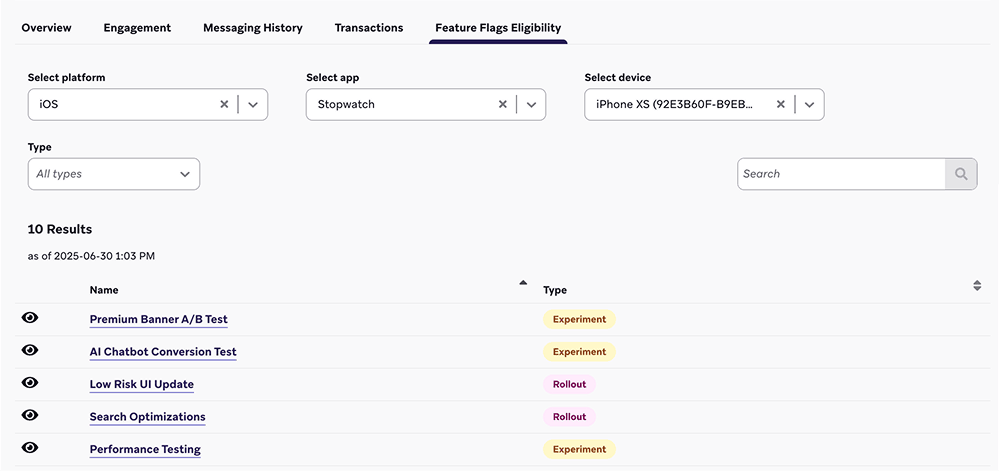
Para verificar a quais Feature Flags um usuário é elegível na Braze, acesse Público > Pesquisar Usuários e, em seguida, pesquise e selecione um usuário.
Na guia Elegibilidade de Feature Flags, você pode filtrar a lista de Feature Flags elegíveis por plataforma, aplicativo ou dispositivo. Também é possível visualizar a carga útil que será retornada ao usuário selecionando ao lado de uma Feature Flag.
Visualizando o changelog
Para visualizar o changelog de um Feature Flag, abra um Feature Flag e selecione Changelog.

Aqui, você pode ver quando uma alteração aconteceu, quem fez a alteração, a qual categoria ela pertence e muito mais.

Segmentação com Feature Flags
A Braze mantém automaticamente o rastreamento de quais usuários estão atualmente ativados para uma Feature Flag. Você pode criar um Segment ou direcionar o envio de mensagens usando o filtro Feature Flag. Para saber mais sobre filtragem em segmentos, consulte Criação de um Segment.

Para evitar segmentos recursivos, não é possível criar um Segment que faça referência a outras Feature Flags.
Práticas recomendadas
Não combine rollouts com Canvas ou experimentos
Para evitar que os usuários sejam ativados e desativados por diferentes pontos de entrada, você deve definir o controle deslizante de rollouts com um valor maior que zero OU ativar o Feature Flag em um Canvas ou experimento. Como prática recomendada, se você planeja usar um Feature Flag em um Canvas ou experimento, mantenha a porcentagem de rollout em zero.
Convenções de nomenclatura
Para manter seu código claro e consistente, considere usar o seguinte formato ao nomear o ID do seu Feature Flag:
BEHAVIOR_PRODUCT_FEATURE
Substitua o seguinte:
| Espaço reservado | Descrição |
|---|---|
BEHAVIOR |
O comportamento do recurso. No seu código, certifique-se de que o comportamento esteja desativado por padrão e evite usar frases como disabled no nome do Feature Flag. |
PRODUCT |
O produto ao qual o recurso pertence. |
FEATURE |
O nome do recurso. |
Aqui está um exemplo de Feature Flag em que show é o comportamento, animation_profile é o produto e driver é o recurso:
show_animation_profile_driver
Planejamento antecipado
Sempre jogue pelo seguro. Ao considerar novos recursos que podem precisar de um mecanismo para ser desligado, é melhor lançar o novo código com um Feature Flag e não precisar dele do que perceber que uma nova atualização do app é necessária.
Seja descritivo
Adicione uma descrição ao seu Feature Flag. Embora esse seja um campo opcional na Braze, ele pode ajudar a responder perguntas que outras pessoas possam ter ao navegar pelos Feature Flags disponíveis.
- Informações de contato de quem é responsável pela ativação e pelo comportamento desse flag
- Quando esse flag deve ser desativado
- Links para documentação ou notas sobre o novo recurso que esse flag controla
- Quaisquer dependências ou notas sobre como usar o recurso
Limpe Feature Flags antigos
Todos nós somos culpados de deixar recursos ativados a 100% de rollout por mais tempo do que o necessário.
Para ajudar a manter seu código (e o dashboard da Braze) limpos, remova Feature Flags permanentes da sua base de código depois que todos os usuários tiverem feito upgrade e você não precisar mais da opção de desativar o recurso. Isso ajuda a reduzir a complexidade do seu ambiente de desenvolvimento, além de manter sua lista de Feature Flags organizada.