 Custom events
This article describes custom events and properties, related segmentation filters, Canvas entry properties, relevant analytics, and more. To learn about Braze events in general, refer to Events.
Custom events are actions taken by, or updates about, your users. When custom events are logged, they can trigger any number and type of follow-up campaigns. You can then use segmentation filters to segment users based on how recently and frequently those custom events occurred. This makes custom events best suited for tracking high-value user interactions within your application.
Use cases
Some common custom event use cases include:
- Triggering a campaign or Canvas based on a custom event using action-based delivery
- Segmenting users by how many times they performed a custom event, when the last time the event occurred, and similar
- Using dashboard custom event analytics to view an aggregate of how often each event occurred
- Finding additional analytics using funnel and retention reports
- Leveraging persistent entry properties to use metadata from your customer event for personalization in your Canvas steps
- Generating more sophisticated analytics with Currents
- Setting up exit criteria to define when users should exit your Canvas
Managing custom events
You can manage, create, or blocklist custom events in the dashboard by going to Data Settings > Custom Events.
Select the menu next to a custom event for the following actions:
Blocklisting
You can blocklist individual custom events through the actions menu, or select and blocklist up to 100 events in bulk.
When you block a custom event:
- Future data won’t be collected for that event.
- Existing data won’t be available unless that event is unblocked.
- That event won’t show up in filters or graphs.
Additionally, if a blocked custom event is currently referenced by filters or triggers in other areas of Braze, a warning modal will appear explaining that all instances of the filters or triggers that reference it will be removed and archived.
For more details on blocklisting and deleting custom data, see Blocklist custom data.
Marking as personally identifiable information (PII)
Administrators can also create custom events and mark them as PII from this page. These events are only visible to admins and dashboard users with the “View Custom Attributes Marked as PII” permission.
Adding descriptions
You can add a description to a custom event after it’s created if you have the Manage Events, Attributes, Purchases user permission. Select Edit description for the custom event and input whatever you like, such as a note for your team.
Adding tags
You can add tags to a custom event after it’s created if you have the “Manage Events, Attributes, Purchases” user permission. The tags can then be used to filter the list of events.
Exporting data
To export the list of custom events as a CSV file, select Export all at the top of the page. The CSV file is generated, and a download link is emailed to you.
Viewing usage reports
The usage report lists all the Canvases, campaigns, and segments using a specific custom event. This list doesn’t include uses of Liquid.
You can view up to 100 usage reports at a time by selecting the checkboxes next to the respective custom events and then selecting View usage report.
Logging custom events
Custom events require additional setup. Refer to the list below for documentation about each platform, where you’ll find information about the methods used to log custom events and how to add properties and quantities to your custom events.
Expand for documentation by platform
Custom event storage
All data stored on the User Profile, including custom event metadata (first or last occurrence, total count, and X in Y over 30 days), is retained indefinitely as long as each profile is active.
Segmentation filters
The following table shows the filters available for segmenting users by custom events.
| Segmentation Options | Dropdown Filter | Input Options |
|---|---|---|
| Check if the custom event has occurred more than X number of times | MORE THAN | NUMBER |
| Check if the custom event has occurred less than X number of times | LESS THAN | NUMBER |
| Check if the custom event has occurred exactly X number of times | EXACTLY | NUMBER |
| Check if the custom event last occurred after X date | AFTER | TIME |
| Check if the custom event last occurred before X date | BEFORE | TIME |
| Check if the custom event last occurred more than X days ago | MORE THAN | NUMBER OF DAYS AGO (Positive Number) |
| Check if the custom event last occurred less than X days ago | LESS THAN | NUMBER OF DAYS AGO (Positive Number) |
| Check if the custom event occurred more than X (Max = 50) number of times | MORE THAN | in the past Y Days (Y = 1,3,7,14,21,30) |
| Check if the custom event occurred less than X (Max = 50) number of times | LESS THAN | in the past Y Days (Y = 1,3,7,14,21,30) |
| Check if the custom event occurred exactly X (Max = 50) number of times | EXACTLY | in the past Y Days (Y = 1,3,7,14,21,30) |
Analytics
Braze notes the number of times custom events have occurred and the last time they were performed by each user for segmentation. View these analytics by going to Analytics > Custom Events Report.
On the Custom Events Report page in the dashboard, you can view in aggregate how often each custom event occurs. The gray lines overlaid on the time series indicate the last time a campaign was sent, which is useful for viewing how your campaigns affected custom event activity.
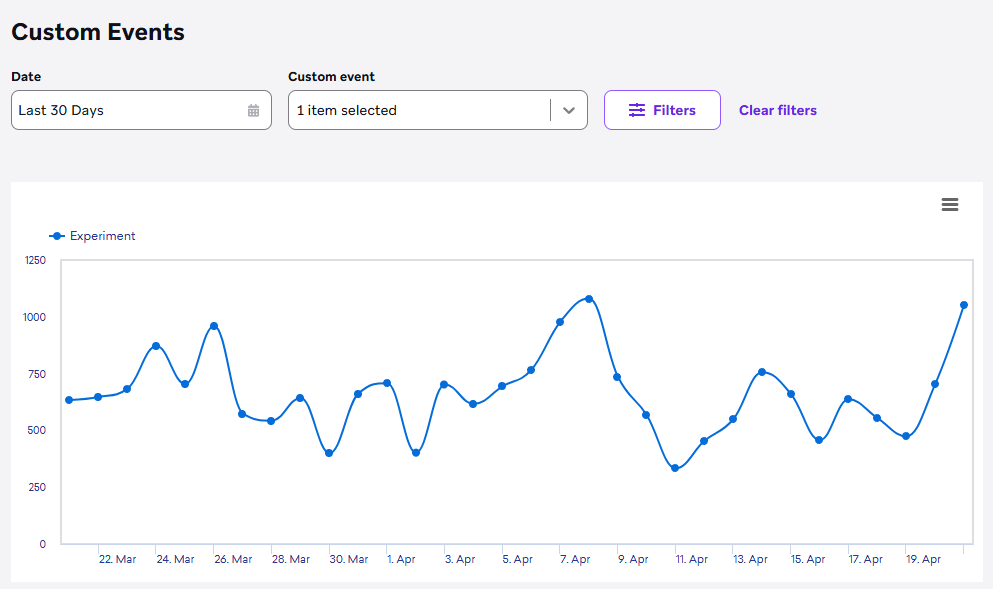
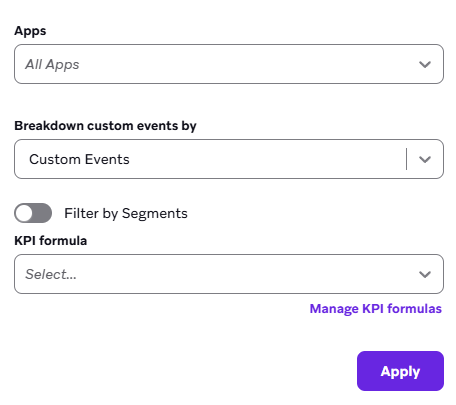
You can also use Filters to break down your custom events by hour, monthly average users (MAU), segments, or KPI formulas.
Increment custom attributes to keep a counter on a user action similar to a custom event. However, you can’t view custom attribute data in a time series. User actions that don’t need to be analyzed in a time series should be recorded using this method.
Why custom events analytics aren’t showing
Segments created with custom event data can’t show previous historical data from before they were created.
Custom event properties
Custom event properties are custom event metadata or attributes that describe a specific occurrence of an event. These properties can be used for further qualifying trigger conditions, increasing personalization in messaging, tracking conversions, and generating more sophisticated analytics through raw data export.
To learn more, refer to Custom event properties.
 Edit this page on GitHub