Personalize landing pages
Use Liquid personalization in landing pages to dynamically tailor the content with user profile data. For example, you can personalize headlines based on different user attributes without managing multiple static landing pages.

Liquid personalization for landing pages is only available on the Landing Pages Pro tier. Currently, Connected Content, multi-language, and promotion codes are not supported with Liquid personalization in landing pages.
Inserting Liquid
In the drag-and-drop editor, you can insert Liquid personalization both in the editor and in the page or block settings in the right-hand panel. For instructions on implementing Liquid, check out our dedicated Liquid documentation.
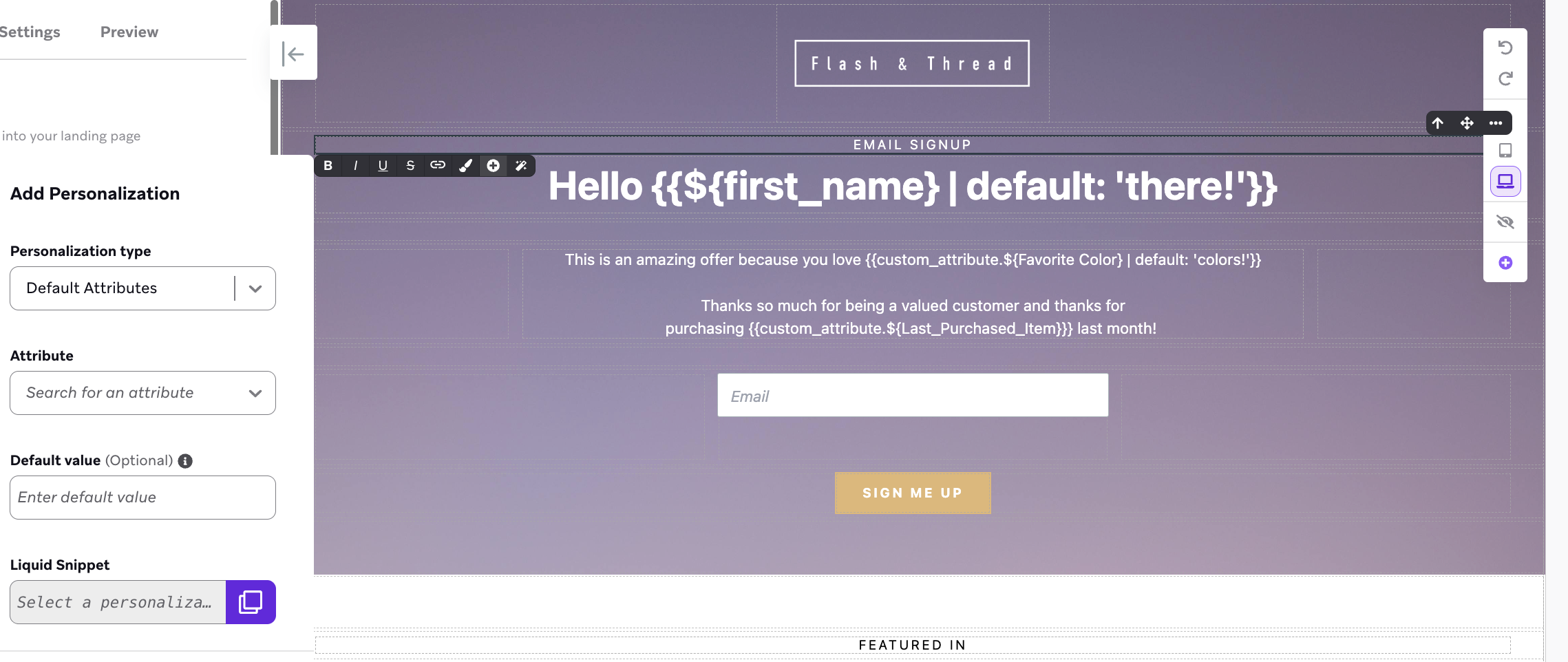
Previewing and testing
When previewing a landing page in the editor, you can view the page as a random user, an existing user, or a custom user.
However, when previewing the landing page from the data table or the Landing Page details page, you’ll only be able to view it as a random user.
Personalization considerations
To maintain optimal performance with personalized landing pages, note the following size limits:
- Saving a landing page: If the size exceeds 500 KB, you may receive a warning message indicating that the page has exceeded our size limits, which may prevent it from being published.
- Rendering with Liquid personalization: The total size must not exceed 1 MB. Otherwise, the page may be automatically unpublished by Braze.
Avoid unpublishing landing pages
If your page exceeds these size limits, you’ll receive an email that it may be unpublished if it continues to exceed the limit. When the threshold is reached, the page will be automatically unpublished, and you’ll receive a notification.
To prevent your page from exceeding size limits or experiencing slow load times, make sure to use Liquid personalization that:
- Doesn’t continuously loop through or reference large data sets.
- Doesn’t rely on extensive mathematical or conditional logic within the Liquid block.
Additionally, avoid embedding large scripts, stylesheets, and base64-encoded assets directly in your landing page code. These inline assets count toward the page size limit and can slow down rendering. Instead, upload fonts, images, stylesheets, and scripts to the media library. Assets served from the media library are hosted on Braze’s CDN, so they do not get processed for Liquid rendering and do not count toward the page size limit.
Use Liquid for identified and anonymous users
Liquid can customize the landing page experience for both identified and anonymous visitors.
- Identified users: Link to the landing page from a Braze message and include the landing page Liquid tag. This associates the user with their Braze profile and personalizes the page experience.
- Anonymous visitors: Use Liquid for contextual, non-profile-based content, such as a random number or a time-of-day greeting.
Pre-fill form fields
If a landing page form field maps to a user profile attribute, you can pre-fill that field for returning users. This helps reduce form friction and improves completion rates for known visitors.
Use pre-fill form fields:
- Select your form field in the drag-and-drop editor.
- In the right-hand settings panel, map the field to the appropriate profile attribute.
- Select Pre-fill from user profile.
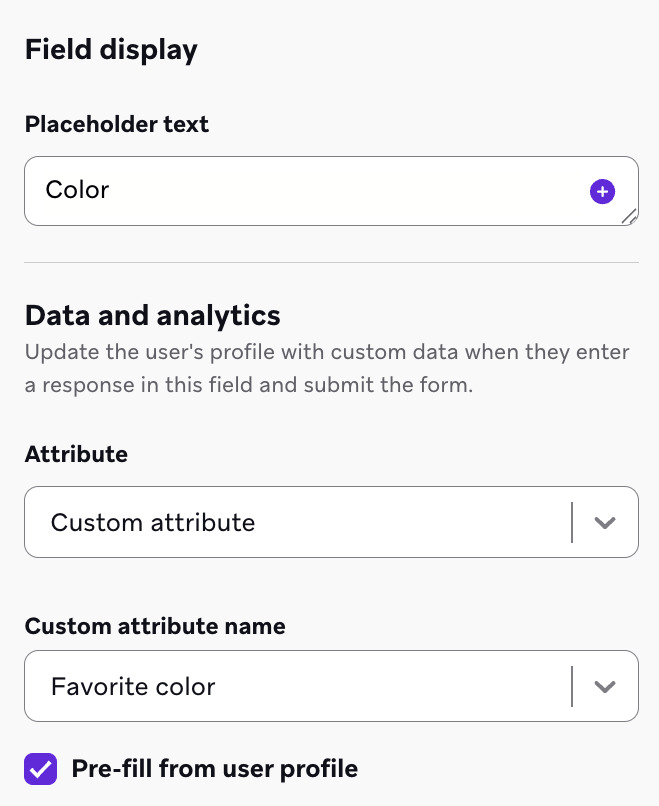
Pre-filling only works for identified users. For anonymous visitors, form fields keep their default state:
- Input fields: Display their placeholder text.
- Checkboxes, radio buttons, and similar controls: Remain unselected until the user interacts with them.

If a user forwards a landing page link (from an email, SMS, or other message) to another person, the recipient sees the pre-filled data intended for the original user. This is the same security consideration that applies to unsubscribe links and preference center links. Consider the sensitivity of the data you’re pre-filling and your audience’s sharing behavior when using this feature.
Fetching external data with custom code
You can use a Custom Code block to fetch data from external endpoints and display it in your landing page. This approach makes the request on the client side (in the user’s browser), so the page loads quickly without server-side rendering delays.

For other advanced uses of the Custom Code block, see JavaScript bridge for landing pages and Create custom form blocks.
When fetching external data, you are responsible for the security of your implementation. External identifiers used in API calls should be UUIDs or use an equivalently secure naming scheme, see User ID naming best practices.
Use case
This pattern is useful when you need to display user-specific data that isn’t stored in Braze. Examples include real-time inventory, personalized recommendations, or other data your organization manages in separate systems.
Example implementation
This example shows how to fetch user data from an external API. Replace the API endpoint with your own secure endpoint and use a secure identifier.
<script>
window.onload = () => {
// Use Liquid to template the user's external ID
const userId = "{{${user_id}}}";
const loadUserData = async () => {
try {
// Replace with your own secure API endpoint
const response = await fetch(`https://your-api.example.com/user/${userId}`);
if (!response.ok) {
throw new Error('Failed to load data');
}
const data = await response.json();
// Update the page with the fetched data
document.querySelector("#user-data").textContent = JSON.stringify(data, null, 2);
document.querySelector("#user-name").textContent = data.name || "User";
} catch (error) {
// Handle errors gracefully
document.querySelector("#user-data").textContent = "Unable to load data at this time.";
}
};
loadUserData();
};
</script>
<!-- Display area for fetched data -->
<p>Welcome, <span id="user-name">Loading...</span></p>
<pre id="user-data">Loading your information...</pre>
Considerations
When fetching external data in landing pages:
- Loading states: Users will see placeholder text until the endpoint responds. Consider adding a loading indicator or skeleton screen.
- Error handling: If the endpoint fails or is slow to respond, the page may appear broken. Implement appropriate error messages and fallbacks.
- Performance: The page loads immediately, but data appears after the external request completes. Keep your API responses fast for the best user experience.
- Security: Make sure your API endpoint validates the identifier and only returns data the user is authorized to see. Implement rate limiting to prevent abuse. For guidance on choosing secure identifiers, see User ID naming best practices.
For Liquid-personalized landing pages, Braze processes {{ and {% delimiters anywhere they appear in the landing page HTML—including inside JavaScript strings, comments, and regular expressions. This applies to the entire page, but Custom Code blocks are the most likely place to include these sequences accidentally.
If these sequences appear without matching closing tags (for example, /* version {{ 2.0 */), Braze treats them as open Liquid tags. Other valid Liquid tags on the page may fail to render, or Liquid rendering may break elsewhere in the same block. In severe cases, broken Liquid can prevent the page from publishing or cause it to be unpublished (see Fallback pages).
To avoid this, escape or remove {{ and {% from non-Liquid contexts, split the sequences in JavaScript (for example, '{' + '{'). Liquid runs server-side before the script executes. You can also wrap larger non-Liquid sections in {% raw %}...{% endraw %} tags.
Fallback pages
If your users attempt to access a page that has been unpublished, they’ll see a message indicating that the page cannot currently be loaded. Reasons that a page has been unpublished include:
- Complex or broken Liquid, which can cause long render times
- User network issues
- Exceeding the maximum landing page size limits