Skills
Skills are reusable instructions for specific tasks, such as a naming convention, how your team builds campaigns, or a footer your legal team requires. BrazeAI OperatorTM, the AI assistant in Braze, uses them when they fit the task, without being asked.
About skills
Without skills, Operator works the way Braze generally works. With skills, it works the way your team works. Write a skill once, and Operator follows it for everyone in your workspace. You don’t have to repeat the same instructions in each conversation, and work built by different people follows the same standards.
Skills belong to a workspace, and each workspace can have up to 50 skills. Skills apply wherever you use Operator in the workspace, including through Operator Connect.
Prerequisites
To view and manage skills, you need the following permissions.
| Permission | What it lets you do |
|---|---|
| View Skills | View the Skills page and open a skill. |
| Edit Skills | Create and edit skills, including by asking Operator. To create or edit a skill on the Skills page, you also need the “View Skills” permission. |
| Archive Skills | Delete skills. |
You don’t need any of these permissions for Operator to use skills. For more information, see User permissions.
Create a skill
You can create skills in three ways: on the Skills page, by asking Operator, or from another AI tool through the Braze MCP server. After you save a skill, Operator uses it right away.
Each skill has three fields. These fields have character limits following the Agent Skills specification, an open format for AI instructions. If your text goes over a limit, ask Operator to shorten it for you. For best practices, see Write effective skills.
| Field | Character limit | Guidance | Example |
|---|---|---|---|
| Name | 64 | The task the skill covers. | Campaign naming |
| Description | 1,024 | When Operator should use the skill. Start with “Use when”. | Use when creating or renaming a campaign or Canvas. |
| Instructions | 20,000 | What Operator should do. You can use Markdown for headings, lists, and examples. | Name it [Region]_[Channel]_[Goal]_[YYYYMM], for example US_Email_Winback_202611. |
On the Skills page
- Go to Agents > Skills.
- Select New skill.
- Enter a Name for the task the skill covers.
- Enter a Description of when Operator should use the skill, starting with “Use when”.
- Enter the Instructions.
- Select Create skill.
By asking Operator
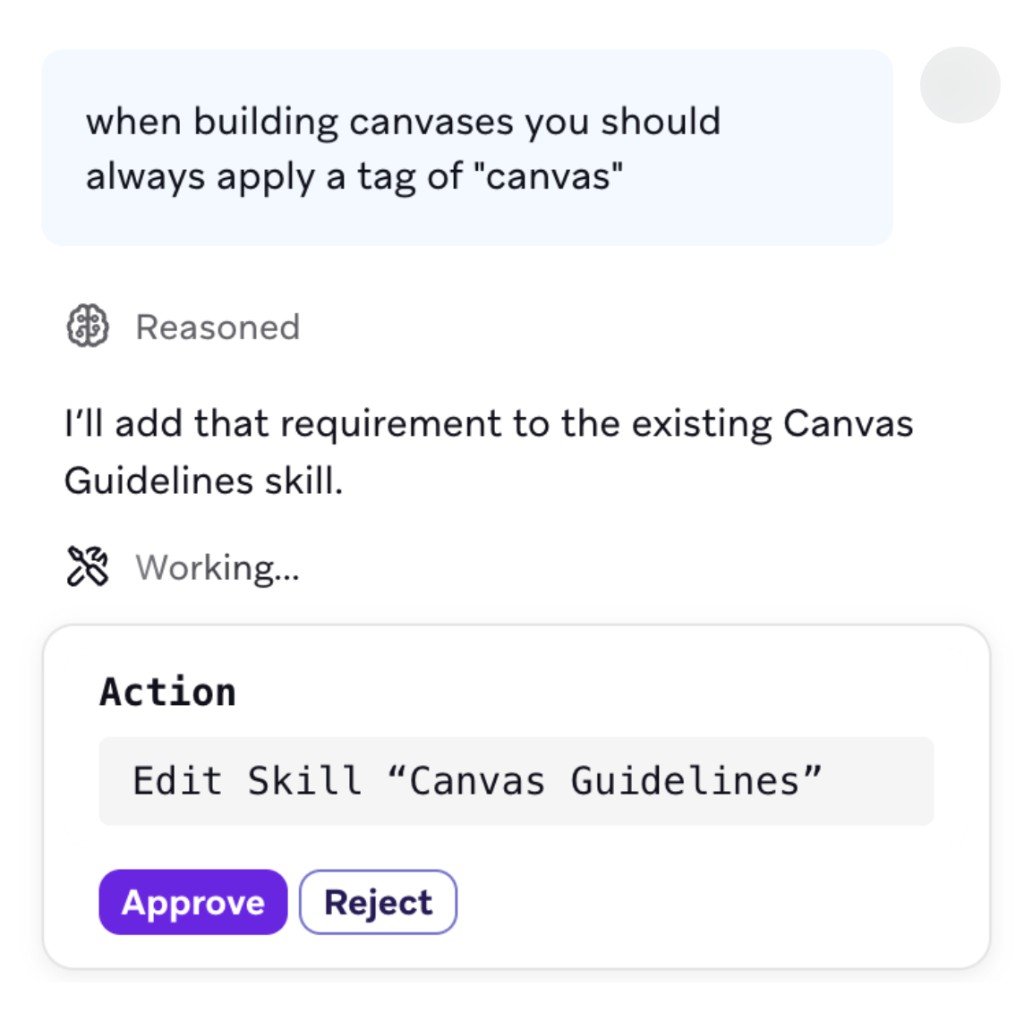
When a rule comes up in a conversation, ask Operator to save it as a skill. For example:
- “Remember that every promotional email needs Legal’s footer.”
- “Save how we named this campaign as our naming convention.”
Operator proposes a new skill or a change to an existing one in an action card, such as Create Skill “Promotional email legal footer” or Edit Skill “Campaign naming”. Nothing is saved until you approve the card, even when Auto-approve actions is turned on. If Operator picked the wrong skill to edit, reject the card and tell Operator which skill to update instead.
From another AI tool
If you use the Braze MCP server with an AI tool such as Claude, ChatGPT, or Cursor, you can list, read, create, and edit skills from that tool. You need the same permissions you’d need to do these things in Braze. To delete a skill, use the Skills page in Braze. For the available tools, see Available API functions.
How Operator uses skills
Operator always has access to a list of every skill’s name and description. When you ask for something, Operator reads that list to decide which skills fit the task, then loads the instructions for those skills only. You don’t need to mention a skill for Operator to use it.
Operator can use more than one skill in the same task. For example, it can follow a naming convention skill and a translation skill while it builds one campaign.
Because Operator decides from the name and description alone, write them to say exactly when the skill applies. For guidance, see Write effective skills.
To check which skills Operator used for a task, see Test a skill.
Write effective skills
- Say when to use the skill: In the description, start with “Use when” and name the situations. “Use when building or reviewing a promotional email” works better than “Legal footer rules”.
- Name the task: Use a name like “Campaign naming”, so Operator and your team know what the skill is for.
- Keep each skill focused: Cover one rule or process. Focused skills are easier for Operator to pick and easier for you to maintain.
- Be specific and show examples: Include the exact format, wording, or values you expect, like a naming pattern with a real example.
- Avoid conflicting skills: Operator can use every skill that fits a task, and skills have no priority order. If two skills cover the same situation, combine them, or narrow each description so only one applies.
- Test each skill: A quick test shows whether Operator picks up the skill and follows it, before your team relies on it. For steps, see Test a skill.
- Add an end date to temporary rules: For a seasonal footer or a limited-time offer, put the date in the description, like “Use when building promotional emails through December 5, 2026”. Delete the skill when you no longer need it.
Example skills
| Name | Description | Instructions |
|---|---|---|
| Campaign naming | Use when creating or renaming a campaign or Canvas. | Name it [Region]_[Channel]_[Goal]_[YYYYMM], for example US_Email_Winback_202611. |
| Promotional email footer | Use when building or editing a promotional email. | Add the Content Block legal_footer_promo at the bottom of every promotional email. |
| SMS brand voice | Use when writing or editing SMS copy. | Keep messages under 160 characters, use first names, use no more than one emoji, and always include opt-out language. |
Test a skill
After you save a skill, check that Operator uses it the way you expect.
- Ask Operator to do a task the skill covers. Don’t mention the skill by name.
- Expand the list of tools in Operator’s response. If Operator used the skill, it appears as Loaded skill, followed by the skill’s name.
- Check that the result follows the skill’s instructions.
If the skill doesn’t appear in the list, Operator didn’t match the task to the skill. Edit the description to say more clearly when the skill applies. If the skill appears but the result doesn’t follow it, edit the instructions to be more specific, for example by adding an example of the result you expect.
After you edit a skill, test it again in a new task.
Manage skills
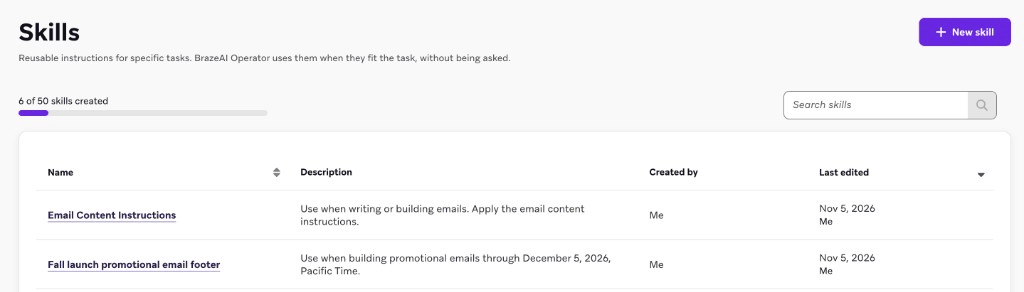
Go to Agents > Skills to see every skill in your workspace, who created it, and when it was last edited. The page shows how many of your workspace’s 50 skills you’ve created. To find a skill, use Search skills.
Edit a skill
- Select the skill, then select Edit skill.
- Make your changes.
- Select Update skill.
Operator uses the updated instructions in new tasks. Skills don’t keep a version history, so copy the instructions somewhere first if you’re making a large change.
Delete a skill
- Select the skill, then select Delete skill. You can also delete a skill from its row on the Skills page.
- To confirm, select Delete skill again.
Deleting a skill can’t be undone. Operator stops using the skill, but anything it already built with the skill stays the same. Deleting a skill also frees up a slot toward your workspace’s limit.
Frequently asked questions
Do skills apply to everyone in my workspace?
Yes. Operator uses skills for every Operator user in the workspace, including users who don’t have permission to view the Skills page.
Can I limit a skill to a specific team or channel?
No. Every skill is available wherever Operator works in the workspace. Operator uses each skill’s name and description to decide when it applies, so write the description to cover only the situations you want.
How are skills different from brand guidelines and Agentic Standards?
Brand guidelines describe how your brand sounds and looks. Agentic Standards check campaigns and Canvases against your criteria. Skills are instructions Operator follows while it does a specific task, such as how your team names, builds, or formats its work.