Email NPS survey block
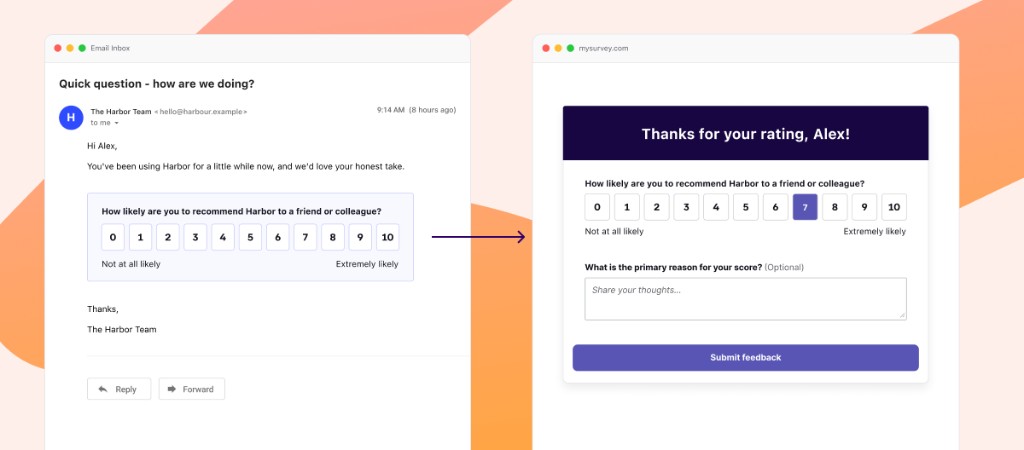
Use the NPS Survey block in the email drag-and-drop editor to ask recipients how likely they are to recommend you. Each score tile (0–10) links to a published survey landing page. When a recipient selects a score, Braze opens that landing page and records the score on arrival, then they can finish any remaining survey questions.
Prerequisites
Before you add an email NPS survey block, you need:
| Requirement | Description |
|---|---|
| Landing page surveys | Access to landing page surveys in your workspace. |
| Published NPS survey | A published survey landing page that includes an NPS form block. Unpublished pages and surveys without an NPS question don’t appear in the email block picker. |
| Landing pages permission | Permission to view landing pages so you can select or change the linked survey from the block settings. |
| Drag-and-drop email | An email campaign or Canvas message step that uses the drag-and-drop editor. |
How it works
- You add the NPS Survey content block to your email and link it to a published survey landing page that includes an NPS question.
- Recipients see a 0–10 score scale (and editable question labels) in the email.
- Selecting a score opens the landing page URL with that score attached.
- Braze records the NPS score when the landing page loads, even if the recipient doesn’t complete the rest of the survey. Recipients can still answer any remaining questions on the page. Partial submissions have a six-hour grace period before they appear in results, so recipients can finish the survey first.
Create an email NPS survey
Step 1: Publish a survey landing page with NPS
- Go to Messaging > Landing Pages and create a survey. For the creation workflow, see Landing page surveys.
- Add an NPS form block to the survey (and any follow-up questions you want after the score). For multi-step surveys, the NPS question must be on the first step.
- Publish the landing page. Only published survey landing pages with an active NPS question appear when you configure the email block.
Step 2: Add the NPS Survey block to your email
- Create or open an email in a campaign or Canvas using the drag-and-drop editor.
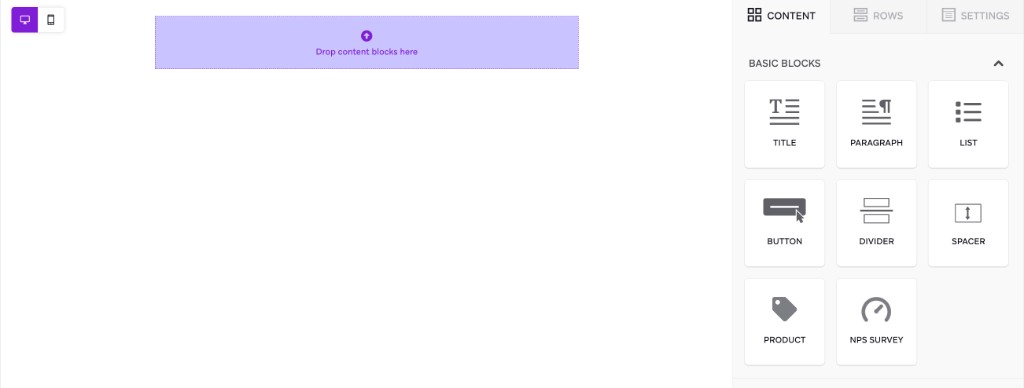
- Open the Content panel and drag NPS Survey onto the canvas. The configure sidebar opens automatically. You can add only one NPS Survey block per email—after one is on the canvas, the content panel disables adding another.
- Select Add survey, then choose your published NPS survey landing page.
- Optionally adjust Tile styles (font, colors, border, and spacing). These controls unlock after you select a survey.
- Select Build Block.
Step 3: Edit labels and finish the email
After you build the block, edit the question text and the low and high scale labels (for example, “Not at all likely” and “Extremely likely”) directly on the canvas. Then finish the rest of your email and send a test before launch.
For the full property reference, see NPS survey in the email editor blocks article.
Review responses
NPS scores collected from email clicks are survey responses on the linked landing page. Review them from:
- The landing page’s survey reporting
- Messaging > Surveys
Partial submissions, including email NPS scores recorded on landing-page arrival, have a six-hour grace period before they appear in results, so recipients can finish remaining questions. For NPS analytics (promoters, passives, detractors, and score), see Surveys.
Frequently asked questions
Why don’t I see any surveys when I select Add survey?
The picker only lists published survey landing pages that include an NPS question. Create and publish a survey landing page with an NPS block, then open the picker again.
Can recipients change their score on the landing page?
Yes. If recipients change their score and then submit the rest of the survey, Braze uses the later score.
Why is an email NPS score still marked as partially complete?
Braze records the email NPS score when the landing page loads, but the response is partially complete until the recipient selects the final submit control on the survey—even if the survey has no questions. Partial submissions also have a six-hour grace period before they appear in results. For how completed and partially complete responses are counted, see Surveys.
What if my landing page has more than one NPS question?
The score from the email block is applied to the first NPS question on the survey landing page.
Can I use more than one NPS Survey block in the same email?
No. Each email message supports one NPS Survey block.