Merge duplicate users
Learn how to find and merge duplicate users, so you can maximize the effectiveness of your campaigns and Canvases.
REST API: Identify and merge users
The tools on this page merge duplicate profiles in the dashboard. You can also combine or re-point profiles through Braze’s User Data endpoints:
- POST: Identify users (
/users/identify): Combines an alias-only, email-only, or phone number-only profile with a profile that has anexternal_id. - POST: Merge users (
/users/merge): Merges one user profile into another, including when both profiles already have anexternal_id. Review Prerequisites and Merge behavior before you call this endpoint.
When an anonymous profile is matched to an existing identified profile (for example through an SDK changeUser() call or /users/identify), Braze orphans the anonymous profile and copies only certain fields onto the identified profile. For more information, see What happens when you identify anonymous users.
User merges are difficult to undo. If you’re planning a complex merge across multiple external_id values or large profile migrations, contact your Braze customer success manager for guidance before you rely on /users/merge.
Braze handles three user types differently when merging: users marked for deletion, test users, and Global Control Group users. For details, see User merge behavior.
Individual merging
If a user search returns duplicate profiles, you can merge each profile individually from the user’s profile in the Braze dashboard.
Step 1: Search for a duplicate profile
In Braze, select Audience > User Search.
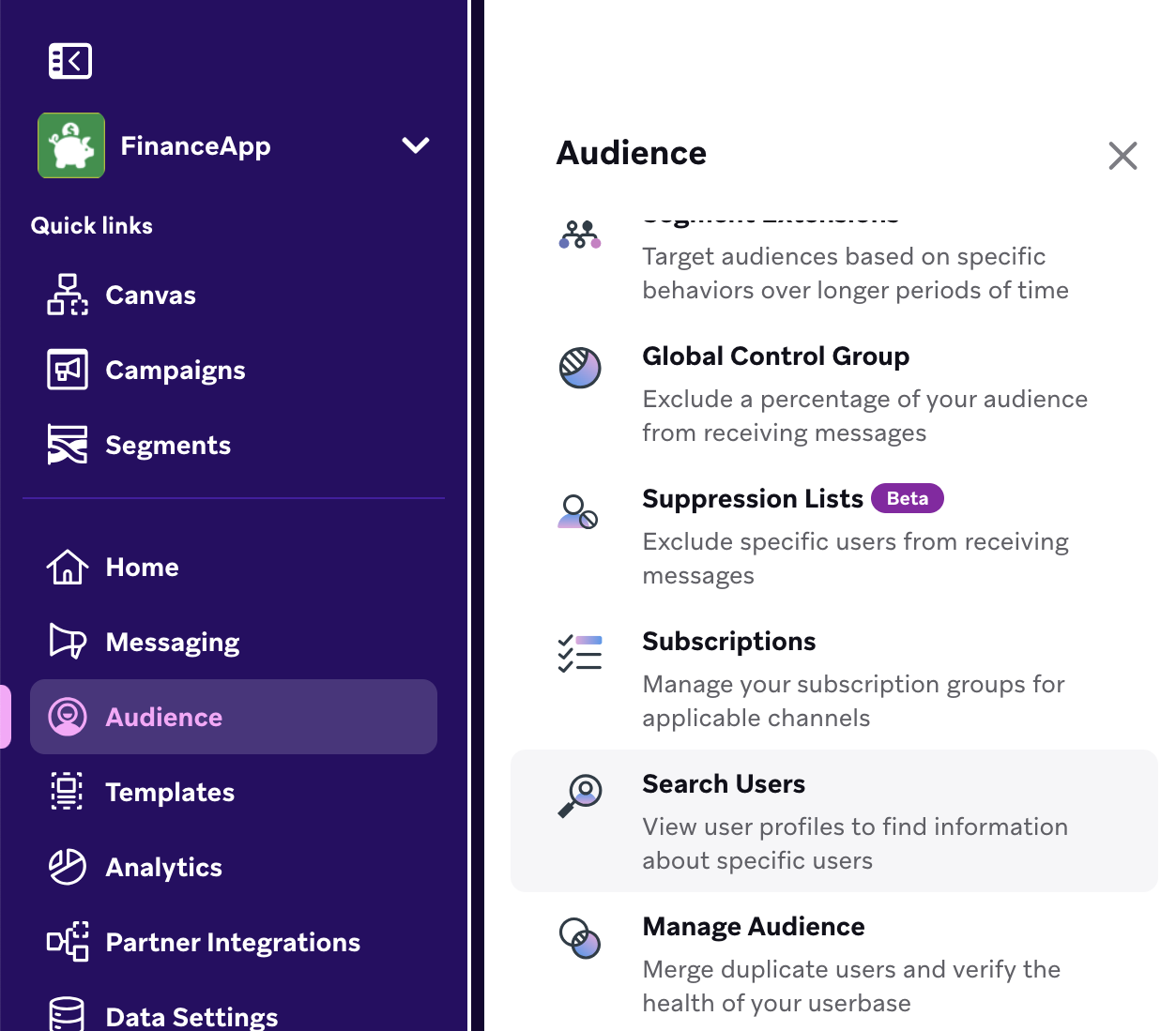
Enter a unique identifier, such as an email address or phone number, for the duplicate profile, then select Search.
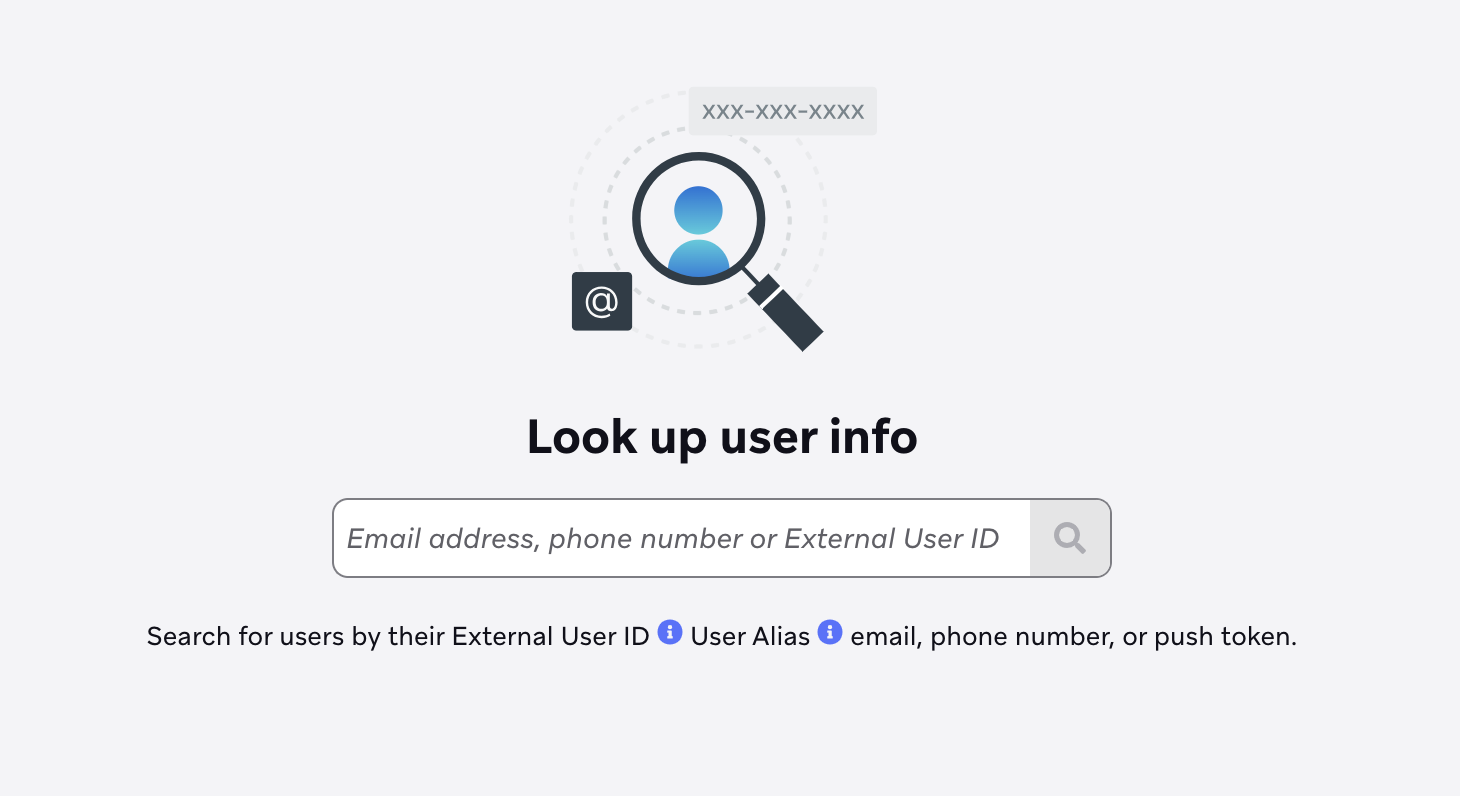
Step 2: Merge duplicates
To begin the merge process, select Merge duplicates.
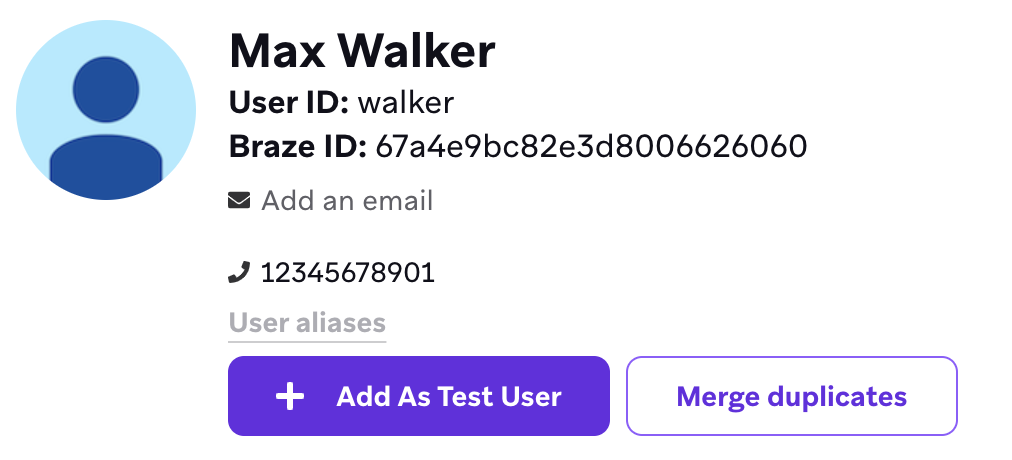
Choose which user profile to keep and which to merge, then select Merge profiles. Repeat this process until you’ve merged all duplicate profiles.

Duplicate user profiles cannot be recovered after merging.
Bulk merging
When you bulk merge duplicate users, Braze finds profiles with matching identifiers (such as an email address) and keeps one profile. Braze first prioritizes profiles with an external_id, then applies your Resolving ties settings: Resolve ties using and Prioritization. If there are no profiles with an external_id, Braze uses Resolve ties using and Prioritization across profiles without an external_id. Braze only merges users when these settings identify one profile to keep. For example, if Resolve ties using is Updated date and both profiles have the same last updated timestamp, Braze can’t resolve the tie, so those users aren’t merged.
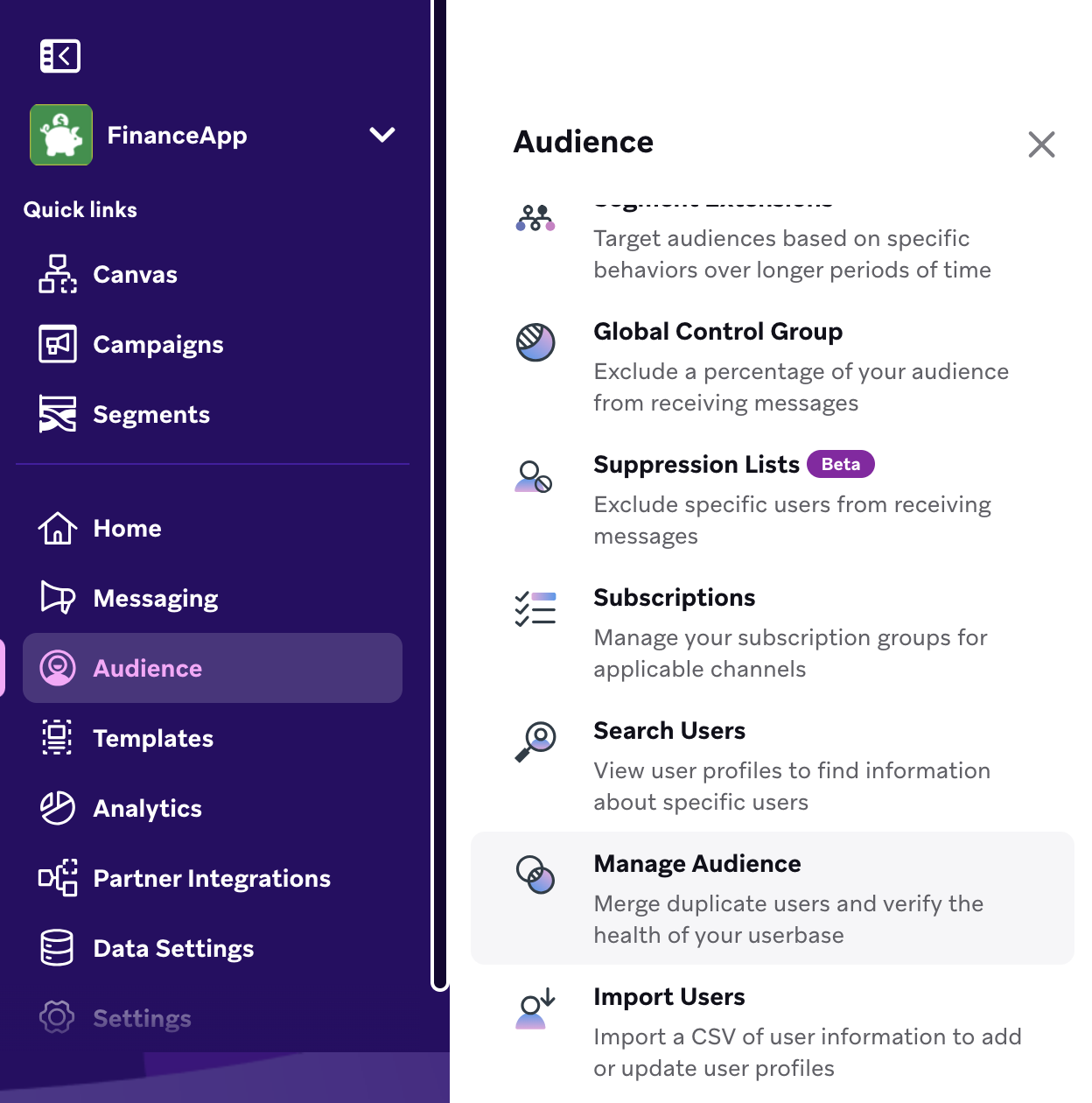
Step 1: Go to Manage Audience
In the Braze dashboard, select Audience > Manage Audience.
Step 2: Preview the results (optional)
To preview your results before merging your duplicates, select Generate list of duplicates.
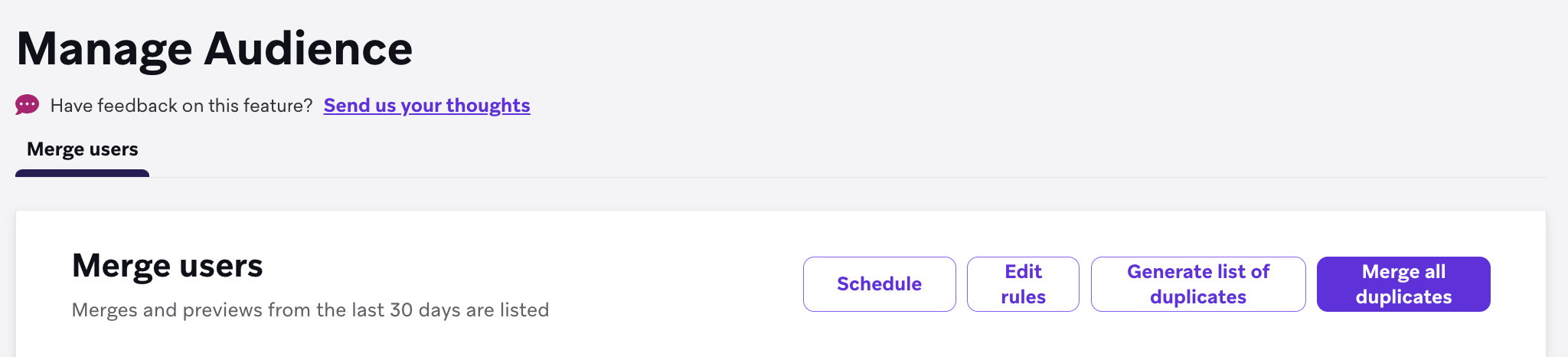
Braze generates your preview and sends it to your email address as a CSV file.
The CSV includes a Created from column that shows how each profile was first created (for example, through the SDK, REST API, or CSV import). This helps you understand the profile’s source before you merge duplicates.
When reviewing duplicate rows, compare Created from with identifiers such as external_id, email address, and phone number. Use this context to decide which profile should be kept as the primary profile before you select Merge all duplicates.
The Created from field is especially useful when duplicate profiles contain similar values but come from different ingestion paths. It gives your team more context for merge decisions and helps reduce accidental merges of profiles you would prefer to keep separate until further review.
In the following example, Braze uses the user’s external ID to flag duplicate profiles and identify which one to keep. If these profiles are bulk merged, Braze uses the profile with an external ID as the user’s new primary profile.
| Email Address | External ID | Phone Number | Braze ID | Identifier for rule | Created from | Profile to keep | Profile to merge |
|---|---|---|---|---|---|---|---|
| [email protected] | 123-external-id | 555 123-4567 | example-id-12345 | sdk | TRUE | FALSE | |
| [email protected] | 555 123-4567 | example-id-12346 | rest | FALSE | TRUE | ||
| [email protected] | 555 123-4567 | example-id-12347 | csv | FALSE | TRUE |
Merge behavior
Braze will fill empty fields on the kept profile with values from the merged profile. For a list of the fields that will be filled, refer to Merge behavior.
Step 3: Merge your duplicates
If you’re satisfied with the results of your preview, select Merge all duplicates.
Duplicate user profiles cannot be recovered after merging.
Rules-based merging
You can use rules to control how duplicate profiles are resolved when running a merge so the most relevant user profile is kept. When rules are set, Braze will keep profiles that match your criteria.
Step 1: Define your rules
- Go to Audience > Manage Audience > Edit rules.
- In the Profile to keep section of the Edit rules panel, select the Identifier for the profiles that will be kept when merging duplicates. This can be the email address or phone number.
- In the Resolving ties section, select the criteria to determine how to solve ties between profiles with matching criteria from Profile to keep. You can select the following:
- Resolve ties using: Created date, Updated date, Last session
- Prioritization: Newest, Oldest
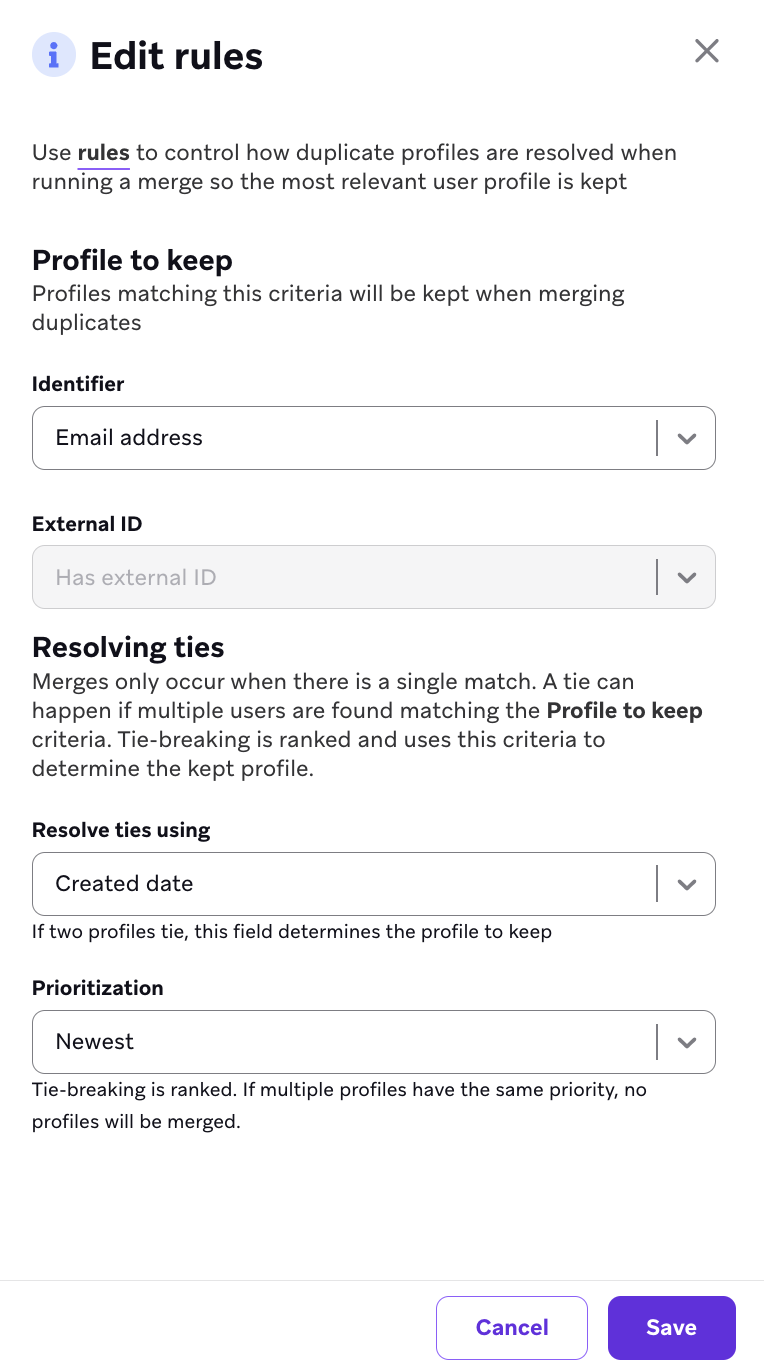
For example, you could keep the profile that has a phone number. If multiple users have the same phone number, you could resolve ties using the Updated date field and prioritize the most recently updated user.
Step 2: Preview the results (optional)
After saving your rules, you can preview how they’ll work by selecting Generate a list of duplicates. Braze will generate your preview and send it to your email address as a CSV file that shows which users would be kept and merged if your rules were applied.
Step 3: Merge duplicates
If you’re satisfied with the results of your preview, return to the Manage Audience page and select Merge all duplicates.
Duplicate user profiles cannot be recovered after merging.
Scheduled merging
Similar to rules-based merging, scheduled merging allows you to automate the merging of user profiles on a daily basis using preconfigured rules.

After the feature is turned on, Braze will automatically assign a timeslot to perform the merge process daily at approximately 12 am in the user’s company time zone. You can turn off scheduled merging at any time. Braze will notify the admins of your workspace 24 hours before the scheduled merge occurs, providing a reminder and time to review the configuration.
Duplicate user profiles cannot be recovered after merging.
Why are multiple user profiles associated with the same email address?
Braze stores multiple user profiles that share the same email address when profiles are created through different identifiers, imports, or anonymous sessions before identification. This is expected behavior when users don’t share a single external_id.
Before you merge duplicates, use the Export user profile by identifier endpoint to confirm which profiles exist for an email address and which fields each profile contains. You can also search by email in Audience > User Search to review duplicates in the dashboard.