Dashboard tools for personalization
Use Braze dashboard tools to insert Liquid personalization without writing every tag by hand. The Add Personalization flow builds the right syntax for you, and the Liquid editor helps you read and extend templates quickly.
For Liquid syntax rules, supported tags, and advanced patterns, refer to Using Liquid and Supported personalization tags.
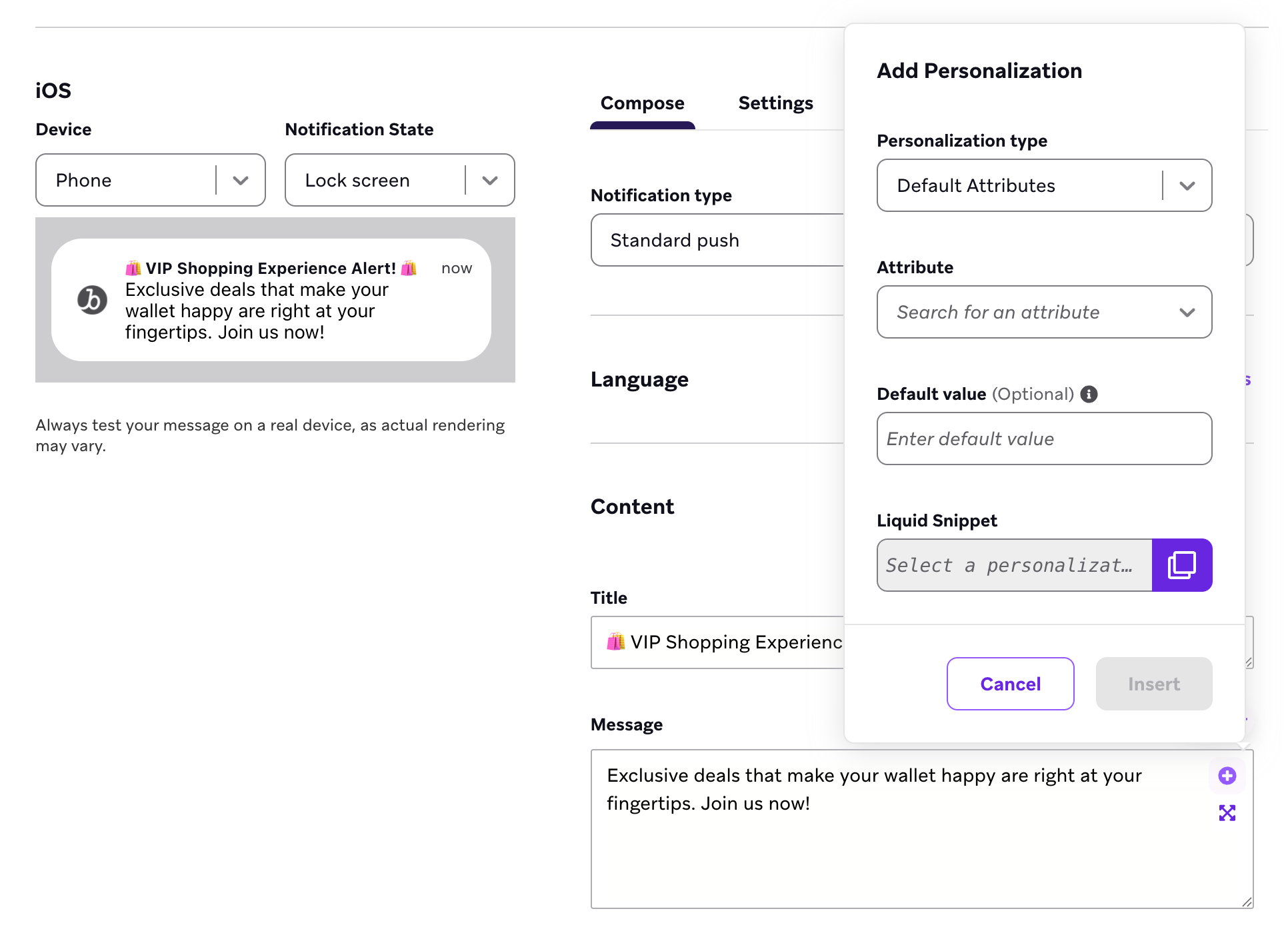
Add Personalization in composers and settings
The Add Personalization tool appears near templated text fields across the dashboard, including:
- Campaign and Canvas steps for channels that support Liquid in the body or headers (for example, email, push, SMS, in-app messages, Content Cards, and webhooks).
- Drag-and-drop editors, where the control is often in the block or editor toolbar. For example, in drag-and-drop in-app messages you can select Add Personalization, choose a personalization type, and then place the generated snippet into your content before previewing under Preview & Test. For more channel-specific notes, see your channel’s drag-and-drop or composer article (such as In-app message style settings or Create an email with drag-and-drop).
- Specialized composers that expose a personalization picker—for example, item recommendations use Personalization Type options like Item Recommendation inside the same style of window.
- Landing pages, where you can add Liquid personalization in the drag-and-drop editor or in page and block settings. For details, see Personalize landing pages.
Insert pre-formatted variables and defaults
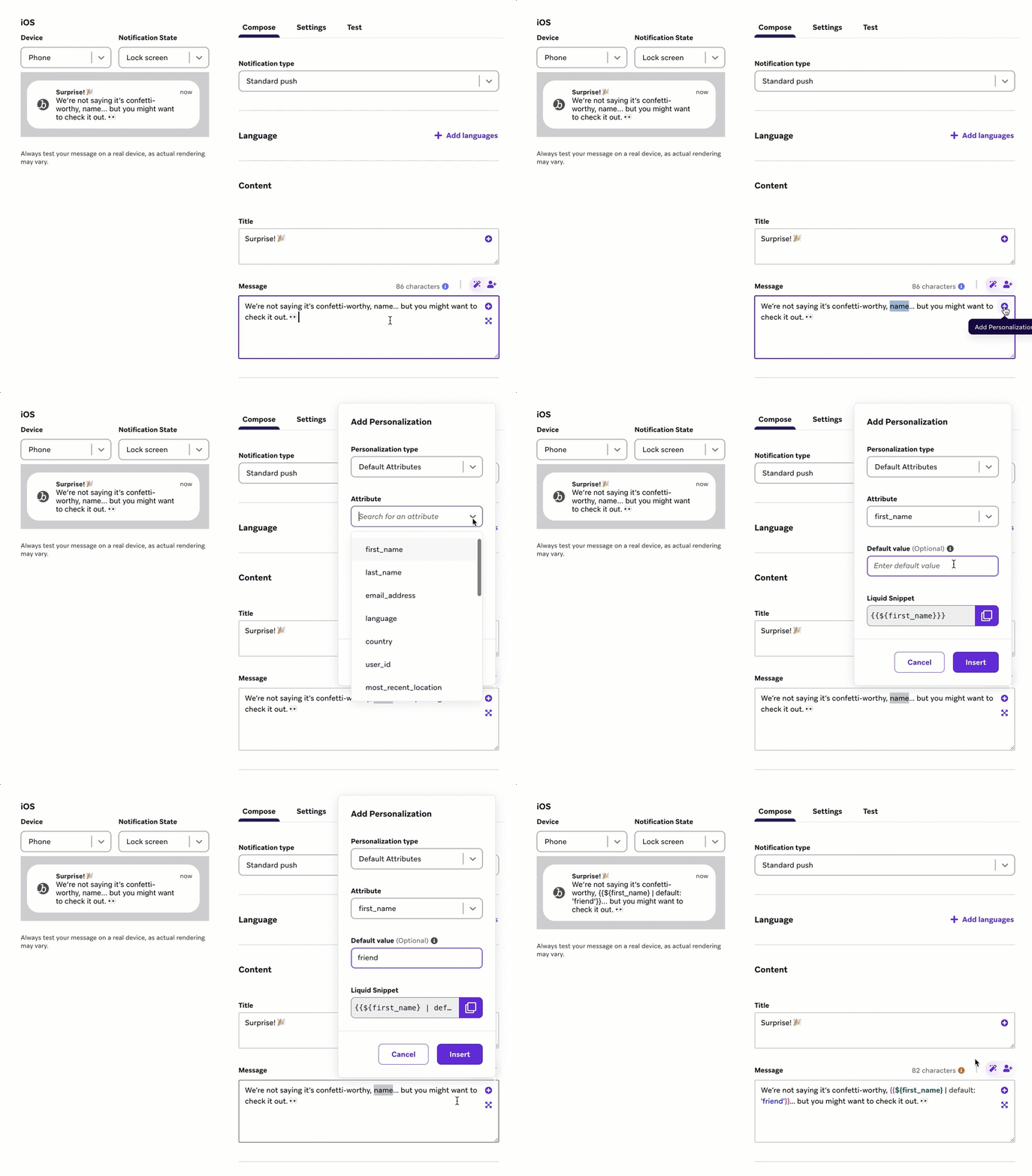
The Add Personalization tool helps you insert Liquid with optional default values so empty profile data doesn’t break your copy.
The tool inserts Liquid with your specified default value at the point where your cursor was. The insertion point is also specified by the preview box, which has the before and after text. If a block of text is highlighted, the highlighted text will be replaced.
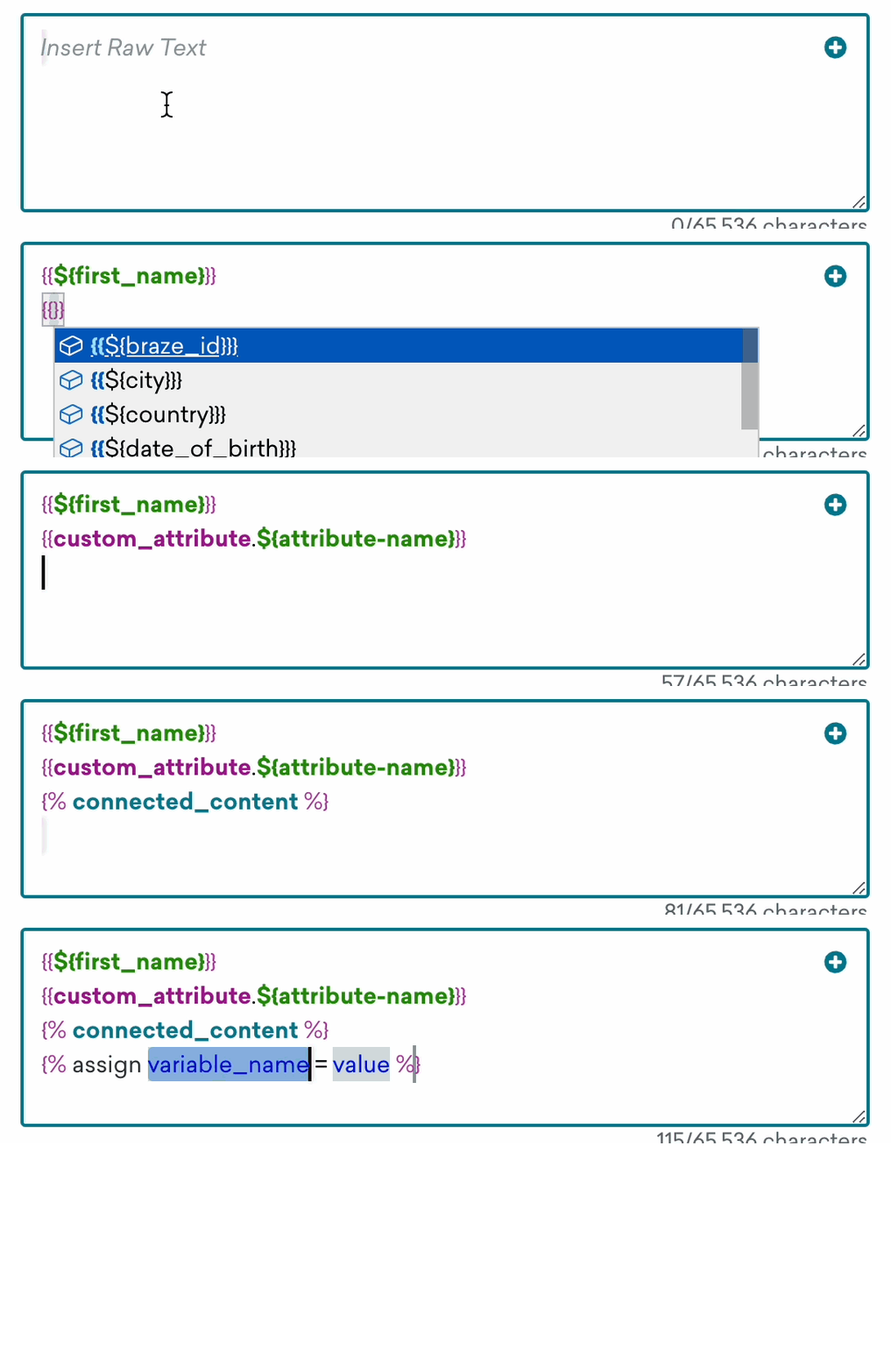
You can still type {{ in many composers to use autocomplete, or paste tags from elsewhere; for details, see Inserting tags in Using Liquid.
Assign variables
Some operations in Liquid require you to store the value you want to manipulate as a variable. This is often the case if your Liquid statement includes multiple attributes, event properties, or filters.
For example, let’s say you want to add two custom data integers together.
Incorrect Liquid example
You can’t use:
{{custom_attribute.${one}}} | plus: {{custom_attribute.${two}}}
This Liquid doesn’t work because you can’t reference multiple attributes in one line; you need to assign a variable to at least one of these values before the math functions take place. Adding two custom attributes would require two lines of Liquid: one to assign the custom attribute to a variable, and one to perform the addition.
Correct Liquid example
You can use:
{% assign value_one = {{custom_attribute.${one}}} %}
{% assign result = value_one | plus: {{custom_attribute.${two}}} %}
Tutorial: Using variables to calculate a balance
Let’s calculate a user’s current balance by adding their gift card balance and rewards balance:
First, use the assign tag to substitute the custom attribute of current_rewards_balance with the term “balance”. This means that you now have a variable named balance, which you can manipulate.
{% assign balance = {{custom_attribute.${current_rewards_balance}}} %}
Next, we’ll use the plus filter to combine each user’s gift card balance with their rewards balance, signified by {{balance}}.
{% assign balance = {{custom_attribute.${current_rewards_balance}}} %}
You have ${{custom_attribute.${giftcard_balance} | plus: {{balance}}}} to spend!

Find yourself assigning the same variables in every message? Instead of writing out the assign tag over and over again, you can save that tag as a Content Block and put it at the top of your message instead.
- Create a Content Block.
- Give your Content Block a name (no spaces or special characters).
- Select Edit at the bottom of the page.
- Enter your
assigntags.
As long as the Content Block is at the top of your message, every time the variable is inserted into your message as an object, it will refer to your chosen custom attribute!
Liquid editor enhancements
These dashboard behaviors make Liquid easier to work with while you compose messages.
Color labels
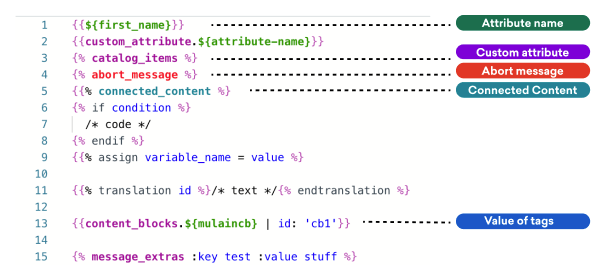
Each Liquid element corresponds to a color, allowing you to differentiate your Liquid at-a-glance in your Liquid editor.
Predictive Liquid
You can also use predictive Liquid for custom attributes, attribute names, and more as you build your personalized messages.