 Link aliasing
Use link aliasing to create recognizable, user-generated names to identify links sent in email messages from Braze. These links are available for segmentation retargeting, action-based triggering, and link analytics.
About link aliasing
With link aliasing, you can create user-generated names to identify and track links sent in emails. This way, you can efficiently use these recognizable link aliases in your emails to track engagement and analyze campaign performance, without needing to reference the full link.
With link aliasing, you can:
- Retarget users who have clicked specific links: Identify and target users who have clicked a link.
- Create action-based triggers: Send an email when a user clicks a link.
- Analyze metrics: Compare how many users have clicked Link A versus Link B.
How it works
Braze uniquely identifies links within emails by appending an extra parameter called the lid (also known as the link identifier) to every link URL. This lid value allows Braze to track, monitor, and aggregate user interactions with the link even if the rest of the URL parameters may differ. This helps to provide insights into how users engage with the content in your email campaigns.
Link identifiers are also updated if an email campaign, Canvas with an email message, or Content Block is duplicated.
Link aliasing is not applied in email templates (Templates > Email Templates). Test messages sent from the template editor won’t include lid on links, and links inside Content Blocks may render with an empty lid= value. Link alias markup is applied when the template is used in a campaign or Canvas, so send tests from the campaign or Canvas editor to verify final links.
Turn on link aliasing
Link aliasing is turned on for your whole company by Braze, not in the dashboard. To request it, contact your Braze account manager. Turning on link aliasing also turns on link templates for your company. Only Braze can turn link aliasing on or off for your company.
To check whether link aliasing is already on, go to the Link Aliasing Settings tab at Settings > Email Preferences. If you can’t open Email Preferences, you don’t have the “View Email Settings” permission. If you can open the page but the tab isn’t there, link aliasing isn’t on for your company. For other missing pages or settings, see A link management page or setting is missing.
After link aliasing is on, you can do the following in the dashboard:
| Task | Where to go | What you need |
|---|---|---|
| Name link aliases, and track or untrack them in a message | Email composer > Content > Link Management | Access to the campaign or Canvas |
| Review every tracked alias in the workspace, and turn off tracking in bulk | Settings > Email Preferences > Link Aliasing Settings | “View Email Settings” to view, “Edit Email Settings” to edit |
| Create and apply link templates | Templates > Email Link | “View Email Link Templates” and “Edit Email Link Templates” |
For what changes when aliasing is turned off, see Destinations that don’t accept the lid parameter. To learn more about the permissions in this table, see Company user permissions.
Create a link alias
The drag-and-drop and HTML editors use the same composer sidebar, so the steps are the same in both.
- Open your email body in the campaign or Canvas component. In the drag-and-drop editor, select Edit Email Body.
- In the composer sidebar, select Content (alongside Sending Settings and Preview & Test). For more on this layout, see Create an email with drag-and-drop.
- In the Content submenu, select Link Management under Design and Build. If the submenu is collapsed, expand it using the arrow control on the sidebar.
- Give each alias a name. Braze generates a unique default alias for every link, and aliases must be uniquely named per email campaign variant or Canvas component.
Use the alias to reference a specific link in reporting and segmentation.

Link aliasing is only supported in href attributes within HTML anchor tags where it is safe to append a query parameter. It’s best practice to include a question mark (?) at the end of your link so that Braze can easily append the lid value. Without appending the lid value, Braze does not recognize the URL for link aliasing.

In the drag-and-drop editor, your link must include a question mark (?) before the hash symbol (#) in your URL for the link alias to appear in the Link Management tab.
Managing link aliases
To view all of your tracked link aliases, do the following:
- Go to Settings > Email Preferences under Workspace Settings.
- Select the Link Aliasing Settings tab.
Here, you can sort, search, and turn off tracking for link aliases.

Use the List link alias for campaign and List link alias for Canvas endpoints to extract the alias set in each message variant in a campaign or an email-specific Canvas component.
Braze recommends evaluating the links within the email, adding link templates, and providing a naming convention that works for segmentation and reporting purposes. This helps you keep track of all links.
When link aliasing is turned on, messages, Content Blocks, and link templates are not modified. Existing messages that use link templates or Content Blocks stay the same. However, when you update a message, link alias markup applies to all of the links, so reapply the link templates for the links to be visible.
How links are updated with link aliasing
The following tables provide examples of links in an email body, link aliasing results, and explanations for how the original link is updated with link aliasing.
Permalink
Logic: Braze inserts a question mark (?) and adds the first query parameter into the URL.
| Link in email body | Link with aliasing |
|---|---|
https://www.braze.com |
https://www.braze.com?lid=slfdldtqdhdk |
Link with more query parameters
Logic: Braze detects other query parameters and appends lid= to the end of the URL.
| Link in email body | Link with aliasing |
|---|---|
https://www.braze.com?utm_campaign=retention&utm_source=email |
https://www.braze.com?utm_campaign=retention&utm_source=email&lid=0goty30mviyz |
HTML link
Logic: Braze recognizes a link is a URL and already has a question mark (?) present, so the lid query parameter is appended after the question mark.
| Link in email body | Link with aliasing |
|---|---|
<a href="{{custom_attribute.{product_url}}}?"> |
<a href="{{custom_attribute.{product_url}}}?lid=ac7a548g5kl7"> |
Link with anchor
Logic: Braze expects the URL to use a standard structure where anchors (#) are present after a question mark (?). Because Braze reads from left to right, the question mark and lid value are appended before the anchor.
| Link in email body | Link with aliasing |
|---|---|
https://www.braze.com#bookmark1?utm_source=email |
https://www.braze.com?lid=eqslgd5a9m3y#bookmark1?utm_source=email |
Link with anchor and capture tag
Logic: When using link aliasing with URLs that contain anchors (#), Braze expects the anchor to be placed after the query parameters. This means that the lid value must be appended before the anchor for proper tracking, and since Braze reads the URL from left to right, the question mark (?) and lid should come before the anchor.
| Link in email body | Link with aliasing |
|---|---|
<a href="https://www.braze.com/promotions#special-offer">Check out our special offer!</a> |
<a href="https://www.braze.com/promotions?lid={{link_alias}}#special-offer">Check out our special offer!</a> |
Tracking link aliases
In the composer sidebar, select Content > Link Management (under Design and Build), and then select which aliases you want tracked. Tracked aliases are available in segmentation filters that reference link aliases (see Segmentation filters). You can also send action-based messages or move users through a Canvas when they click a link alias in email—see Action-based filters. The tracked setting does not change whether clicks on that link count in email performance reporting.
To track link engagement metrics, make sure your link precedes with either HTTP or HTTPS. To turn off click tracking for specific links, refer to Universal links and App Links.
Braze allows you to select unlimited links to track, though you may only retarget users on the most recent links they have opened. User profiles include their 100 most recently clicked links. For example, if you track 500 links and a user clicks on all 500 of them, you can retarget or create segments based on the 100 most recently clicked links.
Action-based filters
When link aliasing is turned on for your company, you can create action-based messages targeting any link (tracked or not tracked) or retarget users based on whether they clicked an alias across any email campaign or Canvas component.
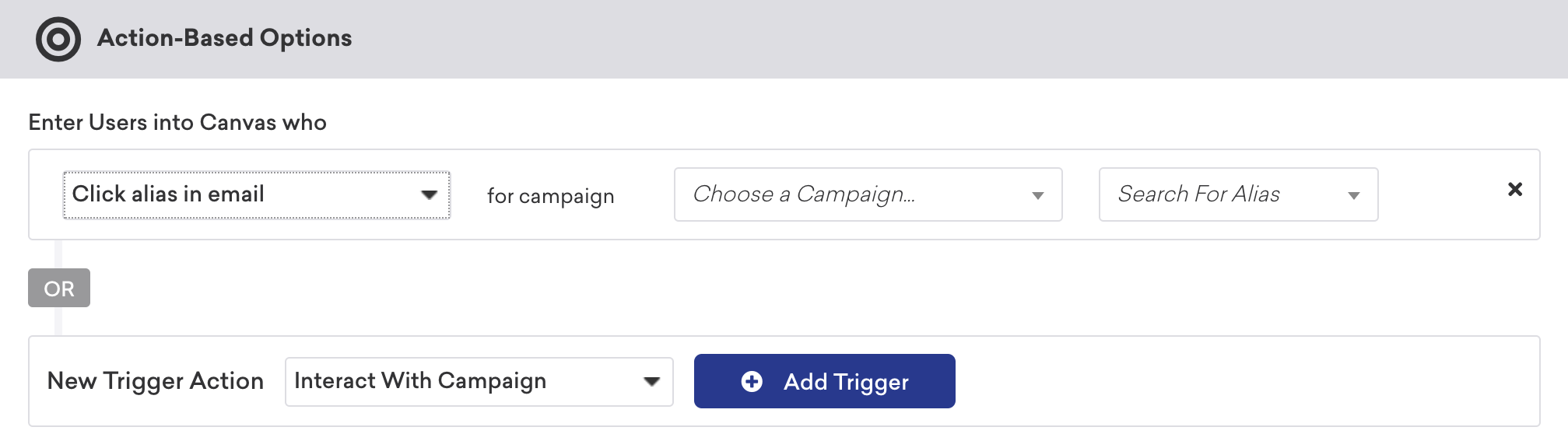
- If a campaign is archived, link tracking is turned off and that link alias can’t be used in a different filter.
- If a link has tracking turned on and was clicked in a campaign, you can find the campaign as an available option in the segment filter, even if link tracking has since been turned off, as long as at least one link on that message is still tracked.
- You can only select a tracked link as a filter if it’s in an active (launched) Canvas, using the Clicked Alias in Canvas Step filter dropdown. If the link is being tracked in a Canvas draft, you can’t select the tracked link as a filter.
To set links as untracked, see Managing link aliases.
Segmentation filters
In Braze, if you have a link alias in your email and a user clicks on it, the event is recorded in the user’s profile with the alias.
If you use the “Clicked Alias in Any Campaign or Canvas Step” segmentation filter and later decide to rename this link alias, the previous click data in the user profile is not updated, meaning it still shows as the previous link alias. So, if you target users based on the new link alias, it does not include the data from the previous link alias.
If you use the “Clicked Alias in Campaign” or “Clicked Alias in Canvas” segmentation filter, this filters your users by whether they clicked a specific alias in a specific campaign or Canvas. If multiple users share the same email address and the link alias is clicked, all other users who share the email address have their user profiles updated. These profiles are also updated by delivery and open events, not just click events.
The following segmentation filters apply to click events that are tracked at the time the event is processed. This means untracked links won’t remove existing data and tracking a link won’t backfill the data. For more details, see Segmentation filters.
Untracking links
Untracking a link won’t reallocate existing segments with the filter to the untracked alias. The old data will remain on the user profiles until it’s replaced by newer data.
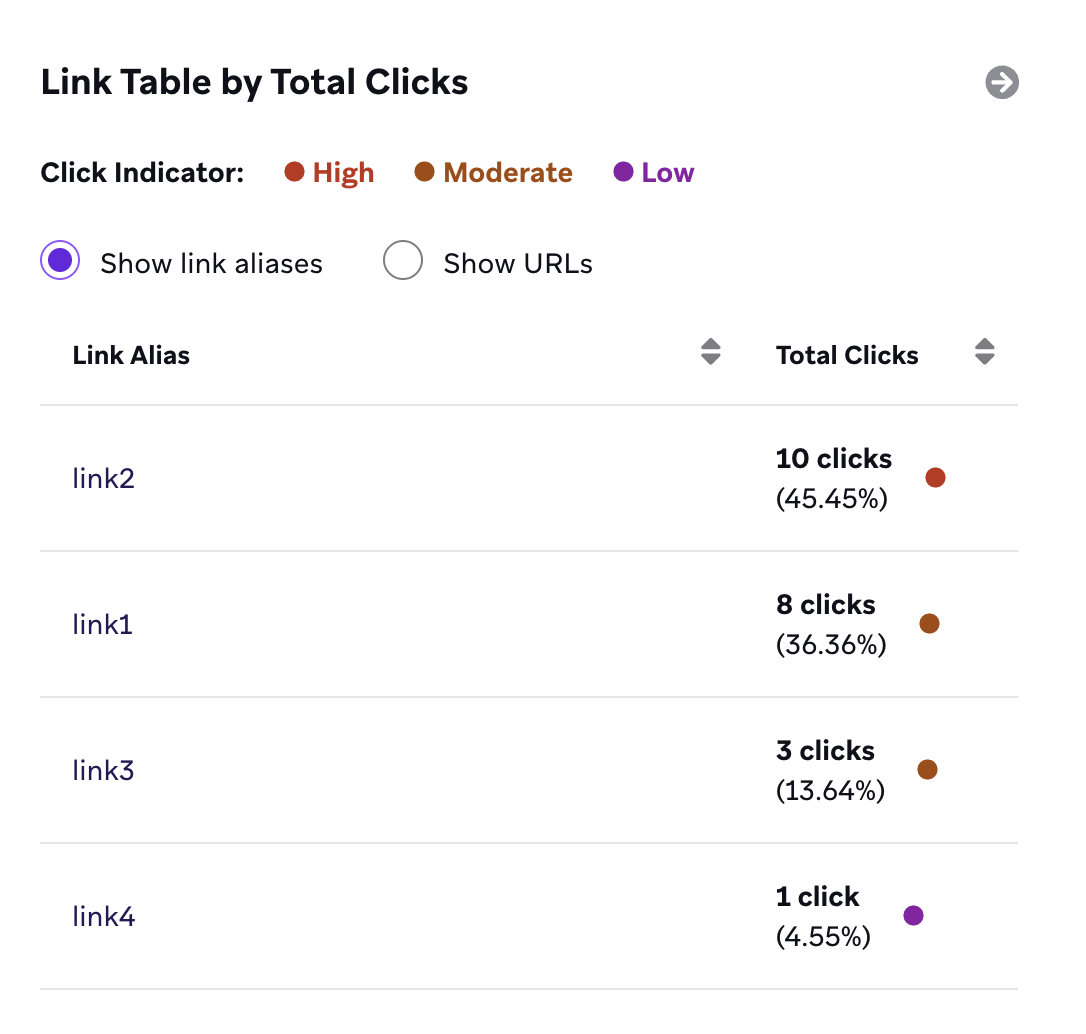
Links in archived messages are automatically untracked. However, if archived messages are unarchived, the links will need to be tracked again. When link aliases are tracked, link reporting is indexed by the alias instead of top-level domains or full URLs.
To view all of the links in your email campaign and their respective total clicks, go to Message Analytics > Email Performance > Preview & Heatmap, and select the Show Heatmap toggle.
Email clicks event
If you export your engagement data with Currents, an email click event will be slightly different if you have link aliasing enabled. It will have two additional fields for the email clicks event when link aliasing is turned on: link_id and link_alias.
// Email Click: users.messages.email.Click
{
"id": (string) unique ID of this event,
"user_id": (string) Braze user ID of the user,
"external_user_id": (string) External ID of the user,
"time": (int) 10-digit UTC time of the event in seconds since the epoch,
"timezone": (string) IANA time zone of the user at the time of the event,
"campaign_id": (string) ID of the campaign if from a campaign,
"campaign_name": (string) name of the campaign,
"message_variation_id": (string) ID of the message variation if from a campaign,
"message_variation_name": (string) the name of the message variation if from a campaign,
"canvas_id": (string) ID of the Canvas if from a Canvas,
"canvas_name": (string) name of the Canvas,
"canvas_variation_id": (string) ID of the Canvas variation the user is in if from a Canvas,
"canvas_variation_name": (string) name of the Canvas variation the user is in if from a Canvas,
"canvas_step_id": (string) ID of the step for this message if from a Canvas,
"canvas_step_name": (string) name of the step for this message if from a Canvas,
"send_id": (string) ID of the message if specified for the campaign (See Send Identifier under API Identifier Types),
"dispatch_id": (string) ID of the message dispatch (unique ID for each 'transmission' sent from the Braze platform). Users who are sent a schedule message get the same dispatch_id. Action-based or API-triggered messages get a unique dispatch_id per user.,
"email_address": (string) email address for this event,
"url": (string) the URL that was clicked (Email Click events only),
"user_agent": (string) description of the user's system and browser for the event (Email Click and Open events only),
"ip_pool": (string) IP pool used for message sending,
"link_id": (string) unique value generated by Braze for the URL,
"link_alias": (string) alias name set when the message was sent
}

The behavior for dispatch_id differs between Canvas and campaigns because Braze treats Canvas steps (except for Entry Steps, which can be scheduled) as triggered events, even when they are “scheduled”. Learn more about dispatch_id behavior in Canvas and campaigns.
Update noted in August 2019.
Link aliasing in Content Blocks
For new Content Block links, Braze appends a lid={{placeholder}} to each link where applicable. This placeholder value is resolved when inserted into an email message variant. When the Content Block is previewed or tested outside a campaign or Canvas (for example, in email templates), the placeholder isn’t resolved, and links may render with an empty lid= value.
To modify the links within existing Content Blocks that were created before Braze enabled link aliasing, duplicate the existing Content Blocks, then modify the links within the duplicated Content Blocks.
When a Content Block without a lid value is inserted into a new message, the links from that Content Block are not tracked with an alias. When a new Content Block is inserted into an “old” message variant, the links from that message variant will be recognized by link aliasing. Links from the Content Block are also recognized. However, “old” Content Blocks cannot nest “new” Content Blocks.
For Content Blocks, Braze recommends creating copies of existing Content Blocks to use in new messages. This can be done by bulk duplicating to prevent scenarios where you might reference a Content Block that has not been enabled for link aliasing in a new message.
Link aliasing for URLs generated by Liquid
For URLs that are generated by Liquid (for example, assign in the HTML, values pulled from a Content Block, or Liquid in a custom attribute), Braze needs a clear place to insert the lid query parameter. In most cases, when Liquid remains in the URL, Braze does not infer whether to start a new query string with ? or join an existing query with & unless you add that delimiter yourself.
Do the following:
- If the URL does not already include a query string, append
?after the Liquid (for example,?). - If the URL already includes
?and query parameters, append&after the Liquid (for example,&).
When you use link templates with Liquid-generated URLs, Braze may conservatively normalize the rendered URL after Liquid runs when it contains exactly two ? characters used as query separators. The second ? may be rewritten to & so Braze changes as little of the URL as possible.
Braze does not try to fix every duplicate-? pattern, and handling of more complex URLs stays intentionally limited. Add the correct ? or & in your markup first, and treat any normalization as a limited safeguard—not a substitute for well-formed URLs or for getting links recognized in Link Management when no delimiter is present.
Without a trailing ? or & (or another supported insertion point), link aliasing does not recognize the URL, Link Management does not list it, and link templates do not apply.
URL fragments (#) and tracking parameters
The fragment (# and everything after it) is not sent to the server on a normal link request. Braze inserts lid into the query string, which must appear before the #. If your href has Liquid and a # fragment but no ? or & before the #, Braze cannot safely append lid, so the link may not appear in Link Management or track as a link alias.
This is especially common in the drag-and-drop editor when a button URL mixes Liquid with a hash-based pattern (for example, a static path, then #, then additional key-value pairs). In that case, add ? immediately before the # so the query string (including lid) is parsed before the fragment.
https://example.com/campaign/to/abc123?#user_id={{${user_id}}}&source=email
In the previous example, the ? before # gives Braze a query segment to append lid. If you see errors such as “failed to be assigned an LID” for a dynamic URL, confirm the href uses the ? or & pattern shown in the examples in this section.
Drag-and-drop editor considerations
In the drag-and-drop editor, fields that hold a link (such as a button URL) validate the underlying href before Liquid runs. Spaces, line breaks, and other characters that are not URL-safe can cause unexpected behavior when Braze appends link templates or link aliasing parameters. When you need branching Liquid for the destination, set the URL in an HTML block (see the following section) and reference a single variable in the drag-and-drop URL field instead of putting complex Liquid directly in that field.
Content Block example
If a Content Block contains a link such as https://www.braze.com/{{custom_attribute.${offer_id}}} with no trailing ? or &, Braze does not know where to append lid, so the link is not picked up for Link Management. Add ? or & at the end of the URL in the Content Block (depending on whether a query string already exists), save the Content Block, and the link can be recognized.
Reporting when the URL varies per user
Each distinct href in the message maps to one link ID and one link alias for Link Management and alias-based reporting. When link aliases are tracked, in-dashboard email reporting is indexed by the alias rather than by every possible resolved URL.
Use the following approaches in Braze first:
- Campaign and Canvas email analytics: Review aggregate clicks by link from Message Analytics > Email Performance > Preview & Heatmap with Show Heatmap turned on, as described in Untracking links.
- Per-recipient clicks in Query Builder: Run the Email URLs clicked Query Builder template for a campaign or Canvas. The template surfaces de-personalized links for summary counts; the CSV export includes the user IDs of clickers, the link they clicked, and a timestamp. (De-personalized URLs strip Liquid tags for the summary view; see the template description for details.)
- Alias-level breakdowns in the composer: If you need each destination (for example, each
offer_id) to appear as its own row in Link Management and in alias-based reporting, use separatehrefvalues (and therefore separate aliases)—for example, distinct links per branch—instead of one link whose path changes per user.
If you also use streaming engagement exports, email click events include a url field; see Email clicks event on this page for how that payload relates to link aliasing.
Example
Use this pattern when the assigned URL has no query parameters:
{% assign link1 = "https://www.braze1.com" %}
<a href="{{link1}}?">Visit Braze</a>
If the assigned URL already contains ? and query parameters, append & after the Liquid instead of ?:
{% assign link_with_params = "https://www.braze1.com?campaign=test" %}
<a href="{{link_with_params}}&">Visit Braze</a>
URLs with conditional Liquid
When conditional Liquid tags are used inside an href (for example, to set a URL with {% if %}, {% elsif %}, or {% unless %}), link aliasing does not apply to those links. This means these links do not appear in Link Management and do not receive a lid for click tracking.
Recommended: Build the final URL in an HTML block with assign (or {% capture %}), then reference that variable wherever you need the link. In the drag-and-drop editor, paste the variable into the button URL field with a trailing ? or & as appropriate—for example, ?.
{% if {{custom_attribute.${account_tier}}} == "pro" %}
{% assign url = "https://example.com/pro/verify" %}
{% else %}
{% assign url = "https://example.com/retail/account" %}
{% endif %}
In the button URL field (drag-and-drop) or in HTML, point the href at the variable with a delimiter:
<a href="{{ url }}?">Go to account</a>
Alternatively, you can capture the URL into one variable:
{% capture url %}
{%- if condition -%}
https://example.com/url1
{%- else -%}
https://example.com/url2
{%- endif -%}
{% endcapture %}
<a href="{{ url }}?">Go to account</a>
Troubleshooting
A link management page or setting is missing
If the dashboard doesn’t match the navigation in this article, use the following table to find out why.
| What’s missing | Why | What to do |
|---|---|---|
| Link Management in the email composer sidebar | Neither link aliasing nor link templates is turned on for your company. | Contact your Braze account manager. If Braze has turned on link templates without link aliasing, Link Management appears so you can apply templates, but you can’t name or track aliases. |
| Link Management in a Content Block | The Link Management sidebar appears only in campaign and Canvas email composers. | Add and name your aliases in the campaign or Canvas that uses the Content Block. See Link aliasing in Content Blocks. |
| Link Aliasing Settings tab in Settings > Email Preferences | You don’t have the “View Email Settings” permission, so you can’t open Email Preferences, or you can open the page and link aliasing isn’t on for your company. | Ask a workspace admin for the “View Email Settings” permission. If you can open Email Preferences and the tab is still missing, contact your Braze account manager to turn on link aliasing. |
| Email Link under Templates | Link templates aren’t turned on for your company, or you don’t have link template permissions. | See Link templates. |
| A specific link in Link Management | Braze couldn’t find a safe place to append the lid parameter. |
See Link aliasing for URLs generated by Liquid. |
URLs missing the lid parameter
In some cases, URLs in the HTML email editor may be missing the link identifier (lid) query parameter and value for link aliasing. This can happen in the following scenarios:
- Unclosed HTML comments (
<!--) or unclosed<style>or<script>tags: These are the most common markup issues that prevent Braze from detecting or updating links for link aliasing. An unclosed element like<div>typically does not cause this problem. Use a code editor or IDE, like VS Code, to find and close these tags. - Unescaped special characters in HTML: Characters like
<and>in HTML attributes or body content should use HTML entities (for example,<and>). Unescaped characters can break HTML parsing and prevent Braze from detecting or updating links for link aliasing. For more information, see HTML symbols. - Mismatch of quotes (
',"): Using an HTML previewer or code editor, you can detect if quotes are mismatched. VS Code has a built-in HTML previewer and can detect a mismatch of quotes. - Special quote characters that aren’t regular quotes: If HTML is copied and pasted from a document editor, like MS Word, some formatting can carry over which can cause some of the quotes to use a special character that looks like a quote. The recommended approach is to paste the HTML in a code editor and verify that the proper quote character is used.
Destinations that don’t accept the lid parameter
When you send a test message from the campaign or Canvas email editor, Braze appends lid={{placeholder}} to your links (the placeholder becomes a unique value at send time). If the destination site or API doesn’t tolerate extra query parameters, the link can work in the editor, but fail when opened from the email.
Without the lid value, Braze doesn’t treat the URL as link-aliased for tracking and segmentation. We recommend updating your backend or site so it ignores the lid query parameter when present. That preserves link aliasing, reporting, and segment use cases described in this article.
While you plan a backend change, you can turn off tracking for the affected aliases at Settings > Email Preferences > Link Aliasing Settings. Untracking does not remove the lid parameter. For how untracking affects segments and filters, see Untracking links.
To stop Braze from appending lid, contact Braze Support to turn off link aliasing for your company. Note the following considerations if link aliasing is turned off:
- New email messages and Content Blocks typically won’t receive new link-alias markup (such as the
lidquery parameter). - Existing messages that were created while link aliasing was on can still contain link-alias markup in the HTML. You may need to manually remove leftover
lidparameters where you no longer want them. - If you edit an existing campaign, Canvas email step, or Content Block, you may need to add link templates again so templated links display correctly.
- Click reporting for sends that went out while link aliasing was on may not line up cleanly with reporting after the feature is turned off.
- Segments that use link-alias-based filters (for example, Clicked Alias filters) can stop returning the audiences you expect.