Troubleshoot segments
Match your symptom in the following list to find the right section. This page covers launch errors, user eligibility, filter issues, and analytics mismatches. For filter definitions, see Segmentation filters. For segment size estimates, exact counts, and historical membership charts, see Measure segment size.
Start here: Match your symptom
| Symptom | Go to |
|---|---|
| Audience is too complex | Target audience is too complex to launch |
| Filter won’t save | Filter exceeds 10,000 bytes |
| Segment has no users | Segment shows zero users |
| User not in segment | Standard investigation path |
| Segment is larger than expected | Segment is much larger than expected |
| Segment count doesn’t match campaign analytics | Message Sent or Unique Recipients mismatch |
| Filter options changed | Filter options changed |
| Nested custom attribute not available as filter | Nested custom attribute not available as a filter option |
| User on wrong app | Info displays for users of other apps |
| Was a user in this segment at a past time? | Retroactive segment membership |
Standard investigation path
Use this workflow when a user should be in a segment but isn’t, or when a segment count looks wrong.
- Launch blocked: If you see an audience complexity or 10,000-byte filter error on a campaign or Canvas, start with Errors (CSV workaround, filter simplification).
- User Preview or user lookup: Test a specific user against your segment filters. When a user doesn’t match part or all of the criteria, the missing criteria is listed for troubleshooting. For steps, see Testing segments in Create a segment.
- Calculate exact statistics: If the segment estimate shows 0 users or seems wrong, select Calculate exact stats in the Reachable users panel. Save your segment before calculating. If a calculation is already running, wait for it to finish; stale numbers may display until the new calculation completes. For details, see Calculating exact statistics.
- Check filter values: Look for typos, data type mismatches, stale Canvas step references, and negative filter + OR logic.
- Check complexity: If launch is blocked, see Target audience is too complex to launch.
- Contact Support: If you’re still blocked, contact Braze Support.
Segment shows zero users
Segment size in the dashboard is often an estimate based on a sample of users. Very small segments may show an estimated range that includes 0, even when users match your filters.
- Select Calculate exact stats in the Reachable users panel for an accurate count. Save the segment first. For more information, see Considerations for estimate counts.
- If User Preview returns zero users for a small segment, that doesn’t necessarily mean the segment is empty. Run Calculate exact stats to confirm. For more information, see User preview.
Retroactive segment membership
Braze doesn’t store per-user historical segment membership. You can’t look up whether a specific user was in a segment at a past send time.
To capture membership at a point in time, export users from the segment in the dashboard or call the /users/export/segment endpoint before you send a campaign or Canvas. For more information, see Segmentation filters (Segment Membership filter) and Export segment data to CSV.
Errors
Target audience is too complex to launch
This rare error occurs if your target audience contains too many regex values, excessively long regex values, excessively detailed filters (such as “is any of 30,000 zip codes”), or too many filters. This includes all filters in a campaign or Canvas audience, whether the filters are located within the referenced segments or added as filters in the Target Audience step.
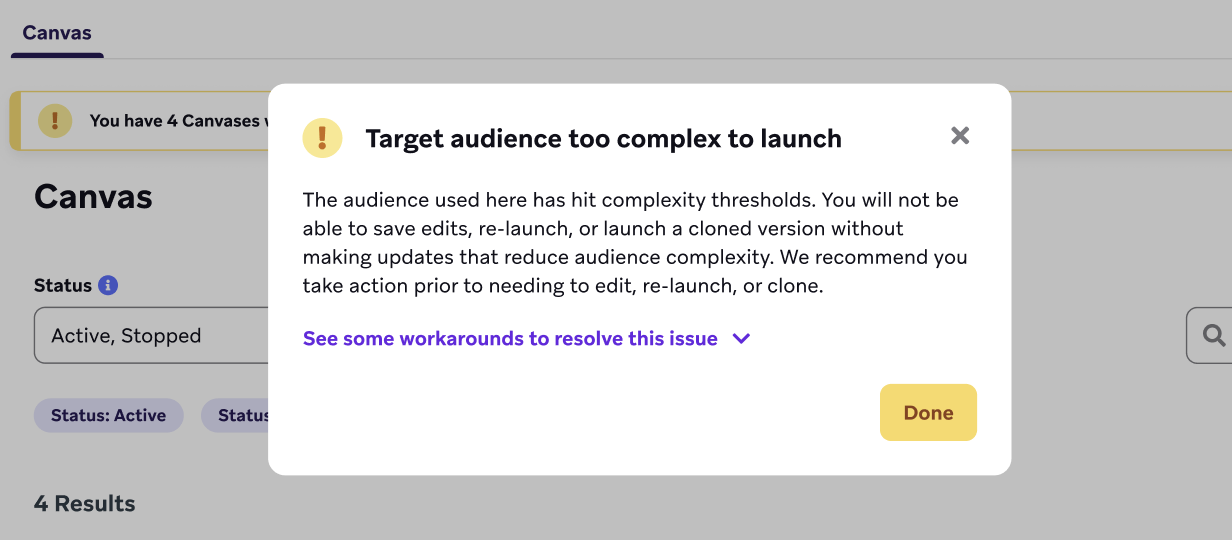
When you add segment filters to a campaign or Canvas, those filters are translated into queries in Braze (the character count of these queries is not 1:1 to the number of characters a dashboard user sees). When Braze sends a campaign or Canvas, we run a query that combines all filters in the targeted audience. We apply a threshold limiting the number of characters in the resulting query for a target audience. For a given campaign or Canvas, we sum up the character count across all segments referenced, including all additional filters. For a given segment, we sum up the character count across all filters and filter values.
Your dashboard will display an error when a campaign, Canvas, or segment exceeds the threshold and can’t be launched. If you receive this error, simplify your target audience before launching again, including:
- If your audience references multiple segments, make sure the segments don’t have redundancies, such as the same filters appearing in multiple segments.
- Make sure you aren’t referencing outdated data in segment filters. For example, an outdated filter might look for users who haven’t received a certain Canvas step in the past week, even though the Canvas has been stopped for months.
- Segments that are just lists of user IDs or emails (which often use a regex filter) can be converted to a CSV import and be simplified into a single CSV filter.
- If you have CDI, you may be able to create a CDI segment that pulls the group directly from your data warehouse.
You can also contact Support for further assistance with filter optimization.

We began limiting character counts in April 2025. Campaigns and Canvases that launched before April 2025 were exempt, which means they can continue exceeding the limit, whereas newly created campaigns and Canvases can’t exceed the limit. If you edit or clone an exempt campaign or Canvas, you cannot launch it until the audience is updated to be below the limit.
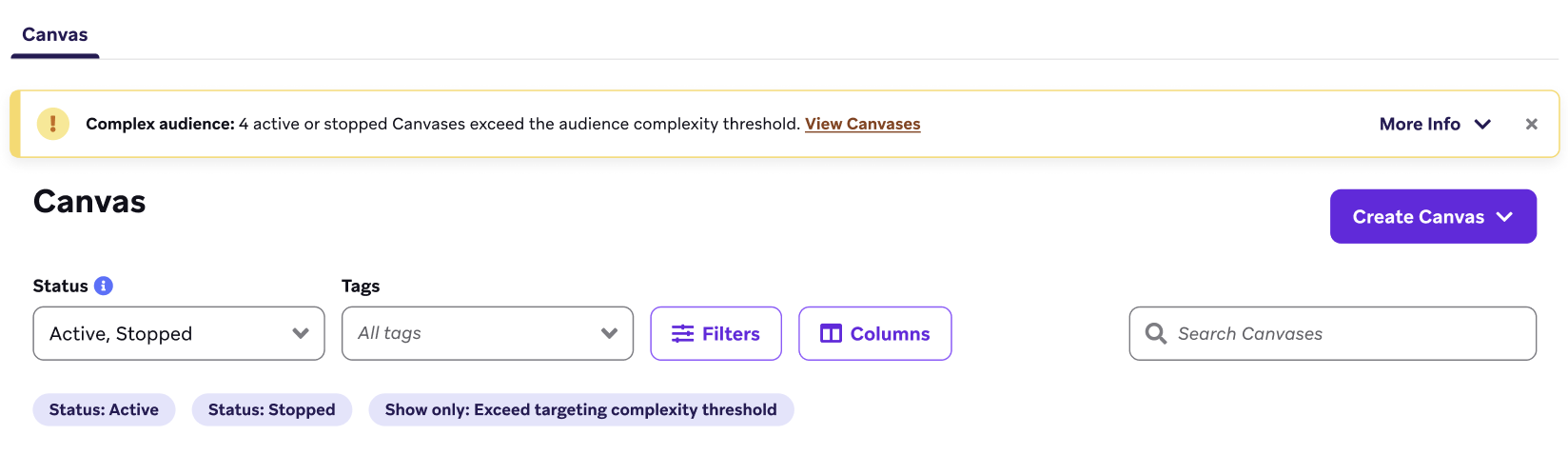
X active or stopped campaigns or Canvases exceed the audience complexity threshold
This banner displays at the top of a campaign or Canvas list whenever active or stopped campaigns or Canvases have audiences that exceed the audience complexity threshold. Select the banner to filter the list to just the campaigns or Canvases exceeding the threshold, then follow the troubleshooting steps in Target audience is too complex to launch.
Filter exceeds 10,000 bytes or is too long to save
Braze limits individual segment filters to a maximum of 10,000 bytes, which is equivalent to 10,000 English characters or 3,333 Japanese characters. A warning appears whenever an individual filter exceeds 10,000 bytes, whether the filter is within a segment or added directly to campaign or Canvas.
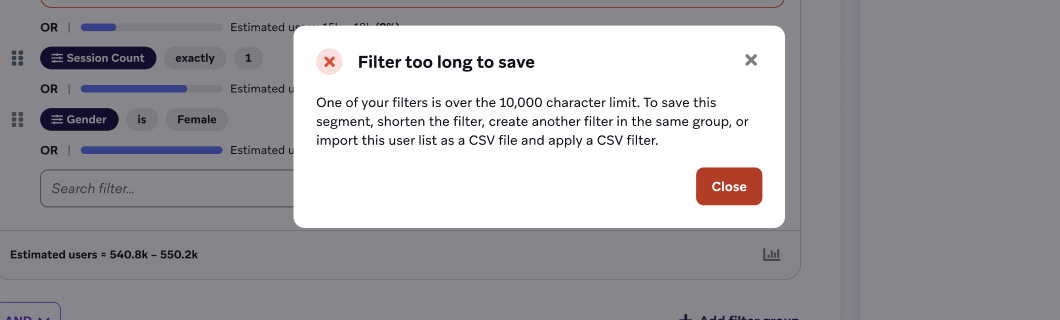
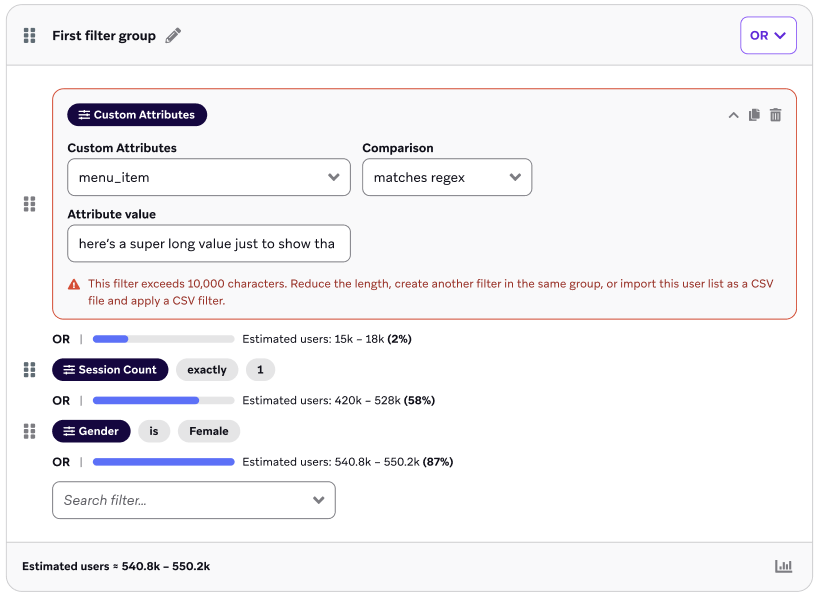
This error occurs very rarely, but when it does occur, it’s typically with regex filters that target a list of user IDs or email addresses. In that case, you can follow these steps to convert the filters to a CSV:
- Export the users from the affected segment or the specific regex filter.
- Clean the CSV as needed. You need either Braze ID or Appboy ID, but you can remove all other columns if they aren’t needed. We also recommend reviewing your data to confirm it’s recent (for example, remove users who you’re no longer trying to target).
- Import the CSV file again, which automatically groups the users into a single, highly efficient CSV-based filter.
User behavior
User is no longer in a segment
If a user isn’t available while creating a segment, their user data that determines their segment eligibility might have changed as a result of their own activity or other campaigns and Canvases they’ve interacted with previously. If re-eligibility is turned on, their user profile shows the latest data of the received campaign.
To test whether a specific user matches your segment today, use User Preview or user lookup.
Info displays for users of other apps when I filter for a specific app
Users can have multiple apps, so selecting a specific app in the Apps Used section of the segmentation page will yield results for users who at least have that app. The filter does not yield results for the users who exclusively have that app.
Filtering
Filter options changed
Your filter options are related to the format (data type) that you’re passing to Braze for your custom attribute. To review the data type that Braze is recognizing for your custom attributes, navigate to Data Settings > Custom Attributes.
If your filter options have changed, this is an indication that your data is being passed to Braze in a different format (data type) than before. For detailed descriptions of different data types and their filtering options, refer to custom attribute data types.
Keep in mind that changing the data type of a custom attribute in the dashboard rejects data that is sent to Braze in a different format. You can’t change a custom attribute’s data type while that attribute is referenced in active campaigns, Canvases, or segments; the dashboard displays an error and blocks the change.
The Values tab on a custom attribute shows results from a sample of approximately 250,000 users. Don’t use the Values tab to confirm whether a specific attribute value exists for troubleshooting. For more information, see Values tab.
Nested custom attribute not available as a filter option
If your nested custom attribute isn’t showing up as a filter option when building a segment, generate its schema first. Go to Data Settings > Custom Attributes, find the attribute, and select Generate Schema. Once generated, the attribute becomes available in the segment filter dropdown. For more information, see Generate a schema using the nested object explorer.
Segment is much larger than expected
If your segment looks much larger than you expect despite restrictive-looking filters, check whether you’re using negative filters (is not, does not equal, does not match regex, or not included) with the OR operator on the same attribute more than once. That combination can target users with all values for the attribute.
For guidance on when to use AND instead of OR, see When to avoid the OR operator in Create a segment.
Analytics and reporting
Message Sent or Unique Recipients in Campaign Analytics doesn’t match segment count
If your campaign analytics count for Message Sent or Unique Recipients doesn’t match the number of users in the segment filter Has received message from campaign X, there could be three possible reasons why.
-
Users may have been archived, orphaned, or deleted since the campaign launch
For example, let’s say 1,000 users receive a campaign and you make a CSV export the same day. You’ll see 1,000 users reported. Over the next month, 50 of those 1,000 users are deleted (for example, by theusers/deleteendpoint). When you make another CSV export, you’ll see 950 users reported while the Unique Recipient count in Campaign Analytics is still 1,000.
In other words, the Unique Recipients metric is an incremented count, while the segmenter and CSV export provide a count of currently existing users. -
The campaign has re-eligibility set, so users can re-enter the campaign multiple times
For example, let’s say an email campaign has re-eligibility set to zero minutes (users can re-enter the campaign as long as they meet the audience segment requirements), and the campaign has been running for over a month. The Messages Sent number in Campaign Analytics wouldn’t match the number in the segment because this field would include messages sent to duplicate users.
This is because Braze counts unique users as Unique Daily Recipients, or the number of users who received a particular message in a day. This means that re-eligible users are counted more than once as a unique recipient because the “unique” window only lasts a day. This can result in the number of Unique Daily Recipients being higher than the number of user profiles in the CSV export. The user profiles in the CSV file are truly unique. -
Users who share a channel identifier matched the filter
TheHas received message from campaign Xfilter (and other “received” filters) can match users who share a channel identifier, such as the same push token or email address, with another user profile that received, opened, or clicked the message.
User is assigned to two apps despite logging a session in only one app
When creating a segment, you can target users that have used specific apps. A user needs to have had a session in a specific app to be assigned to that app; however, there are two scenarios where a user can still be assigned to a specific app without having logged sessions in the app.
The first scenario is if the app_id field is populated when using the /users/track endpoint—specifically when using an event or purchase object, such as in this example:
{
"events": [
{
"external_id": "john_doe123",
"app_id": "my_web_app_id",
"name": "Custom Event",
"time": "2025-08-17T19:20:30+1:00"
}
]
}
The second scenario is if the app_id field is populated when using the /users/track endpoint to migrate push tickets, such as in this example:
{
"app_group_id": "{YOUR_APP_GROUP_ID}",
"attributes": [
{
"push_token_import": false,
"external_id": "external_id1",
"country": "US",
"language": "en",
"{YOUR_CUSTOM_ATTRIBUTE}": "{YOUR_VALUE}",
"push_tokens": [
{"app_id": "{APP_ID_OF_OS}", "token": "{PUSH_TOKEN_STRING}"}
]
}
]
}