Preview personalization
Use Preview and Test in the message composer to see how Liquid, Connected Content, and other personalization render before you send a campaign or Canvas. Preview behavior depends on which user you select and which preview tool you use; composer preview, Inbox Vision, and Canvas path previews each have different limits.
Preview in the composer
In most campaign and Canvas message composers, you can open Preview and Test and select the Preview tab to see a rendered view of your message. When your message includes Liquid or other personalization, use Preview message as user to choose whose profile data Braze uses while rendering.
Available options typically include:
| Option | Description |
|---|---|
| Random user | Braze selects a user from your workspace at random. This is the default when you have “View User Profiles (PII Redacted)” permission. |
| Select existing user | Search by user ID or email to preview as a specific profile. |
| Custom user | Enter field values manually to simulate a profile without changing a real user. |
| Multi-language user | Preview locale-specific translations when multi-language messaging is enabled for the message. |
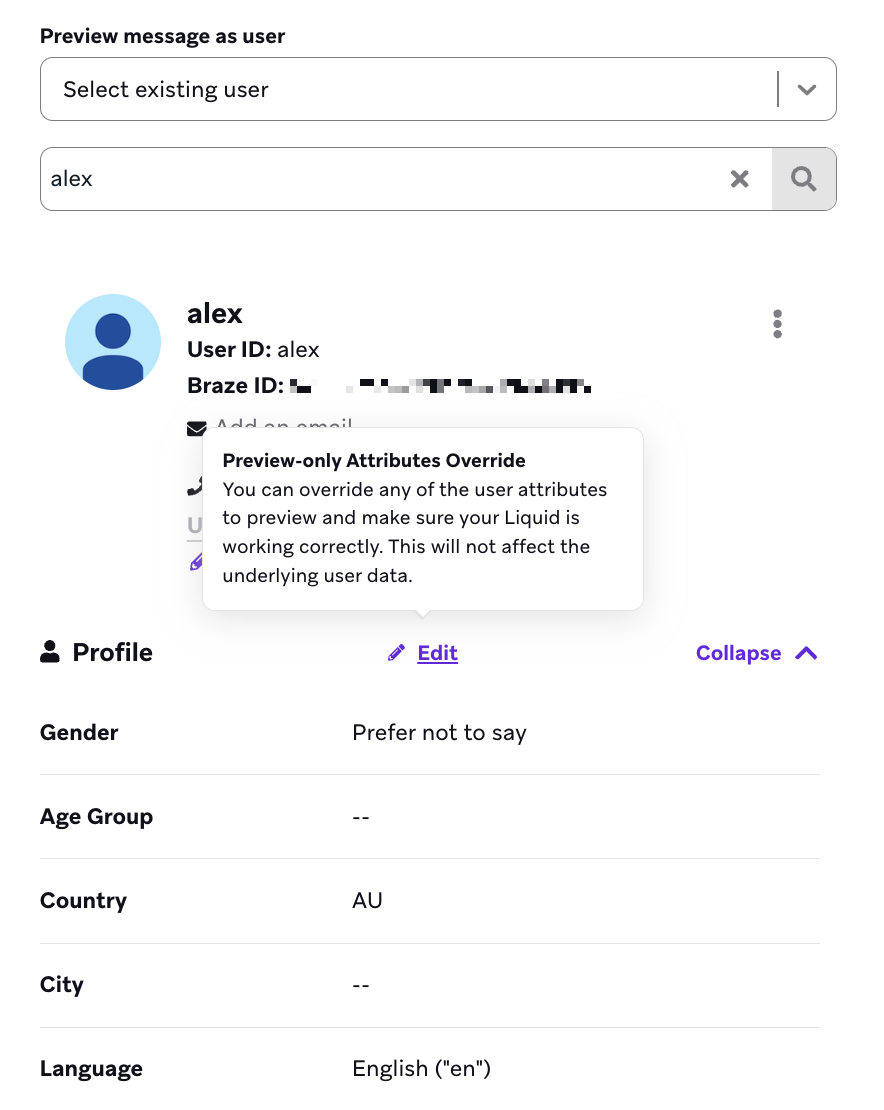
| Edit | On a random or existing user, convert the selected profile into a custom user you can modify for edge-case testing. |

If your company user role doesn’t include the “View User Profiles (PII Redacted)” permission, Preview message as user shows only Custom user.
To share a rendered preview with stakeholders who don’t have dashboard access, use Share a message preview with stakeholders. Shareable preview reflects the same personalization context you selected in Preview and Test.

Preview may differ from the final render
The in-editor Preview tab helps you catch layout and personalization issues early, but it may not match how a message renders on every device, email client, or app build. Hardware differences, email-client rendering, push notification truncation, and channel-specific behaviors can all affect the final message.
Treat composer preview as one step in your quality assurance workflow, not the only check. We recommend sending a test messages to a real device or inbox to validate media, copy, personalization, and custom attributes.
Choose who you preview as
Personalization in preview depends on user context. By default, Braze previews as a Random user when you have View User Profiles (PII Redacted) permission. Liquid may still appear unrendered when the selected profile lacks the attributes your message references, when Custom user fields are empty, or when your workspace has no users yet (in that case, create a custom user to preview).
For accurate Liquid substitution, preview or send tests as one of the following:
| Option | Description |
|---|---|
| Existing user | Preview as a profile whose attributes match the scenario you want to test. |
| Custom user | Simulate a profile by selecting values for standard and custom fields. |
| Edited user | Preview as a profile of a random or existing user, then update individual fields without changing the live profile. |
Select an existing user
Search for a user by ID or email, then review the dashboard preview to see how the message appears for that profile. Send a test message to your device to confirm the same rendering off-dashboard.
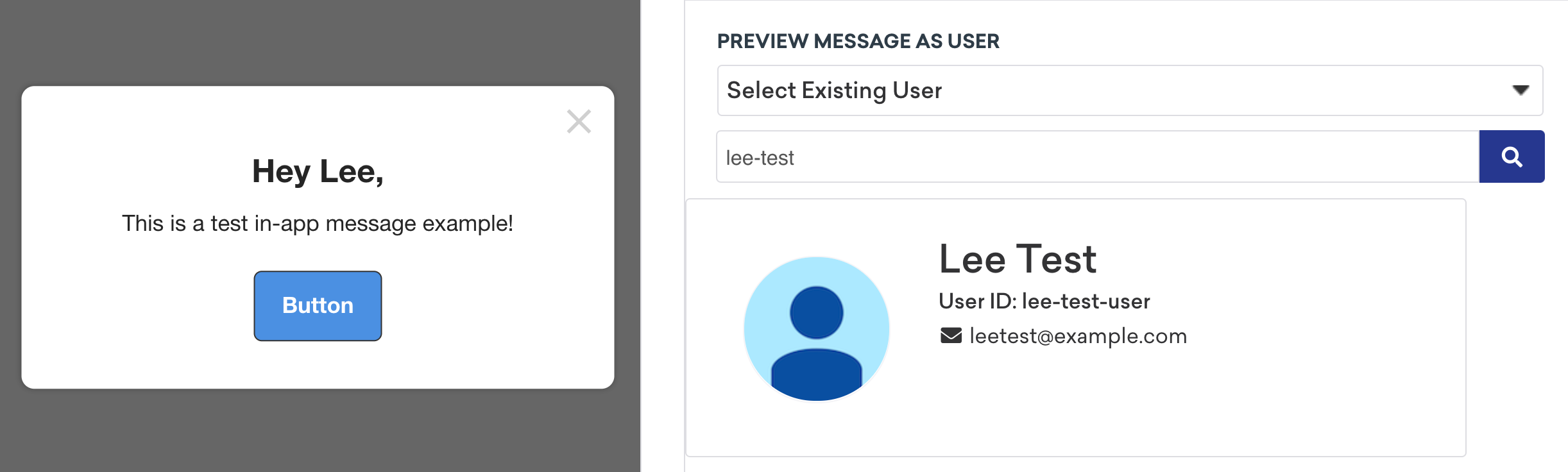
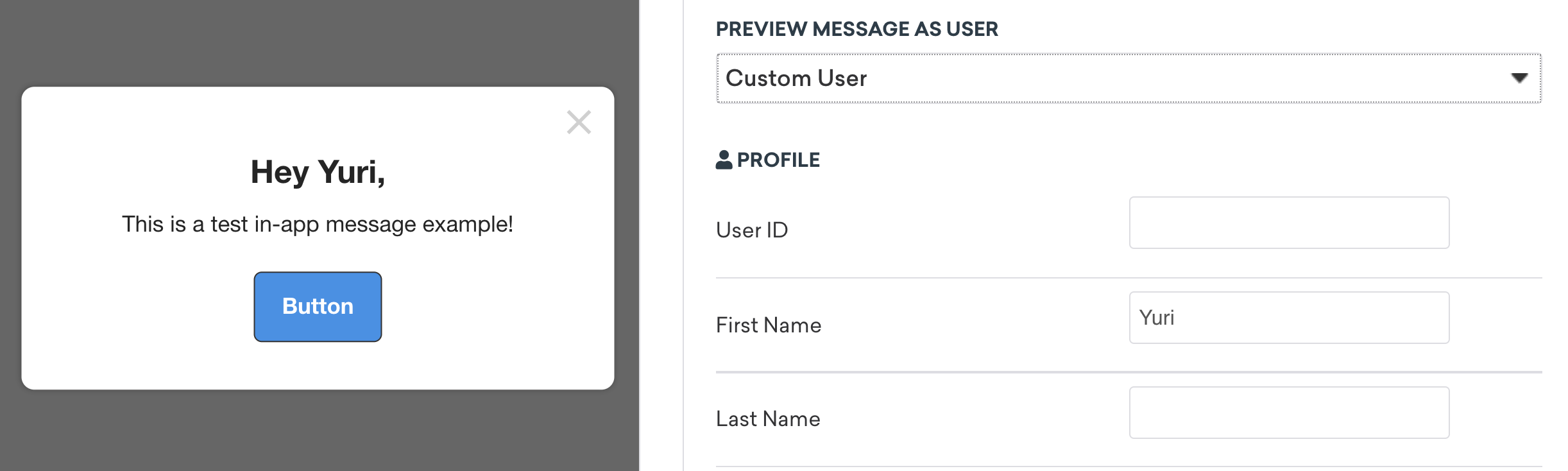
Create or customize a test user
Enter values for fields available for personalization, such as first name and custom attributes. You can send a test to your own email address or device to verify the output.
To adjust fields on a random or existing user without editing the live profile, select Edit to convert the selection into a custom user.
When you send a test from the Test tab, select Override recipients’ attributes with current preview user’s attributes to send the test using the profile data from your current Preview message as user selection instead of each recipient’s live attributes.
For step-by-step test-send workflows with user attributes, see Testing campaigns personalized with user attributes.
Custom event properties
Messages that reference custom event properties need extra setup in preview and test flows. Composer preview does not automatically supply event-property values from a past event.
To test this personalization accurately, use one of these approaches:
| Approach | Where | What to do |
|---|---|---|
| Trigger the event | Live app or test device | Use action-based delivery and perform the custom event so the campaign fires with live property data. |
| Customized user test send | Test tab | Choose Customized User, enter custom event property values, then send a test message. |
| Custom user preview fields | Preview tab > Preview message as user > Custom user | When Braze detects event_properties in your message, enter values in the Custom Event Properties section. |
| Hardcoded Liquid for preview | Message editor | Enter test values directly in the message body, then preview on the Preview tab. Remove or replace these values before you launch. |
For full methods and screenshots, see Testing campaigns personalized with custom event properties.
Inbox Vision and Liquid
Inbox Vision previews how email renders across clients, but it handles personalization differently from Preview message as user in the composer.

Braze templates an empty user when running Inbox Vision. Emails that rely on user or profile data can fail or return misleading results unless you add default or fallback values to your Liquid before you run Inbox Vision.
Keep these limitations in mind:
- Profile-dependent Liquid: Add default values or explicit fallbacks so tags resolve during the Inbox Vision run. After testing, your original message content remains unchanged in the editor.
- Abort message logic: If your email uses abort message logic, the templated preview aborts and Inbox Vision, Spam Testing, and Accessibility Testing cannot run until the message renders successfully for the selected preview user.
- Connected Content retry: If Connected Content retry is triggered during templated preview, Inbox Vision and related email testing tools cannot run until the preview renders successfully.
- Preview message as user versus Inbox Vision: When you preview as a random user, Inbox Vision doesn’t persist user-specific settings. A Custom user selection in the composer may differ from what Inbox Vision shows because Inbox Vision always templates an empty user.
Canvas preview and personalization
Preview user paths simulates a Canvas journey, including message timing and Liquid evaluation along the path. Use it alongside composer preview and test sends when your personalization depends on Canvas context, delays, or multi-step logic.
In Test Canvas, use Preview Canvas as a User to select a Random user or Select existing user. Custom user isn’t available for Canvas path preview. To simulate attribute values that a real profile doesn’t have, select an existing user whose data is closest to your scenario, or test individual message steps in the campaign composer where Custom user is supported.
Liquid during Canvas test runs
Braze processes Liquid during a Canvas test run, including abort message logic, even when no test message is sent. That means abort conditions and other Liquid can change which steps a test user reaches.
Time-based Liquid may evaluate against the current time during the preview rather than the time the user would reach a step in production. If a preview sends the final step instead of aborting, confirm whether timing in the test run matches your production schedule.
Connected Content and webhooks
Connected Content executes during Canvas path previews when it appears in the journey. Calls that update external systems or user data can have side effects outside the test run. Remove or guard Connected Content that alters production data before you preview.
Webhooks run when test messages are sent, not when you run a path preview alone. Plan webhook validation around test sends from the Canvas test flow.
For timing, entry assumptions, test sends, and other Canvas-specific behavior, see Preview user paths in Canvas.
Next steps
- Send test messagesChannel-specific test sends and personalized campaign testing.
- Dashboard tools for personalizationInsert Liquid personalization from the dashboard with Add Personalization.
- Share a message preview with stakeholdersGenerate a shareable preview link that reflects your preview user context.
- Preview user paths in CanvasSimulate Canvas journeys, timing, and Liquid along the path.
- Inbox VisionPreview email rendering across clients and test accessibility.