Workspace quiet hours
Workspace quiet hours let you set a default quiet hours window for a messaging channel across your entire workspace. Every campaign and Canvas that sends on that channel automatically respects the window, so you don’t need to configure quiet hours on each campaign or Canvas individually.
Workspace quiet hours are separate from campaign and Canvas-level quiet hours, which still apply when you configure them. Use workspace quiet hours for the default case (for example, a compliance requirement across all SMS sends). Keep campaign and Canvas-level quiet hours for exceptions.

Workspace quiet hours is currently available in early access. Configuration options may change before general availability. Contact your Braze account team to request access.
How it works
- One window per channel: Each channel supports a single workspace quiet hours window, defined by a start time and an end time.
- Local time zone: Like campaign and Canvas-level quiet hours, workspace quiet hours apply in each recipient’s local time zone, not your company’s time zone.
- Held for later delivery: A message that would otherwise send during the window is held and delivered later, or aborted, depending on the campaign type. See What happens to a held message. Quiet hours never modify message content. They only affect timing.
- Maximum window length: A quiet hours window can’t exceed 20 hours. This limit exists to prevent accidentally pausing all sending on a channel (for example, by setting the start and end time to the same value).
Supported channels
You can set a workspace quiet hours window for any of the following channels:
- Content Cards
- KakaoTalk
- LINE
- Push
- This covers every push platform in your workspace. There is no option to set different quiet hours for individual platforms (for example, iOS vs. Android).
- SMS, MMS, and RCS
- Webhook
Prerequisites
To create or update workspace quiet hours, you need the “Edit Quiet Hours Settings” permission.
| Permission | Access |
|---|---|
| Edit Quiet Hours Settings | Create and update workspace quiet hours. |
| View Quiet Hours Settings | View the workspace quiet hours configuration without editing it. |
Existing campaign and Canvas edit permissions are unaffected. Users with those permissions can still edit quiet hours at the campaign or Canvas level.
Set up workspace quiet hours
Configure the workspace window
- Go to Settings > Quiet Hours.
- Select Create quiet hours. If workspace quiet hours already exist, click Edit quiet hours.
- Select a channel, then enter a start time and end time. A channel can have at most one workspace quiet hours window at a time.
- (Optional) To add another channel, select Add quiet hours.
- Select Next.
- Review the existing campaigns and Canvases that this change affects.
- Save your changes.
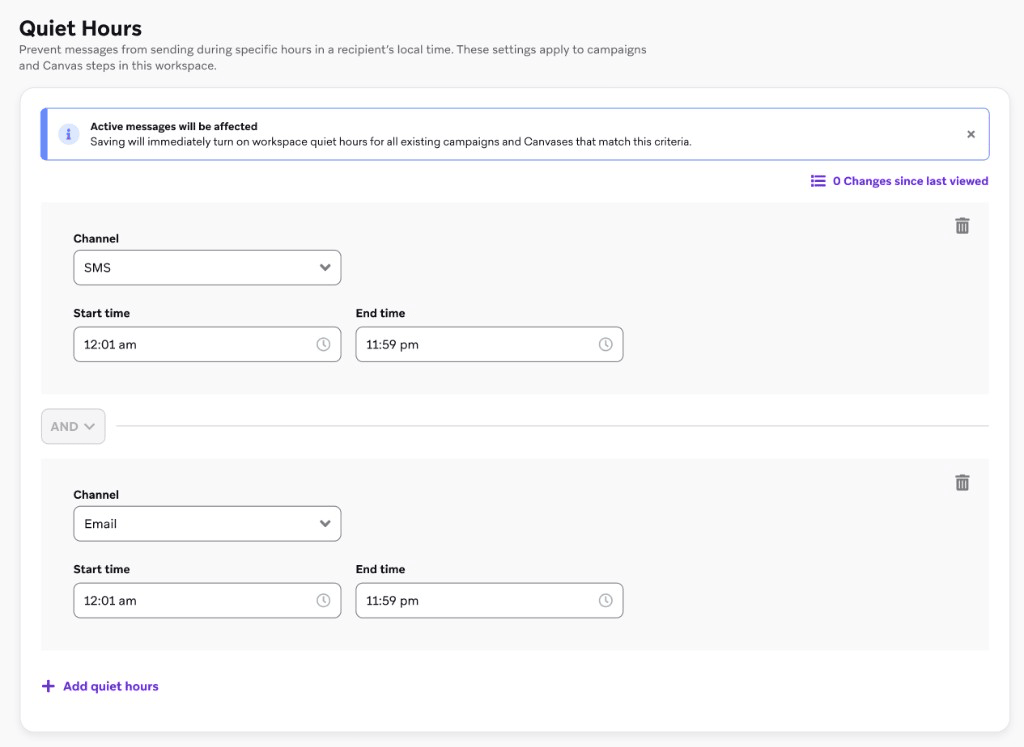
To opt a campaign or Canvas out of quiet hours, select its link, then select Opt out.
If a campaign or Canvas step already has custom quiet hours, those quiet hours take precedence over the workspace quiet hours.
Updates to workspace quiet hours are recorded in a changelog, including who made the change and when, since this setting affects every campaign and Canvas on the channel.
Apply or override in a campaign or Canvas
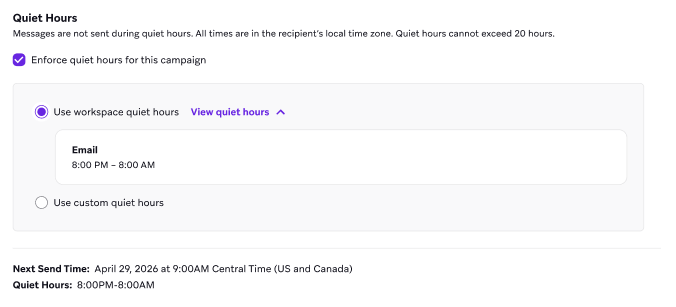
After you save, the workspace quiet hours window appears in the campaign and Canvas editor for each channel that has a window. You can keep the workspace default, or opt out and apply a campaign or Canvas-specific window instead, the same way you opt out of a workspace-level frequency cap.
- Select Enforce quiet hours for this campaign (or the Canvas equivalent).
- Select Use workspace quiet hours to apply the workspace default, or select Use custom quiet hours to set a campaign or Canvas-specific window.
- To review the workspace window for the channels in use, select View quiet hours.
Precedence: workspace versus campaign or Canvas quiet hours
For any given campaign, Canvas, or Canvas step, only one quiet hours setting is ever in effect at a time (workspace quiet hours, a custom window, or none). If a campaign or Canvas step already has custom quiet hours, those quiet hours take precedence over the workspace quiet hours.
How quiet hours apply also depends on when the campaign or Canvas was created:
- Existing campaigns and Canvases (created before you turned on workspace quiet hours): If the campaign or Canvas doesn’t have its own quiet hours window, the workspace quiet hours window for that channel applies automatically. If a campaign or Canvas step already has custom quiet hours, that window continues to apply.
- New campaigns and Canvases: When you create a campaign or Canvas, you can use the workspace quiet hours default, set a custom campaign or Canvas-level window, or opt out of quiet hours entirely.
| Configuration present | Which quiet hours applies |
|---|---|
| Campaign, Canvas, or Canvas step has its own quiet hours window | The campaign, Canvas, or Canvas step window applies. Workspace quiet hours are ignored for that campaign, Canvas, or step. |
| Campaign, Canvas, or Canvas step has no quiet hours window of its own, and a workspace quiet hours window exists for the channel it uses | The workspace quiet hours window applies automatically. This includes existing campaigns and Canvases that never configured quiet hours. |
| Campaign or Canvas is opted out | No quiet hours apply. |
What happens to a held message
What happens to a message that falls inside a quiet hours window depends on the campaign or Canvas delivery type:
- Action-based campaigns and Canvases: Fallback can be either Abort message or Send at next available time, the same options as campaign and Canvas-level quiet hours.
- Scheduled campaigns with a fixed send time: Fallback is Abort message. Braze doesn’t delay a fixed-time send to the next available slot, since that could push a large volume of messages into a compressed sending window once quiet hours end.
- Campaigns using Intelligent Timing: No separate fallback is needed. Braze already factors the workspace quiet hours window into the optimal send time it calculates for each user, so messages aren’t scheduled inside the window in the first place.
- API-triggered campaigns and API campaigns: Fallback is Abort message by default.
API-triggered and API campaigns
Quiet hours work differently for API-triggered campaigns and API campaigns.
API-triggered campaigns
API-triggered campaigns follow the same quiet hours options as other campaigns in the dashboard. You can use the workspace quiet hours default, set a custom campaign-level window, or opt out of quiet hours in the campaign configuration. There is no ignore_workspace_quiet_hours API parameter for API-triggered sends.
For scheduled API-triggered sends using at_optimal_time, workspace quiet hours are already factored into the optimal send time, similar to Intelligent Timing.
API campaigns
API campaigns cannot use campaign-level quiet hours. Only the workspace quiet hours window applies. To send during that window, include the optional ignore_workspace_quiet_hours parameter in your API request.
Exclusions
The following are never held by workspace quiet hours, regardless of channel:
- Transactional email messages
- SMS auto-responses (for example,
STOPorHELPkeyword replies) - Test sends and Seed Group sends
Other considerations
- Scheduled sends in company time: Workspace quiet hours are based on each recipient’s local time zone, but a scheduled campaign’s send time may be set in your company’s time zone. That mismatch means a send time that looks fine in company time could still fall inside quiet hours for some recipients. Review the workspace quiet hours details shown in the campaign editor before sending.
- Delivery after quiet hours ends: If a large audience was held during the window, those messages can become eligible to send all at once when the window closes. Plan for this when a channel has a wide audience and a long quiet hours window.
- Independent of frequency capping and rate limiting: Workspace quiet hours apply independently of frequency capping and rate limiting. A message that clears those controls can still be held by quiet hours, and a message held by quiet hours is still evaluated against rate limits once it’s ready to send.
- **Intelligent Timing overrides workspace quiet hours for multi-channel action-based campaigns. To limit send times, set custom quiet hours instead.
Related settings
- Quiet hoursPer-campaign and per-Canvas quiet hours. Workspace quiet hours set the default when a message doesn't configure its own window.
- Comply with SMS, MMS, and RCS sending timesRecommended quiet hours window, plus country and US state examples.
- Intelligent TimingOptimal send time per user. When enabled with workspace quiet hours, quiet hours are factored into that calculation.
- Rate limiting and frequency cappingSeparate delivery controls that apply independently of quiet hours.