Add-to-calendar links
When promoting an event, sale, or appointment, you can help users easily save the event to their calendar by adding an “add to calendar” link to your emails.
Draft your email and choose where the two calendar options appear: one link for Google Calendar and one for other calendars (such as iCal or Outlook). Use link text like “Add to Google Calendar” and “Add to iCal or Outlook”.
How you attach the URLs depends on which email editor you use:
- Drag-and-drop editor: In a Paragraph block, select the words to link, open the Link control in the toolbar, and paste the URL from URL format. Or use a Button block, set Link type to Open web page, and paste the URL in URL.
- HTML editor: Use the rich text link controls for linked text, or add
<a href="...">tags in your HTML for each calendar URL.
URL format
Add the following URL to your links, replacing the placeholders. The only difference between these two URLs is that Google Calendar needs an additional parameter: &format=gcal.
https://ics.agical.io/?subject=EVENT_SUBJECT&location=EVENT_LOCATION&dtstart=START_TIME&dtend=END_TIME&description=EVENT_DESCRIPTION&format=gcal
https://ics.agical.io/?subject=EVENT_SUBJECT&location=EVENT_LOCATION&dtstart=START_TIME&dtend=END_TIME&description=EVENT_DESCRIPTION
Replace the following:
EVENT_SUBJECT: Title of the eventEVENT_LOCATION: Location of the eventSTART_TIME: The event’s start time in ISO 8601 format (YYYY-MM-DDTHH:MM:SSZ) as UTCEND_TIME: The event’s end time in ISO 8601 format (YYYY-MM-DDTHH:MM:SSZ) as UTCEVENT_DESCRIPTION: Description of the event
Replace any spaces with the HTML escape code %20. For example, a subject of “Meet Braze” would be “Meet%20Braze”.
Here’s an example of an “Add to Google Calendar” URL:
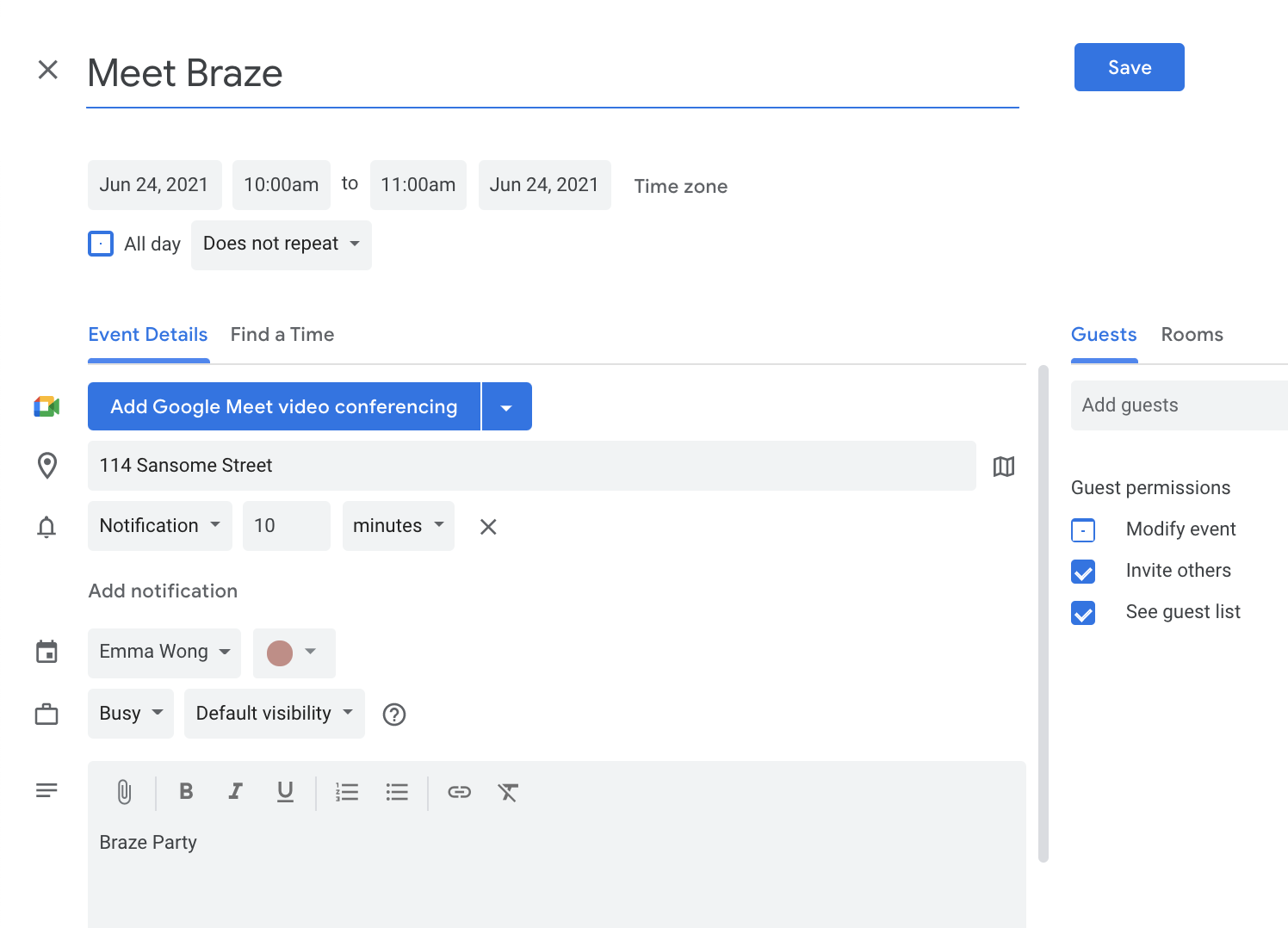
https://ics.agical.io/?subject=Meet%20Braze&location=114%20Sansome%20Street&dtstart=2021-06-24T15:00:00Z&dtend=2021-06-24T16:00:00Z&description=Braze%20Party&format=gcal
Additional parameters
The following parameters are optional and can be used to define additional aspects of an event.
- Organizer name:
&organizer=name - Attach URL related to event:
&attach=http://www.example.com/ - Duration:
duration=30M, as an alternative to the event end time (dtend), specify a duration like 1H or 30M - Reminder alarm time, in minutes:
&reminder=15 - All day event:
&allday=1 - UID: optional parameter to hard-code the unique identifier for the event allowing some calendar apps the ability to update the event over time. The string @ics.agical.io is automatically appended to the value.
You can also add additional parameters for recurring events:
- Weekly events:
&recur=weekly - Monthly events:
&recur=monthly - End of recurrence:
&recuruntil=END_DATE, whereEND_DATEis the date and time the recurrence ends in ISO 8601 format (YYYY-MM-DDTHH:MM:SSZ) as UTC
Link behavior
When a user clicks on the link, calendars automatically transform the UTC timestamps in the URLs to reflect the user’s time zone set in their calendar.
For example, if you open the example “Add to Google Calendar” link and your calendar is set to CST, the event’s time will pre-populate according to what 3 pm UTC is in CST (10 am).
Google Calendar
When clicked, Google Calendar opens in a new tab or window with the event’s details pre-populated in the invite and ready for a user to save. This happens on both mobile and desktop.
iCal or Outlook
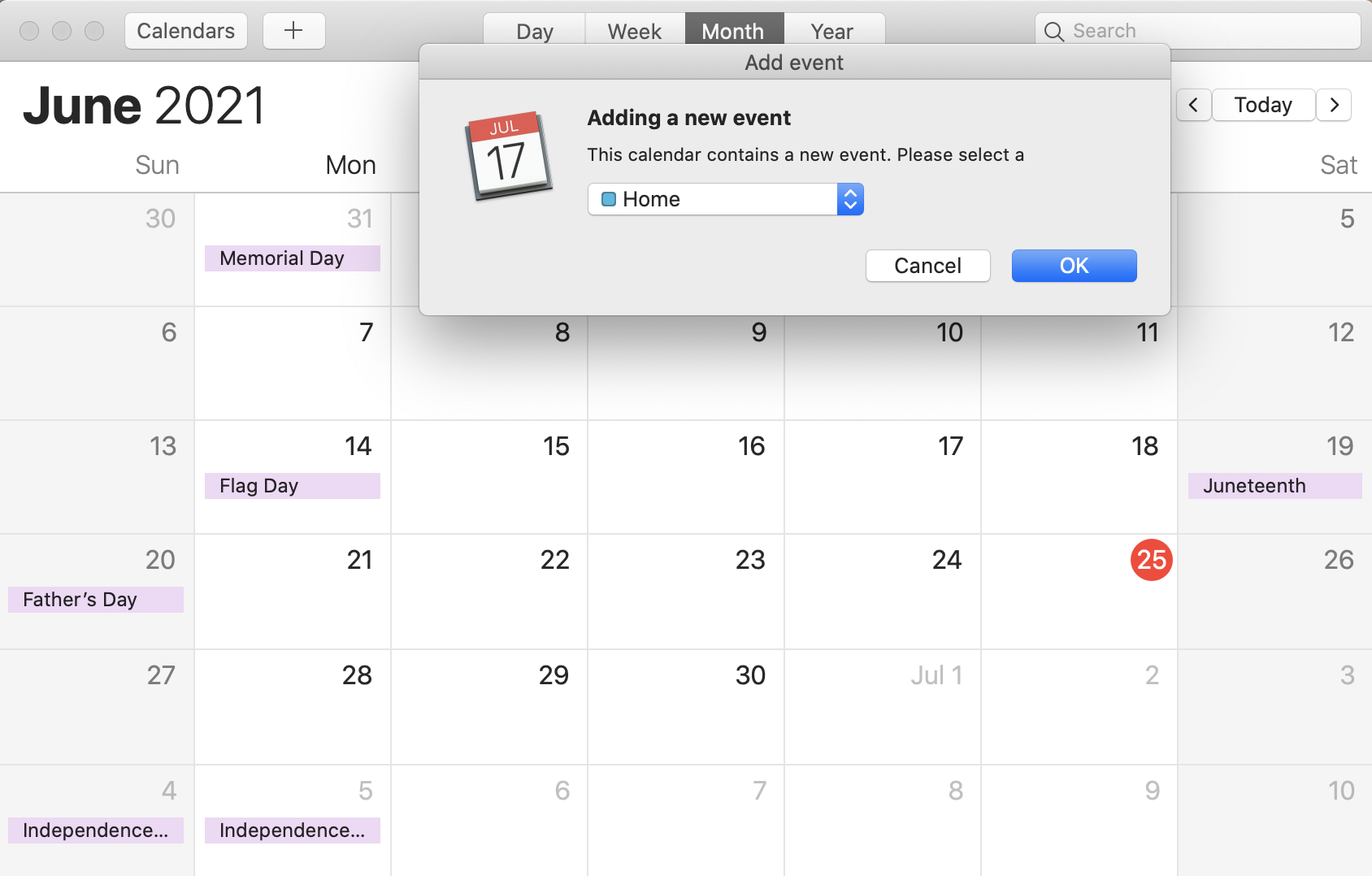
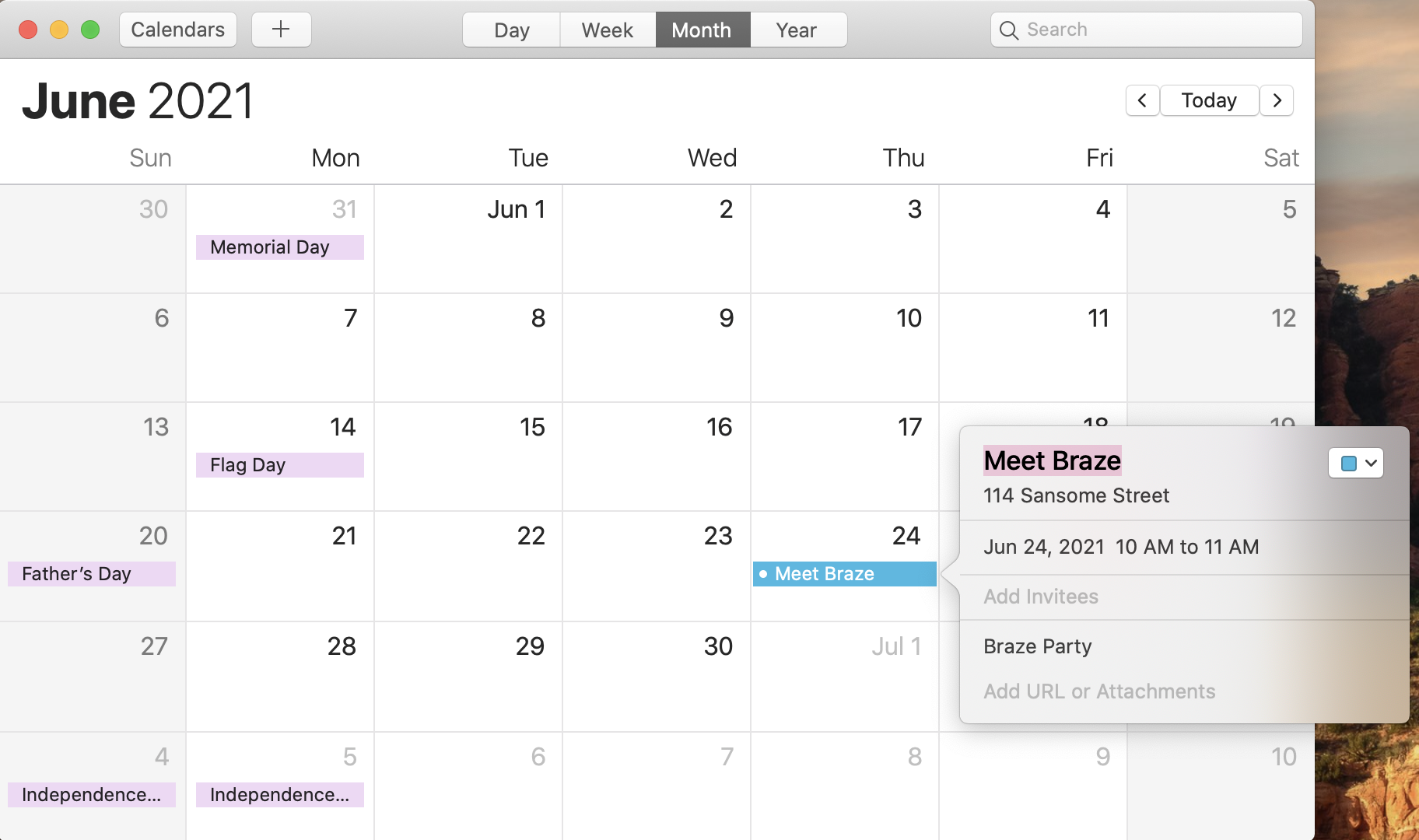
When clicked on desktop, an ICS file is downloaded to your browser’s default download location (typically the Downloads folder). The user then needs to open the ICS file, which opens iCal or Outlook and prompts the user to add the event to their calendar.
On mobile, behavior depends on the device and email app.

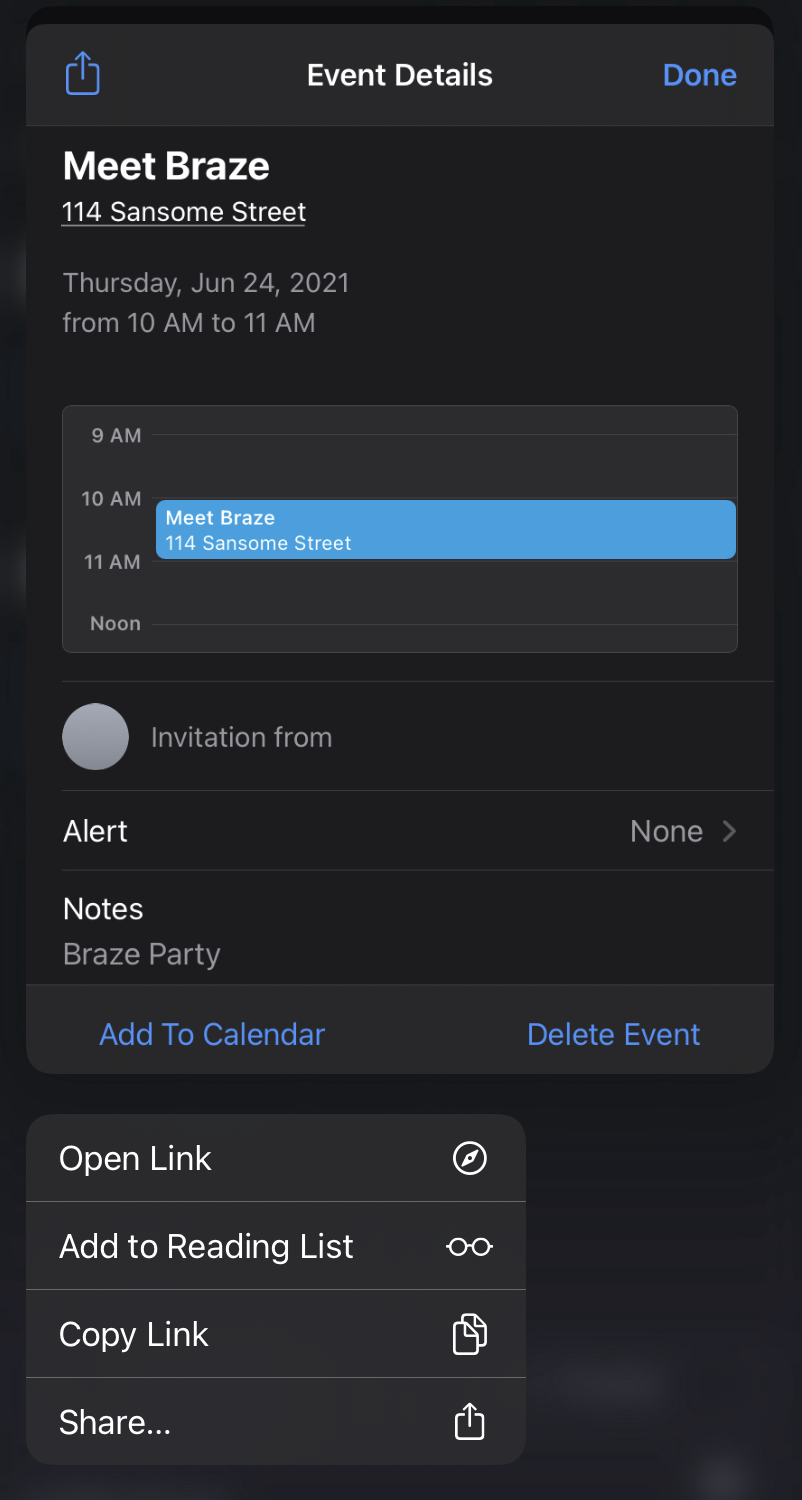
On iPhone, the Mail app and Microsoft Outlook download the ICS file to the device when users tap the iCal link, but those apps do not open Calendar from the link. To add the event, open the downloaded file from Files, Downloads, or the attachment view (depending on the app), then complete the steps in Calendar. The specific location depends on the email app and iOS settings.
In some other mobile email apps or browsers, pressing and holding the link can show an option to add the event to a calendar.
For more information, refer to: