Click tracking
This page covers how to turn on click tracking in your WhatsApp messages, test shortened links, use your custom domain in tracked links, and more.
Click tracking lets you measure when someone taps a link in your WhatsApp message, giving you a clear view into what content is driving engagement. Braze shortens your URLs, adds tracking behind the scenes, and logs click events as they happen.
You can turn on click tracking in both response and template messages. It works with links in buttons and body text, and supports personalized URLs and custom domains. After it’s turned on, you’ll see click data in your WhatsApp performance reports and be able to segment users based on who clicked what.

Click tracking doesn’t work with deep links. You can shorten universal links from providers such as Branch or Appsflyer, but Braze is unable to troubleshoot issues that may arise in doing so (such as breaking the attribution or causing a redirect).
How it works
Response messages
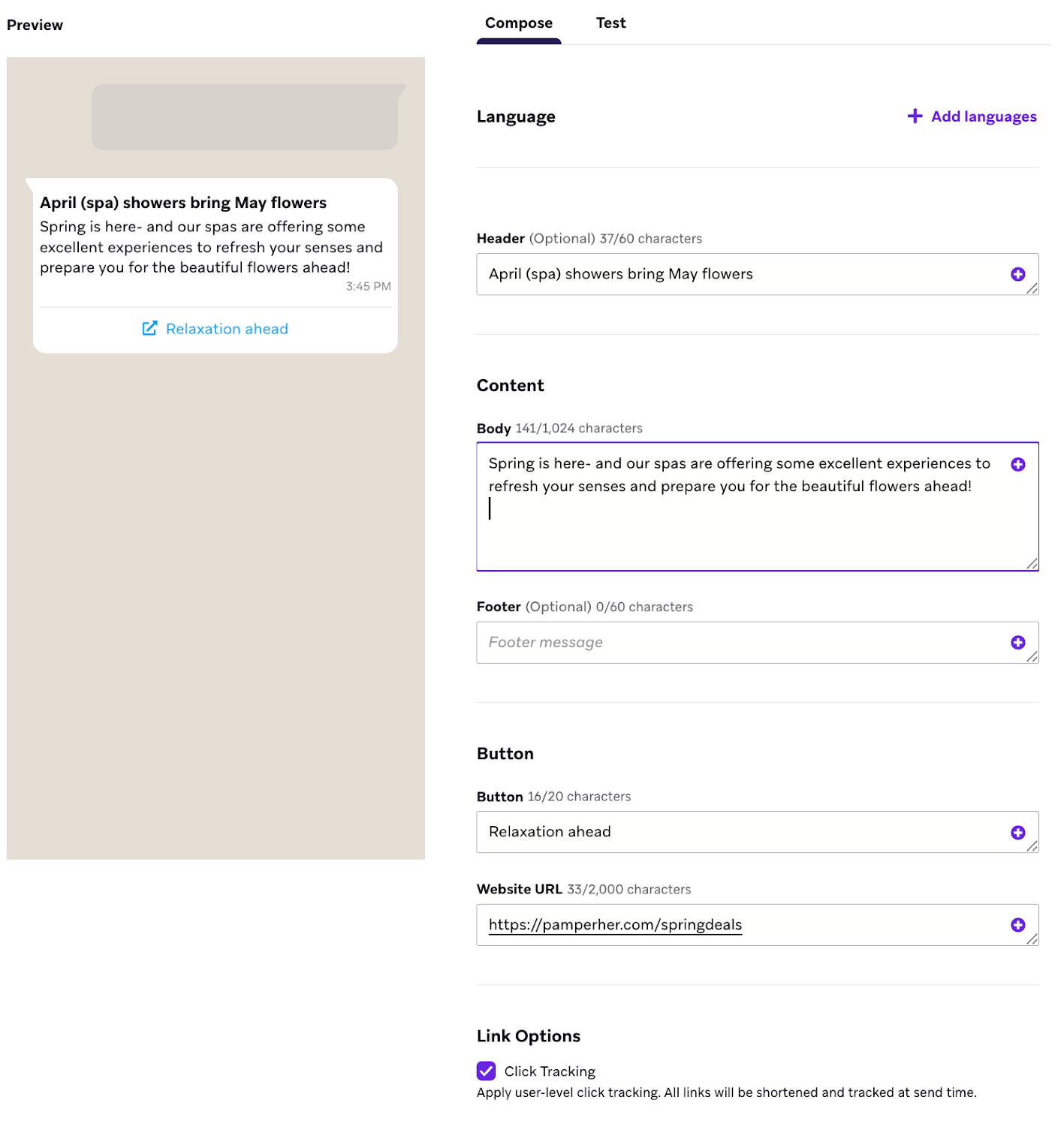
To set up click tracking for response messages:
- Create a response message that includes a call-to-action (CTA) button with a website URL.
- Turn on Click tracking.
Braze shortens the link to the Braze domain, or the custom domain specified for the subscription group, and personalizes it for the user.
Braze shortens any static URLs that start with http:// or https://. Shortened URLs that contain Liquid personalization (such as user-level tracking targeting) are valid for two months.
Template messages
We recommend enabling click tracking for template messages through the WhatsApp Template Builder in Braze. This enablement method automatically handles the URL formatting requirements, so you don’t need to manually configure anything in WhatsApp Business Manager.
If you’re creating templates directly in WhatsApp Business Manager instead, see Configuring click tracking from WhatsApp Business Manager.
How click tracking works in templates

Click tracking only works when the template includes a trackable link structure—URLs in the body or CTAs formatted with your tracking domain.
When you submit a template to Meta for approval, Braze rewrites the link into a tracked format inside the template. Liquid in the query parameters resolves for each recipient.
A link passed entirely through a template variable can’t be shortened because the approved template only contains the variable placeholder—there is no link in the template for Braze to rewrite, and Meta doesn’t allow changes to approved template text.
Use the Template Builder
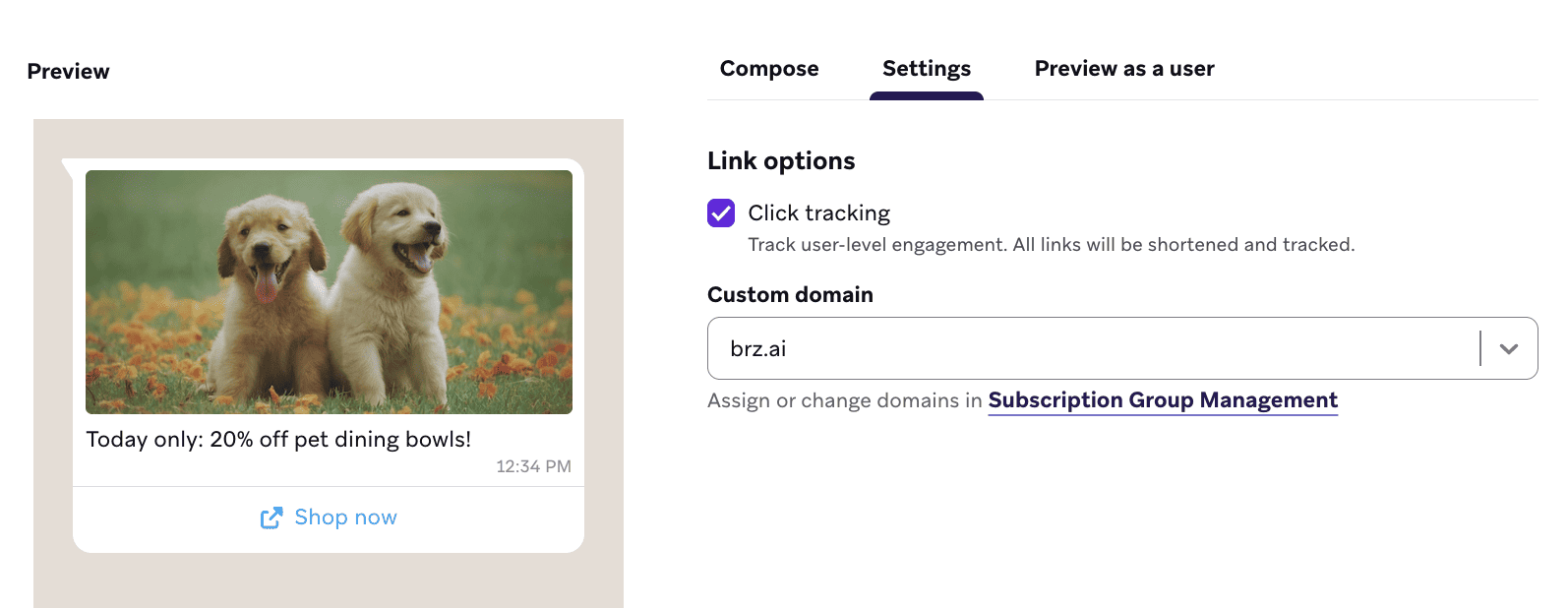
When creating a template in the Template Builder, click tracking is configured in the Settings tab.
Step 1: Enable click tracking
In the Template Builder, go to the Settings tab. In Link options, select the Click tracking checkbox. When enabled, all links in your template (in both the message body and CTA website buttons) are shortened and tracked.
Step 2: Select a custom domain (optional)
Under Custom domain, select the domain you’d like to use for shortened links. The dropdown shows all custom tracking domains configured for your workspace. If you don’t select one, Braze uses the default brz.ai domain.
To add or change domains, select Subscription Group Management.
After a template is submitted to Meta for approval, the tracking domain cannot be changed. Confirm you’ve selected the correct domain before submitting.
Step 3: Add your destination URLs
Go back to the Compose tab and add your message content.
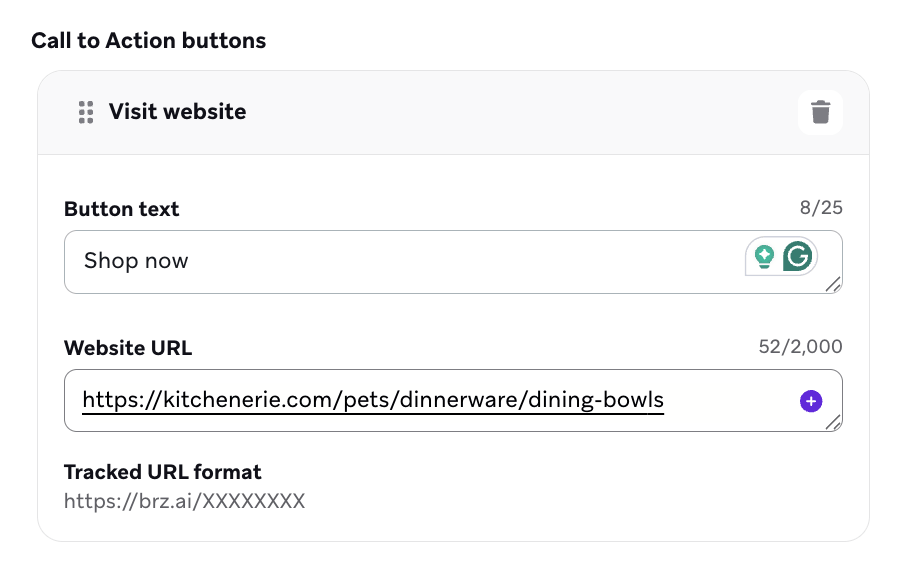
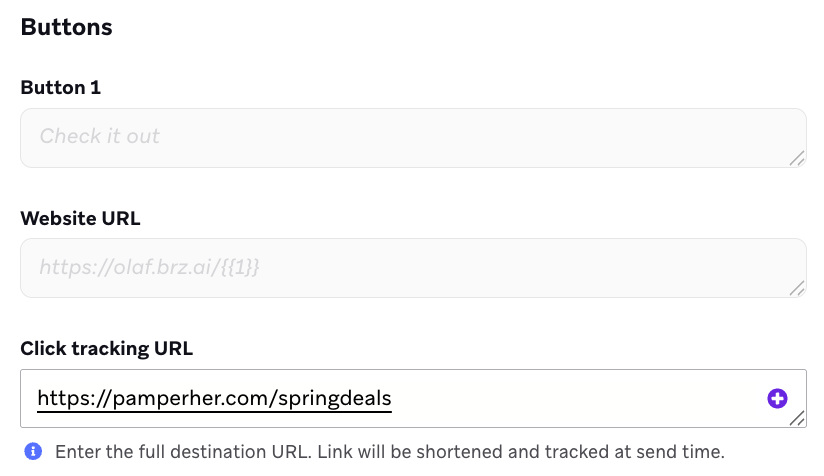
- For CTA website buttons: Enter the destination URL in the Click tracking URL field. Braze stores your destination URL and automatically formats the button’s website URL with the tracking domain and a variable placeholder (for example,
https://brz.ai/{{1}}). This placeholder is what is submitted to Meta. At send time, Braze generates the full tracked URL for each user and populates the variable. - For body text links: Enter URLs directly in the body.
You can preview the tracked URL format for each button directly in the Website URL field (for example, https://brz.ai/XXXXXXXX).
Update destination URLs after submission
After a template is submitted to Meta, the tracking domain is locked, but the destination URL remains editable at any time. To update where a link points, edit the Click tracking URL field for that button. The tracked URL format stays the same; Braze redirects users to the new destination at send time.
Configure click tracking from WhatsApp Business Manager
If you’re creating templates in WhatsApp Business Manager rather than the Template Builder, follow these steps so click tracking works correctly when the template is used in Braze.
Step 1: Build a click-tracking supported template in WhatsApp Business Manager
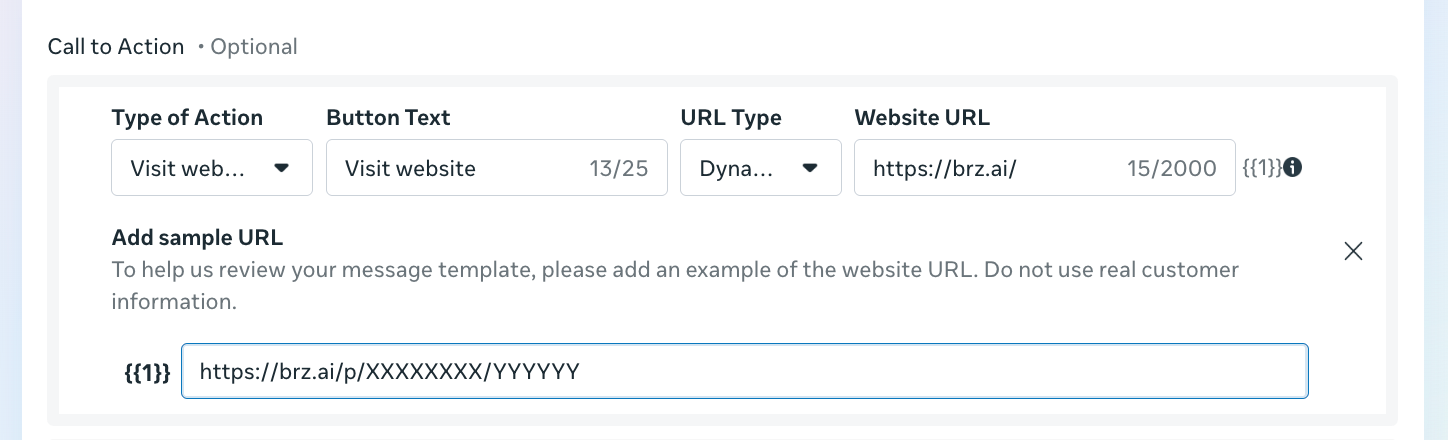
- In your WhatsApp Business Manager, create a base URL that is either your custom domain or
brz.ai. - Make sure that the links included in the template are compatible with click tracking.
- Don’t change the template variables after it’s set up as a campaign in Braze; downstream changes can’t be incorporated.
- For CTA button links, select Dynamic, and then provide the base URL (
brz.aior your custom domain).
- For links in the body text, when writing the template in your WhatsApp Business Manager, remove any inserted spaces for links contained in the body that you want to track.

Step 2: Complete your template in Braze
When composing, Braze automatically detects which templates have supportable URL domains, both in the body text and for CTA buttons. The status is shown at the bottom of the template.
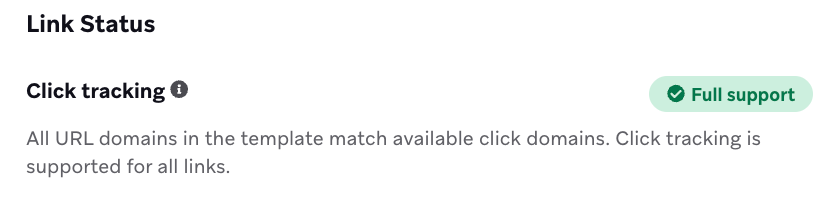
- Supported links: Links submitted with the matching base URL have have click tracking enabled.
- Partially-supported links: If some links in a template are submitted as full URLs, click tracking won’t be applied to those links.
- Unsupported links: Links without an approved base URL won’t have click tracking capabilities.
The destination URL needs to be provided for any link with a base URL that matches either brz.ai or your custom domain.
Sending template messages via the API: WhatsApp click tracking (using brz.ai or a custom tracking domain and the Click tracking URL field in the message composer) isn’t supported when sending WhatsApp template messages through the /messages/send endpoint.
If you send a template message through the API, you can populate CTA URL variables (using button_variables), but Braze doesn’t generate a click-tracking URL or redirect link in the API request flow. To use click tracking, send the template from the Braze dashboard or via a Braze campaign trigger.
Custom domains
Link shortening also allows you to use your own domain to personalize the look and feel of your shortened URLs, helping portray a consistent brand image. For more information, refer to Self-serve custom domains.
Liquid personalization in URLs
You can dynamically construct your URL directly within the Braze composer, allowing you to add dynamic UTM parameters to your URLs or send users unique links (such as directing users to their abandoned cart or to a specific product that is back in stock). URLs can be dynamically generated through the use of any supported Liquid personalization tags.
https://example.com/?campaign_utm={{campaign.${api_id}}}&user_attribute={{custom_attribute.${attribute1}}}
We also support the shortening of custom-defined Liquid variables, such as in these examples:
{% assign url_var = {{event_properties.${url_slug}}} %}
https://example.com/{{url_var}}
Shorten URLs rendered by Liquid variables
Braze shortens URLs that are rendered by Liquid, even those included in API-trigger properties. For example, if {{api_trigger_properties.${url_value}}} represents a valid URL, we will shorten and track that URL before sending the WhatsApp message.
Testing
Before launching your campaign or Canvas, it’s best practice to preview and test your message first. To do so, go to the Test tab to preview and send a WhatsApp to content test groups or an individual user.
This preview will update with relevant personalization and the shortened URL.
If a draft is created within an active Canvas, a shortened URL won’t be generated. The actual shortened URL is generated when the Canvas draft is made active.
Reporting
When click tracking is turned on or used with supported templates, the WhatsApp performance table includes the column Total Clicks that shows a count of click events per variant and an associated click rate. For more details on WhatsApp metrics, refer to WhatsApp message performance.
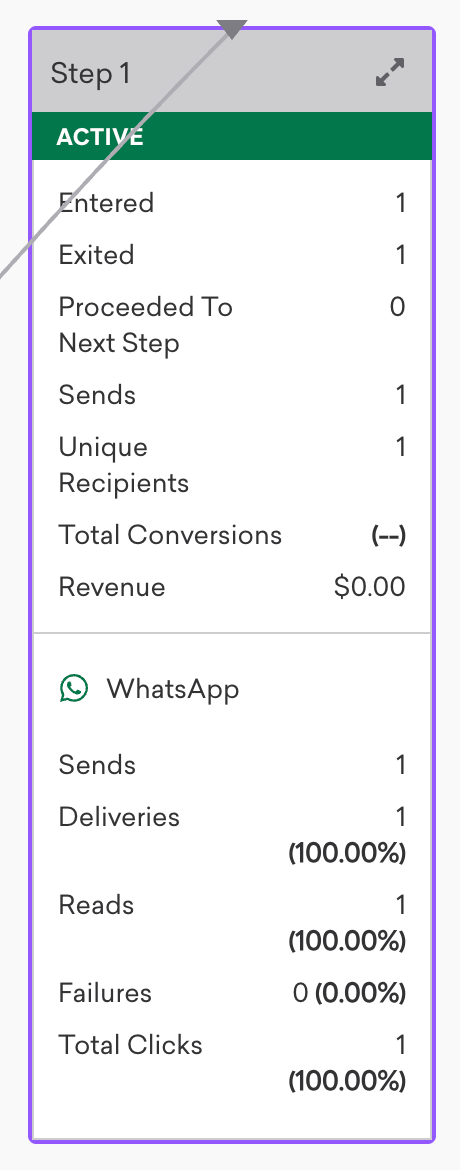
Click data will be automatically reported in the analytics dashboard.

Retargeting users
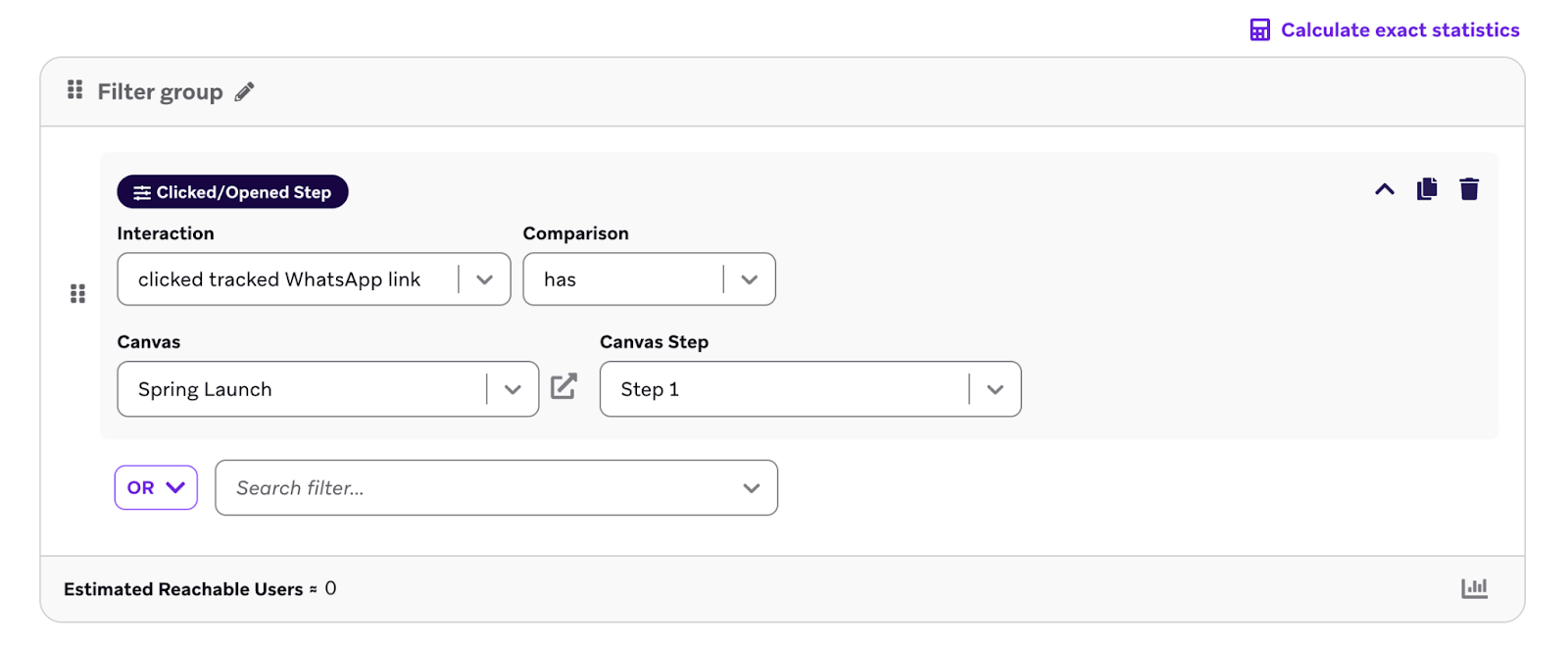
You can use the Clicked/Opened Step filter and clicked tracked WhatsApp link interaction to segment users based on their interactions with the links.
Frequently asked questions
Are the links I receive when test sending real URLs?
If the campaign has been saved as a draft before test sending, yes. Otherwise, it is a placeholder link. Note that the exact URL sent in a launched campaign may differ from the one sent in a test send.
Can I add UTM parameters to a URL before it is shortened?
Yes. Both static and dynamic parameters can be added.
How long do shortened URLs remain valid?
Personalized URLs are valid for two months from the time of URL registration. For unified link shortening, which does not have a static or personalized distinction, all links are valid for nine weeks.
Does the Braze SDK need to be installed in order to shorten links?
No. Link shortening works without any SDK integration.
Do I know which individual users are clicking on a URL?
Yes. When click tracking is turned on (or enabled based on template configuration), you can retarget users who have clicked URLs by leveraging the WhatsApp retargeting filters or the WhatsApp click events (users.messages.whatsapp.Click) sent by Currents.
Do previews on the WhatsApp device count as clicks?
No, they do not contribute to the click rate for WhatsApp messages.