Link templates
With link templates, you can create dynamic and reusable links for your email campaigns by appending parameters or prepending URLs. This can create consistency in the URLs across your campaigns and messages.
Turn on link templates
Link templates are an optional feature that Braze turns on for your whole company, not in the dashboard. To request it, contact your Braze account manager. If link aliasing is already on for your company, link templates are on too.
When link templates are on, Email Link appears under Templates in the dashboard navigation, and the page it opens is titled Email Link Templates. Creating and editing templates requires the “View Email Link Templates” and “Edit Email Link Templates” permissions. If Email Link is missing, see A link management page or setting is missing. To learn more about these permissions, see Company user permissions.
How it works
Link templates are most often used in these following use cases:
- Appending Google Analytics query parameters to all links in a given email message
- Prepending a URL to all links in a given email message
Let’s say you’re running a promotional email campaign for a new product launch. You can use a link template that directs users to the product page and personalize the link to include your user’s name or a specific promotional code. This can allow you to track how many users have clicked on the link and have made a purchase. This way, you can create consistency across your links and better track your analytics.
Create a link template
You can create an unlimited number of link templates to support your various needs. To create a link template, do the following:
- Go to Templates > Email Link.
- Select Create email link template.
- Give your link template a name.
- (Optional) Add a description, team, or tag to add details about the link template.
- (Optional) Select the toggle to automatically add the link template to links in email campaigns and Canvases. This applies when adding a new link to any new or existing email.
There are two types of link templates you can create:
When using link templates and Liquid, Liquid must only be added within the body tag to ensure consistent rendering.
Prepend: Create a link template that inserts before a URL
To add a string or URL before the links in your email message, do the following:
- Create a new link template.
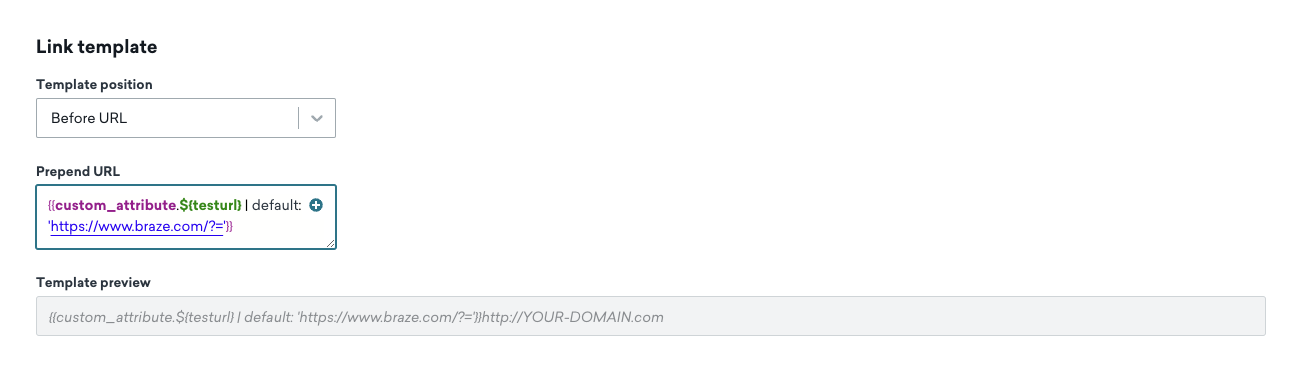
- Set the Template Position to Before URL.
- Enter a string that will always get prepended to your URL.
The Template preview is provided to give you an example of how the link template will be inserted before a URL.
Append: Create a link template that inserts after a URL
If you want to add query parameters after a URL in your email message:
- Create a new link template.
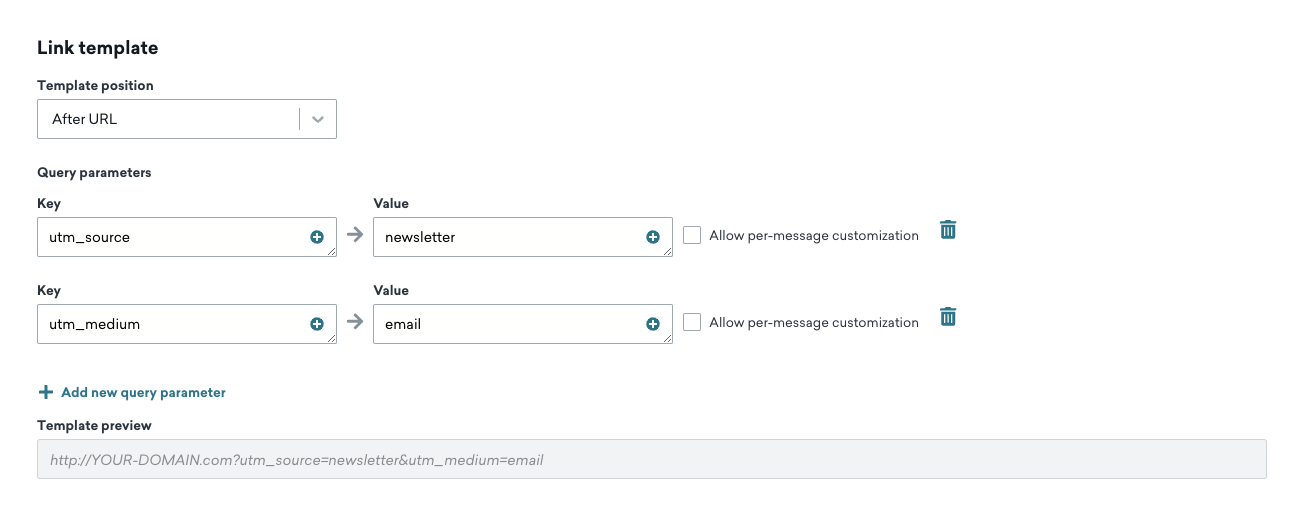
- Set the Template Position to After URL.
- Enter the query parameters (
value=example) to the end of each URL. You can have multiple parameters appended to the end of a URL.
Liquid tags for utm_campaign
Liquid tags for utm_campaign differ between campaigns and Canvases.
In campaigns, use:
{{campaign.${name}}}to pull the campaign name{{campaign.${message_name}}}to pull the message variant name
In Canvases, use:
{{canvas.${name}}}to pull the Canvas name{{campaign.${name}}}to pull the Canvas step name (Message steps only)
For a full comparison of these attributes in Liquid, the REST API, and Currents, see Campaign and Canvas attributes across sources. For URL encoding guidance, see Campaign names in URLs.
Using link templates in email campaigns
After you set up your link templates, you can apply them in your email. Opening Link Management uses the same composer sidebar as Create a link alias. The steps are the same in the HTML editor and the drag-and-drop editor.
- Open your email body in the campaign or Canvas component.
- In the composer sidebar, select Content, and then select Link Management under Design and Build.
- Select Add a Link Template, choose your link template, and then select Add.
If Link Management is missing from the sidebar, see A link management page or setting is missing.


Link templates aren’t applied to plain text. This means Currents may show clicks that don’t include the parameters from the link templates as those clicks may come from the plain text version of the email.
As you add link templates in the Link Management tab, each template appears as an additional column in the table. If existing links within an email already have a link template added, newly added links also have the link template added by default.

When including links in your message, be sure to start the URLs with http:// or https://.
Managing link templates
You can also duplicate link templates. Learn more about creating and managing templates and creative content in Templates & Media.

Archiving templates is not currently available for link templates.
Troubleshooting
Missing UTM parameters
Link templates aren’t applied to links in standard HTML comments (<!-- ... -->). For Outlook conditional comments (for example, <!--[if mso]>), link templates are applied when link aliasing is turned on for your company. If link aliasing isn’t on for your company, Braze still skips conditional comments.
UTM parameters present in browser but missing from links
This can happen when the URL path in your email doesn’t match the full path you intend (for example, a shortened or different path than the website’s full URL).
- What to check: The
hrefin the email includes the complete path to the page (not only a partial path that relies on redirects). - What to expect: If the path in the email is incomplete or different, UTM parameters from your link template may not be applied to that link when it’s clicked, even though the website might still redirect the visitor to the correct page.
For example, if the full link is https://www.somewebsite.com/women/designer/johnjane but the email uses https://www.somewebsite.com/designer/johnjane, it is expected that UTM parameters won’t be added to the email link.
UTM parameters missing from Liquid-rendered links
When applying link templates, Braze parses each URL to determine where to append parameters. If a Liquid tag renders a URL that cannot be parsed as a valid URI, the link template is silently skipped. Check that your Liquid output produces a well-formed URL. Test by previewing the message for a specific user and verifying the rendered URL is valid. If the URL includes Liquid variables in the path or query string, confirm the output doesn’t contain invalid characters or broken encoding.
UTM values missing in test sends
When test sending link templates, {{${user_id}}} does not get rendered. Instead, duplicate the campaign and set it to target your internal users’ email or external_id and launch the campaign to verify that all UTM parameters from the link template are populated.
Frequently asked questions
For answers to frequently asked questions about link templates, check out our Templates FAQ page.