Push enablement and push subscription
This reference article covers the concepts of push enablement and push subscription states in Braze, including the fundamental differences in behavior across iOS, Android, and Web.
Push subscription states
A “Push Subscription State” in Braze identifies a user’s global preference for their desire to receive push notifications. Because the subscription state is user-based, it is not specific to any individual app. Subscription states become helpful flags when deciding which users to target for push notifications.

A user’s push subscription state applies to their entire user profile, which includes all of the user’s devices.
The following subscription state options exist: Subscribed, Opted-In, and Unsubscribed.
By default, for your user to receive your messages through push, their push subscription state must be either Subscribed or Opted-In, and they must have foreground push enabled. You can override this setting if needed when composing a message.
| Opt-in State | Description |
|---|---|
Subscribed |
Default push subscription state when a user profile is created in Braze. |
Opted-In |
A user has explicitly expressed a preference to receive push notifications. Braze automatically moves a user’s opt-in state to Opted-In if the user accepts an OS-level push prompt.This does not apply to Android 12 or earlier users. |
Unsubscribed |
A user explicitly unsubscribed from push through your application or other methods your brand provides. By default, Braze push campaigns target only users that are Subscribed or Opted-in for push. |

Braze does not automatically change a user’s push subscription state to Unsubscribed. Remember that if a user’s push subscription state is Unsubscribed, then the user’s Foreground Push Enabled filter in segmentation is false.
Push registration and reachable users
Push subscription state reflects a user’s preference, but whether they count as reachable for push in the dashboard also depends on push registration—that is, a valid foreground push token on their profile. For how Braze calculates channel-level counts, see Measure segment size.
- Push campaigns and Canvases: Users who aren’t push registered aren’t included in Reachable users for Android Push or iOS Push in audience statistics, even when their push subscription state is
SubscribedorOpted-In. - Other channels: The same users can still count as reachable for other channels they qualify for (for example, email or in-app messages).
- Segments: Segment membership follows your filters. Users without push registration remain in the segment unless a filter excludes them (for example, Foreground Push Enabled). Total segment membership can be higher than the sum of users shown in push-specific Reachable users rows.
A user profile can show push subscription state Subscribed while no push token is assigned. Those users still don’t count toward Reachable users for Android Push or iOS Push until Braze records a valid token.
For filter definitions, see Segmentation filters.
Updating push subscription states
Review the following ways to update a user’s push subscription state:
Automatic opt-in (default)
By default, Braze sets a user’s push subscription state to Opted-In when they first authorize push notifications for your app. Braze also does this when a user re-enables push permissions in their system settings after previously disabling them.
To disable this default behavior, add the following property to your Android Studio project’s braze.xml file:
<bool name="com_braze_optin_when_push_authorized">false</bool>
On iOS, a new install typically shows push subscription state Subscribed until the user allows notifications. After the user selects Allow on the OS prompt, Braze sets the state to Opted-In when automatic opt-in is enabled. If the user selects Don’t Allow and later turns push on in iOS Settings, the state updates after the user logs a session—not at the moment they change Settings.
Starting with Braze Swift SDK version 7.5.0, you can disable or further customize this behavior by adding the optInWhenPushAuthorized configuration to your Xcode project’s AppDelegate.swift file:
configuration.optInWhenPushAuthorized = false // disables the default behavior
let braze = Braze(configuration: configuration)
AppDelegate.braze = braze
SDK integration
You can update a user’s subscription state with the Braze SDK using the setPushNotificationSubscriptionType method on Web, Android, or iOS. For example, you can use this method to create a settings page in your app where users can manually enable or disable push notifications.
REST API
You can update a user’s subscription state with the Braze REST API using the /users/track endpoint to update their push_subscribe attribute.
Differences between push enablement and push subscription status
Push enablement refers to whether a user has granted OS- or browser-level permission to receive notifications on a specific device. Push subscription state is a Braze-level setting that represents a user’s global preference for receiving push across their profile.
When automatic opt-in is enabled (the default), Braze updates a user’s push subscription state to Opted-In when they authorize push notifications for your app or re-enable permissions in their system settings (for example, on iOS, Android 13+, and supported web browsers). Otherwise, the user’s push subscription state remains Subscribed until you explicitly change it using an SDK method or REST API call.
Braze does not automatically change a user’s push subscription state to Unsubscribed when they opt out of notifications at the OS, browser, or app level. To update a user’s push subscription state, you must update it in Braze. For example, if a user disables push from an in-app preference center, update the push subscription state to Unsubscribed in Braze. Braze does not update user profiles based on your preference center. To align subscription states with a user’s in-app preferences, call the appropriate methods using the SDK (iOS or Android) or REST API. For more, refer to Updating push subscription states.
Imported push tokens (iOS)
When you import iOS push tokens with push_token_import, the user’s push subscription state is typically Subscribed until they log a session in your Braze-integrated app. After the first session, Braze may update the state to Opted-In if automatic opt-in applies (for example, when the user authorizes push on iOS and optInWhenPushAuthorized is enabled).
Review Contact Settings on the user’s profile after import and again after the user’s first in-app session to confirm the expected state.
Checking push subscription state
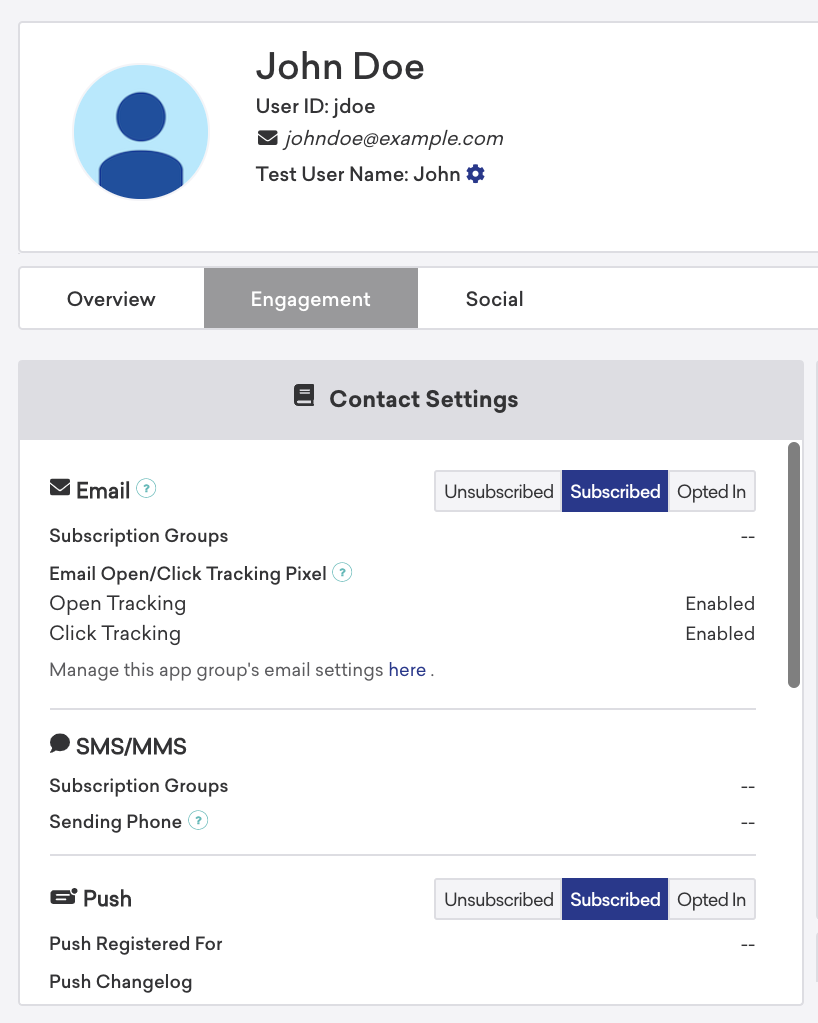
You can check a user’s push subscription state with Braze in any of the following ways:
- User profile: You can access individual user profiles through the Braze dashboard on the User Search page. After finding a user’s profile (via email address, phone number, or external user ID), you can select the Engagement tab to view and manually adjust a user’s subscription state.
- REST API export: You can export individual user profiles in JSON format using the export Users by segment or Users by identifier endpoints. Braze returns a push tokens object that contains push enablement information per device.
Where push registration and status appear
You can review push subscription state, registration, and enablement in three main places in Braze:
- User profiles on the Engagement tab
- Segmentation in the segment builder
- Campaign and Canvas analytics on each message’s analytics page
User profiles and push changelog
On a user’s profile (Search Users > select the user > Engagement tab), Contact Settings lists push subscription state, Push Registered For (which apps and platforms Braze can use to send foreground push to that profile), and the Push Changelog for token moves, errors, and registration updates. For how to read Push Registered For and foreground versus background authorization, see Checking push registration status.
On iOS and Android, when a device moves from foreground push authorization to background-only (for example, after the user turns off notifications in system settings and the SDK reports the change), the push changelog can include an entry such as “Push token was updated from foreground push enabled to foreground push disabled”.
After you expect new SDK data (for example, right after a test session), select Refresh on the user profile if values look out of date. There can be a short delay between the SDK flushing data and the profile reflecting the latest push registration.
For users you add to an internal group, select Record User Events for group members in the Internal Group Settings for that group so SDK requests appear in the log. Then open the Event User Log at Settings > Event User Log, find the user’s SDK requests, and expand the raw payload. You can inspect fields such as remote_notification_enabled while validating whether the device reports remote notifications as enabled or disabled.
Segmentation and push filters
In the segment builder, use filters such as Foreground Push Enabled, Foreground Push Enabled for App, Background or Foreground Push Enabled, and push subscription filters to target or audit users by preference and device-level authorization. On iOS, how those filters read for a given user depends on whether they completed the OS prompt, changed settings, or use provisional authorization; see iOS user actions and push status and Other platform-specific scenarios.
Campaign and Canvas analytics
On a push Campaign or Canvas analytics page, metrics such as Sent, Bounces, and Opens reflect delivery and engagement for that send. To line those numbers up with individual profiles, export recipients from Campaign Details or Canvas Details using User Data (CSV). For steps and permissions, see Export campaign data and Export Canvas data. If counts between analytics and an export do not match, see Campaign and Canvas analytics in export troubleshooting.
iOS user actions and push status
The following table shows how different user actions affect iOS push enablement, foreground or background push registration, and push subscription status in Braze. When a user installs your app and starts their first session, their state is generally as shown in the first row. Each subsequent action may update some of these values but not others.
| User action | Foreground Push Enabled |
Foreground Push Enabled for App |
Push registration type | Push subscription status |
|---|---|---|---|---|
| User installs the app and logs a session | false* |
Not updated | Background | Subscribed |
| User receives the native iOS push prompt and selects Allow | true |
true |
Foreground | Opted-In** |
| User receives the native iOS push prompt and selects Don’t Allow | false |
Not updated | Background | Not updated |
| User enables push from device settings and logs a session | true |
true |
Foreground | Opted-In** |
| User disables push from device settings and logs a session | false |
false |
Background | Not updated |
| User deletes the app | Not updated | Updated when push token is retired | Updated when push token is retired | Not updated |
* If the app does not use provisional push, Foreground Push Enabled is false until the user allows push notifications. If the app uses provisional push, Foreground Push Enabled is true at the start of the first session. For more information, see Provisional authorization and quiet push.
** Starting with Braze Swift SDK version 7.5.0, the optInWhenPushAuthorized configuration property controls whether push subscription state is automatically set to Opted-In when push permission becomes authorized. For more information, see Push tokens.
Push permission
All push-enabled platforms - iOS, Web, and Android - require explicit opt-in through an OS-level system prompt, with some slight differences described in the following section.
Because a user’s decision is final and you can’t ask again after they decline, using push primer in-app messages is an important strategy for increasing your opt-in rates.
Native OS push permission prompts
| Platform | Screenshot | Description |
|---|---|---|
| iOS | 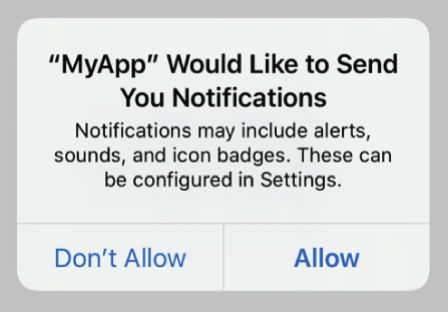 |
This does not apply when requesting provisional push permission. |
| Android | 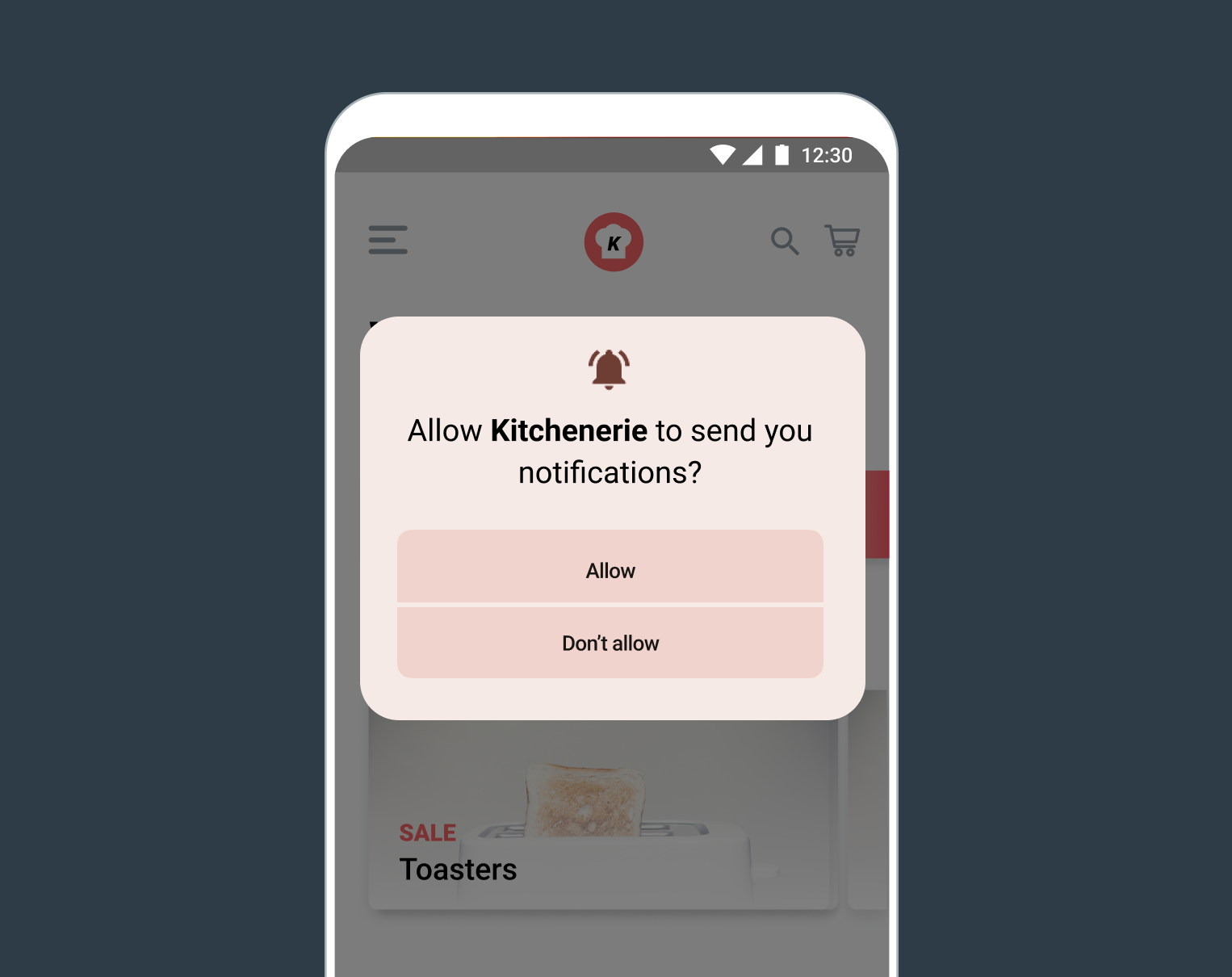 |
This push permission was introduced in Android 13. Before Android 13, permission was not required to send push. |
| Web | 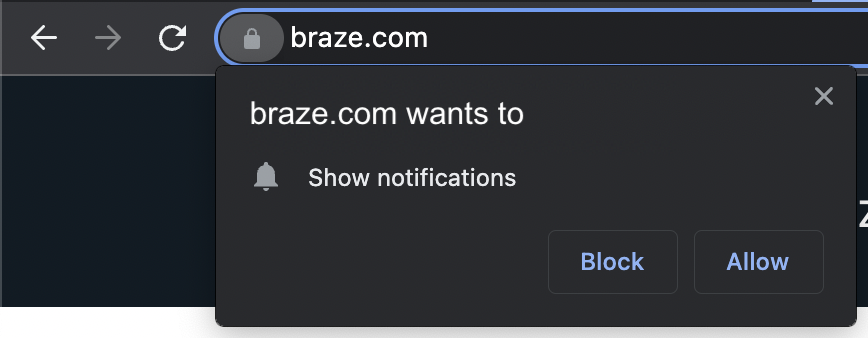 |
Android
Before Android 13, permission was not needed to send push notifications. On Android 12 and under, all users are considered Subscribed upon their first session when Braze automatically requests a push token. At this point, the user is push enabled with a valid push token for that device and a default subscription state of Subscribed.
Starting with Android 13, push permission must be asked of and granted by the user. Your app can manually request permission from the user at opportune times, but if not, users will be prompted automatically when your app creates a notification channel.
iOS
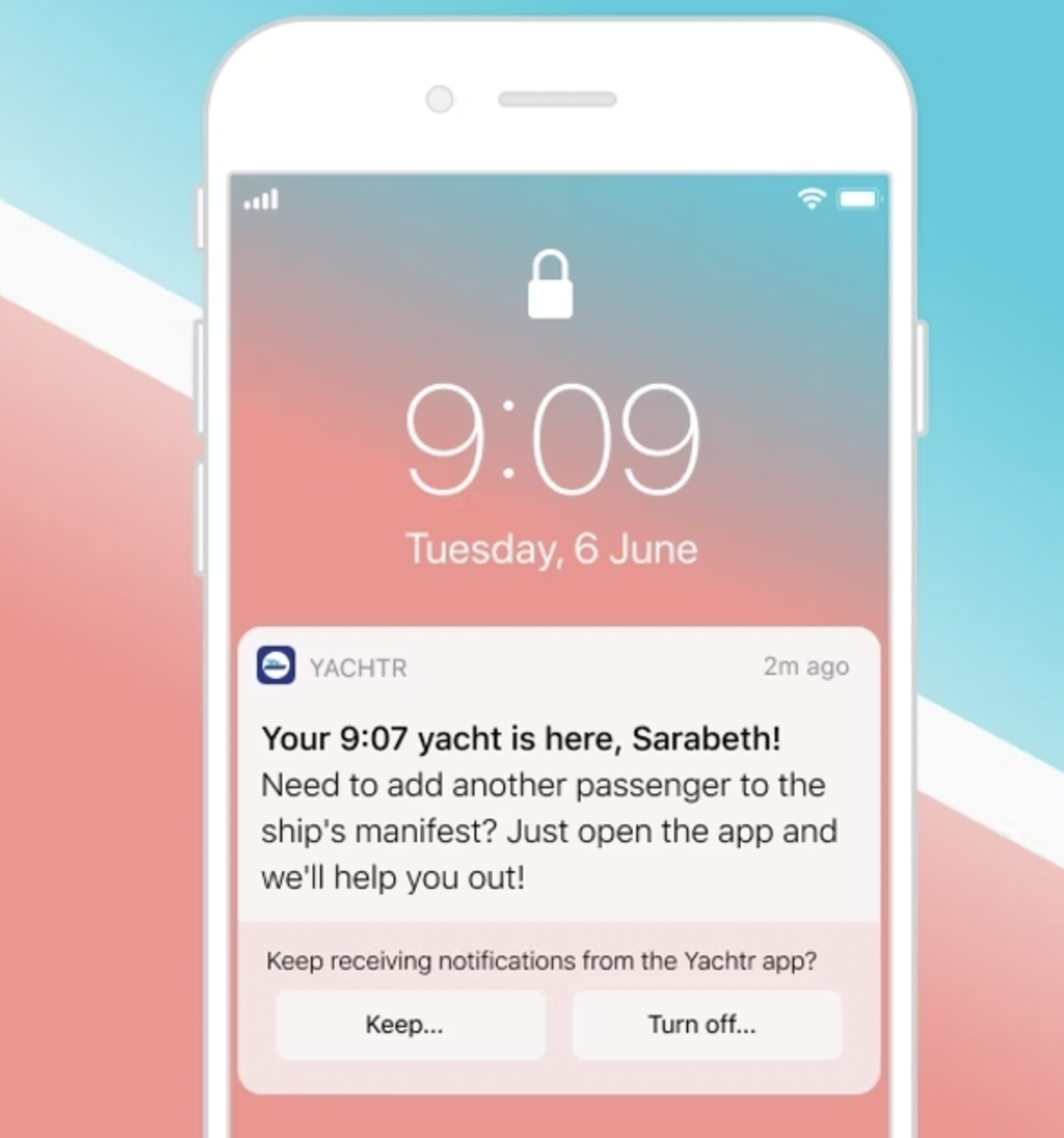
Your app can request provisional push or authorized push.
Authorized push requires explicit permission from a user before sending any notifications, whereas provisional push lets you send notifications quietly, directly to the notification center without any sound or alert.
Provisional authorization and quiet push
Before iOS 12 (released in 2018), all users must explicitly opt-in to receive push notifications.
In iOS 12, Apple introduced provisional authorization, allowing brands to send quiet push notifications to their users’ notification center before they explicitly opt-in, giving you a chance to demonstrate the value of your messages early. Refer to provisional authorization to learn more.
Web
For Web, you must request explicit user opt-in through the native browser permission dialog.
Unlike iOS and Android, which let your app show the permission prompt at any time, some modern browsers will only show the prompt if triggered by a “user gesture” (mouse click or keystroke). If your site tries to request push notification permission on page load, it will likely be ignored or silenced by the browser.
As a result, you should ask for permission only when a user clicks somewhere on your website and not randomly when a page loads.
Push tokens
Push tokens are a unique anonymous identifier generated by a user’s device and sent to Braze to identify where to send each recipient’s notification.
There are two ways a push token can be classified that are essential to understanding how a push notification can be sent to your users.
- Foreground push provides the ability to send regular visible push notifications to the foreground of a user’s device.
- Background push is available regardless of whether a particular device has opted-in to receive push notifications from that brand. Background push allows brands to send silent push notifications - notifications that intentionally aren’t displayed - to devices to support key functionalities like uninstall tracking.
When a user profile has a valid foreground push token associated with an app, Braze considers the user “push registered” for the given app. Braze, then, provides a specific segmentation filter, Foreground Push Enabled for App, to help identify these users. This filter identifies users who are push registered for an app, but it doesn’t restrict which app receives a message. To restrict delivery to specific apps, use a segment that has Apps and websites targeted set to Users from specific apps. In a Canvas, add that segment to each Message step’s delivery validations.
The Foreground Push Enabled for App filter only considers the presence of a valid foreground and background push token for the given app. However, the more generic Foreground Push Enabled filter segments users who have explicitly activated push notifications for any apps in your workspace. This count includes only foreground push and doesn’t include users who have unsubscribed. You can learn more about these and other filters in Segmentation filters.
For a small percentage of users, processing delays can cause a short-lived mismatch: a user may have a valid foreground push token on their profile but still not match the Foreground Push Enabled filter. Their profile may briefly show that foreground push isn’t enabled even though a token is present. This usually clears once processing catches up.
Multiple users on one device
Push tokens are specific to both a device and app, so it isn’t possible to use push tokens to distinguish between multiple users who are using the same device.
For example, say you have two users: Charlie and Kim. If Charlie has enabled push notifications for your app on his phone and Kim uses Charlie’s phone to log out of Charlie’s profile and log into her own, the push token will be re-assigned to Kim’s profile. The push token will then remain assigned to Kim’s profile on that device until she logs out and Charlie logs back in again.
An app or website can only have one push subscription per device. So when a user logs out of a device or website, and a new user logs in, the push token gets reassigned to the new user. This is reflected on the user’s profile, in Contact Settings section of the Engagement tab:
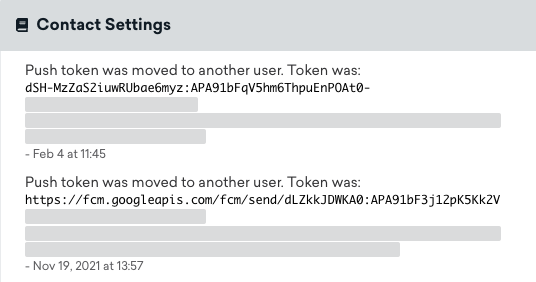
Because there isn’t a way for push providers (APNs/FCM) to distinguish between multiple users on one device, we pass the push token to the last user who was logged in to determine which user to target on the device for push.
Multiple devices and one user
The push subscription state is user-based and is not specific to any individual app. The state of the push subscription is the value that was last set. So if a user has opted-in to push notifications, their push subscription state is Opted-In across all eligible devices. If a user later explicitly unsubscribes from push notifications through your application or other methods your brand provides, their push subscription state is updated to Unsubscribed and no push-registered devices can receive push notifications.
Foreground Push Enabled filter
Foreground Push Enabled is a segmentation filter in Braze that allows marketers to easily identify users that allow Braze to send push notifications and users that haven’t expressed preferences to not receive push notifications.
The Foreground Push Enabled filter takes into account the following:
- The ability for Braze to send a push notification (foreground push token)
- The user’s overall preference to receive push on any of their devices (push subscription state)

A user is considered “push enabled” or “push registered” if they have an active foreground push token for an app within your workspace, meaning push enablement status is app-specific.
Finding push registration and changelog information
In the dashboard, you can find information about push registration and push changelogs in:
- Segmentation – Filter for users’ subscription states, enabled state, and foreground and background enabled state.
- Campaign Analytics – View push statistics and feedback for a single campaign or Canvas.
- User Profile (Engagement tab) – View Contact Settings and the push changelog for a specific user.
When reviewing the push-enabled state, Push Registered for indicates which platforms Braze can send foreground push to for that user. On iOS and Android, if a user has moved from foreground push enabled to background push enabled (remote_notification_enabled), this will be documented in the push changelog as “Push token was updated from foreground push enabled to foreground push disabled.”
If the user is added as a test user, in Developer Console > User Event Log, the user profile will show an SDK request with remote_notification_enabled as true or false. You may need to refresh the user profile to view the updates, since there’s a short delay for SDK updates to reach the user profile.
Segmentation filters for iOS push state:
- iOS foreground and background push disabled: The user hasn’t been served a push prompt yet.
- iOS background enabled: The user has been served the push prompt and said no, or said yes and later turned off push notifications in their device settings (reflected after the user has a session).
- iOS foreground enabled: The user has been served the push prompt and is eligible to receive foreground push.
Campaign analytics will reflect the push statistics inline with the earlier in this section details. You can also download the user profiles who entered the campaign or Canvas to cross-reference user profiles.
Other platform-specific scenarios
When a user accepts the native push permission prompt, their subscription status will be changed to opted in.
To manage subscriptions, you can use the user method setPushNotificationSubscriptionType to create a preference settings page on your site, after which you can filter users by opt-out status on the dashboard.
If a user disables notifications within their browser, the next push notification sent to that user will bounce, and Braze will update the user’s push token accordingly. This is used to manage eligibility for the push-enabled filters (Background or Foreground Push Enabled, Foreground Push Enabled and Foreground Push Enabled for App). The subscription status set on the user’s profile is a user-level setting and doesn’t change when a push bounces.
410 Web Push token errors
If you receive a 410: Gone error, this can occur when a user disables web push notifications from the browser in their OS settings, or if they’re logging in as a different user on the same device, or if the user hasn’t visited the website in some time.
If you receive a 410: Endpoint Not Valid error, this can mean the web push token (essentially the URL) has expired. This can occur if the user never visits the site again or the browser invalidates the token. It can also occur periodically (often every few months), depending on the browser. When the user visits the site again, if they still have their browser set to “Allow,” Braze will automatically collect a fresh token for the device. This assumes the disablePushTokenMaintenance initialization option is not being used during SDK initialization.
Web platforms do not allow background or silent push.
If a foreground push enabled user disables push in their OS settings, then at the start of the next session:
- Braze marks them as foreground push disabled and no longer attempts to send them push messages.
- The
Foreground Push Enabled for App (Android)filter and theForeground Push Enabledsegmentation filter (assuming no other apps on the user profile have a valid foreground push token) will returnfalse.
In this scenario, since a background push token will still exist, you can continue to send background (silent) push notifications with the segmenting filter Background or Foreground Push Enabled = true.
For Android, Braze will consider a user push disabled if:
- A user uninstalls the app from their device.
- A push message fails to deliver due to a bounce. This is often caused by an uninstall, but can also be due to app updates, new push token version, or format.
- Push registration fails to Firebase Cloud Messaging (sometimes caused by poor network connections or a failure to connect to or on FCM to return a valid token).
- The user blocks push notifications for the app within their device settings and subsequently logs a session.
You can only intercept an Android push notification when the app is in the foreground or background (but still running). You can’t intercept notifications when the app is terminated or completely killed.
Regardless of if a user accepts the foreground push opt-in prompt, you will still be able to send a background push if you have remote notifications enabled in Xcode and your app calls registerForRemoteNotifications().
If your app is provisionally authorized or the user has opted into push, they receive a foreground push token, allowing you to send them all types of push. Within Braze, we consider a user on iOS who is foreground push enabled to be push enabled, either explicitly (app-level) or provisionally (device-level).
If a user declines to receive push notifications on an OS-level, their push subscription state will be Subscribed, and their profile will not show that a foreground push token has been registered.
In the scenario that a user, who initially opted-in on the OS level disables push notifications in their OS settings, at the next session start, the following will occur:
- Braze marks them as foreground push disabled and no longer attempts to send push messages.
- The
Foreground Push Enabled for App (iOS)filter and theForeground Push Enabledsegmentation filter (assuming no other apps on the user profile have a valid foreground push token) will returnfalse.
In this scenario, since a background push token will still exist, you can continue to send background (silent) push notifications with the segmenting filter Background or Foreground Push Enabled = true.
iOS doesn’t allow apps to intercept a push notification prior to the push notification displaying. This means that apps (and Braze) have no control over whether you can display or hide the notification. A user can opt out of push notifications for an app under the device settings, but that is controlled by the operating system.
Best practices
Refer to our dedicated article on Push best practices for detailed guidance on how to optimize your usage of push at Braze.