Send to Destination step
The Send to Destination step allows you to send users from one Canvas to another. For example, you can connect Canvases that share messaging for promotional offers.
How it works
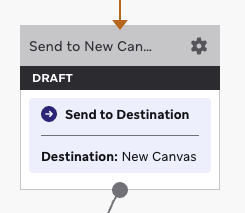
Your current Canvas with the Send to Destination step is the source. Within the step, you can choose the destination Canvas. Users from the source Canvas must meet the destination Canvas audience criteria. Let’s say you have two Canvases:
- Source: Canvas 1, includes a Send to Destination step that sends users to Canvas 2
- Destination: Canvas 2, with audience criteria to enter users who ordered an item
This step allows users from Canvas 1 to be sent to Canvas 2. When users from Canvas 1 enter the Send to Destination step, they are evaluated against Canvas 2’s audience criteria to determine if they’re eligible to enter the Canvas. In this case, users who ordered an item can enter Canvas 2 and also continue their journey in Canvas 1. For users who haven’t ordered an item, they continue their journey in Canvas 1 only.
Entry behavior
The Send to Destination step enters users into the destination Canvas as soon as they reach this step. This step acts as a one-time entry point into the destination Canvas. Users who meet the destination Canvas audience criteria begin that Canvas journey. Users who don’t meet those criteria at that moment don’t enter the destination Canvas and continue in the source Canvas.
Send to Destination also respects the destination Canvas re-entry settings under Entry Controls. If a user isn’t eligible to re-enter the destination Canvas, they aren’t sent to it and continue in the source Canvas.
If the destination Canvas uses a scheduled entry schedule, the Send to Destination step bypasses that entry schedule. It also bypasses Limit entrance volume under Entry Controls on the destination Canvas when it’s set to Every time Canvas is schedule. Users sent from this step don’t wait for the next scheduled evaluation window—they’re evaluated against the destination Canvas audience criteria and entered immediately when they reach the Send to Destination step.
If the destination Canvas uses action-based entry, the Send to Destination step bypasses the requirement for users to perform the configured entry action to enter that Canvas.
Create a Send to Destination step
Step 1: Add a step
Drag and drop the Send to Destination component from the sidebar, or select the plus button at the bottom of a step and select Send to Destination.
Step 2: Choose your destination
Select the dropdown or enter the Canvas name in the Destination field. Then, select Done.
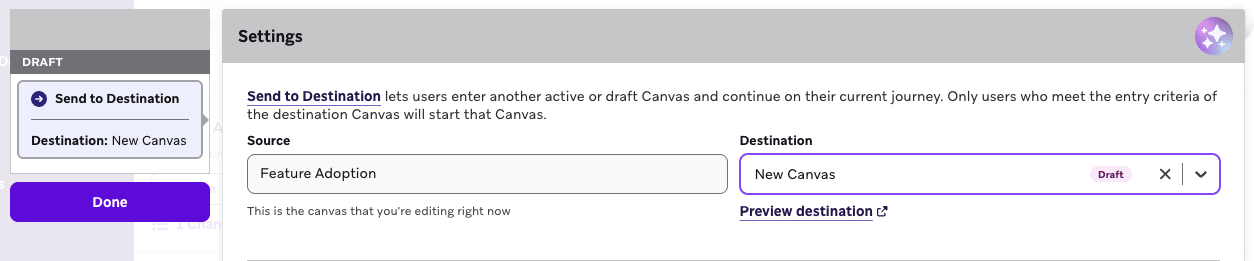
Step 3: Preview your destination
You can select Preview destination to view the Canvas that you are sending users to.
After setting up this Canvas step, you can preview the user path to see if a user proceeds to the next step in the current Canvas and if they also proceed to the destination Canvas.
Frequently asked questions
Can I set the destination to a draft Canvas?
Yes. The destination Canvas can have a draft or idle status.
Are context variables preserved?
Yes. The context of the source Canvas is passed to the destination Canvas. However, context variables must be invoked within the source Canvas to be passed to the destination Canvas.
Can I use the Send to Destination step to connect Canvases instead of using API or User Update workarounds?
Yes. You can connect Canvases with the Send to Destination step when users should move directly into another Canvas journey.
You don’t need separate User Update steps, API triggers, or webhooks solely to move users between Canvases, as long as they meet the destination Canvas audience criteria when they’re sent.
Do users enter at the start of the destination Canvas?
Eligible users enter immediately at the first step of the destination Canvas. They don’t wait for a later scheduled entry time on the destination Canvas. You can’t link into a specific Canvas step inside the destination Canvas.
Does the Send to Destination step respect a scheduled destination Canvas entry schedule?
No. If the destination Canvas uses a scheduled entry type, users sent from the Send to Destination step don’t wait for the next scheduled evaluation window. They’re evaluated against the audience criteria and entered immediately when they reach the Send to Destination step.
How does advancement behavior work for Send to Destination steps?
Users who enter the Send to Destination step continue their user journey if there are additional steps in the source Canvas. If users also meet the audience criteria of the destination Canvas, they can enter that Canvas and begin that journey.
Is the Send to Destination step subject to API rate limits?
No. Users are sent between Canvases within Braze without making external API calls.