Billing
Learn how to use the Billing page to monitor and check your usage across workspaces, apps, and event sources. Depending on your contract, Braze measures usage with the credits model or legacy data points. This article covers the sections on the page and the information they can provide you.
To navigate to the Billing page, go to Settings > Billing.
The Billing page can include the following tabs, depending on your contract:
- Subscriptions and Usage
- Most Used Events and Attributes by App
- Total Data Points Usage
- Credits Usage
Subscriptions and Usage
The Subscriptions and Usage tab includes usage graphs and your contract details. Data on this page is updated daily at 10:00 PM Eastern Time (ET). It does not reflect real-time activity.
Usage graphs
Here, you find usage graphs that apply to your workspaces. You may find your own dashboard shows different usage metrics based on the products you have purchased.
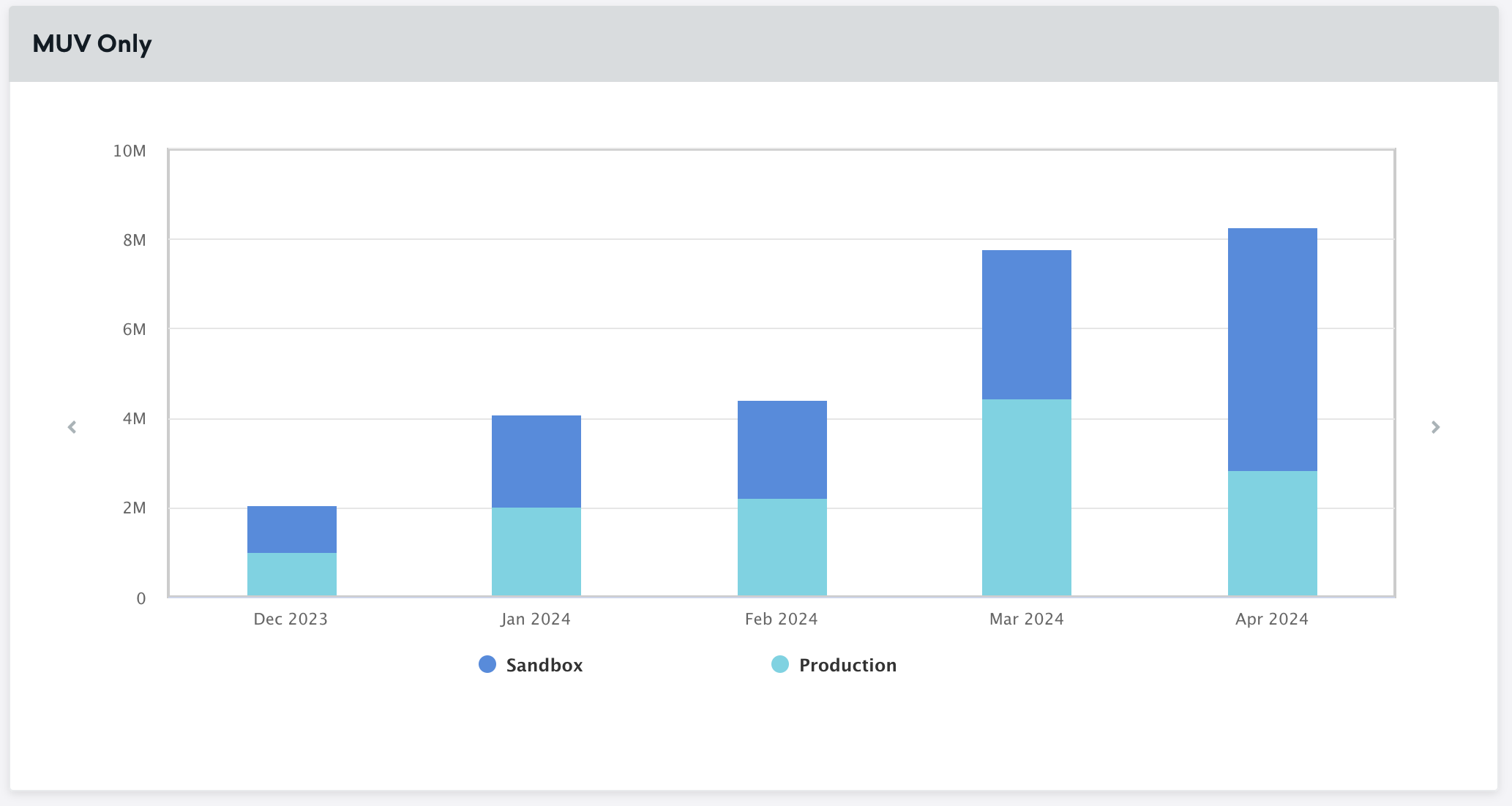
These graphs can show monthly active users, monthly unique visitors, and email sends. Usage graphs like these are particularly helpful when trying to budget usage and gain a deeper understanding of what workspaces contribute to overall usage.
Contract details
Contract details list the start and end date of your current contract with Braze.
Considerations
If your contract uses Monthly Unique Visitors (MUV) and you change to a contract that uses only Monthly Active Users (MAU), your historical data still appears in the MUV graph and your new data appears only in the MAU graph. For example, if your contract ends in October, the MUV graph shows data up until the end of September.
Most used events and attributes by app
Under Most Used Events and Attributes By App, you can check the drivers of your attribute and custom event data point usage.
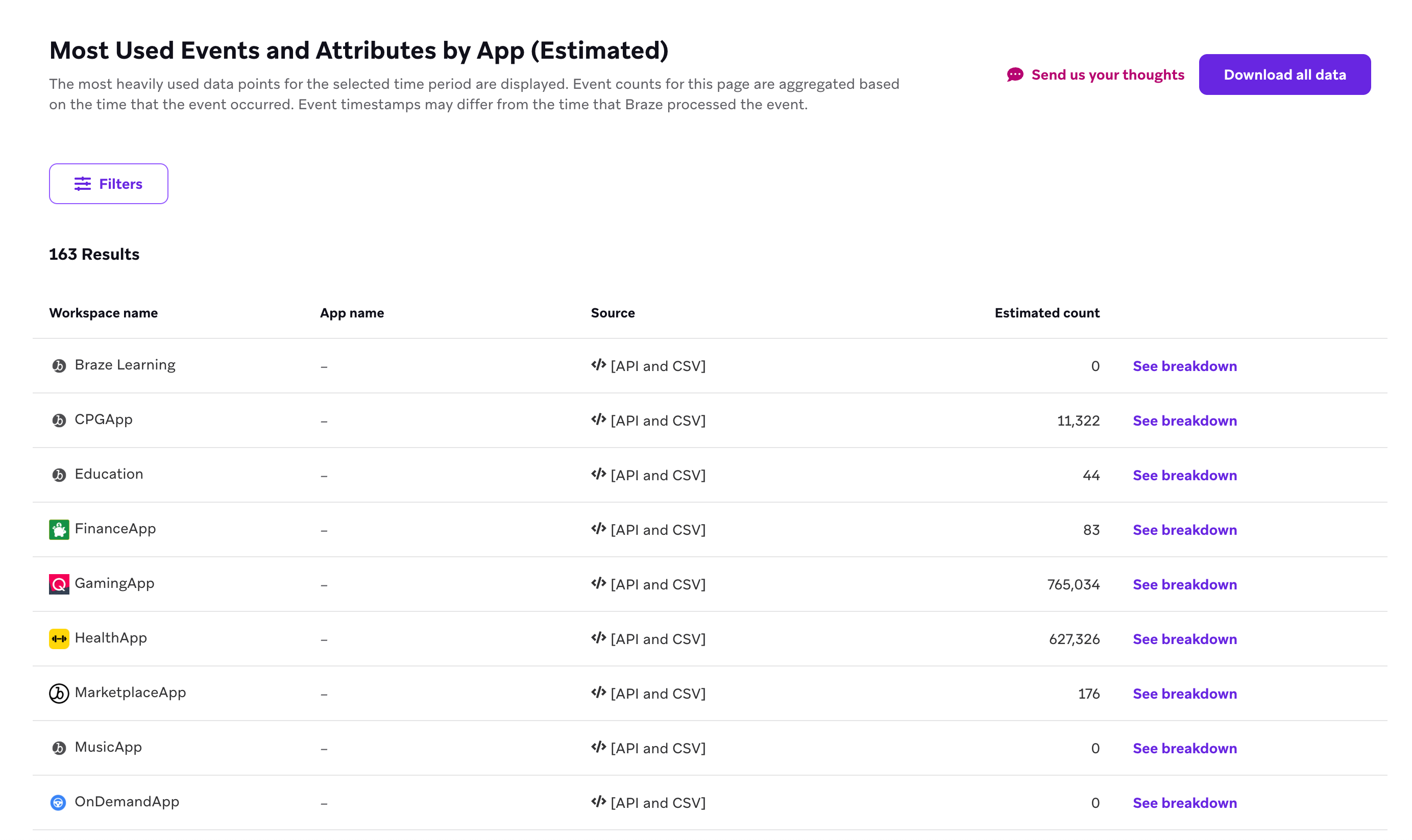
For each app, you can select See breakdown to view an estimated count of each specific custom attribute, profile attribute, and custom event for the selected time period as well as the percentage of that app’s attribute and event updates that were driven by that attribute or event.
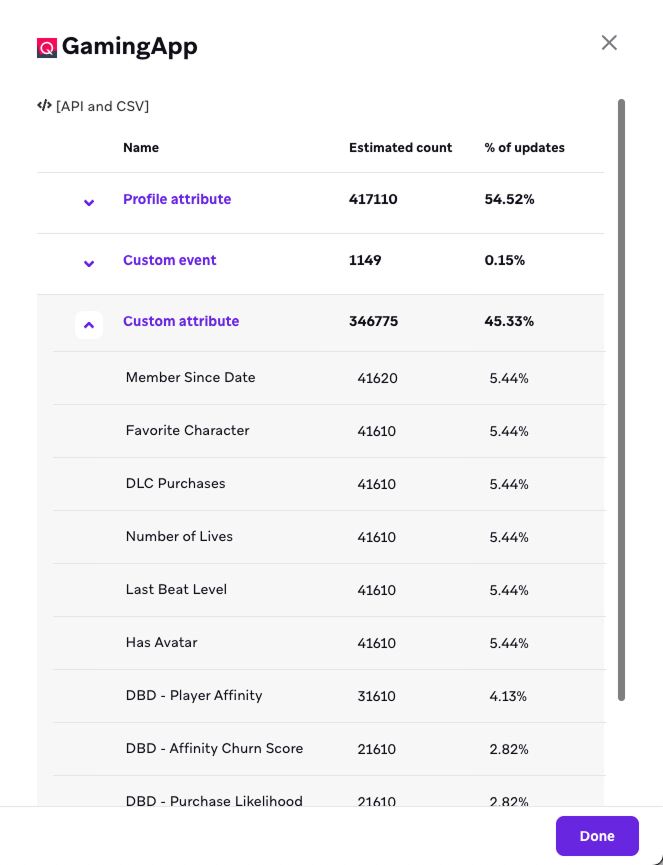
Data breakdowns like these can help you understand what specific data points are taking up large percentages of your allotment. We recommend that you monitor this information from time to time to make sure you aren’t spending data points in accidental and unnecessary ways. Your customer success manager can provide guidance to get the most out of your current plan or provide options for greater flexibility.
Total data points dashboard
The Total Data Points Usage tab provides an in-depth look at your data point usage for companies on the legacy data points billing plan. You can view all data in this section aggregated by either weeks or months.

Data points information is cached every 24 hours.
If you’re an admin and cannot view the Total Data Points Usage tab, make sure your browser allows third-party cookies for your Braze dashboard domain and is not in incognito mode.
Contract details
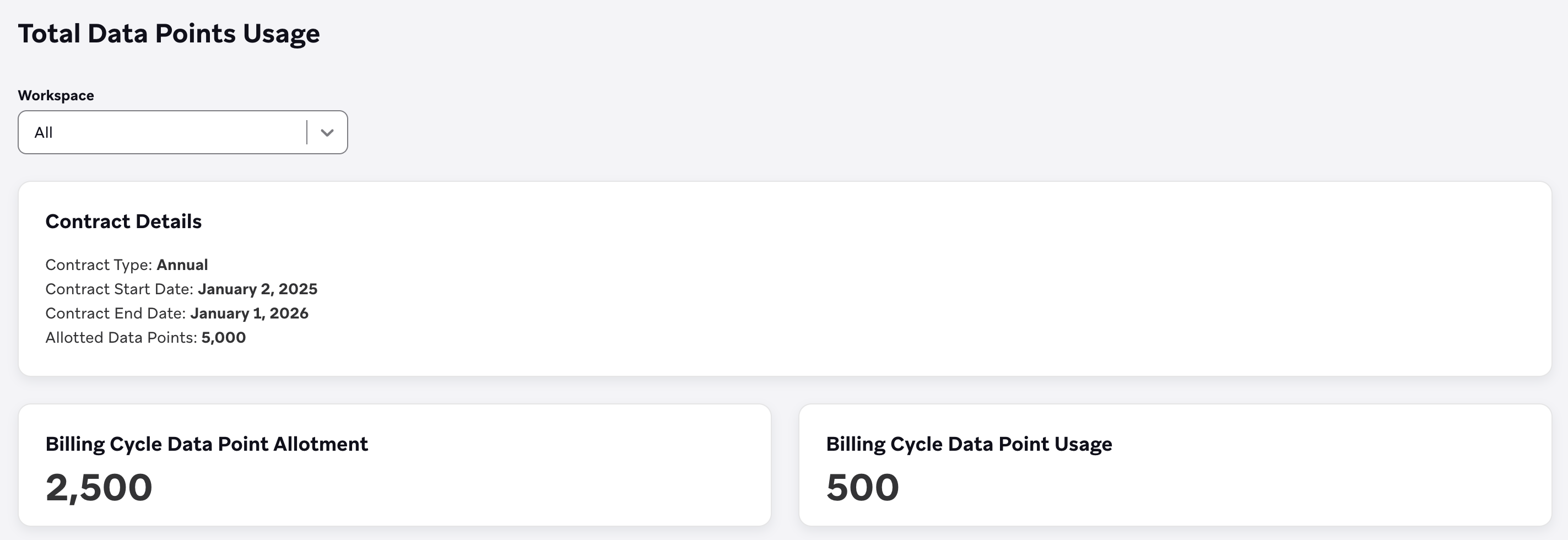
Here, you find information on when your current Braze contract starts and ends, as well as allotted data points and a sum of all data points that have been used thus far in your current contract.
The fields in this section are defined as follows:
- Contract Type: Billing term structure, either Annual or Multi-Year.
- Contract Start and End Date: Start and end date of the entire contract.
- Allotted Data Points: The amount of data points allotted in the contract per billing term.
- Contract Data Point Usage: A cumulative total of all data points logged over the contract’s lifetime, and does not reset in the next billing term.
Company billing data
App level total data point usage
This graph shows your data point usage across apps.
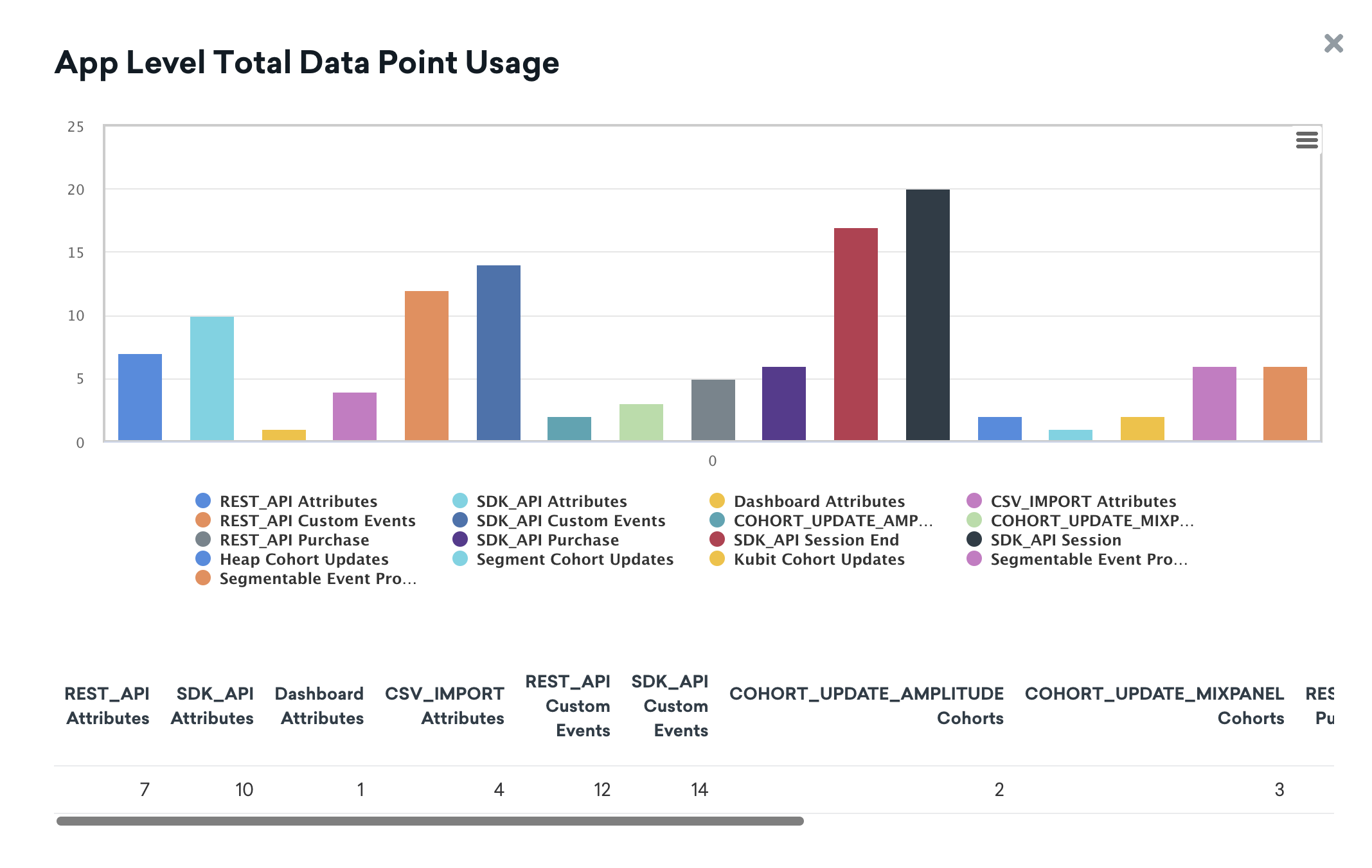
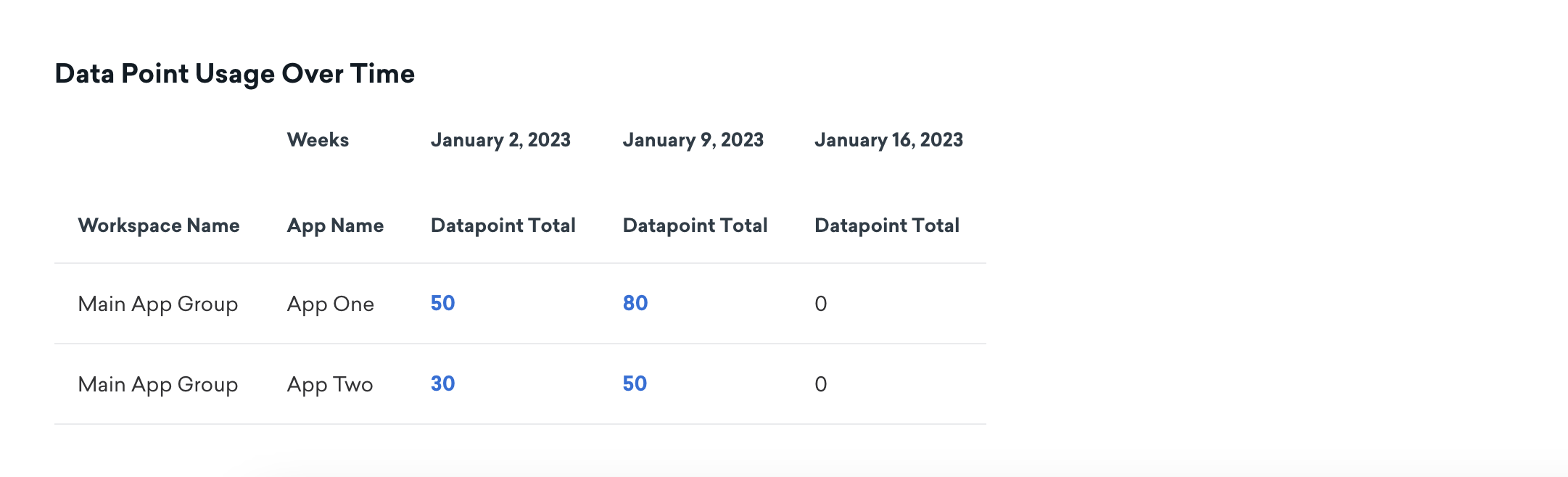
Select one of the totals to view the Data Point Usage Over Time table, which shows your weekly data point totals for each workspace. Rows that have a blank App Name column represent data points that aren’t associated with any app (such as data points used in requests that don’t specify an app_id).
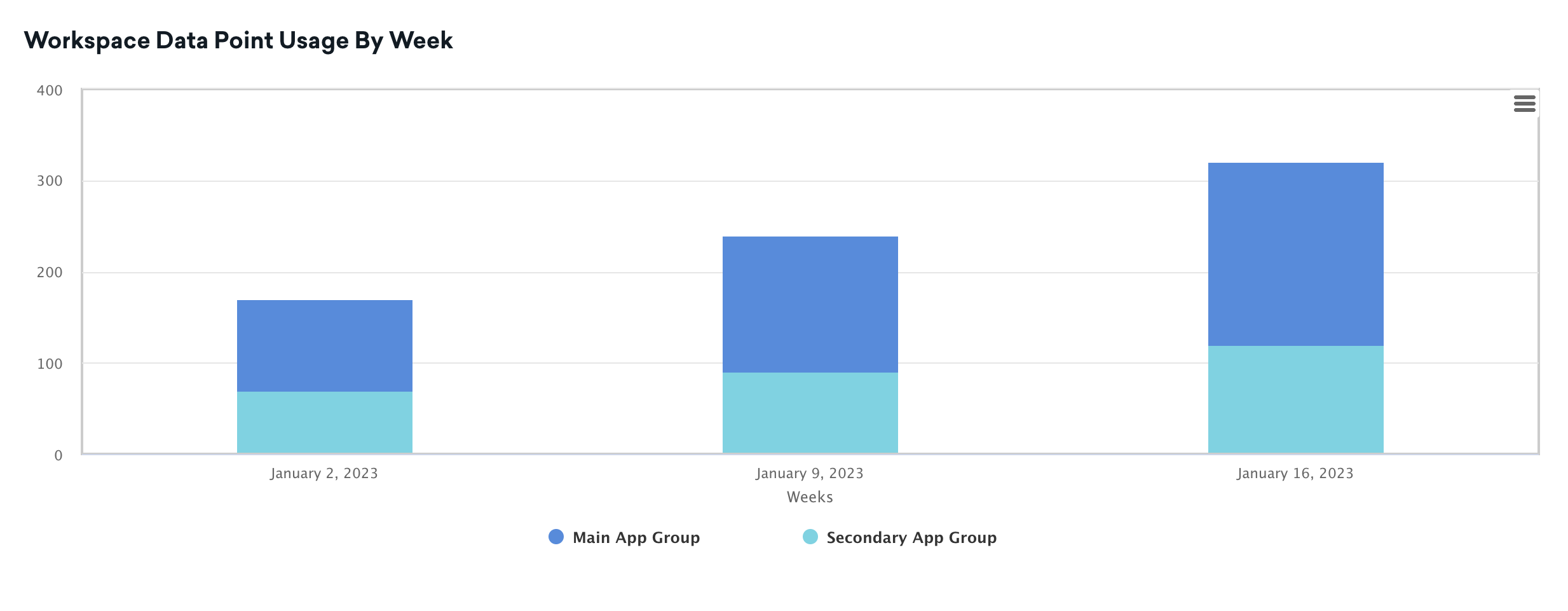
Workspace data point usage
This graph allows you to assess the total data point usage of a company by workspace. This graph gives you the ability to assess how each workspace is contributing to the company’s data point usage.
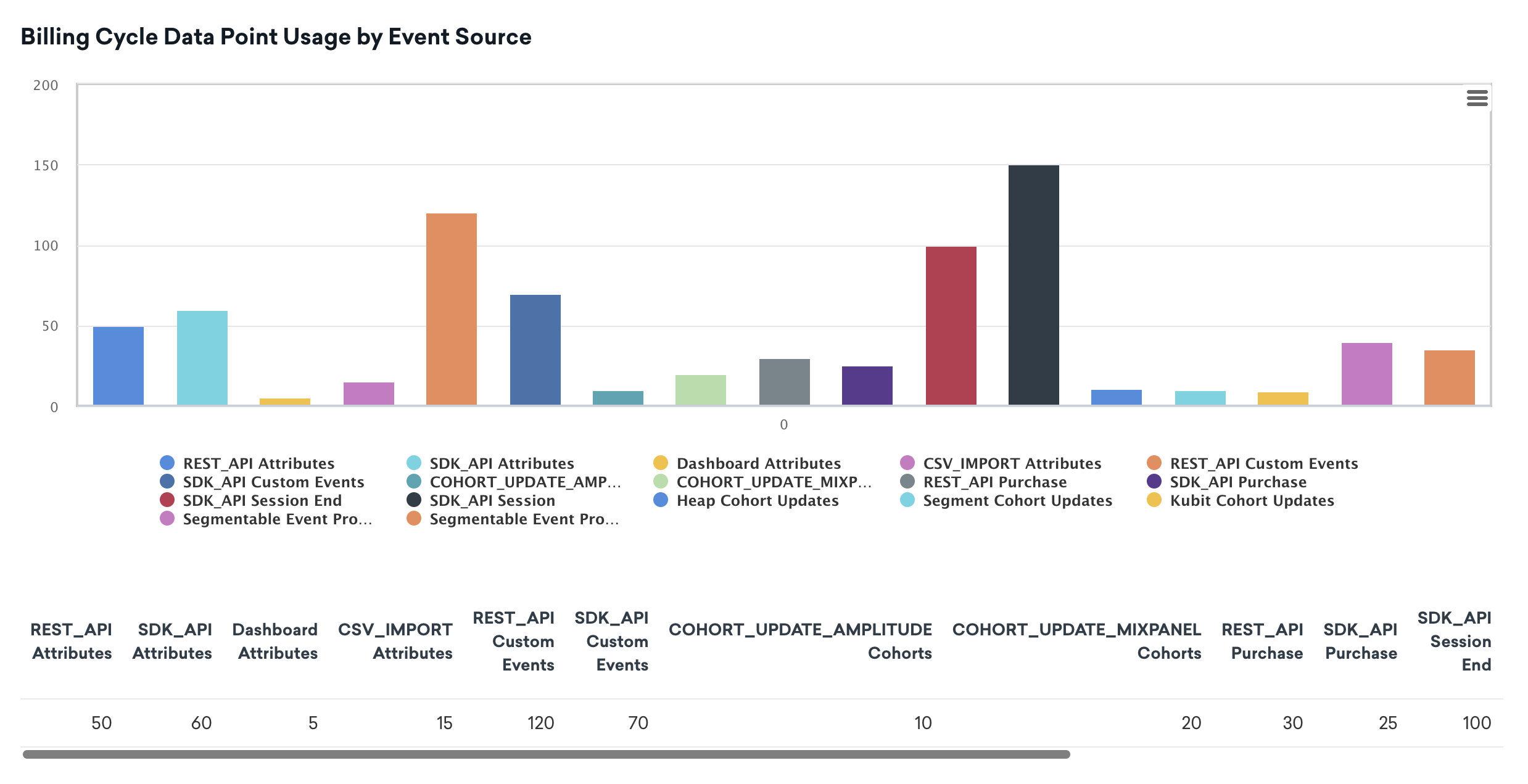
Billing cycle data point usage by event source
This graph allows you to view how data point usage is spread across different event sources, such as different API attributes, custom events, and sessions.
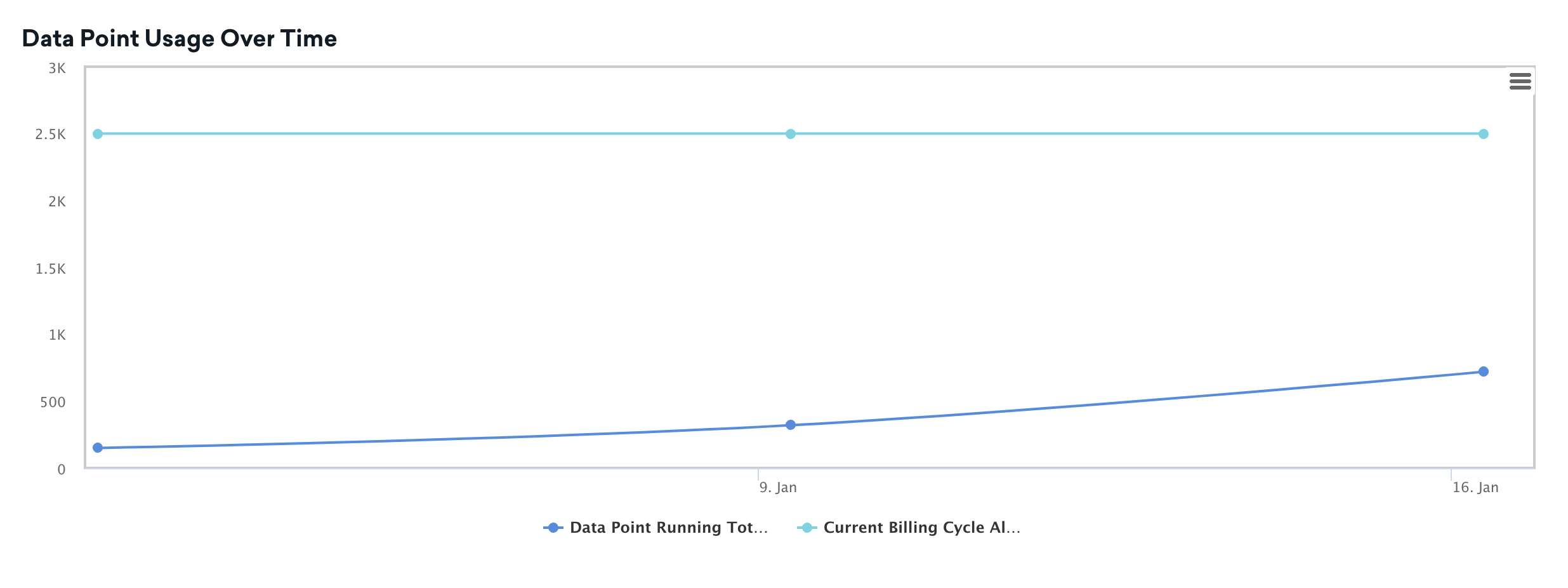
Data point usage over time
This graph gives you the ability to quickly see your total data point usage versus your allotted amount of data points.
Types of billing plans
Braze uses one primary usage metric per company contract:
| Billing plan | What it measures | Who it’s for | Where to view usage |
|---|---|---|---|
| Credits (message credits) | Credits used for channels and products on your credits contract | Companies on a credits contract. | Settings > Billing > Credits Usage |
| Data points (legacy) | Billable updates to user profiles, such as sessions, custom events, purchases, and attribute sets | Companies on older contracts that still use data point allotments. As of Spring 2025, Braze no longer bills new customers based on data points. | Settings > Billing > Total Data Points Usage, and Data points (Legacy) |
How to identify your billing plan
- Go to Settings > Billing.
- Check which allotment your company tracks:
- If the Credits Usage tab shows a Credits contract overview and message credit usage against an allotment, your company is on the credits model.
- If the Total Data Points Usage tab shows allotted data points and contract data point usage as your primary allotment, your company is on the legacy data points model.
Your Braze contract is the source of truth. If you’re unsure, check Contract details on the Subscriptions and Usage tab or ask your Braze account manager.
Some companies can see credits used for a specific product even when they aren’t on a full credits contract. For example, legacy WhatsApp contracts can show WhatsApp credit usage on the Credits Usage dashboard. That doesn’t necessarily mean your entire company is on the credits model. For details, see Credits Usage dashboard.