Deploy custom agents
After you create an agent, use this page to learn where and how to deploy it in Braze. The agent type you choose at creation time—Canvas Agent or Catalog Agent—determines where the agent can run. For an introduction, see Braze Agents.
Types of custom agents
Custom agents deploy in different parts of Braze depending on their type. Use the following table to find the right deployment path for your agent.
| Agent type | Deployed in | Runs when | Section |
|---|---|---|---|
| Canvas Step Agent | Agent step in Canvas | A user enters the step | Use Canvas Step Agents |
| Catalog Agent | Catalog field | A catalog row is created or updated | Use Catalog Agents |
You select the agent type in Agent Console when you create the agent. For setup steps, see Create custom agents.
Best practices
Target high-value use cases where agents can drive the biggest return on investment (ROI), and choose audiences who are likely to respond. A smaller, high-opportunity audience often outperforms a large audience with low opportunity.
For Canvas Step Agents, start with users who have strong signals—such as recent searches, high engagement, or rich profile data—before expanding to broader segments. For Catalog Agents, prioritize rows where the input columns you need are already populated so each invocation has enough context to produce useful output.
To test ROI at small scale before you roll out an agent broadly, use an Experiment Paths step so only part of your audience enters the branch that contains your Agent step.
Scale after a successful test
After a small-scale test (for example, an Experiment Paths branch) shows acceptable quality and ROI, plan to roll the agent out to your full target audience (not only the test group) so every eligible user benefits.
Before you scale, consider the following:
- Raise the agent’s daily invocation limit in Agent Console so it can handle your full audience volume. The default is 250,000; you can increase it up to 1,000,000 (or higher with your customer success manager). See Daily invocation and credit limits.
- Review the Daily action credit cost limit estimate and confirm your workspace has enough credits for full-scale sends.
- Remove or reconfigure the experiment so that all of the target audience enters the Agent step (or promote the winning variant to the main path).
Scaling to the full audience increases credit consumption proportionally. Monitor usage in Settings > Billing > Credits Usage > Agent Console after launch.
Use Canvas Step Agents
After you create a Canvas Step Agent, add it to a Canvas as an Agent step to personalize messages or guide decisioning in real time.
How it works
When a user reaches an Agent step in a Canvas, Braze sends the input data you configured to your agent. The agent processes the input using its model and instructions, then returns an output stored in the output variable you defined in the step. You can use that output for decisioning, personalization, or downstream processing.
Agent steps use Canvas context variables to ingest relevant context and output a variable that can be used in the Canvas. For prerequisites and a full reference, see Agent step.
Add an Agent step
To add an agent to your Canvas:
- Drag and drop the Agent component from the sidebar, or select the plus button at the bottom of a step and select Agent.
- Select the agent that processes data in this step.
- Define the output variable name. The output data type is set in the Agent Console.
- (Optional) Add additional context values for the agent to reference when it runs. This can include extra Liquid variables or Canvas context that you did not already bind in the agent setup—for example, values you only want to pass at send time from this step.
- Test the agent using the in-step preview or Test Canvas to walk the full user path.
For output data types, Liquid templating, and screenshots, see Agent step.
Use cases
| Use case | Description |
|---|---|
| Lead scoring and qualification | Use an Agent step to evaluate incoming leads on a scale (for example, 1-10). Route users with a score over a threshold into nurture paths, while disqualifying low-fit leads. |
| Dynamic message personalization | Have an agent generate subject lines, product recommendations, or message copy based on user attributes or recent behaviors. The response can be inserted directly into a Message step. |
| Customer feedback handling | Pass customer comments to an agent to analyze sentiment and generate empathetic follow-up messages. For high-value users, the agent might escalate the response or include perks. |
| Intelligent routing | Use agent outputs (boolean or numeric) to split users into different Canvas paths. For example, classify users as “at risk” or “healthy” and adjust messaging cadence accordingly. |
| Survey or response interpretation | Let an agent parse open-ended survey responses or free-text fields, returning structured values (for example, categorizing intent or need) that drive downstream paths. |
| Multi-step reasoning | Configure an agent to combine context fields and make complex decisions, such as recommending the next-best action (email, SMS, or human outreach) based on multiple user attributes. |
Use the agent output
After the agent runs, use the output variable in your Canvas:
- Journey Routing: Route users down different Canvas paths based on the agent’s response. Use Audience Paths or Decision Splits with numeric, boolean, or structured outputs.
- Personalization: Insert the agent’s response directly into a Message step using Liquid.
- Processing user data: Analyze and standardize user data, then store it on the user profile (for example, with a User Update step) or send it using a webhook.
For examples, see How it works in Agent step.
Error handling and fallback behavior
The following applies to Canvas Step Agents in an Agent step.
- If the connected model returns a rate limit error from the LLM provider, Braze continuously retries the request using exponential backoff until the call succeeds or Braze determines it cannot be completed; users then proceed to the next Canvas step.
- For other failures (such as a timeout or invalid API key), the output variable is set to
nullunless the agent has fallback values configured in Agent Console. - If an agent reaches its daily invocation limit, Braze also applies configured fallback values when present; otherwise the output variable is set to
null.
When fallback values are configured, Braze applies them for non-retryable errors and for daily-limit failures. Braze renders the fallback with Liquid per user and stores the result in the Agent step output variable. Without fallback values, those failures set the output variable to null. If you prefer to configure step-specific defaults in Message steps instead of Agent Console fallbacks, you can still use default Liquid values downstream. To do that, leave the fallbacks blank in the Output section of Agent setup so Liquid defaults can apply when the agent returns null.
Rate limit errors, model unavailability, and daily invocation limit failures do not consume Braze credits. Timeouts do consume credits. See When credits are consumed.
- Responses are cached for identical inputs and may be reused for repeated identical invocations within a few minutes. Cached responses still count toward total and daily invocations.
- Agent steps may take time to process a large batch of users. Braze queues invocations according to invocation flow controls, so users may remain pending during high-volume sends.
For Agent step setup and runtime details, see Error handling in Agent step. For more details, see Error handling in Braze Agents.
Use Catalog Agents
After you create a Catalog Agent, apply it to a catalog field to automatically generate or calculate values for each row. The agent also runs on new rows added to the catalog in the future.
How it works
After launching, the agent runs and evaluates each row, taking the selected columns into its context to produce an output. Agents run on all new rows added after you deploy the agent. If you selected Recalculate when catalog rows update, all values for this field update if existing source fields change.
When you configure input columns for a Catalog Agent, enable the in-product control that marks which selected columns are required to run before the agent invokes (labels may vary slightly by workspace). With that control enabled, choose the subset of columns that must contain values—selected columns start as required by default, but you can remove columns that are allowed to be empty without blocking the agent. The agent skips a row only when a column you left as required is blank or missing—for example, a gender field that has not been filled in. Running without the required context wastes tokens and can produce low-quality output.
Catalog Agents also respect dependencies between columns. If column D is generated from columns B and C, the agent does not run on column D for a row until B and C contain values for that row.
You can refresh and edit the fields in your catalog that use agents. To remove an agent from a column, unselect Apply AI agent. This reverts the column to a non-agentic column, and the fields retain the latest values the agent applied the last time it ran on the catalog.
Circular references in catalogs aren’t supported, meaning the following scenario can’t occur:
- Agentic Column 1 uses Agentic Column 2 as an input
- Agentic Column 2 uses Agentic Column 1 as an input
Add an agent to a catalog field
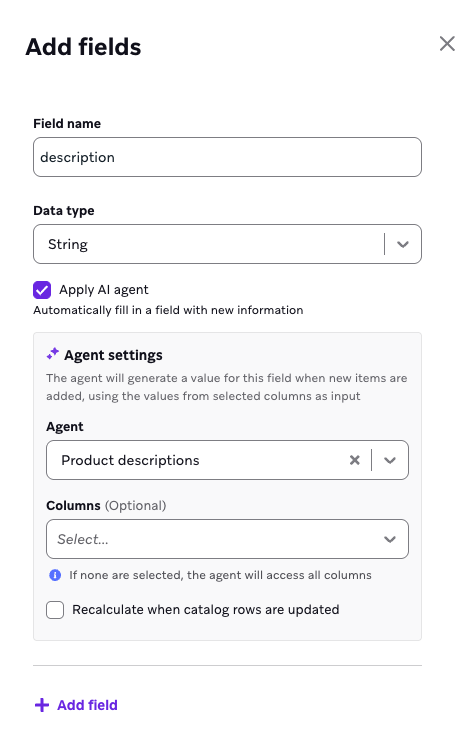
To add an agent to your catalog field:
- In your catalog, add a new field.
- Select Apply AI agent.
- Assign an agent to this field.
- Select which columns should be passed as input. If none are selected, the agent has access to all columns in the catalog.
- (Optional) Enable Only run when required columns have values to skip rows where one or more selected input columns are blank. When this option is on, select which of the input columns must be populated for the agent to run—all selected columns start as required by default, but you can remove any that are allowed to be empty without blocking a run.
- Decide if the agent should recalculate fields when catalog rows are updated. If you do not select this option, the agent runs only once per row.
- Select Add fields to deploy the agent and review cost estimations. The Cost estimation modal shows how many times the agent will run on this catalog, roughly equal to the total number of rows. To continue, select Confirm.
Catalog Agent best practices
Plan which columns the agent needs before you apply it to a catalog field. After you enable required-input controls for the field, select the columns that contain the data your agent should read, then clear any column that may stay empty without blocking a run. The agent skips a row only when a column you left marked as required is blank.
Do not leave a column marked required if you expect it to stay empty for some rows and still want the agent to run—remove it from the required set instead. Skipping incomplete rows avoids incorrect token use and keeps output quality high.
| Scenario | What happens |
|---|---|
| Prepopulated rows with placeholders | If you add catalog rows with only an ID and a fund name, then fill in other columns later, the agent skips those rows until required input columns have values. |
| Agent applied after rows exist | When you apply an agent to a field on a catalog that already has rows, the agent evaluates every row but runs only where required input columns are populated. |
| Partially complete catalog | For example, a catalog with 100 rows where leader is filled for 2026 entries but other rows contain only an ID and fund name with blank fields elsewhere. The agent runs on rows with a leader value and skips rows without it when leader remains required. |
| Dependent columns | If column 3 depends on columns 1 and 2, the agent does not write to column 3 until columns 1 and 2 have values for that row. |
Use cases
| Use case | Description |
|---|---|
| Generate product descriptions | Automatically create short marketing copy for new catalog entries, for example, by generating a catchy description from structured product data like name, category, and features. |
| Enrich product attributes | Fill in missing values such as color family, style, or season based on a product name and details. For example, if a product name is “Laguna Polarized Sunglasses,” the agent could assign the style as “sport” and the color family as “blue.” |
| Calculate derived fields | Use existing fields to generate new data, such as a “fit score” based on attributes or a “popularity tag” from sales and review counts. |
| Categorize or tag items | Assign tags for recommendation logic so personalization models can segment products more effectively. For example, tag products as “outdoor,” “festival-ready,” or “premium.” |
| Localize content | Translate catalog text into another language for global campaigns, or adjust tone and length for region-specific channels. For example, translate “Classic Clubmaster Sunglasses” into Spanish as “Gafas de sol Classic Clubmaster,” or shorten descriptions for SMS campaigns. |
| Summarize reviews or feedback | Summarize sentiment or feedback into a new field, such as assigning sentiment scores like Positive, Neutral, or Negative, or creating a short text summary like “Most customers mention great fit, but note slow shipping.” |
Define response fields
If your agent uses fields as the output format, you can select the corresponding field from the agent for Response Field to use in the catalog field.
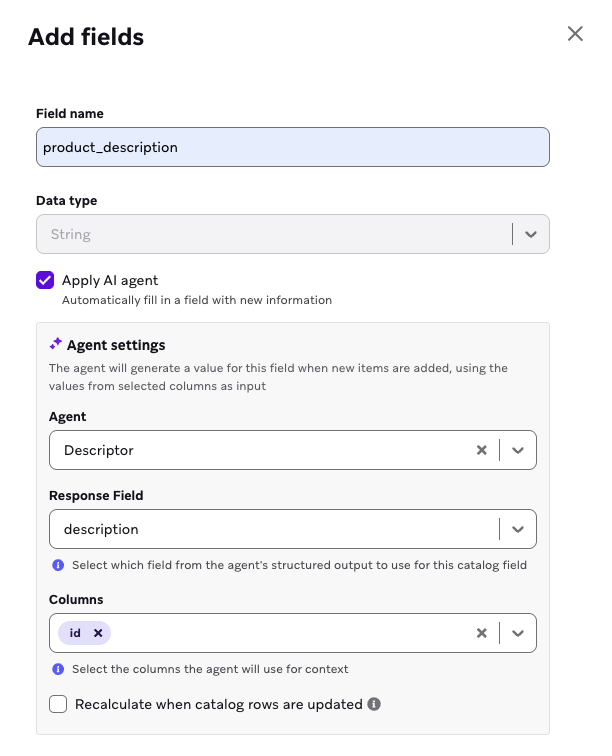
Let’s say you have an agent that adds product descriptions to a catalog with the following fields to structure the output format:
| Field name | Value |
|---|---|
| description | Text |
| confidence_score_out_of_ten | Number |
You can add a field named product_description to a catalog and select description as the Response Field to populate the column with the agent’s descriptions.
You can also manually override the agent-generated cell by selecting Edit Item and updating the agent-generated description with your edits. To revert to the agent-generated description, select the refresh symbol in the cell.
Error handling
- If the LLM provider returns a rate limit error, Braze continuously retries the request using exponential backoff until the call succeeds or Braze determines it cannot be completed.
- For other failures (such as a timeout or invalid API key), the catalog field value does not update. Catalog Agents do not support configuring fallback values in Agent Console.
- You can review the agent’s logs for details on failed runs.
- Catalog Agents are limited to processing input values up to 25 KB per row.
Monitor your agent
Monitoring works the same regardless of whether your agent runs in Canvas or catalogs.
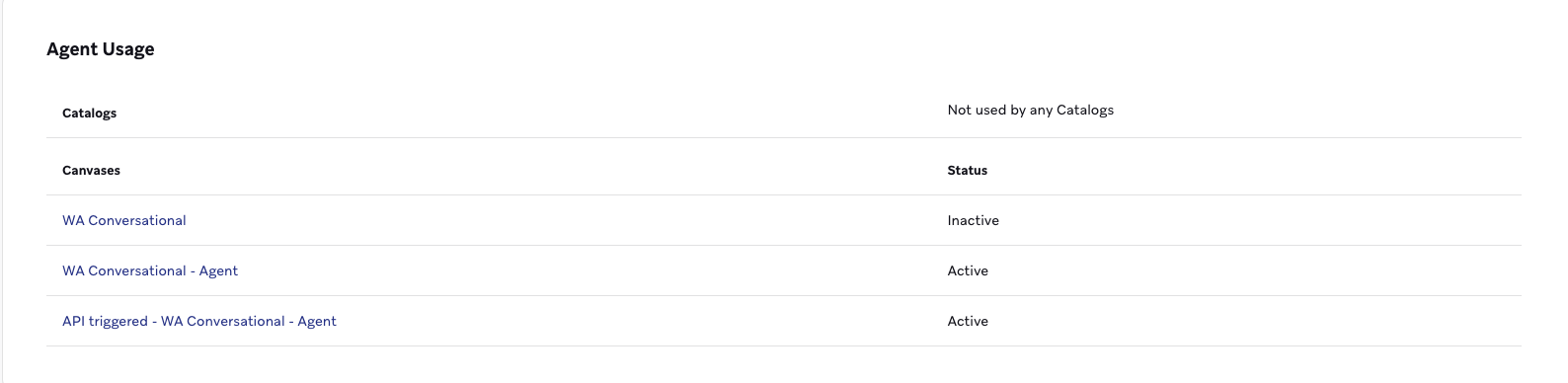
In the Usage section of your agent, you can reference and navigate to where the agent is being actively used in catalogs and Canvases.
In the Logs section of your agent, you can monitor actual agent calls that occur in your Canvases and catalogs. You can filter by information such as the date range, outcome (success or failure), or calling location. You can also select Export CSV to export the logs shown on the current page only.

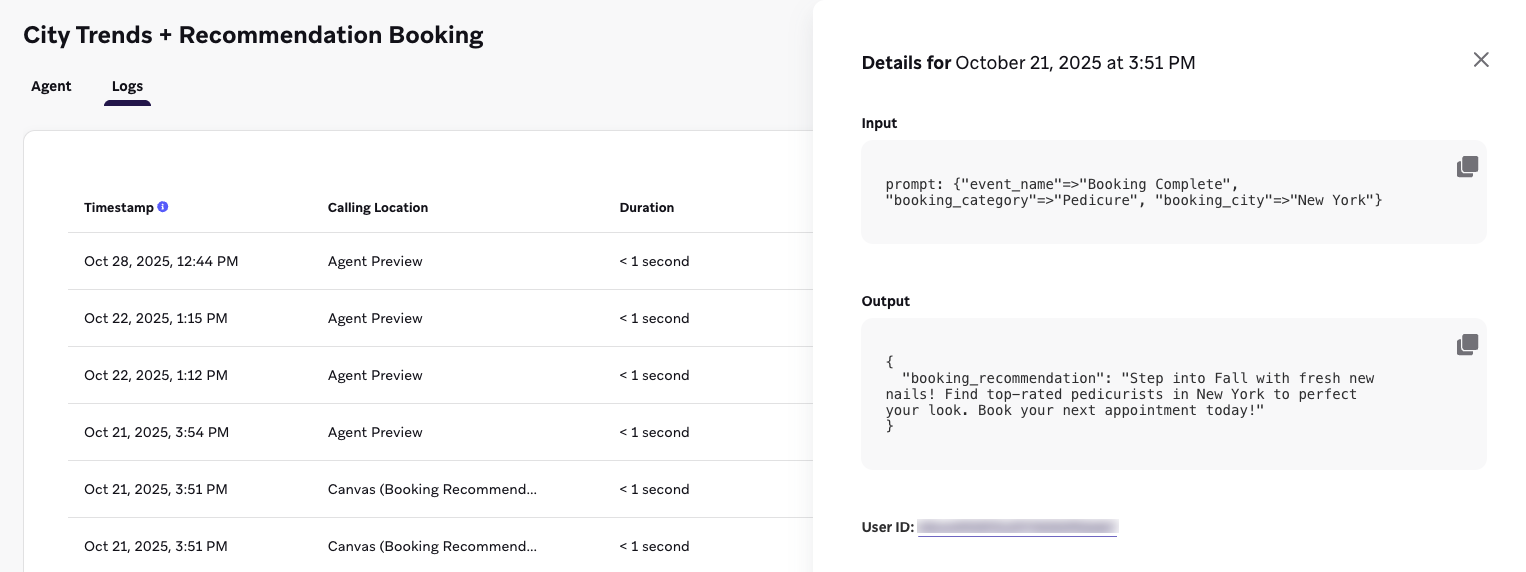
Select View for a specific agent call to see the input, output, and user ID.
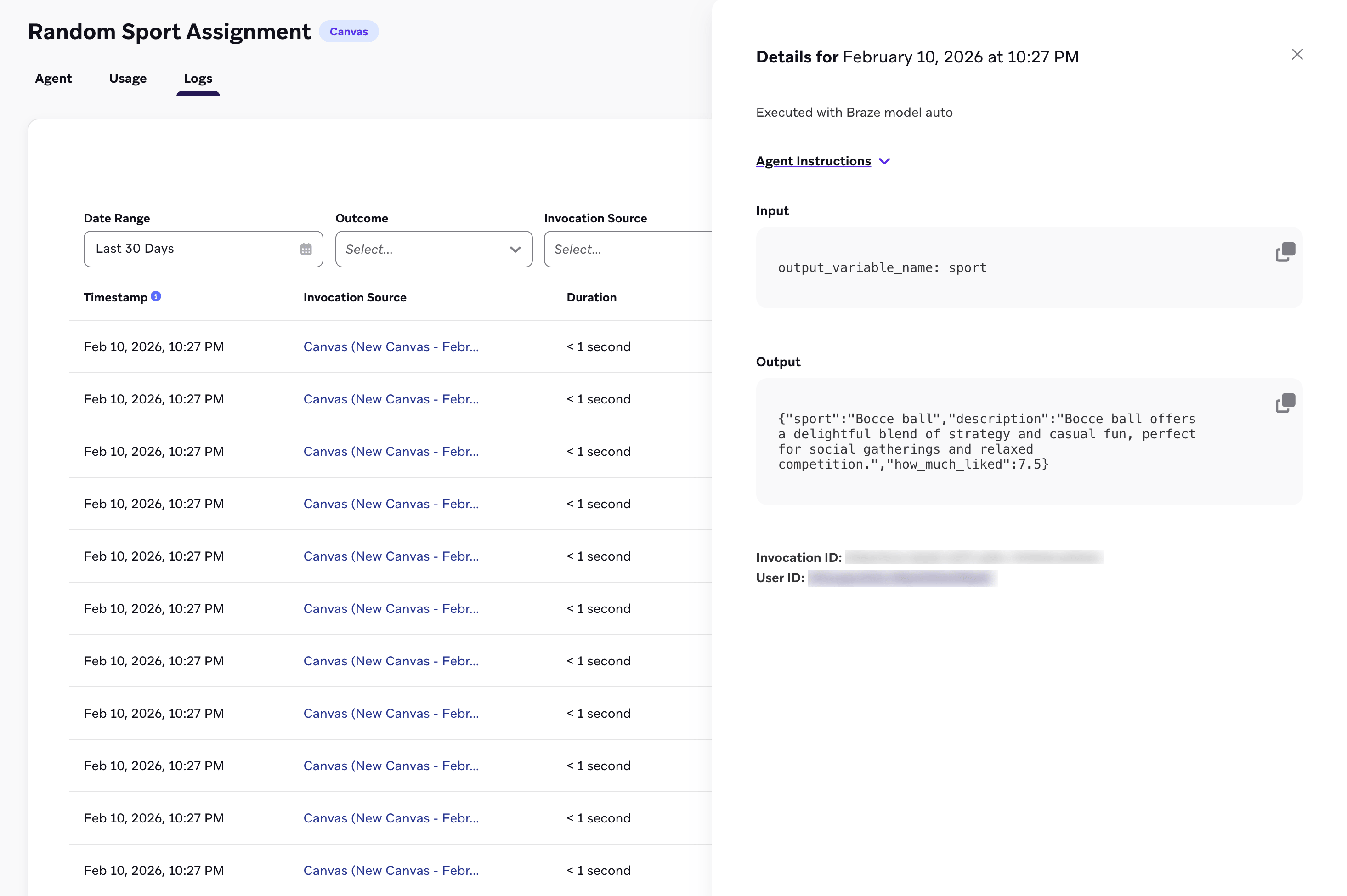
For Canvas step agents, logs include a Fallback Output section that shows any fallback output that was used when the invocation errored out.
Use Currents
You can also use these Currents events to access the Kafka record schemas:
- Agent executed events
- Tool invocation events
Refer to the Message engagement events glossary for more details.