Create a WhatsApp message
Use WhatsApp campaigns to reach your customers directly. Use Liquid and other dynamic content to personalize each message and create a consistent brand experience.
Prerequisites
Before you start, make sure you have the following:
| Requirement | Description |
|---|---|
| Campaign or Canvas | Set up a campaign or Canvas before composing your WhatsApp message. |
| WhatsApp channel setup | Complete the WhatsApp setup flow: acknowledge policies, set up your connection, and configure sending infrastructure. |
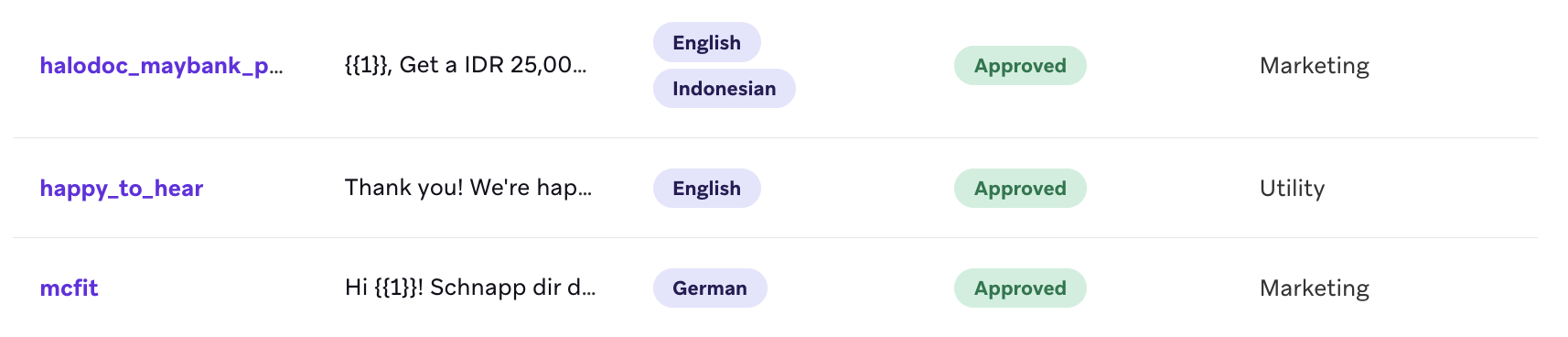
| Approved templates | For business-initiated sends, create and approve templates in Meta. For details, refer to step 3 of WhatsApp setup. |
Message type
WhatsApp supports two message types in Braze:
- Template message: Use for business-initiated conversations. Templates must be approved in Meta before sending.
- Response message: Use to reply to inbound user messages during an active 24-hour conversation window.
Subscription group
Select a WhatsApp subscription group for each message variant or Canvas Message step. The subscription group determines which sender configuration is used and which users are eligible to receive the message.
Languages for template messages
Each approved template is tied to a specific language. Configure separate variants or Canvas steps when you need to support multiple template languages.
If you’re adding copy in a right-to-left language, refer to Creating right-to-left messages.
Composition
Compose your WhatsApp content in the message composer. For WhatsApp-specific setup options, use the following field reference.
| Field or setting | What it controls | Notes |
|---|---|---|
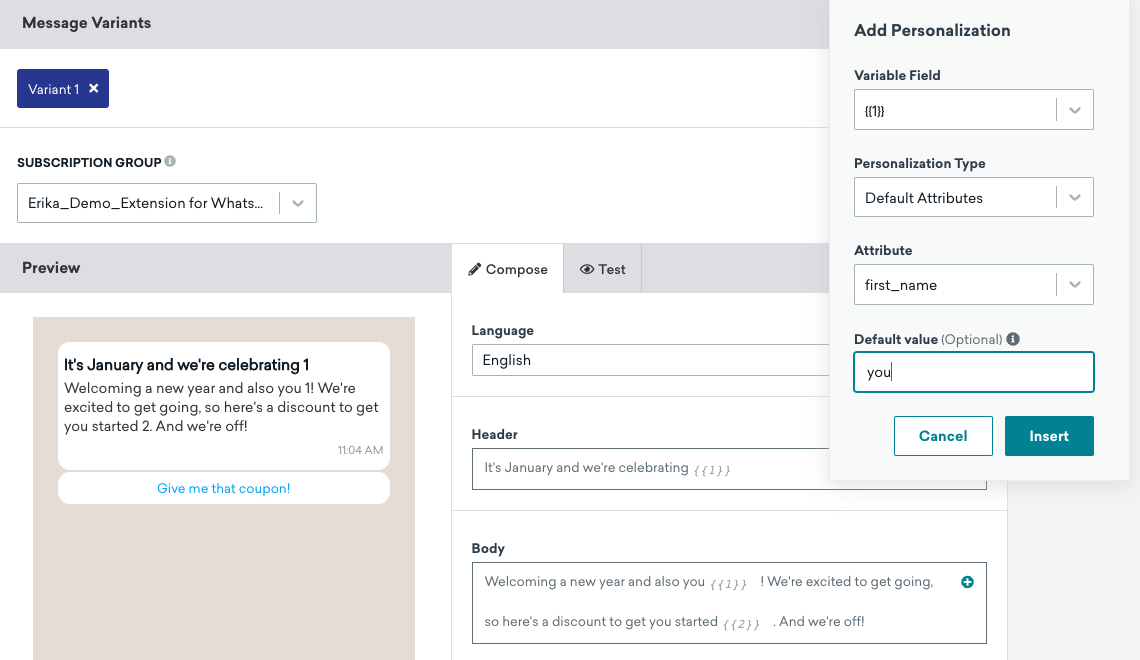
| Subscription Group | The WhatsApp sender and eligible audience for the message. | The associated sending phone number appears in the Test tab alert. |
| Message Type | Whether the variant sends a template message or a response message. | Business-initiated sends require a template. Response messages require an active conversation window. |
| Template (Template messages) | The approved Meta template used to send the message. | Disabled fields in the composer come from the approved template and can only be changed in Meta and reapproved. |
| Language (Template messages) | The template language selected for the variant or step. | Create a campaign variant or Canvas step per language to match recipients correctly. |
| Variables (Template messages) | Values inserted into template variable placeholders. | Use Liquid or plain text in double braces. Include default values for Liquid so sends don’t fail when profile data is missing. |
| Dynamic links | Personalized call-to-action URLs. | Meta requires variables to appear at the end of CTA URLs. |
| Dynamic images | Media URL or media-library image used in template or response messages. | Dynamic images support Liquid and Connected Content in URLs. |
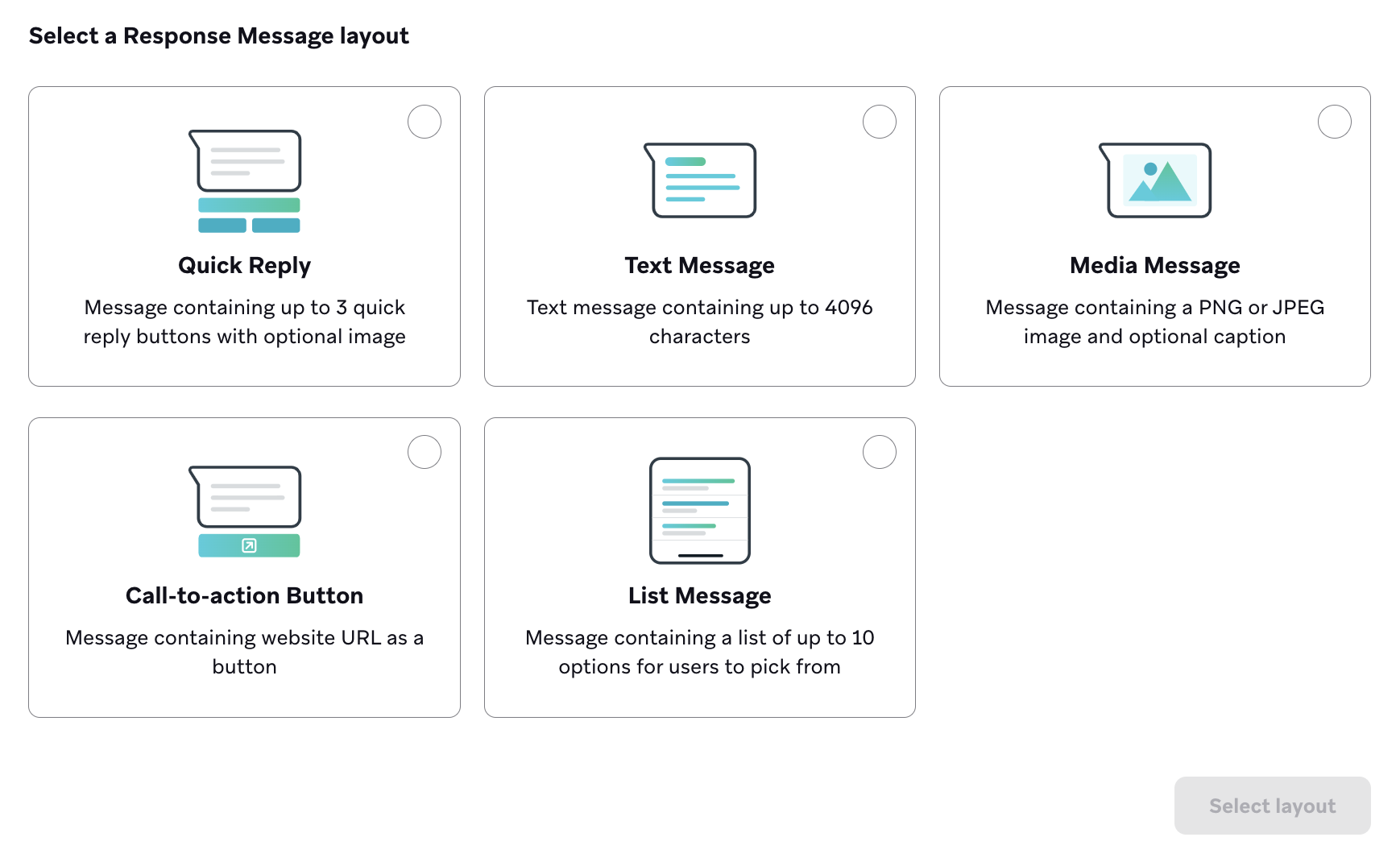
| Response layout (Response messages) | The format of response content. | Supported layouts are Quick Reply, Text Message, Media Message, Call-to-action Button, List Message, Flow Message, Meta Product Messages, and Carousel. |

WhatsApp test send results
After sending a test WhatsApp message, you can view a detailed delivery report directly in the message composer. This helps you confirm your message reached the intended recipient and troubleshoot failures before launch.
The View test results button appears when test send data is available for the current campaign or Canvas step. Select it to open the results panel.
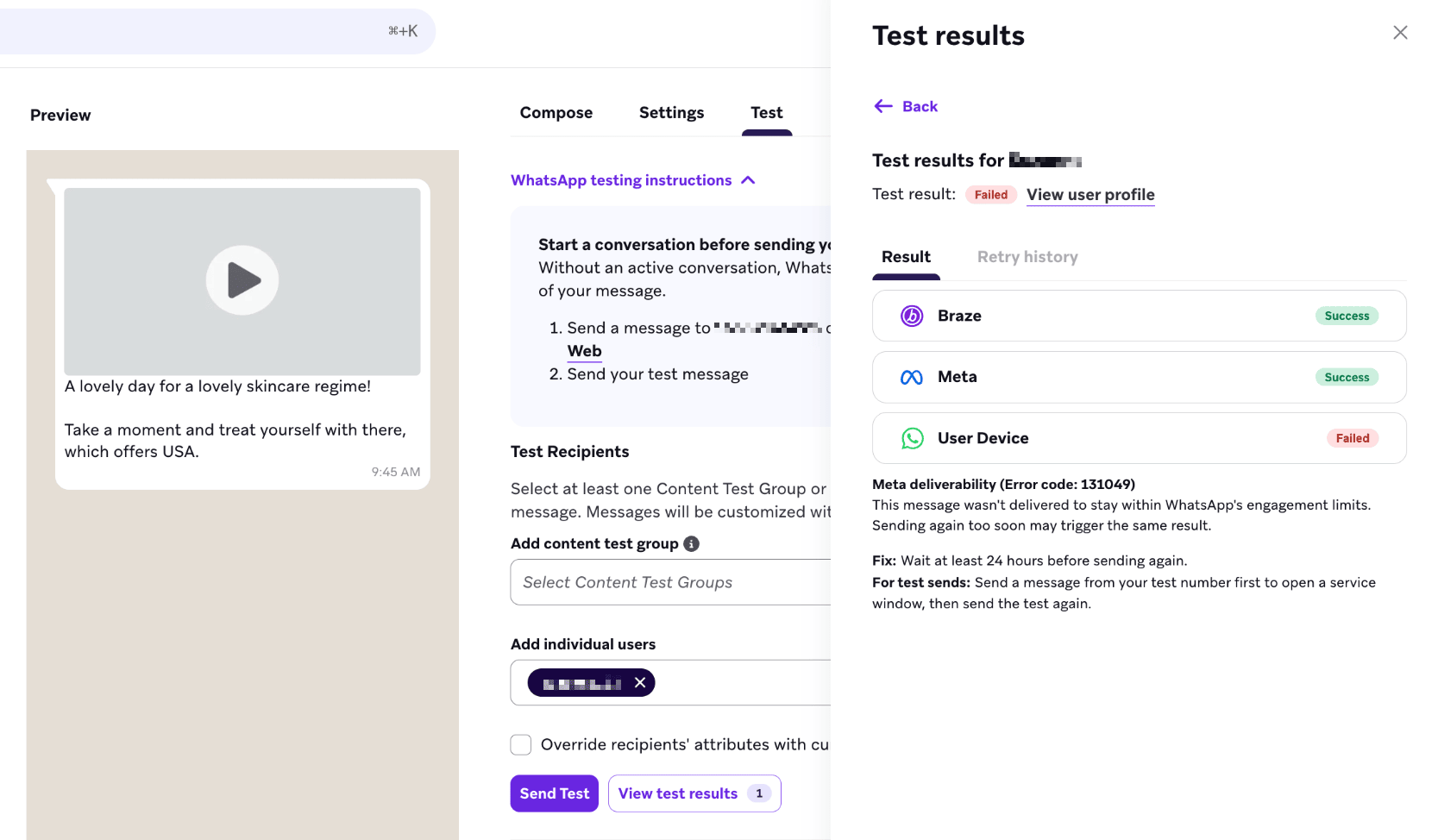
The results panel shows each stage your message passed through on its way to the recipient:
- Braze: Whether Braze successfully processed and dispatched the message
- Meta: Whether Meta accepted the message for delivery
- User device: Whether the message was delivered to the recipient’s device
Each stage displays its current status. If a stage failed, the panel shows the error encountered and guidance on how to resolve it. The results persist if you close and reopen the same campaign or Canvas.
Retries and past attempts
If a test send fails, Braze automatically retries delivery for up to 24 hours. The results panel reflects this with two tabs:
- Latest: The most recent delivery attempt, updated in real time as retries occur
- Past attempts: A history of previous retry runs, each showing the stage statuses and any errors encountered
When the final outcome is determined (successful delivery, exhausted retries, or a failure that retrying won’t resolve), the tabs rename respectively to Result and Retry history.

Because retries can continue for up to 24 hours, you may not see a final result immediately after a failed send.
Troubleshoot failures
If a stage shows a failure, the panel displays the error and suggested next steps. Common reasons a test send may fail include:
- The message template is paused or not yet approved in Meta
- The recipient’s phone number is rate-limited
- Liquid variables in the message didn’t populate for the selected test user
For persistent issues, check your template status in Meta Business Manager or verify that your test recipient has the required user attributes populated in Braze.
Things to know
Outbound messages
The following features are supported for outbound WhatsApp messages you send through Braze:
| Feature | Details | Max Size | Supported Formats |
|---|---|---|---|
| Header text | Strings and variable parameters are supported. | — | — |
| Body text | Strings and variable parameters are supported. | — | — |
| Footer text | Strings and variable parameters are supported. | — | — |
| CTA links | Various call-to-action (CTA) types are supported. For more details, see Call-to-action types. | — | — |
| Images | Images can be embedded within the body text. They must be 8-bit and use either an RGB or RGBA color model. | < 5 MB | .png, .jpg, .jpeg |
| Documents | Documents can embedded within body text. Files must be hosted through URL. | < 100 MB | .txt, .xls, .xlsx, .doc, .docx, .ppt, .pttx, .pdf |
| Videos | Videos can be embedded within body text. Files must be hosted through URL or in the Braze media library. | < 16 MB | .3gp, .mp4 |
| Audio | Audio is only supported through response messaging. Files must be hosted through URL. | < 16 MB | .aac, .amr, .mp3, .mp4, .ogg |

Meta has a known issue that can prevent some MP4 videos from playing on Android devices due to specific encoding or container settings. Until a permanent fix is available, reformatting the MP4 file resolves the issue for most senders. Test all videos on Android devices to confirm correct deliverability.
You can reformat the MP4 file by MP4 using a web tool, such as CloudConvert. Upload your MP4 file into the tool, convert it to MP4 again, and then download the converted file.
Inbound messages
The following features are supported for inbound WhatsApp messages you receive through Braze:
| Feature | Details | Supported Formats |
|---|---|---|
| Body text | Only standard strings are supported. | — |
| Images | Images must be 8-bit and use either an RGB or RGBA color model. Files must be less than 5 MB. | .jpg, .png |
| Audio | Only Ogg files encoded with the Opus codec are supported. Other Ogg formats are not. | .aac, .mp4, .mpeg, .amr, .ogg (Opus only) |
| Documents | Documents are supported through message attachment. | .txt, .pdf, .ppt, .doc, .xls, .docx, .pptx, .xlsx |
| Video | Only H.264 video codec and AAC audio codec are supported. Videos must either have a single audio stream or no audio stream. | .mp4, .3gp |
| CTA links | Various call-to-action (CTA) types are supported. For more details, see Call-to-action types. | — |
Call-to-action types
The following call-to-action types are supported for WhatsApp messages you send through Braze:
| CTA type | Details |
|---|---|
| Visit website | One button maximum (including variable parameters). |
| Call phone number | Available for message templates only. One button maximum. |
| Custom quick reply buttons | Three buttons maximum. |
| Marketing opt-out button | By default, subscription statuses are not automatically updated. For a full walkthrough, see Opt-ins & Opt-Outs. |
| Coupon code message templates | Available for message templates only. These can be opened and edited like other message templates, and are compatible with Liquid and Braze promotion codes. |
| CTA response messages | Create a response message that includes a call to action button. |
| List response messages | Create a response message that includes a list of up to 10 options for users to pick from. |
Next steps
After composing your WhatsApp message, continue building and validating your send: