BrazeAI Operator
BrazeAI OperatorTM is an AI-powered assistant built into the dashboard. Operator helps you build—drafting campaigns, Canvases, segments, and content—and helps you get unstuck, from answering questions and troubleshooting issues to brainstorming ideas.
Operator works with you while you build. By default you review and approve each proposed action. For per-user content at send time, use Braze Agents instead. For how to choose between BrazeAI features, see BrazeAI.
Prerequisites
To use Operator, you need the “Use BrazeAI Operator” permission for your workspace. For how Operator inherits your other dashboard permissions and handles PII, see Data privacy and security.
Access Operator
Open Operator from any page in the Braze dashboard.
- Select BrazeAI OperatorTM next to your user profile.
- The Operator chat panel opens in a side panel.
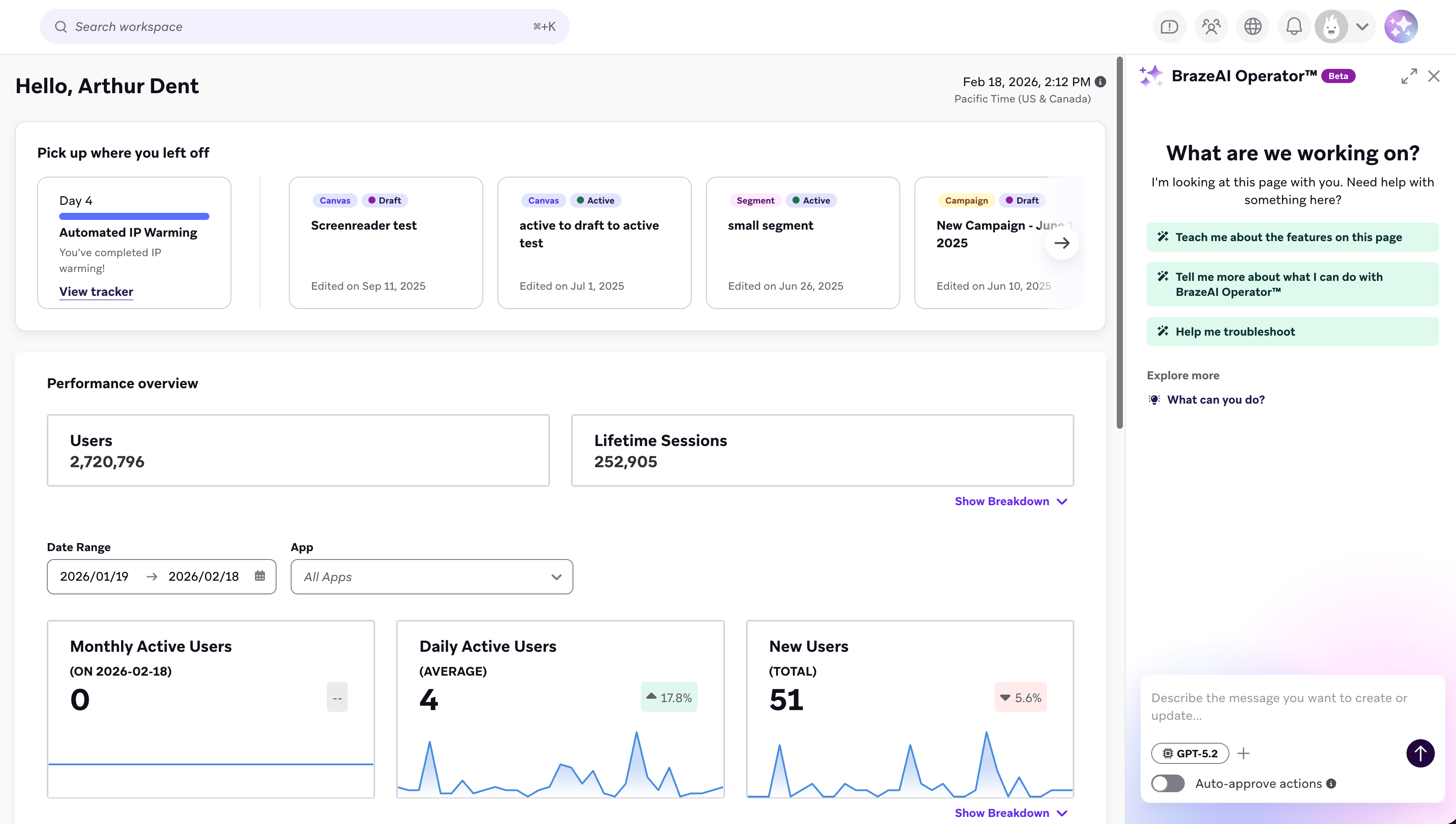

Maximize to expand the panel for easier reading, or minimize to keep Operator available while working.
Use Operator
Describe what you’re trying to accomplish using natural language. Clear and specific prompts lead to more helpful responses. Prompts can range from a single question to a full build request:
- Ask a question: Why isn’t my Liquid rendering?
- Build something: Draft a segment of users who abandoned their card in the last 7 days.
Operator can provide step-by-step instructions, links to Braze documentation, plain-language explanations, and drafts of campaigns, Canvases, segments, and content that you can review and insert directly into your work. For how Operator proposes and applies changes, see Take action with Operator.
Operator uses GPT-5.6 Terra, which is suited for complex, multi-step tasks. For the full range of what Operator can help you build, see What you can do with Operator. For ready-to-use examples, see the prompt library.
Before Operator, several AI features stood alone as separate assistants, such as the AI Copywriter and AI SQL Generator. Their entry points remain in place and route to Operator, so your existing workflows are unaffected.
Watch this video to see one example of what Operator can do.
Best practices
Treat Operator as a conversation, not a search engine. Short, natural prompts work best.
- Be specific: Instead of “Tell me about Canvas”, try “How do I use Action Paths in Canvas?”.
- Ask follow-up questions: If the first response doesn’t address your need, ask for clarification or additional details. Operator remembers earlier messages in the conversation until you clear your chat history.
- Use page-aware context: Operator understands your location in Braze. Open Operator while viewing the relevant page for the most accurate results.
Customize your experience
Apply brand guidelines
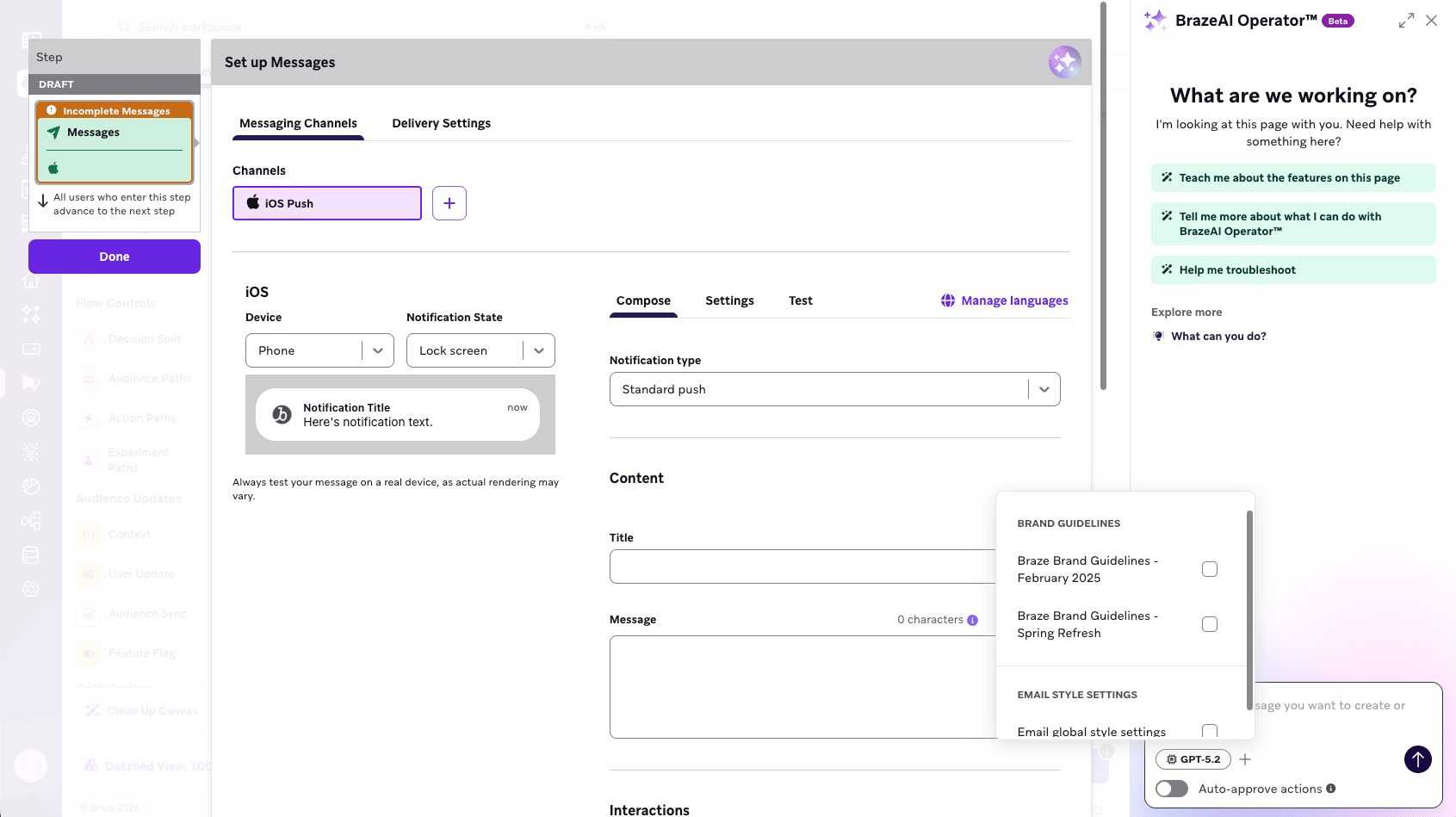
Add brand guidelines as context so Operator can match your brand’s voice, tone, and personality when it suggests copy or explains features.
- Select Add context for Operator in the chat panel.
- Under Brand guidelines, select one or more guidelines.
Operator applies only the guidelines you select. Nothing is selected by default, including the workspace default.
When you open Operator from Generate with Operator or Refine with Operator in Agent Console, Operator attaches the guideline already on the agent as context. You can add or remove guidelines from the same menu.
To set up brand guidelines, go to Content > Brand Guidelines. For more information, see Brand guidelines.
Leverage page-aware context
Operator automatically understands your location in Braze and tailors responses based on that context. For example, when you open Operator while building a Canvas, it can suggest relevant steps or provide guidance about Canvas features without you having to explain where you are in your workflow.
This context-awareness means you can use short, natural prompts to interact with Operator, like “Update my editor settings to match my brand guidelines.” When your request needs a different part of the dashboard, Operator can navigate you there directly.
For ready-to-use prompt ideas, see the prompt library.
Work with Operator responses
Get started with suggested prompts
When you open a conversation with Operator, suggested prompts appear based on common tasks and your current page. Select one to get started quickly, or type your own custom question.
Understand how Operator thinks
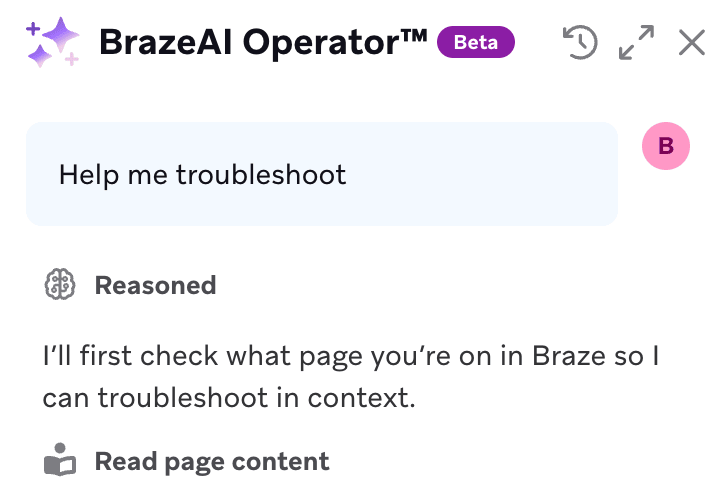
Operator shows its reasoning steps in collapsible sections labeled Reasoned. Select the dropdown to expand these sections and see how Operator determined an answer. This is helpful when you want to understand the logic behind a suggestion or verify the approach.
Take action with Operator
Operator can propose and execute changes directly in the Braze dashboard, such as filling in form fields, updating settings, generating content, or navigating you to a different page to complete your request. Each proposed change is presented as an action card for you to review and approve before it takes effect. For more on how this works, see Reviewing actions.
Navigate the dashboard
Operator isn’t limited to acting only on the page you’re viewing. When a prompt needs a different part of the dashboard, Operator proposes the navigation and takes you there before continuing its work, the same as it does for other proposed actions. To skip waiting for approval each time, turn on Auto-approve actions.
Copy responses to other tools
Operator responses are formatted in Markdown. When you’ve received a response, select Copy in the toolbar that appears to copy the full response to your clipboard. Most tools render Markdown natively or accept it with minor adjustments. Select a tab for your destination:
First, go to Tools > Preferences and select Automatically detect Markdown. Then to paste Markdown, go to Edit > Paste from Markdown. You can also right-click and select Paste from Markdown.
Word and Outlook don’t render Markdown natively. Paste the response into a web-based Markdown previewer, then copy the rendered output and paste it into Word or Outlook with Keep Source Formatting. Alternatively, paste as plain text and format manually.
Paste directly. Both platforms render Markdown automatically.
Paste directly. Slack renders bold, inline code, code blocks, block quotes, and bulleted lists, but it doesn’t render Markdown headings or link syntax.
If you want to work in a file or use conversion tools, you can also:
- Open a text editor like VS Code and create a new text file, then paste the Markdown and preview to review the formatting before you convert or paste it elsewhere.
- Use Pandoc to convert Markdown into a Word document, HTML, or PDF when you need predictable structure in Word or Outlook without pasting from a browser.
Manage your session
Stop a response
While Operator is generating a response, the Send button becomes a Stop button. Select Stop to end the response early if you need to rephrase your question or if the response is going in the wrong direction.
Clear your history
To start fresh or remove sensitive information from the conversation, select Clear chat history. This removes all current content and resets the conversation context.
Provide feedback
At the bottom of each response, use the thumbs up or thumbs down buttons to provide quick feedback. Your feedback helps improve Operator’s answers over time.
Data privacy and security
BrazeAI OperatorTM integrates with OpenAI, which acts as a Braze sub-processor subject to the Data Processing Addendum (DPA) between you and Braze. Data sent to OpenAI via Braze is not used to train or improve OpenAI models. For details on HIPAA compliance, data retention, PII handling, and governance, see Data privacy and security.