Reviewing BrazeAI Operator actions
Learn how to review and approve actions when BrazeAI OperatorTM proposes changes in the dashboard.
How action cards work
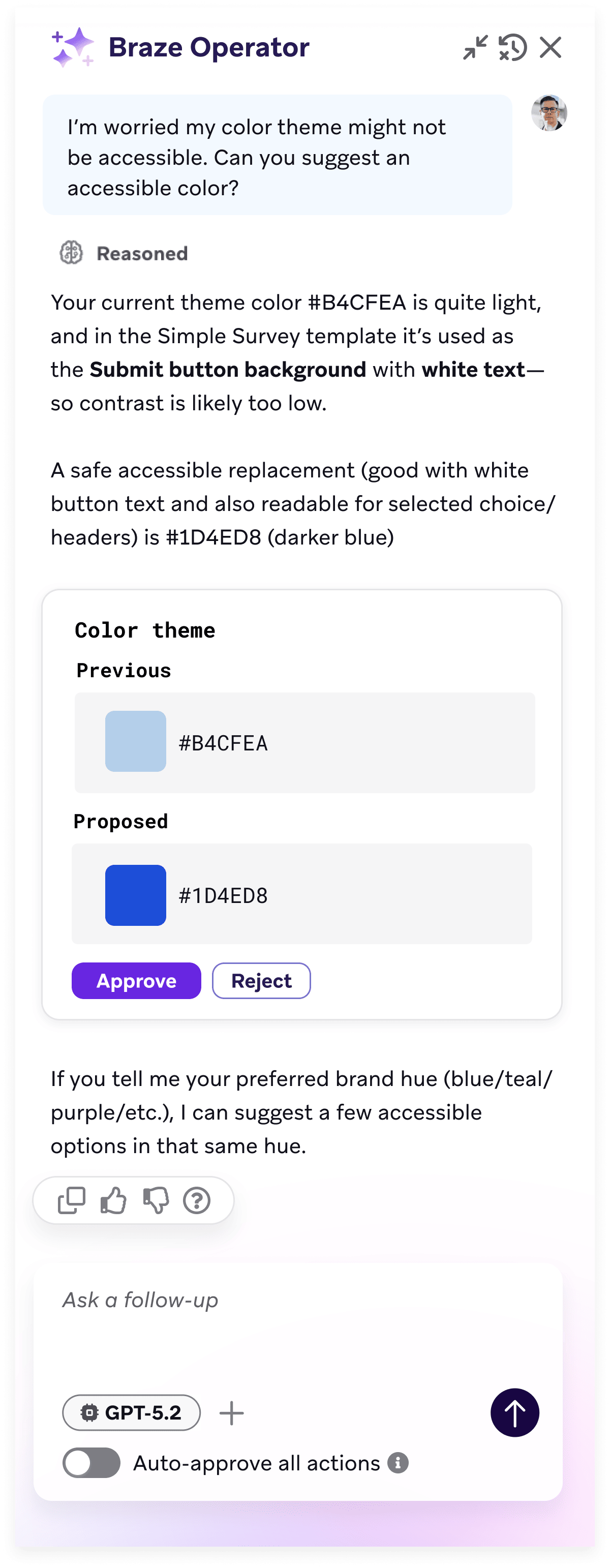
When Operator proposes changes in the dashboard (such as filling in form fields, updating settings, or generating images), it presents each change as an action card for review.
- Operator summarizes the plan: Operator explains what it plans to do before showing action cards.
- Individual action cards appear: Each proposed change is presented as a separate card that shows what Operator wants to change or do in the dashboard. For changes to existing values, both the previous value and the proposed value are shown side by side for comparison.
- Review and approve: Review each card and either approve or decline it.
- Action executes: Approved actions are executed in Braze. Declined actions are not applied.
If an action fails after approval, Operator notifies you with details about the failure.
Availability
Operator can propose action cards on supported dashboard pages, including message composers, list and overview pages, settings, and other surfaces where it can act. For representative coverage, see What you can do with Operator. For supported message channels and editors, see Generate messages.
Coverage expands regularly. If Operator can’t act on the page you’re on, it provides a list of steps to follow in the UI instead.
Modify a plan
To modify Operator’s plan, first approve or reject the pending actions. Then describe the desired change in a new chat message.
Approved actions can’t be undone through Operator. Describe the new change to Operator or make changes manually in the dashboard.
Auto-approve actions
The Auto-approve actions toggle is located in the Operator chat panel.
- On: Operator’s suggested actions execute immediately without requiring manual approval, including navigating to a different page to complete your request. Some actions still require explicit approval for safety, such as generating images or making modifications to workspace-level settings.
- Off (default): All proposed actions follow the manual review process described, including page navigation—Operator proposes the move and waits for your approval before taking you there.
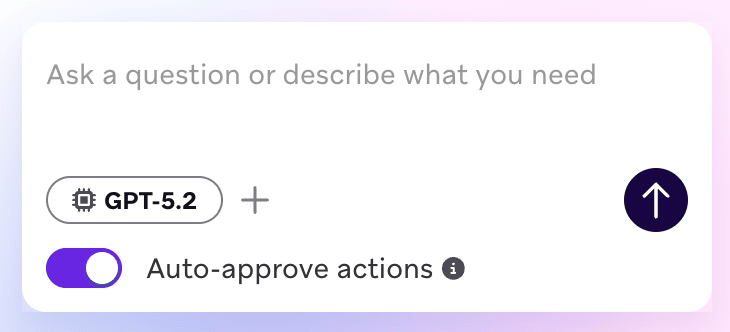
Auto-approve resets when you refresh the page, open a new tab, or log out and back in. Moving between pages in the dashboard does not reset it. Auto-approve can be turned off at any time.
For information about restricting Operator access and auditing team usage, see Data privacy and security.