Fuzzy opt-out
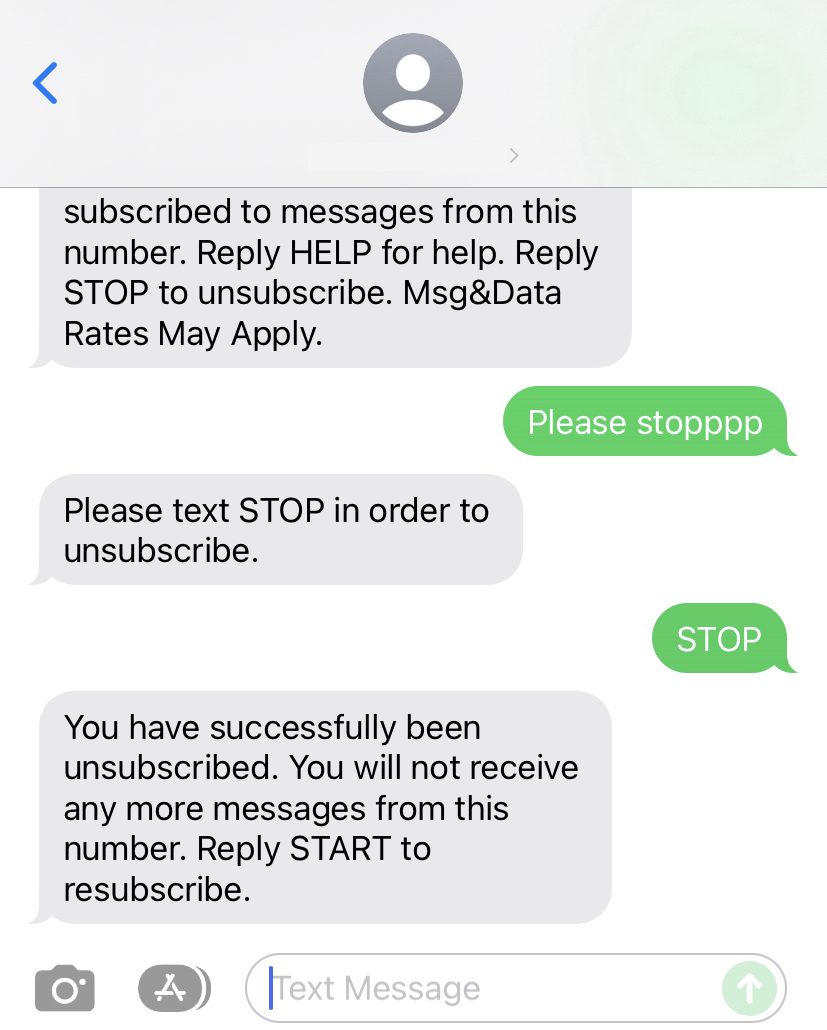
Users that send SMS, MMS, and RCS with Braze must adhere to the applicable laws, regulations, and industry standards that are defined. For opt-out, laws such as the TCPA dictate that when a user sends any message that constitutes a reasonable revocation of consent (including recognized opt-out keywords such as “STOP”, “STOPALL”, “UNSUBSCRIBE”, “CANCEL”, “END”, or “QUIT”), all subsequent messaging related to that messaging program must be stopped. Braze automatically processes recognized opt-out keywords and unsubscribes the user.
Fuzzy opt-out extends this capability by attempting to recognize inbound messages that don’t match any configured opt-out keyword for the subscription group’s Opt-out category (that is, any default opt-out keyword or custom opt-out keyword) but still indicate opt-out intent—for example, a message like “goodbye” or “leave me alone”.
Fuzzy opt-out is disabled by default. If fuzzy opt-out is enabled and an inbound message is deemed “fuzzy,” you can configure Braze to either automatically unsubscribe the user or send a message instructing them how to opt out manually. For US brands, automatically unsubscribing the user is strongly recommended to comply with TCPA requirements.

Currently, only opt-out keywords (default and custom) created using English as the local language are supported.
What is deemed as fuzzy?
The criteria for an inbound response to be deemed as “fuzzy” are as follows (comparisons use every keyword in the Opt-out category, including defaults and custom keywords):
- If switching a letter with the letter one to the left or right of it on a QWERTY keyword yields a matching opt-out keyword.
- A substring of the message matches an opt-out keyword.
For example, “Stpo” or “Please stopppp” will be deemed fuzzy, and a fuzzy opt-out response will be sent. If the user then responds with an opt-out keyword, an unsubscribe event will trigger.
Configure fuzzy opt-out
To configure fuzzy opt-out, navigate to the subscription group keyword management page.
- Go to Audience > Subscription Group Management and select an SMS/MMS/RCS subscription group.
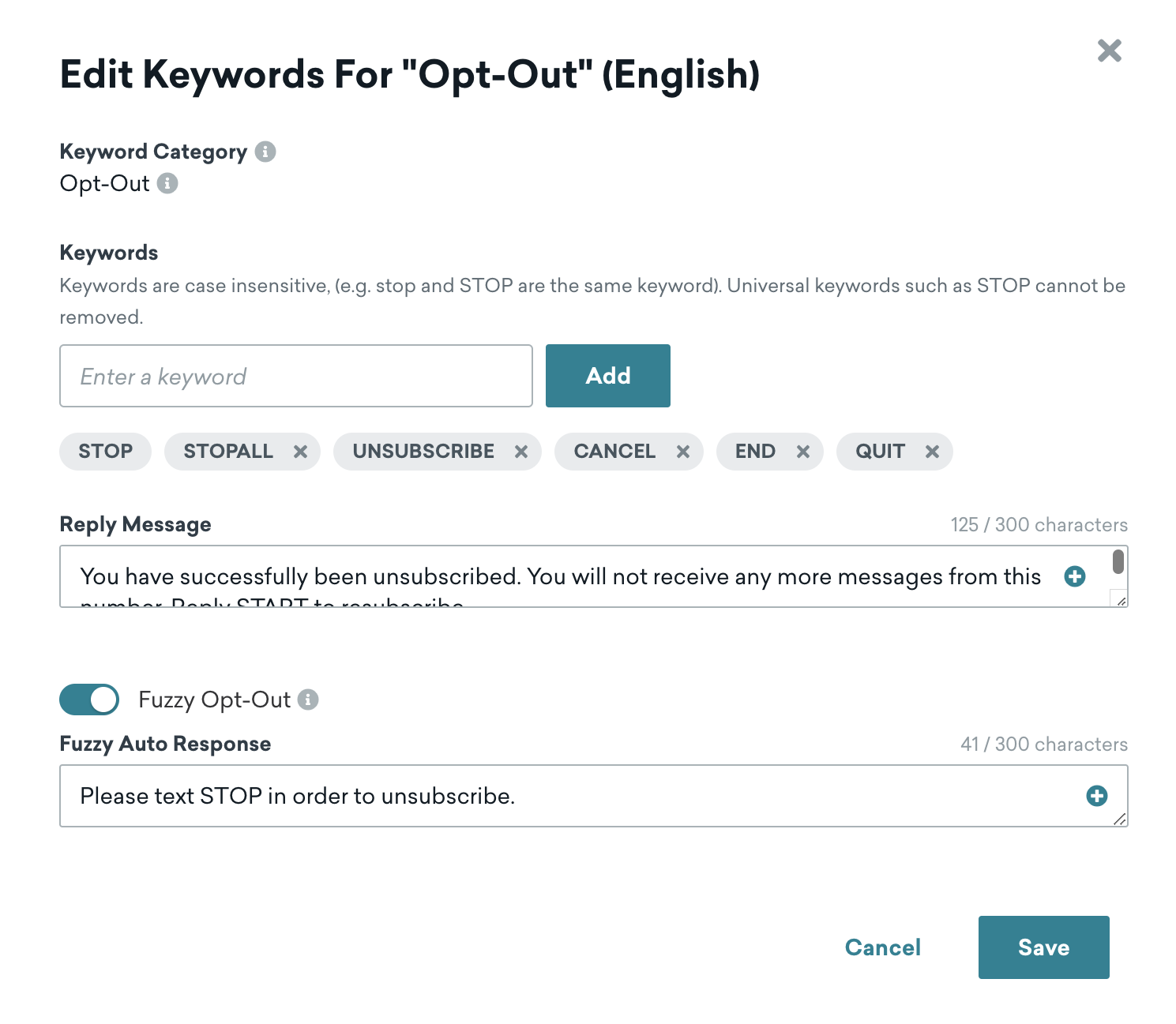
- In Global Keywords, find the Opt-out category and select the pencil icon.
- Toggle Fuzzy Opt-Out to On.
- Select your preferred Fuzzy Opt-Out Logic option:
- Automatically unsubscribe: When a user sends a message similar to an opt-out keyword, they are immediately unsubscribed without being prompted. The standard opt-out confirmation message is then sent.
- Send opt-out instructions: When a user sends a message similar to an opt-out keyword, Braze sends a custom reply (the Opt-out instruction message) explaining how to unsubscribe.
- If you selected Send opt-out instructions, enter your custom text in the Opt-out instruction message field. This field is required for this setting.
- Select Save.
Best practices for fuzzy opt-out messages
To ensure a clear, compliant, and positive experience for your subscribers, it’s crucial to configure your fuzzy opt-out message thoughtfully. The main purpose of the fuzzy opt-out message is to guide users who send a message similar to, but not exactly, your designated opt-out keyword. The message prompts users on how to successfully unsubscribe.
Critical considerations

If you selected Send opt-out instructions, do not configure your fuzzy opt-out message to confirm an unsubscribe. Your fuzzy opt-out message must not contain language that implies a user has already successfully unsubscribed. For example, do not use “You have been unsubscribed,” “You will not receive any more messages from this number,” or “You are now opted out”.
The fuzzy opt-out message is sent before the user has successfully opted out. Using confirmation language (such as “You have been unsubscribed”) misleads the subscriber into believing they are unsubscribed when they are not, leading to continued unwanted messages, subscriber frustration, and significant compliance risks.
To unsubscribe users immediately upon a fuzzy match, use the Automatically unsubscribe setting instead.
DO NOT configure your fuzzy opt-out message to be identical or similar to your exact opt-out keyword.
If your fuzzy message is the same as, or too close to, your exact opt-out keyword (for example, if “STOP” is your exact keyword and your fuzzy message is “Text STOP to unsubscribe”), it can create confusion about whether the user’s initial message actually resulted in an unsubscribe or if they need to take another action. The fuzzy message should always clarify what action the user needs to take.
Examples of fuzzy opt-out messages
If you choose Send opt-out instructions, focus your message on guiding the user. For example, if your opt-out keyword is “STOP”, these are good and poor examples of fuzzy opt-out messages you could create:
| Good examples | Poor examples |
|---|---|
| "To unsubscribe from all messages, please reply with the word STOP." | "You have successfully been unsubscribed. You will not receive any more messages from this number. Reply START to resubscribe." (This is a direct confirmation of unsubscribe, which is misleading in a fuzzy opt-out scenario.) |
| "We received your message. If you'd like to stop receiving texts, please text STOP." | "STOP." (This is just the exact keyword itself, which doesn't guide the user.) |
| "Did you mean to unsubscribe? Reply STOP to opt out of all future messages." | "Text STOP to unsubscribe." (If "STOP" is also your exact keyword, this is redundant and doesn't clarify the action if the initial message was fuzzy.) |