Create an in-app message template
Use Content > In-App Message to build a reusable library of in-app and in-browser message layouts. You can save designs from the drag-and-drop editor or create Color Profile and CSS Template assets for the traditional editor.
Step 1: Open in-app message templates
In the Braze dashboard, go to Content > In-App Message.
Step 2: Choose how to create a template
How you add a template depends on your goal:
| Goal | What to do |
|---|---|
| Save a drag-and-drop layout for reuse | In the drag-and-drop in-app message composer, select Save as template after you exit the editor (you must first launch the campaign OR save it as a draft). The template appears on Templates > In-App Message Templates for your next message. |
| Create a color profile or CSS template (traditional editor) | On the In-App Message Templates page, select + Create, then choose Color Profile or CSS Template. For details, see Color profiles and CSS templates. |
| Customize a Braze template | Create an in-app message in the drag-and-drop editor, pick a Braze template, make your customizations, and select Save as template. For descriptions of each Braze template, see In-app message templates. |

Color profiles and CSS templates apply to the traditional editor. If you use the drag-and-drop editor, use Style settings for message-level styling.
Step 3: Manage your templates
On Content > In-App Message, filter, search, or open a template to edit. You can duplicate and archive templates like other template types. For an overview of template and media workflows, see Templates.
To access in-app message templates, you need user permissions to view or edit in-app message templates.
Create color profiles and CSS templates
The following options apply to the traditional editor. If you’re using the drag-and-drop editor, use Style settings instead.
You can edit existing templates or select + Create and choose Color Profile or CSS Template to create new templates for your in-app messages.
Color profile
You can customize the color scheme of your message template by either entering a HEX color code or by selecting the colored box and choosing a color with the color picker. If you want this profile applied by default when you create new in-app messages in the traditional editor, select Use as default profile.
Select Save Color Profile when you’re finished.
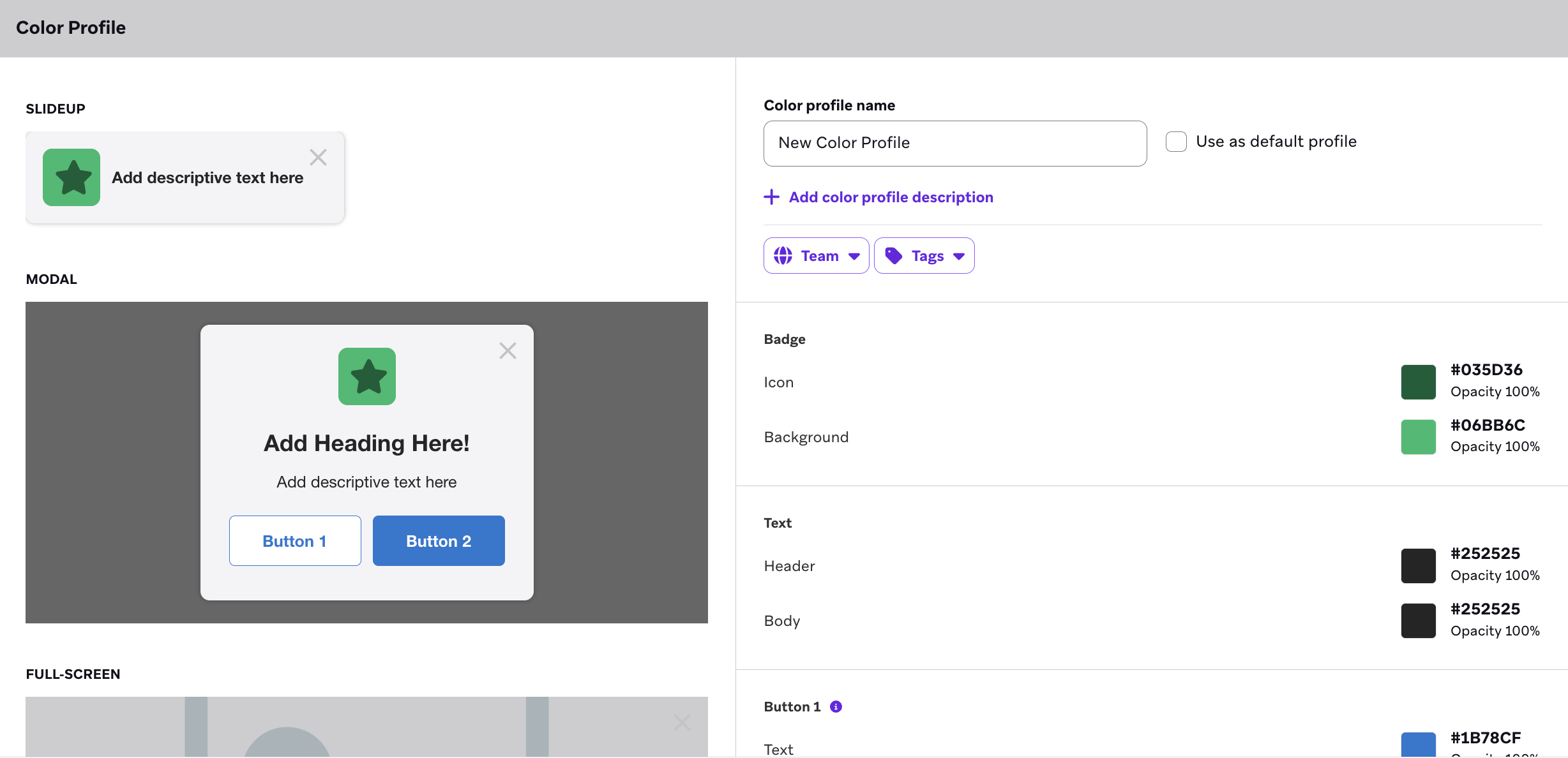
CSS template
You can customize a complete CSS template for your web modal in-app message.
Name and tag your CSS template, then choose whether it will be your default template. You can write your own CSS in the provided space. This space is already pre-filled with the CSS shown in your message preview, and you can adjust it to meet your needs.
.ab-message-header, .ab-message-text {
color: #333333;
text-align: center;
}
.ab-message-header {
font-size: 20px;
font-weight: bold;
}
.ab-message-text {
font-size: 14px;
font-weight: normal;
}
.ab-close-button svg {
fill: #9b9b9b;
}
.ab-message-button {
border: 1px solid #1b78cf;
font-size: 14px;
font-weight: bold;
}
.ab-message-button:first-of-type {
background-color: white;
color: #1b78cf;
}
.ab-message-button:last-of-type, .ab-message-button:first-of-type:last-of-type {
background-color: #1b78cf;
color: white;
}
.ab-background {
background-color: white;
}
.ab-icon {
background-color: #0073d5;
color: white;
}
.ab-page-blocker {
background-color: rgba(51, 51, 51, .75);
}
You can edit everything from the background color to font size and weight, and more.
Modal with CSS (web only)
If you choose to use a web-only Web Modal with CSS message, you can apply your own template or write your own CSS in the provided space. This space is already pre-filled with the CSS shown in your message preview, but you can adjust it to meet your needs.
If you choose to apply your own template, select Apply Template and choose from the in-app message template gallery. If you don’t have any options, you can add a CSS template using the CSS template builder on Templates > In-App Message Templates.