WhatsApp Template Builder
The WhatsApp Template Builder lets you create and submit WhatsApp message templates directly in Braze—no need to switch between Braze and the Meta Business Manager. After Meta approves your template, use it in as many campaigns and Canvases as you’d like.
Prerequisites
Before creating WhatsApp templates, you must complete the WhatsApp setup and have:
- An active WhatsApp Business Account (WABA) connected to Braze through the native WhatsApp integration or the BYO WhatsApp connector
- Appropriate subscription groups configured within your WABA
- Media assets (images or videos) ready for upload
- Braze permissions for non-admin users
- For users to create new templates in the Template Builder:
- “View WhatsApp Message Templates”
- “Edit WhatsApp Message Templates”
- For users to compose campaigns or Canvases with carousel templates:
- “View WhatsApp Message Templates”
- For users to create new templates in the Template Builder:
- An understanding of Liquid templating (optional, for dynamic content)

All phone numbers and subscription groups within the same WhatsApp Business Account (WABA) share templates. If you have multiple subscription groups within one WABA, they can all access the same carousel templates; however, templates are not shared across different WABAs.
Create a template
Step 1: Go to WhatsApp Templates
Go to Content > Templates > WhatsApp, then select Create new template.
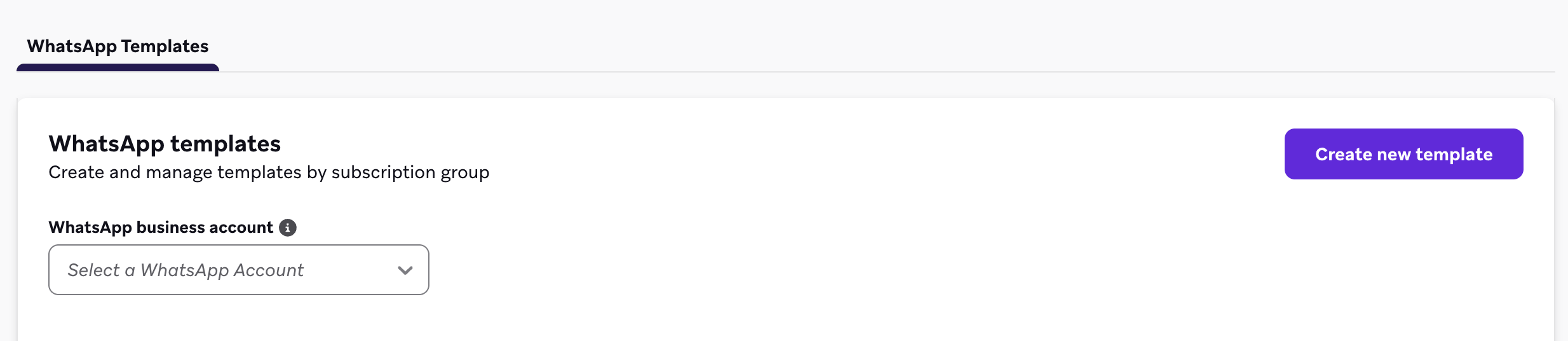
You can also create a template while composing a WhatsApp campaign or Canvas. For more information, see Create a template from a campaign or Canvas.
Step 2: Choose a category and type
Select a template category and template type, then select Continue to template when you’re ready.

Marketing
Marketing templates are for promotional and engagement messages (for example, welcome messages, promotions, offers, coupons, newsletters, and announcements).
| Type | Description |
|---|---|
| Custom | A standard WhatsApp message you create yourself. This is the layout covered in Build your template. |
| Carousel | A message with horizontally scrollable cards. For more information, see Carousel templates. |
| Limited-time offer | A time-sensitive promotional offer. For more information, see Limited time offer templates. |
| Flow | A template that opens a WhatsApp Flow (for example, surveys or appointment bookings). Create and manage the Flow in Meta’s WhatsApp Manager, then select it when you build the template. For more information, see WhatsApp Flows. |
Utility
Utility templates are for non-promotional messages (for example, order confirmations, account updates, receipts, appointment reminders, and billing). Meta reclassifies promotional content as marketing.
| Type | Description |
|---|---|
| Custom | A standard utility message you create yourself. Follow the same composition steps as Build your template. |
| Flow | A utility Flow template (for example, reminders, feedback, or order management). Create and manage the Flow in Meta’s WhatsApp Manager, then select it when you build the template. For more information, see WhatsApp Flows. |
Carousel and limited-time offer layouts are available only for Marketing templates.
Step 3: Configure template settings
Fill in the following fields:
| Field | Description |
|---|---|
| Account | The WhatsApp Business Account (WABA) you’d like to submit the template to. All subscription groups and phone numbers within a WABA share template access. |
| Language | The language for this template. WhatsApp requires a separate template for each language. |
| Template name | A unique name for your template. Template names can only contain lowercase letters, numbers, and underscores. |
Step 4: Build your template
Header (optional)
Add a header to appear before the message body. You can choose:
- Text: A short text header.
- Media: An image, video, or document (URL only). Braze stores the media reference and submits a sample to Meta for approval.
- None: No header
Body
Enter the main content of your message and personalize the body as needed by using Liquid or generic variables:
- Use Liquid tags (for example,
{{${first_name}}}). Braze saves your Liquid and surfaces it when you use the template in a campaign or Canvas composer. - Use generic variables, such as numbered placeholders (for example,
{{1}}), if you prefer to add personalization later when building your message.
You can add personalization wherever the + plus button appears. Not all fields support personalization.
Liquid character limits
Meta enforces character limits on the template structure you submit for approval (for example, 1,024 characters for the body and 60 characters for a text header). In the Template Builder, these limits apply to the template sent to Meta, not the final rendered message at send time.
{{ }}variables: Braze converts Liquid variables to numbered placeholders ({{1}},{{2}}) before checking length. A long expression like{{${first_name}}}counts as a short placeholder, not the full Liquid syntax.{% %}tags: Liquid logic tags count as literal text at their full length and appear as uneditable copy in template messages.
For complex personalization, use a Context step to compute values, then reference shorter variables in the template. For Message Extras and conditional logic constraints, see Liquid in the WhatsApp Template Builder.
Footer (optional)
Add a short footer to appear after the message body.
Buttons (optional)
Add up to 10 buttons to your template. Button types have different categories and specifications, and are grouped by category after the message body. By default, quick reply buttons appear first. To swap the order they appear—such as moving quick reply buttons after call-to-action buttons—select Swap group order.
| Button type | Category | Specifications |
|---|---|---|
| Quick reply | Quick reply buttons |
|
| Phone number | Call to Action buttons |
|
| Visit website | Call to Action buttons |
|
| Copy offer code | Call to Action buttons |
|
Braze doesn’t support templates that contain a request payment call-to-action button. Even if Meta approves those templates, they are unsupported when synced into Braze.
For Flow templates, configure the Flow button and select an existing Flow from Meta instead of adding standard call-to-action buttons.
Step 5: Preview your template
Before submitting, preview how your message appears to recipients:
- Preview as a user: See a generic preview of the message.
- Preview as a specific user: Select a user profile to preview how the template renders with that user’s data.
Step 6: Submit for review
Select Submit to send your template to Meta for review, which typically takes a few minutes but can take up to 24 hours. The template appears on your WhatsApp templates page when it’s submitted, and the status updates when you refresh the WhatsApp templates page.
Create a template from a campaign or Canvas
You can create and submit a WhatsApp template without leaving a campaign or Canvas Message step.
- In a WhatsApp campaign or Canvas Message step, select the WhatsApp Template Message message type.
- Select Create new template.
- Choose a category and type, then build and submit the template the same way you would on the WhatsApp Templates page.
- After you submit, Braze binds the pending template to the message. Continue composing personalization while the template is pending, then launch after Meta approves it.
Select Choose template from library to leave the builder and pick an existing template instead.
When you create a template from a campaign or Canvas, Braze can save your work as a draft so it persists if you leave the Message step.
Use an approved template in a campaign
After Meta approves your template, you can use it in a WhatsApp campaign or Canvas.
- Go to Campaigns and select Create Campaign > WhatsApp.
- In the message composer, select your approved template.
- Braze automatically populates the template’s content—including any media and Liquid you entered during template creation—so you don’t have to re-enter it.
- Update any variable content or personalization as needed. Fields locked by Meta (shown in gray) cannot be edited. To change locked content, you must edit and resubmit the template for approval.
- Use the Test tab to preview the message, update body variables, and confirm the message looks as expected before launch.
For more information about building WhatsApp campaigns, see Create a WhatsApp message.
Frequently asked questions
How long does Meta template review take?
Reviews typically complete within five minutes, but can take up to 24 hours.
Can I edit a template after it’s been approved?
You can update variable content and personalization when building a campaign or Canvas. Changes to locked content (body copy, button layout, or other Meta-controlled fields) require creating a new template in the Template Builder or editing the template in Meta’s WhatsApp Manager and waiting for Meta re-approval. If you use click tracking, see that article before editing Braze-created templates in Meta’s WhatsApp Manager.
What happens to templates I submitted before the Template Builder was available?
Templates created in Meta Business Manager are still available to use in Braze. The Template Builder is an additional way to create and manage templates without leaving the Braze dashboard.
Why can’t I add personalization to every field?
Meta restricts which parts of a template can be personalized. The + plus button only appears in fields that support variable content.