Subscription groups
Learn how subscription groups work across Braze channels, how to create and manage them in the dashboard, and where channel-specific rules apply.
Subscription groups control which users can receive messages from a specific set of sending resources within a channel.
For email, subscription groups are optional category filters on top of global subscription state. For SMS, WhatsApp, and LINE, subscription groups are audience filters required for every send. They let you offer granular opt-in and opt-out choices—such as newsletters versus promotions, or transactional versus marketing SMS—without changing a user’s global channel subscription state where one exists.
Use the Subscription Group endpoints to programmatically manage subscription groups stored in your Braze workspace.

You can add up to 450 subscription groups per workspace.
Global subscription state versus subscription groups
Some channels have both a global subscription state and subscription groups:
| Channel | Global subscription state | Subscription groups |
|---|---|---|
| Opted-in, subscribed, or unsubscribed for all email | Optional categories (for example, newsletters or promotions) within email | |
| SMS, MMS, and RCS | No global SMS state; subscription is per group | Required for every send; each group holds sending phone numbers or RCS senders |
| No global WhatsApp state; subscription is per group | Created when you integrate WhatsApp; each group maps to a sending phone number | |
| LINE | No global LINE state; subscription is per group | Created per LINE channel integration; follow or unfollow in the LINE app drives state |
A user can be globally subscribed to email while unsubscribed from a specific email subscription group. For SMS, a user can be subscribed to a transactional group and unsubscribed from a promotional group at the same time.
Create a subscription group
How you get a subscription group depends on the channel. Email groups are created in the dashboard; SMS, MMS, and RCS groups are provisioned during onboarding; WhatsApp and LINE groups are created during channel integration. For channel-specific provisioning details, see Channel-specific behavior.
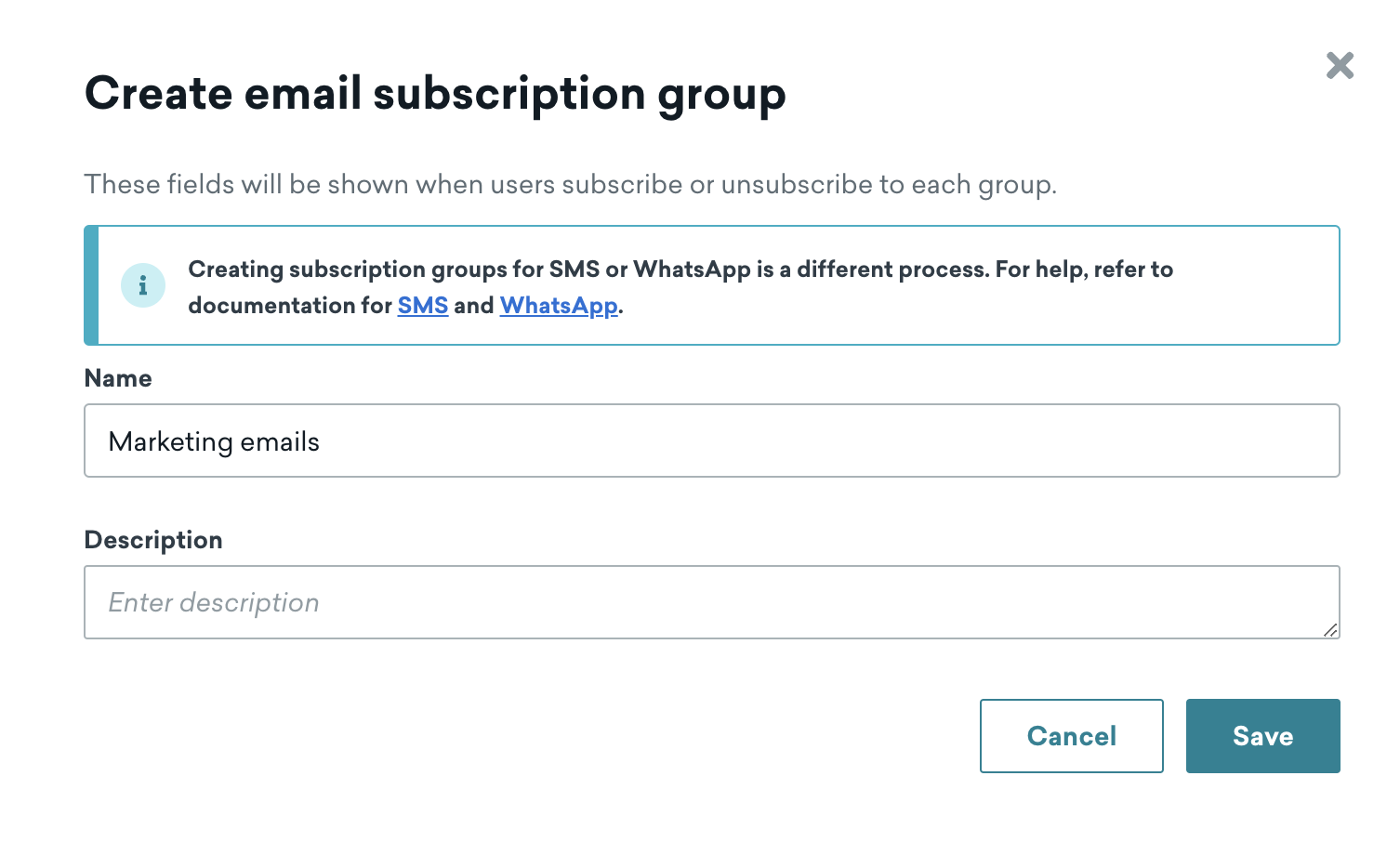
- Go to Audience > Subscription Group Management.
- Select Create email subscription group.
- Enter a name and description. Each subscription group in your workspace must have a unique name. If you enter a name that already exists, the dashboard displays an error and doesn’t save the group.
- Select Save.
Segment with subscription groups
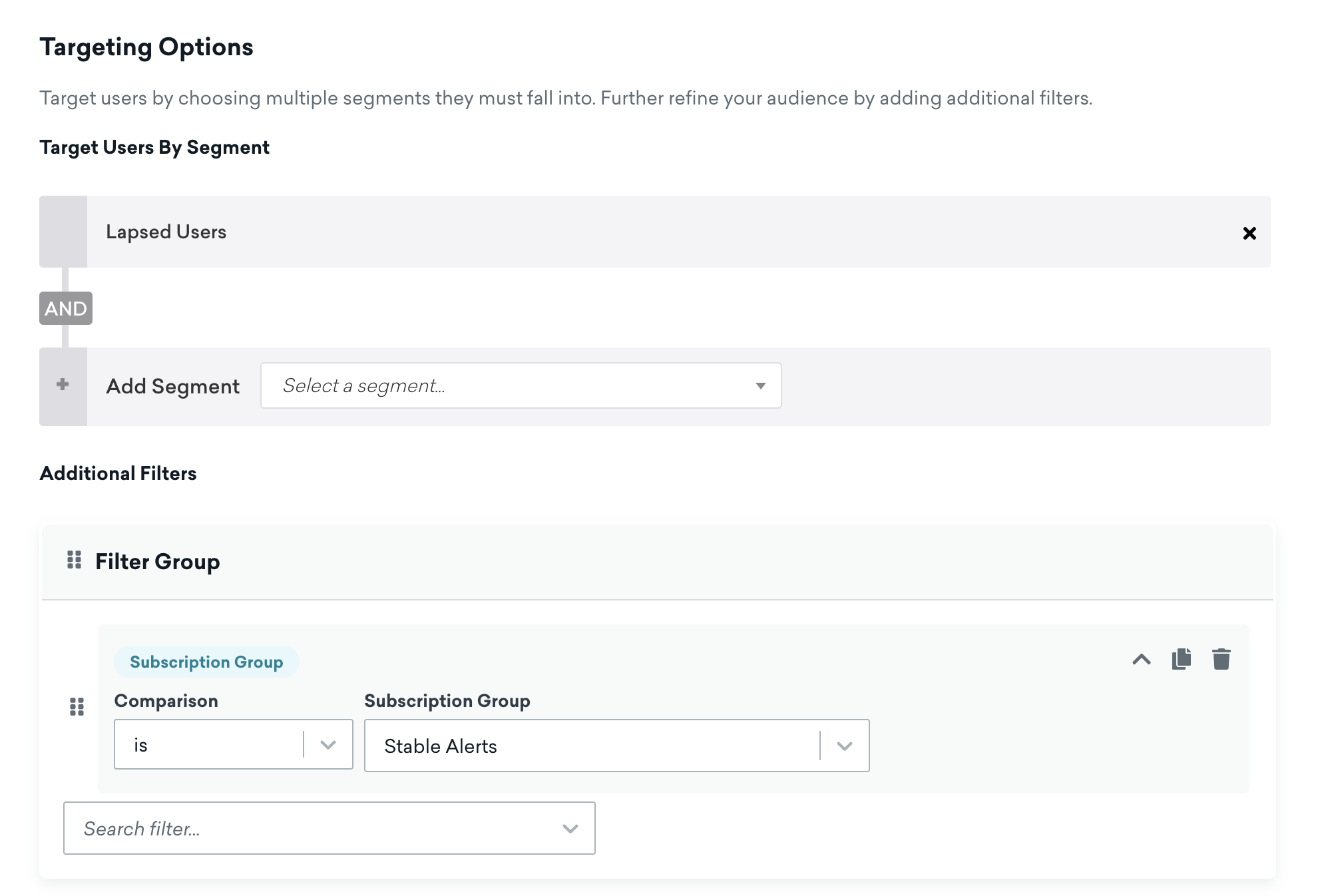
When you build a segment, add a subscription group filter to target users who opted into that group. This is useful for monthly newsletters, coupon programs, membership tiers, and other category-based sends.
Archive subscription groups
Archived subscription groups can’t be edited and no longer appear in segment filters or preference centers. If you archive a group used as a segment filter in an active campaign, Canvas, or segment, you receive an error until you remove those references.
To archive a group from Subscription Group Management, find the group and select Archive from the menu.
Braze blocks messaging to archived groups, so you can’t use an archived subscription group in new or active sends.
Some channels have additional archive rules. See LINE subscription groups for workspace and re-integration behavior.
Check a user’s subscription groups
- User profile: Open a profile from Search Users. On the Engagement tab, view subscription groups and status for email, SMS, WhatsApp, and related channels.
- REST API: Use the List user’s subscription groups or List user’s subscription group status endpoints.
Update subscription group status
You can update a user’s subscription group membership through the REST API, SDK, user import, user profile, email preference center, User Update step in a Canvas, and other channel-specific flows. The exact methods depend on the channel—see each channel section and SMS, MMS, and RCS subscription groups for SMS-specific timing guidance.
Preference centers
Email subscription groups can appear in an email preference center so users can manage category-level email opt-ins in one place. Active email subscription groups are available to add when you build a preference center; legacy preference centers list all active email groups automatically.
For SMS and WhatsApp, manage subscription state through the REST API, opt-in flows, keywords (SMS), user profile, and other channel-specific methods in each channel section.
Channel-specific behavior
Email subscription groups
Email subscription groups sit on top of global email subscription states (opted-in, subscribed, and unsubscribed). Users in the global unsubscribed state do not receive email, regardless of subscription group membership.
Email-specific details:
- Preference center: Every email subscription group you create is available to add to a preference center.
- Campaign analytics: On a campaign’s Email Message Performance page, open Subscription Groups to see aggregate subscribe and unsubscribe counts for that send.
Viewing subscription group sizes
On Subscription Group Management, timeseries charts report:
- Subscription Group Size: users subscribed to that group on a given date
- Subscription Group Unsubscribed Size: users unsubscribed from that group on a given date
These counts reflect membership in that group, not global email subscription state. They can differ from a segment that uses Email Subscription Status is Unsubscribed, which reflects global email subscription state.
Today’s subscription group size isn’t calculated by default. If your date range includes today, select Calculate today’s statistics to add today’s value to the timeseries. For very large workspaces, Braze may display estimated counts instead of exact counts.
For footers, unsubscribe pages, global email subscription management, and subscription group unsubscribe links, see Email subscriptions.
WhatsApp subscription groups
WhatsApp subscription groups are created when you integrate WhatsApp with your workspace through the Technology Partner Portal.
| State | Definition |
|---|---|
| Subscribed | User has explicitly confirmed they want to receive WhatsApp messages from your business. Users can be subscribed through the Braze subscription API or your opt-in flow. |
| Unsubscribed | User has not opted in or has been removed from the group. Unsubscribed users do not receive WhatsApp messages from phone numbers in that group. |
WhatsApp requires an explicit opt-in. Opt-in keywords are not supported on this channel—you maintain consent and subscription state. For opt-in and opt-out flows, see WhatsApp opt-ins and opt-outs.
For archive steps, Canvas updates, and REST API examples, see WhatsApp subscription groups.
SMS, MMS, and RCS subscription groups
SMS, MMS, and RCS subscription groups are the foundation for sending on those channels. Each group is a collection of sending entities—such as short codes, long codes, alphanumeric sender IDs, or RCS-verified senders—for a specific messaging purpose (for example, transactional versus promotional).
| State | Definition |
|---|---|
| Subscribed | User is subscribed to receive messages from that subscription group, through the subscription API, opt-in keywords, or other supported flows. With double opt-in enabled, users must confirm before status updates to subscribed. |
| Unsubscribed | User opted out through a keyword or API update. Unsubscribed users do not receive SMS, MMS, or RCS from senders in that group. |
When you launch an SMS or RCS message, you select a subscription group in the composer. Braze adds an audience filter so only subscribed users are targeted. Braze does not send SMS or RCS to users who are not subscribed to the selected group. To receive an SMS test message, the recipient must belong to the subscription group you select for the test. For more details, see SMS FAQs.
Subscription groups for SMS are provisioned during onboarding. For MMS tags, RCS sender setup, geographic permissions, RCS migration, and advanced opt-out handling, see SMS, MMS, and RCS subscription groups.
LINE subscription groups
Each LINE subscription group connects to one LINE channel integration.
| State | Definition |
|---|---|
| Subscribed | User followed the LINE channel in the LINE app. After integration, Braze subscribes users when they follow. |
| Unsubscribed | User did not follow the channel or unfollowed it. Unsubscribed users do not receive LINE messages from that group. |
LINE is the source of truth for subscription status. Braze processes follow and unfollow events to update profiles.
LINE subscription groups can’t be moved between workspaces. If you archive a group and re-integrate the channel in another workspace, Braze creates a new subscription group in the target workspace.
For archive behavior, user reconciliation, and integration steps, see LINE subscription groups and LINE setup.