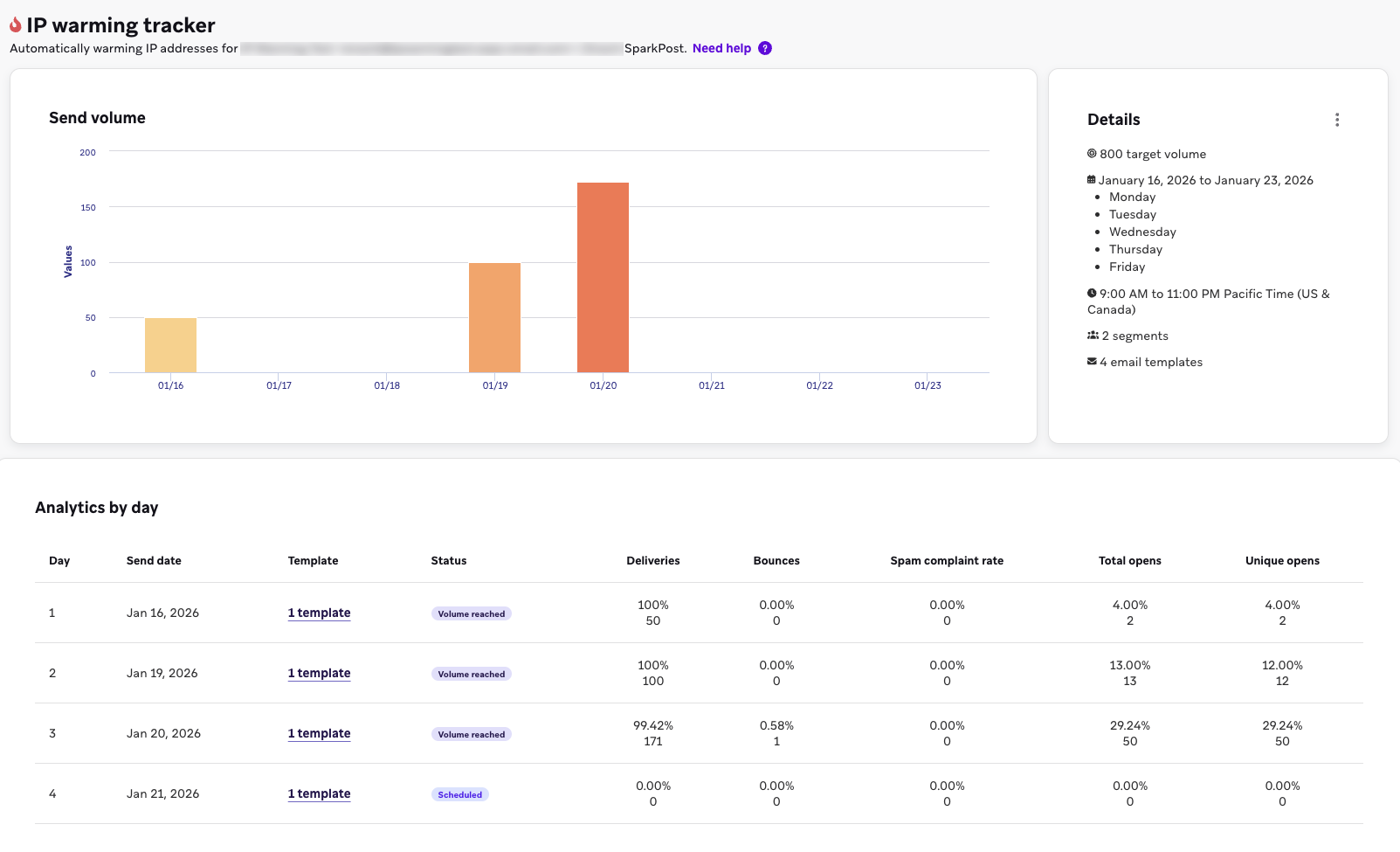
Automated IP warming
Use automated IP warming to gradually ramp email volume from new dedicated IPs to build sender reputation with inbox providers. For common questions, see the Automated IP warming FAQ.
How it works
You can use automated IP warming to gradually increase your daily send volume, allowing inbox providers to learn and trust your sending patterns. When you add a domain to your workspace, you can select the Automated IP Warming tile in the Pick up where you left off section of your home dashboard. This tile remains for 60 days while your workspace is in the new-sender onboarding window, and is hidden after you complete at least one plan.
Each automated IP warming plan is tied to one from address. That from address maps to a sending subdomain and an IP pool. If the pool contains multiple dedicated IPs, Braze warms them together in a single plan.
When you set up a plan, choose how to rank your audience. With manual ranking, you select and order segments by engagement, and Braze sends to the highest-ranked segments first. With Intelligent ranking, you upload a CSV of recent email engagement from your previous email provider. Braze scores the matching users by predicted engagement and sends to the most engaged users first. For either method, Braze monitors deliverability and adjusts your schedule if it detects issues.
After you complete at least one plan, you can view completed plans at Settings > Email Preferences > Automated IP warming.
Prerequisites
To perform automated IP warming, you must have the following:
- Verified subdomain and active IP addresses
- Permissions to view and set up a plan:
- “View Email Settings” to view IP warming plans and the home dashboard widget
- “View Email Templates” to select email templates
- “View Segments” to select segments
- Permissions to launch a plan:
- “Edit Email Settings”
- “Edit Campaigns”
- “Launch Campaigns”
- “Approve Campaigns”

If the campaign approval workflow is turned on, Braze automatically approves campaigns created by automated IP warming on your behalf.
Set up an automated IP warming plan
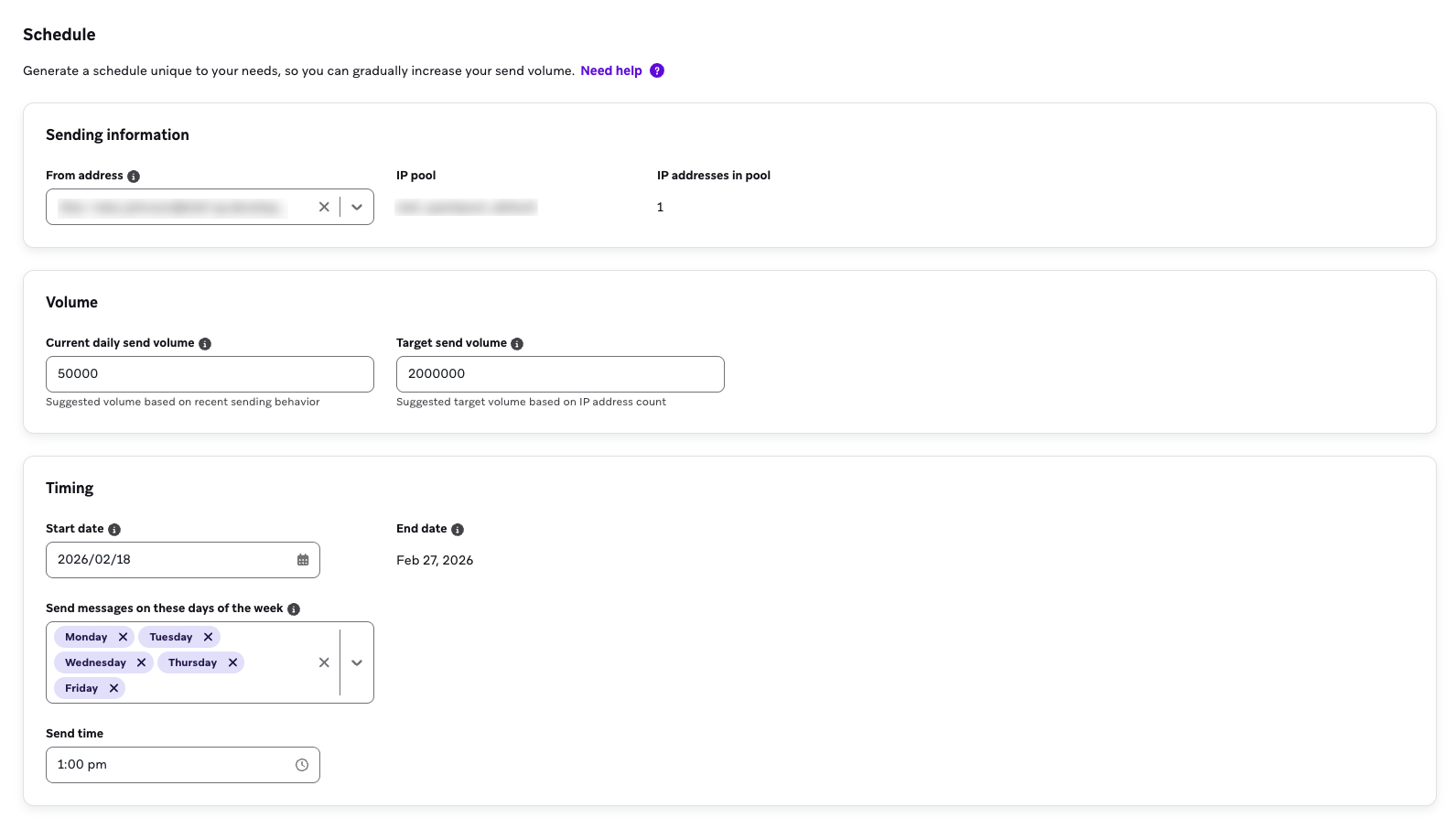
Step 1: Set a schedule
- Enter a unique Plan name. Plan names may contain letters, numbers, hyphens, and underscores only, and must be unique in your workspace. A plan name is required before you can launch.
- In the Sending information section, select the From address to warm IP addresses for. Braze displays the associated IP pool and the number of IP addresses in pool for that from address.
- Enter the Current daily send volume and Target send volume. Braze suggests a target send volume of up to 2 million sends per IP in the selected pool. If your current daily send volume is 0, the first day of your schedule starts at up to 50 sends per IP, capped at 500 total.
- Select the start date for automated IP warming. This date must be at least one day after the plan is launched.
- Enter the send time. This sends the messages in the workspace time zone (or company time zone if the workspace has no override).
- Select Next: Segments to continue the setup.
Step 2: Select and rank segments
Choose how to select and rank your audience:
| Ranking type | Description | When to use |
|---|---|---|
| Manual | Uses the engagement already in Braze, including users with no email engagement history. | You’re new to email, or you don’t have a recent engagement export from a previous provider. |
| Intelligent | Uses recent open and click data to identify users most likely to engage. | You have recent email engagement data. Ranking works better with more recent data. |
- Select Manual.
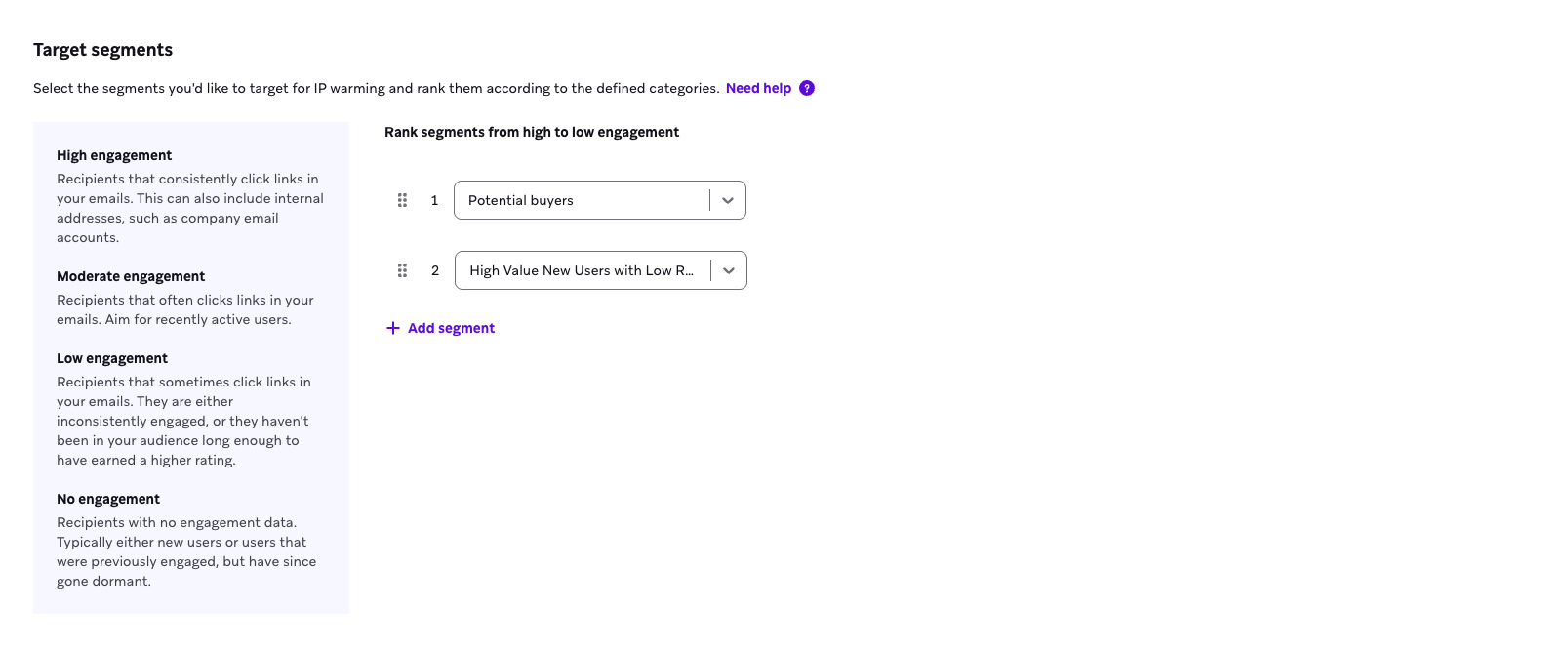
- Select the segments to target, then drag and drop them from high to low engagement. Braze sends to the highest-ranked segments first and adds lower-ranked segments as the daily volume increases.
- Select Next: Messages.
Use these engagement categories when you rank segments:
| Engagement category | Description |
|---|---|
| High engagement | Recipients who consistently click links in your emails. This can include internal addresses, such as company email accounts. |
| Moderate engagement | Recipients who often click links in your emails. Use recently active users. |
| Low engagement | Recipients who sometimes click links. They engage inconsistently, or they haven’t been in your audience long enough for a higher rating. |
| No engagement | Recipients with no engagement data. These are typically new users, or users who were previously engaged and are now dormant. |
The total number of emailable users across all selected segments must be greater than or equal to your Target send volume. When the available audience is smaller, some users receive more than one email template on the same day. For more information, see Audience size and multiple sends per user.

If you want to use Intelligent, you must not be opted out of either aggregated, anonymized data or all data. Go to Settings > Admin Settings > AI Settings and turn off Opt-out for Aggregated, Anonymized Data and Opt-out for all data (non-aggregated/anonymized). Changing these settings requires company admin access.
Prepare the CSV before you upload it:
- Include exactly one identifier column, either
emailorexternal_id(not both). - Include one
latest_open_timestampcolumn and onelatest_click_timestampcolumn. Each row needs its identifier and at least one of those timestamps. Use ISO 8601 format, for example2026-08-04T14:22:31Z. - Save the file as a UTF-8 CSV no larger than 500 MB.
Braze scores only identifiers that match an email-reachable user in the workspace. An email-reachable user has an email address and is not unsubscribed. Unrecognized identifiers don’t create profiles. Select Download sample CSV to see the file format.
- Select Intelligent.
- Upload the CSV. Uploading the file saves the plan and starts scoring. Braze ranks matching users by predicted engagement and sends to the most engaged users first.
- Wait until scoring succeeds. Next: Messages stays unavailable until then.
Braze retains the uploaded CSV data for 14 days. If that data expires before you launch the plan, the page tells you to upload the CSV again.
The number of matched users from the CSV must be greater than or equal to your Target send volume. When the available audience is smaller, some users receive more than one email template on the same day. For more information, see Audience size and multiple sends per user.
Step 3: Select the messages to send
- Select Select email templates.
- Choose the email templates for the messages to send. The content you send during IP warming should encourage opens and clicks. We recommend choosing content that has had good reception in the past. For example, you can use promotional offers to encourage immediate engagement and purchases.
- Select Select templates. Braze calculates the number of required templates before you can launch. We recommend providing more templates than the minimum required to allow the system to adjust for deliverability issues without stopping.
- After adding the required number of templates, select Next: Summary.
Changes made to the campaigns created from the IP warming tool (such as changing the scheduled date, segment, volume) are not reflected on the IP warming Summary page.
How templates are used
Templates you configure are sent in the order they appear in the dashboard. Drag and drop templates in the list to reorder them.
- The same templates are reused across multiple days to reach new users who haven’t received them yet.
- Any individual user receives a given template at most once over the entire IP warming schedule. On later days, the same template targets users who haven’t yet received it.
- If the number of emailable users multiplied by the number of templates is equal to or greater than your daily target, Braze may send the same users multiple different templates on the same day to reach the target volume. Each user still receives each template at most once.
- If the number of emailable users multiplied by the number of templates is smaller than your daily target, Braze creates no campaigns for that day. An error is logged, and Braze may email plan owners. Braze does not silently reduce the send volume to match the available audience.
Step 4: Select conversion events
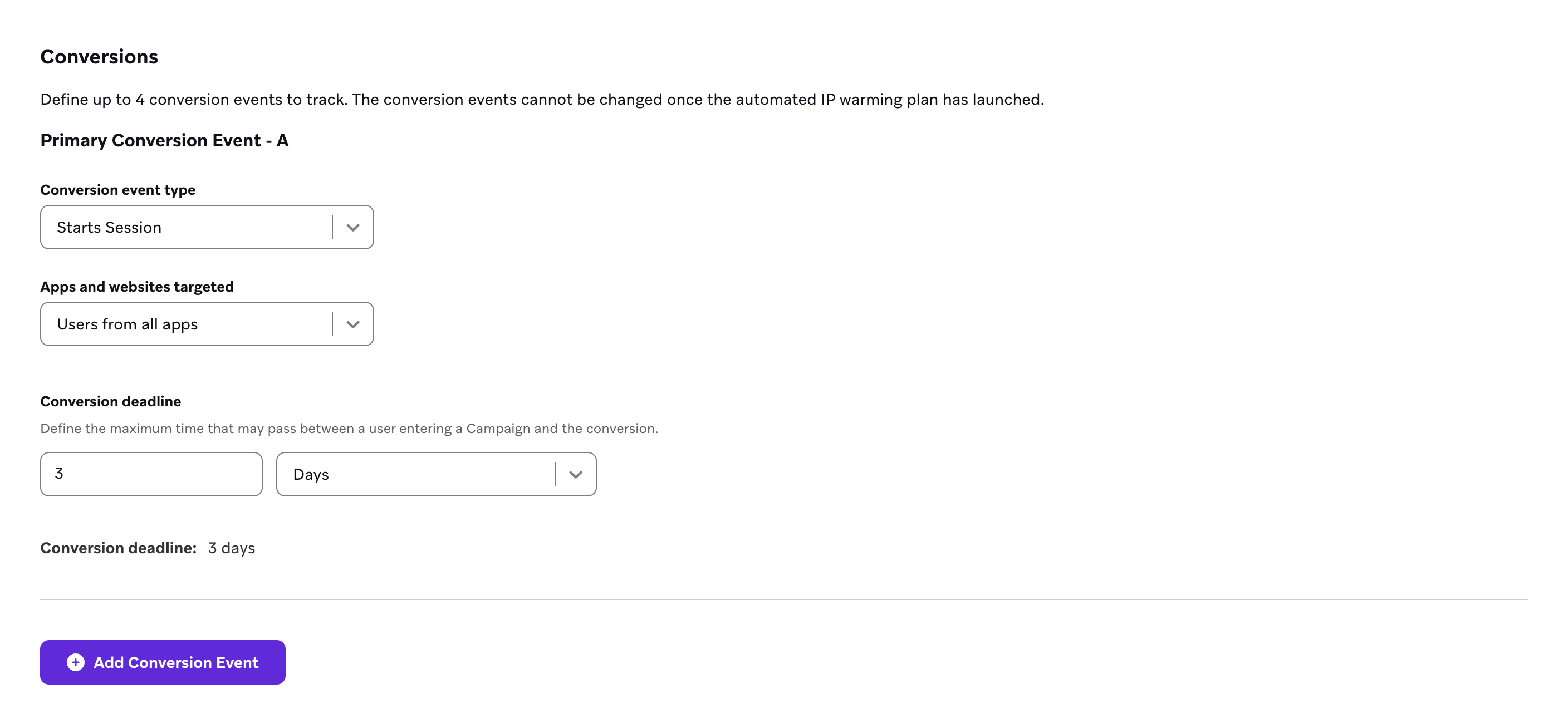
You can define up to four of the following conversion events to track. These conversion events cannot be updated after the automated IP warming plan has launched.
- Starts session
- Places order
- Performs custom event
- Upgrade app
- Opens email
- Clicks email
Next, select the conversion deadline, which is the maximum time that can pass between a user entering a campaign and the conversion event.
Step 5: Review and launch
Review the details of your IP warming plan. Then, select Launch.
Multiple IP warming
Use multiple automated IP warming plans when you need to warm more than one from address or IP pool.
| Scenario | Recommendation |
|---|---|
| Multiple dedicated IPs in one IP pool | Create one plan and select the from address for that pool |
| Multiple IP pools or from addresses | Create a separate plan for each from address |
Warm multiple IPs in one pool
When you select a from address in Step 1: Set a schedule, Braze shows the associated IP pool and IP addresses in pool. Braze uses the IP count when it builds your ramp schedule and suggests your target send volume.
If your Current daily send volume is 0, the first scheduled day starts at up to 50 sends per IP in the pool, capped at 500 total. Braze suggests a Target send volume of up to 2 million sends per IP in the pool.
Warm multiple IP pools
To warm more than one from address or IP pool:
- Go to Settings > Email Preferences > Automated IP warming.
- Select New IP warming plan.
- Enter a unique Plan name.
- Complete the setup for that from address.
- Repeat for each additional from address or IP pool you need to warm.
Track each plan from the Automated IP warming table. Each plan has its own schedule, segments, templates, campaigns, and tracker. Plans can be in Draft, In progress, Completed, or Stopped status.
Avoid sending large non-warming campaigns from the same from address or IP pool while an automated IP warming plan is active. Additional sends during warming can affect deliverability signals and make it challenging to isolate issues.
During active IP warming
IP warming campaigns are created at midnight in the effective time zone for the current day and the next day (0 to 1 days before send). Launching a plan also creates upcoming campaigns immediately. These campaigns are automatically named with the following format: IP Warming Day [X] - [Date] - [Template Name].
When the targeted daily send goal is reached, the system stops sending for that day to protect your reputation.
Frequency capping
Campaigns generated by automated IP warming count toward and obey your existing frequency caps.
- Only successful sends count toward the daily IP warming volume. Frequency-capped messages (which are not sent) do not count.
- If many users are at their frequency cap, Braze may under-send relative to the configured target.
Deliverability monitoring
Braze evaluates deliverability for campaigns that sent between 12 and 20 hours ago. If any of the following thresholds are crossed, Braze holds volume for the next send day instead of increasing it:
- Delivered rate below 90%
- Open rate below 10%
- Bounce rate above 5%
- Spam complaint rate above 0.04%
For what happens when volume is held, see What happens when volume is held?.
Braze prioritizes sender reputation over timeline adherence, so the warming ramp can be delayed indefinitely if deliverability metrics do not recover.
Troubleshooting persistent holds
If holds continue, you can review the following areas on your side:
- Lower the target volume or ramp rate
- Review list hygiene (remove unengaged addresses)
- Verify domain configuration (SPF, DKIM, DMARC, rDNS)
- Confirm SSL is set up correctly for click and open tracking (incorrect SSL can prevent opens and clicks from recording and cause persistent holds)
- Audit message content (spam triggers, image-to-text ratio)
Audience size and multiple sends per user
To reach the send goal for each day, Braze cycles through the email templates you selected. Within a plan, Braze excludes users who already received a given template, but users who received a different template remain eligible. When the audience available for that day’s schedule runs out, the plan cycles back through your templates, so some users receive a second template on the same day.
For a manual plan, this outcome is unavoidable on the final day or days when the total number of emailable users across your selected segments is smaller than your Target send volume. For example, if your segments contain 400,000 emailable users and your target send volume is 600,000, about 200,000 users receive two templates on the last day and the remaining 200,000 users receive one.
For an Intelligent plan, Braze sends each template through the ranked users once, starting with the most engaged users. When a template has already reached every ranked user and the day’s volume is still unmet, Braze starts the next template from the most engaged users again. Some users then receive a second template on the same day.
If you add multiple templates to the plan, a user can receive different templates on different days with either manual or Intelligent ranking, even when your audience is larger than your target send volume. Braze can select a user who already received one template for a different template later in the plan.
Braze doesn’t prevent you from launching a plan when your target send volume is greater than your available audience. To keep each user to one template per send day, do one of the following before you launch:
- For manual ranking, add segments so that the total number of emailable users is greater than or equal to your target send volume.
- For Intelligent ranking, include enough matching users in the CSV to reach your target send volume.
- Lower your Target send volume so that it’s no greater than your available audience.
Stop an IP warmup plan
You can stop an IP warming plan to prevent creation of future campaigns. Stopping a plan also disables all associated campaigns. After you stop a plan, you can’t resume it. Set up a new plan to pick up from where you left off by:
- Downloading the existing data for your stopped plan to keep for your record
- Updating the Current daily send volume to the most recent volume
- Adding a filter to a segment if you plan to use the same segment from the last IP warmup by excluding users that have already received previous campaigns
When an IP warming completes
IP warming is marked as completed when the last day of IP warming ends at midnight in your workspace time zone (or company time zone if the workspace has no override). For example, if the last campaign in the plan sends at 8 pm, the plan is marked complete at midnight four hours later.
Completed plans remain available from Settings > Email Preferences > Automated IP warming. The tracker also stays on the home dashboard for 90 days after the plan ends. After 90 days, the home dashboard tracker is removed.
Downloading the data includes these standard email metrics:
- Sent
- Delivered
- Bounces
- Spam reports
- Total opens
- Unique opens
- Clicked
- Unsubscribed
If a day includes multiple campaigns used to meet volume requirements, these are aggregated in the daily view.