Troubleshoot Canvases
Use this page to diagnose Canvas entry, send, and analytics issues. For definitions and detailed explanations, see the Canvas FAQ.

After launch, start with Phase 5: Post-launch monitoring in the Canvas QA checklist for common first-hour patterns (deliverability spikes, many entries with few sends, empty audience, and step drop-off). Return here when you need a deeper investigation path.

Messaging History and Messaging Observability logs are available for up to 30 days from the event. Contact Braze Support within that window if you need help investigating a specific incident.
Start here: Match your symptom
| Symptom | Go to |
|---|---|
| A user didn’t enter the Canvas | User didn’t enter the Canvas |
| A user entered but didn’t get a message or step | User didn’t receive a Canvas message or step |
| No one or fewer users entered than expected | Low or zero Canvas entries |
| Sends or deliveries are lower than the estimated audience | Lower sends than expected |
| Canvas analytics look wrong (control group, conversions, zero sends) | Canvas analytics mismatches |
| Analytics show far more sends than entries or more exits than entries | Date range filtering can show unexpected numbers |
| Canvas won’t save or the editor freezes | Editor and save issues |
| Can’t delete a Canvas variant | Can’t delete a Canvas variant because of an archived segment |
| I stopped the Canvas but messages still went out | Stopped Canvas behavior |
| “Too many Canvas branches” error when launching | “Too many Canvas branches” error |
Standard investigation path
Use this workflow to investigate a specific user or an aggregate send issue. Start at step 1 for every incident.
- Confirm the Canvas is active (not draft, stopped, or archived).
- Confirm the entry schedule (scheduled window, timezone, action-based trigger, or API-triggered entry) matches when you expect users to enter.
- Check a user’s messaging record by going to Audience > Search users, opening the profile, and selecting Messaging History (last 30 days).
- If no record exists for the expected send time, the issue is with entry, not the message. Go to User didn’t enter the Canvas.
- Check the Canvas Changelog and changelogs for any segments used in targeting. Confirm the audience, steps, or send settings weren’t changed during the incident.
- Check aggregate outcomes on the Canvas analytics page by opening Messaging Observability and reviewing suppressions and failures.
- If you see an outcome you don’t recognize, see Suppressions and Failures in the Messaging Observability doc.
- If a step shows zero entries (not zero sends), check the previous step type (Action Paths, Delay, Audience Paths, or Decision Split).
- If you’re still blocked, contact Braze Support within 30 days with the Canvas ID, affected user IDs, timestamps (with timezone), and screenshots from Messaging History or Messaging Observability.
Before launch, use Sending test Canvases and Preview user paths to validate your setup.
User didn’t enter the Canvas
Symptom: A user didn’t enter the Canvas when you expected them to, or fewer users entered than your trigger events suggest.
Users must match the Target Audience before Braze evaluates the entry trigger (except for change in attribute triggers). A trigger alone doesn’t guarantee entry if the user wasn’t in the audience at evaluation time.
Re-eligibility and re-entry are separate controls in Selecting entry controls:
- Re-eligibility: Determines whether a user is allowed to enter the Canvas again after exiting (time window and Allow users to re-enter Canvas setting).
- Re-entry: Determines whether a user who is currently inside the Canvas can enter a concurrent path.
A user can be re-eligible but blocked because they’re still in the Canvas, or can have exited but still be outside the re-eligibility window. Check both settings when a user won’t re-enter a Canvas.
Check the following:
- Entry schedule and timezone: Confirm the Canvas was live and the user performed the trigger during the entry window.
- Target audience at evaluation time: Review segment and filter changelogs. User Lookup can show a false positive for some filter types (for example, string-formatted date attributes).
- Entry caps: Maximum entries or audience caps may have been reached.
- Global control group: Users in the global control group don’t enter messaging Canvases.
- Canvas control group: Users assigned to the Canvas control group at entry don’t receive variant messages. Variant assignment happens at entry, not through segment filters. See Canvas analytics mismatches.
- Exit criteria: The user may have matched exit criteria before or during entry. If entry and exit use the same event, see Matching entry and exit criteria.
- API-triggered entry: Confirm the user was added with the
/canvas/trigger/sendendpoint. You can create a segment with a Canvas entry filter and export users with/users/export/segment.
Trigger event count is higher than Canvas entries
Symptom: Trigger event volume is higher than Canvas entry counts.
Braze deduplicates multiple entry attempts that occur in the same instant, so you may see fewer Canvas entries than trigger events. For testing multiple entries, space trigger events at least one second apart.
If a user performs the same trigger multiple times within one second, Braze processes only one entry. Check Messaging Observability for outcomes such as User not re-eligible when re-entry or re-eligibility rules apply.
Daylight Saving Time and daily scheduled Canvases
On Daylight Saving Time (DST) transition days, daily scheduled Canvases can run up to one hour earlier or later than usual. If your entry criteria relies on custom attributes or events with timestamps that fall within one hour of the scheduled entry time, users may not yet qualify on DST day because the attribute or event hasn’t been logged.
For example, suppose users typically receive a custom attribute update at 3 pm in your Canvas’s time zone and your Canvas runs daily at 3:30 pm in that same time zone. On a spring-forward DST day, the Canvas may evaluate users up to one hour earlier than usual relative to that attribute update—before the attribute has been logged. If re-eligibility is turned off, users who entered on previous days can’t re-enter, resulting in zero entries for that day.
To avoid this, ensure your custom attribute or event updates occur more than one hour before the Canvas’s scheduled entry time.
User didn’t receive a Canvas message or step
Symptom: A user entered the Canvas but didn’t get the expected message or step.
Check the user’s Messaging History for the Canvas step and timestamp. If no record exists, return to User didn’t enter the Canvas.
Then check the following by trigger or step type:
- Custom event or purchase triggers: Confirm the event appears in Analytics > Custom Events Report (or Revenue for purchases). Compare the event timestamp to when the Canvas went live and to any scheduled delay on the step.
- API-triggered entry: Confirm entry with a Canvas segment filter and export, as described in User didn’t enter the Canvas.
- Action Paths or Message step triggers: Confirm the user performed the prerequisite event and that event properties are available on the step.
- In-app message steps: In-app messages are sent on the next session start after the user enters the step, and only from SDK events (not the REST API). See When are in-app messages in Canvas sent? in the Canvas FAQ.
- Canvas control group: Verify the user wasn’t assigned to the Canvas control group at entry.
- Channel eligibility and send settings: Confirm subscription status, push enabled state, and per-step Send Settings (for example, Subscription Settings set to opted-in users only). Don’t add single-channel filters to Target Audience on multi-channel Canvases.
- Delivery validations: If you’ve enabled Validate audience at message send on a Message step, users who no longer match filters at send time don’t receive the message. See Delivery validations.
- Quiet Hours, Intelligent Timing, frequency caps, and rate limits: These can defer, suppress, or abort sends. Users may still remain in the Canvas after a Quiet Hours abort.
- Race conditions: If the user triggered multiple actions at once, see Race conditions.

When a Canvas Message step aborts a send, the user still advances to the next step. Canvas advances on abort so later Delay and Action Paths steps aren’t permanently blocked. See How users advance, Suppressions, and Failures in Messaging Observability.
For in-app message send timing after delays or branches, see the Canvas FAQ. For Message step advancement with Decision Split or Action Paths, see Review Message steps for user advancement in the Canvas QA checklist.
If your action-based Canvas sends messages earlier than expected, check that your custom event timestamp uses the current time, not a backdated time. Braze evaluates delays from the timestamp sent with the event. See Action-Based Delivery.
Low or zero Canvas entries
Symptom: No one or fewer users entered the Canvas than expected.
Start with the Canvas QA checklist, then confirm:
- The Canvas is active and the current time falls within the scheduled entry window.
- Entry settings (re-eligibility, maximum entries, and entry caps) allow the users you expect to enter.
- The target audience and segment filters still match the users you expect after launch.
- Global and Canvas control group percentages show what share of users enter each path versus receive messages.
- Workspace rate limits or entry queues are expected to add delays between when users qualify and when they enter or advance into a step.
For a single user, follow the standard investigation path. For DST-related zero entries, see the collapsible section under User didn’t enter the Canvas.
Lower sends than expected
Symptom: Sends or deliveries are lower than the estimated audience on a Canvas step.
Common causes include audience re-evaluation at send time, channel eligibility, control groups, Quiet Hours, Intelligent Timing, rate limits, and in-app message delivery behavior (zero Sends with impressions is expected for in-app messages).
If a Message step shows many users entered but few sends, check whether Liquid abort_message() canceled the send. For how to confirm those aborts, missing attributes, and test sends, see Troubleshooting high abort rates.
For a detailed list, see Why are sends lower than the estimated audience size? in the Canvas FAQ and Why are sends lower than the estimated audience size? for campaigns.
Use Messaging Observability to see suppressions and failures at the step level.
Canvas analytics mismatches
Symptom: Canvas analytics look wrong (control group splits, conversions, or zero sends).
Control group and variant assignment happens at Canvas entry based on the percentages you set in the builder—not through segment filters. Users who can’t receive a specific channel may still enter a variant; use per-step Send Settings to limit who receives each message type instead of narrowing Target Audience with channel filters.
Distinguish the Canvas control group from the global control group. For filter definitions, see What is the difference between “Has not entered Canvas variation” and “Is not in Canvas control group”? in the Canvas FAQ.
Why variant sends can be lower than the variant percentage
Let’s imagine the following scenario:
- A Canvas has a single variant and a control group.
- The first step of the variant is a push notification.
- 90% of users were selected to enter the variant, and 10% to enter the control group.
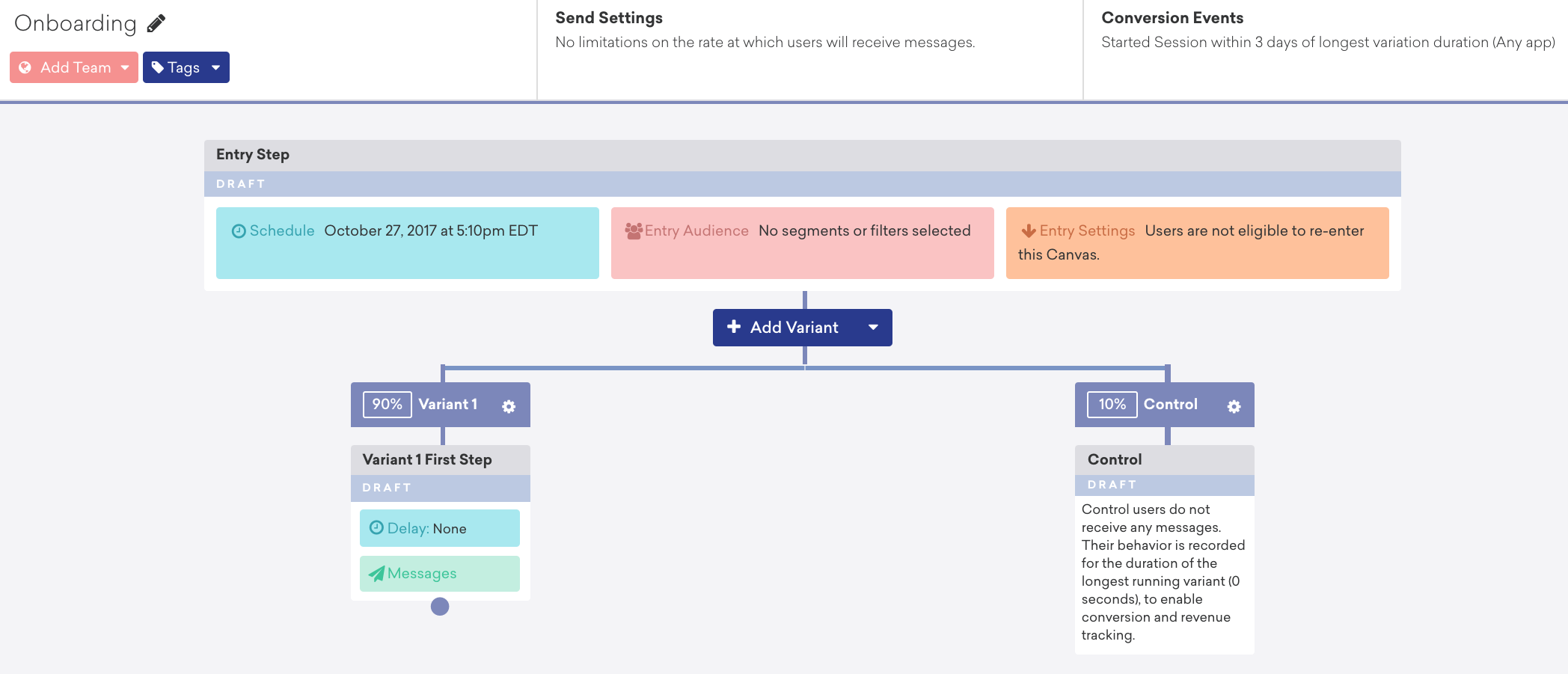
In this scenario, 90% of the users who enter the Canvas enter the variant.
When you look at the active users segment, you’ll see that even though it contains 29.8k users, only 64% of them are push enabled:
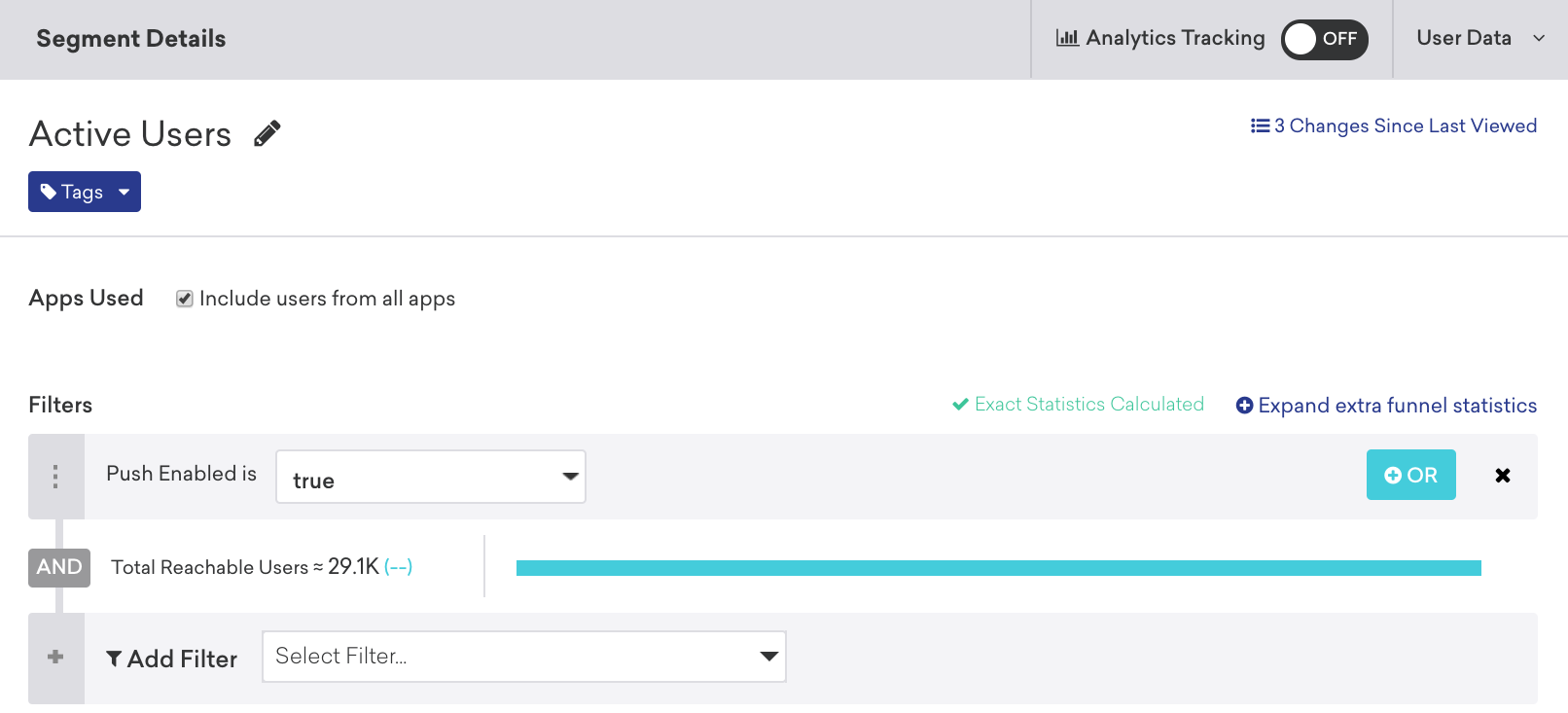
This means that even though you specified 90% of users to enter the variant, not all of those users can receive a push notification. Users who can’t receive push still enter the variant regardless—the send count reflects channel eligibility at the step, not variant assignment at entry.
Date range filtering can show unexpected numbers
Symptom: Canvas or step analytics show unexpected or improbable numbers, such as far more sends than entries, or more users exiting a step than entered.
This can happen when you use the date range calendar filter at the top of the Canvas analytics page. If you select a date range that excludes some user actions, the metrics displayed may only show part of each user’s journey.
For example:
- You may see 100 entries with 8,000 sends if your date range starts after most users entered but includes when they received messages.
- You may see more users moving to the next step than entered the previous step if your range only captures exits but not the earlier entries.
To resolve this, adjust the date range to either include all dates from when Canvas launched to the present, or select a range that covers the full time period relevant to the metrics you need.
For conversion rate definitions and step-level analytics, see Analytics and conversions in the Canvas FAQ.
Editor and save issues
Symptom: The Canvas editor won’t load, freezes, or won’t save your changes.
| Symptom | Most likely cause |
|---|---|
| Save button spins indefinitely with no error | Empty or incomplete custom attribute filter in the Canvas audience or a step filter — remove the filter or select a valid attribute |
| “Request Timed Out” error while editing | Browser extension interference, ad blockers, or a stale session — try an incognito window or another browser |
| Can’t save after archiving a variation | An archived variation is still referenced downstream; review step connections and restore or replace the variation |
If you have the same Canvas open in multiple browser tabs, saving in one tab can overwrite changes made in another stale tab. This race condition can lead to audience filters being removed or unintended changes being applied. To prevent data loss, close any duplicate tabs before editing and saving a Canvas.
If the editor freezes on a large or complex Canvas, try the following:
- Clear browser cache and cookies, then reload the page. Company ad blockers or browser extensions may interfere with the Braze platform.
- Use Canvas zoom controls to reduce the view to 25% or 10% to lower the amount of UI the browser must render.
- Try a different web browser.
If the Canvas won’t load and won’t progress, a previous version didn’t save correctly and may contain invalid steps. Duplicate the Canvas from the dashboard. If the issue persists, open a support ticket.
For “Request Timed Out” support tickets, include a screen recording, timestamp and time zone, browser and version, steps to reproduce, and optionally a HAR log from your browser developer tools. See What should I include when submitting a support ticket for a “Request Timed Out” error? in the Canvas FAQ.
Can’t delete a Canvas variant because of an archived segment
If Braze blocks deleting a Canvas variant because a segment filter still references that variant, open the segment that uses the reference—including archived segments—and remove the variant from its filters. After you save the segment, return to the Canvas and retry deleting the variant.
To find which segments reference a Canvas, open the Canvas and review its audience filters, or check each segment’s Messaging Use section for linked Canvases.
Stopped Canvas behavior
Symptom: You stopped the Canvas but users still received messages.
When you stop a Canvas, users can’t enter and no further messages are sent from the Canvas flow. Email sends already handed off to your email service provider can’t be recalled.
Users waiting on a Delay or Action Paths step aren’t automatically removed from the journey when you stop the Canvas. If you re-enable the Canvas before their scheduled send time passes, they may still receive pending steps.
For full details, see What happens when you stop a Canvas? in the Canvas FAQ.
“Too many Canvas branches” error
Symptom: You see a “Too many Canvas branches” error when launching a scheduled Canvas.
This error appears when the combination of step branching and entry audience size may create cluster performance issues that prevent messages from sending. Braze shows this message when you launch a Canvas with a scheduled entry—it won’t appear when you save a draft.
To resolve it:
- Reduce step branching in the Canvas.
- Reduce the entry audience size.
- Use Audience Paths to consolidate branching instead of many parallel paths.
- If your Canvas uses the original editor, clone it to Canvas Flow and rebuild with Canvas components.
If you still need to launch the Canvas without changes and can’t move to Canvas Flow, contact Support.
When to contact Support
Contact Braze Support within 30 days of the issue if you’ve completed the standard investigation path and still need help.
Include:
- Canvas ID and affected user IDs (external ID or Braze ID)
- Timestamps with time zone
- Screenshots or exports from Messaging History or Messaging Observability
- For editor “Request Timed Out” errors, the details listed in Editor and save issues