Conversion events
A conversion event is a type of success metric that tracks whether a recipient of your messaging performs a high-value action in a set amount of time after receiving your engagement. Use these events to make sure you’re collecting relevant, useful information that you can later use to gain insight for your campaign or Canvas.
How it works
For a personalized holiday campaign targeting active users, a conversion event of Start a Session within two or three days may be appropriate because it allows you to gather a sense of user engagement from receiving your message. You can also select additional events like Places Order, Upgrade App, or any of your custom events as conversion events.
When does conversion tracking begin?
Conversion tracking begins when a user receives the campaign or enters the campaign’s control group. Receiving a message and assignment to a variant usually happen at the same time. For in-app message campaigns, conversion tracking begins when Braze records an impression.
Conversion tracking begins when a user enters the Canvas. For Canvas steps, conversions are attributed while the user is active in that step. When the user advances to another step, conversion tracking stops for the previous step and starts for the next step.
While a user is in a Delay step or other non-message step, conversions that occur during that wait are still attributed to the last message step received until the user receives another message step. After the user receives the last message step in their path, conversions can still be recorded until the conversion deadline (counted from Canvas entry), even if there are no further message steps.

Conversion tracking rules
Conversion events attribute user actions back to a point of engagement. In general, while a conversion window is open, a user converts at most once per conversion event for that campaign or Canvas. If they perform the same conversion action more than once before the deadline (for example, two purchases), Braze still counts only one conversion for that event. Multichannel campaigns can record a separate conversion opportunity for each messaging channel, which can produce conversion rates greater than 100% when you compare conversion counts with unique recipients (as described in the following bullets).
Note the following about how Braze handles multiple conversions:
- Single-channel campaigns: Conversions occur on a per-user basis, not a per-device basis. Within a single channel, a user converts only once per conversion event, even if a message is sent to multiple devices. For example, if a campaign has only one conversion event set to “Makes any purchase” and a user makes two separate purchases within the conversion deadline, Braze counts only one conversion. However, when re-eligibility is enabled, users who receive the campaign multiple times can convert again with each send. In campaigns with re-eligibility, the conversion mechanism is once per user per campaign send, which can result in higher conversion counts when users receive and convert from the same campaign multiple times.
- Multichannel campaigns: For multichannel campaigns, each channel has its own conversion opportunity. A user can convert once per channel after receiving a message on that channel. This means if a user receives messages on multiple channels (for example, both email and push) and performs the conversion action, Braze counts one conversion for each channel, which can result in conversion rates exceeding 100%.
- Canvas Message steps: Braze attributes conversions that occur within the conversion deadline to the last Canvas Message step the user received. After they receive the next Message step, attribution moves to that step. Braze measures that window from when the user enters the Canvas, not from each message individually. Conversions that happen during delays between Message steps count toward the prior Message step’s attribution until the user advances; conversions after the final Message step still count until the Canvas conversion deadline.
- Historical event retention: Conversion tracking on campaign and Canvas dashboards measures historical actions, not current user profiles. When a user meets a conversion rule within the designated window, Braze records one conversion in analytics and does not remove it, even if that user’s profile is later deleted, merged, or archived during routine data hygiene or GDPR compliance sweeps. Live segment counts may naturally be lower than your permanent dashboard event logs because dynamic segments only filter active profiles that currently exist in the database.
- If a user performs one conversion event within the conversion deadlines of two separate campaigns or Canvases that they received, the conversion registers on both.
- A user counts as converted if they performed the specific conversion event in the window, even if they did not open or click the message.
Primary conversion event
The primary conversion event is the first event you add during campaign or Canvas creation. This event has the most bearing on your engagement and reporting. Braze uses your primary conversion event to:
- Select the best-performing message variation in multivariate campaigns or Canvases.
- Determine the window when revenue is calculated for the campaign or Canvas.
- Adjust message distributions for campaigns and Canvases using Optimize with BrazeAI™.
The primary conversion event count is the number of conversion events that occurred. For multichannel campaigns, Braze counts conversions per channel (as described in Conversion tracking rules), which means the conversion count can exceed the number of unique users and result in conversion rates greater than 100%. Braze calculates the primary conversion event rate by dividing this count by the number of unique recipients. Braze considers a user a recipient when the message is sent or shown, depending on the channel. For example, in push or email, a user becomes a recipient after Braze sends the message. For in-app messages or Content Cards, the user must view the message to be considered a recipient.

If you abort messages using the Liquid abort tag, Braze aborts messages only for users who go through variants. Messages to users in the control group are not aborted, which can lead to skewed conversion percentages across variants and control groups. As a workaround, use segmentation to target your users at campaign and Canvas entry.
Creating a campaign with conversion tracking
Step 1: Set up your campaign
Create a campaign for your desired messaging channel. After setting up your campaign’s messages and schedule, you can add up to four conversion events for tracking.
Use as many conversion events as necessary. Adding a second or third conversion event significantly enriches your reporting. For example, for a campaign targeting lapsing users, adding a secondary conversion event along with the primary Starts Session conversion event helps you understand how effective your campaign is at bringing users back into your application.
Step 2: Add the conversion events
First, select the general type of event you’d like to use:
| Conversion Event Type | Description |
|---|---|
| Starts Session | A user is counted as having converted when they open any one of the apps that you specify (defaults to all apps in the workspace). |
| Makes Purchase | A user is counted as having converted when they record a Purchase event. This tracks any purchase by default, or you can specify a particular product. |
| Places Order | A user is counted as having converted when they trigger the Order Placed eCommerce recommended event. This tracks any order by default, or you can narrow it with property filters on the order, including nested filters such as products[].product_id to scope the conversion to a specific product.The “Places Order” event is currently in early access. Contact your customer success manager if you’re interested in participating in this early access. If “Places Order” is enabled for your account, select Places Order instead of ecommerce.order_placed under Performs Custom Event for new conversion setups. Existing campaigns that use Performs Custom Event with ecommerce.order_placed continue to run. |
| Performs Custom Event | A user is counted as having converted when they perform one of your existing custom events (no default, you must specify the event). |
| Upgrade App | A user is counted as having converted when they upgrade the app version on any one of the apps that you specify (defaults to all apps in the workspace). Braze performs a best-efforts numerical comparison to determine if the change was an upgrade. Non-numeric versions are counted as conversions if the version changes. |
| Opens email | A user is counted as having converted when they open the email (only for email campaigns). |
| Clicks email | A user is counted as having converted when they click a link within the email (only for email campaigns). |

Nested properties are supported only on the Places Order conversion event. You can filter on nested properties such as products[].product_id or products[].metadata.category, and the conversion counts only when an order satisfies the filter.
Nested properties aren’t supported for Makes Purchase, Performs Custom Event, or the other eCommerce conversion events that use a custom event, such as Update Cart. If product_code or product_name are nested within a products array (such as products[].product_code), you can’t use them to check whether a specific product was purchased.
Set your conversion deadline. This is the maximum amount of time that can pass before Braze considers a conversion. You can set a window of up to 30 days during which Braze counts the conversion if the user takes the specified action.
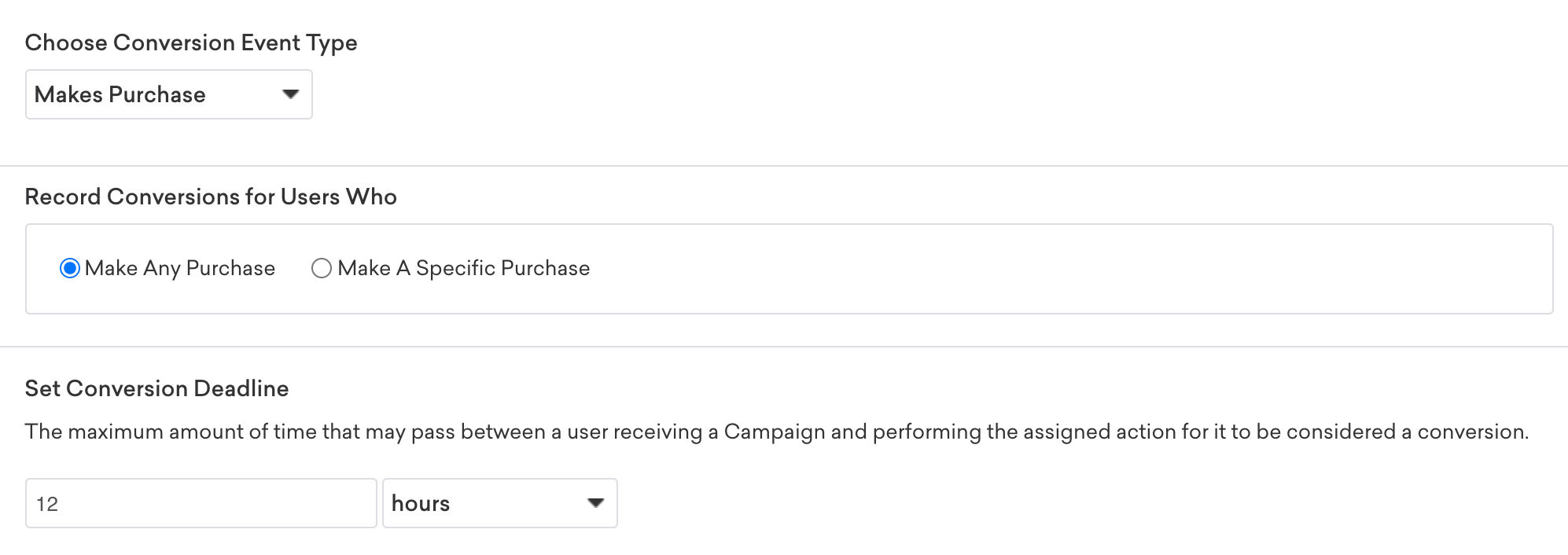
After you’ve selected your conversion events, continue the campaign creation process and begin sending your campaign.
Step 3: View your results
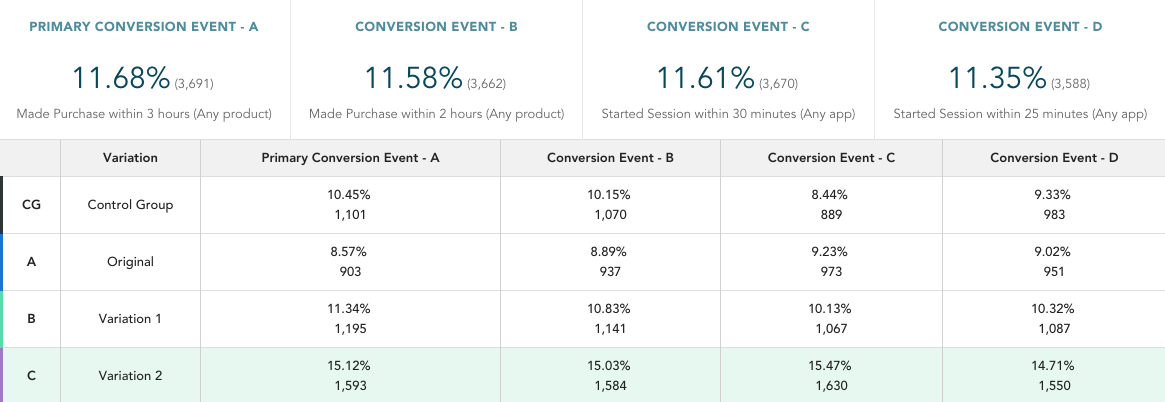
Go to the Details page to view the details for each conversion event associated with the campaign you created. Regardless of your selected conversion events, you can also see the total revenue attributed to this specific campaign, as well as specific variants, during the window of the primary conversion event.
If you don’t select any conversion events during campaign creation, the time defaults to three days.
Additionally, for multivariate messages, you can see the number of conversions and conversion percentages for your control group and each variant.
Canvas step versus variant conversion rates
It’s common for a Canvas variant’s total conversion count to be higher than the sum of its individual steps’ conversion counts. This happens because conversions are tracked differently at the variant level and the step level:
- Variant conversions are counted as soon as the user enters the variant.
- Step conversions are counted only after the step’s message is sent to the user.
This means any user who enters the Canvas and performs the conversion event before receiving a step counts toward the variant total but not toward any step.
The following scenarios can also cause this discrepancy:
- User exits Canvas before receiving any step. If a user enters the Canvas but exits (for example, due to a filter or audience mismatch) before any message is sent, a conversion they perform still counts at the variant level but doesn’t count at any step level.
- Step targets a subset of users. If a step is configured to send only to a specific platform (such as mobile), users on other platforms (such as web) can still enter the Canvas and convert. Because those users never receive the step message, the conversion doesn’t count at the step level — only at the variant level.
For more information on Canvas analytics, see Canvas analytics.