Media library
The media library allows you to manage your assets in a single, centralized location.
Prerequisites
| Requirements | Description |
|---|---|
| “View Media Library Assets” permission | View media library assets |
| “Edit Media Library Assets” permission | Create and update media library assets |
| “Delete Media Library Assets” permission | Remove media library assets from the UI. Deleted assets remain hosted by Braze to prevent breaking messages that reference them. To permanently delete an asset, contact Braze Support. |
| “Replace Media Library Assets” permission | Replace the file of an existing media library asset while keeping its URL and asset ID stable |
For more information, see User permissions.
Media library versus CDN
Using the media library instead of a Content Delivery Network (CDN) provides better caching and performance for in-app messages. All media library assets found in an in-app message are pre-cached for faster display and are available for offline display. Additionally, the media library is integrated with Braze composers, allowing you to select or tag images instead of copying and pasting image URLs.
Accessing the media library
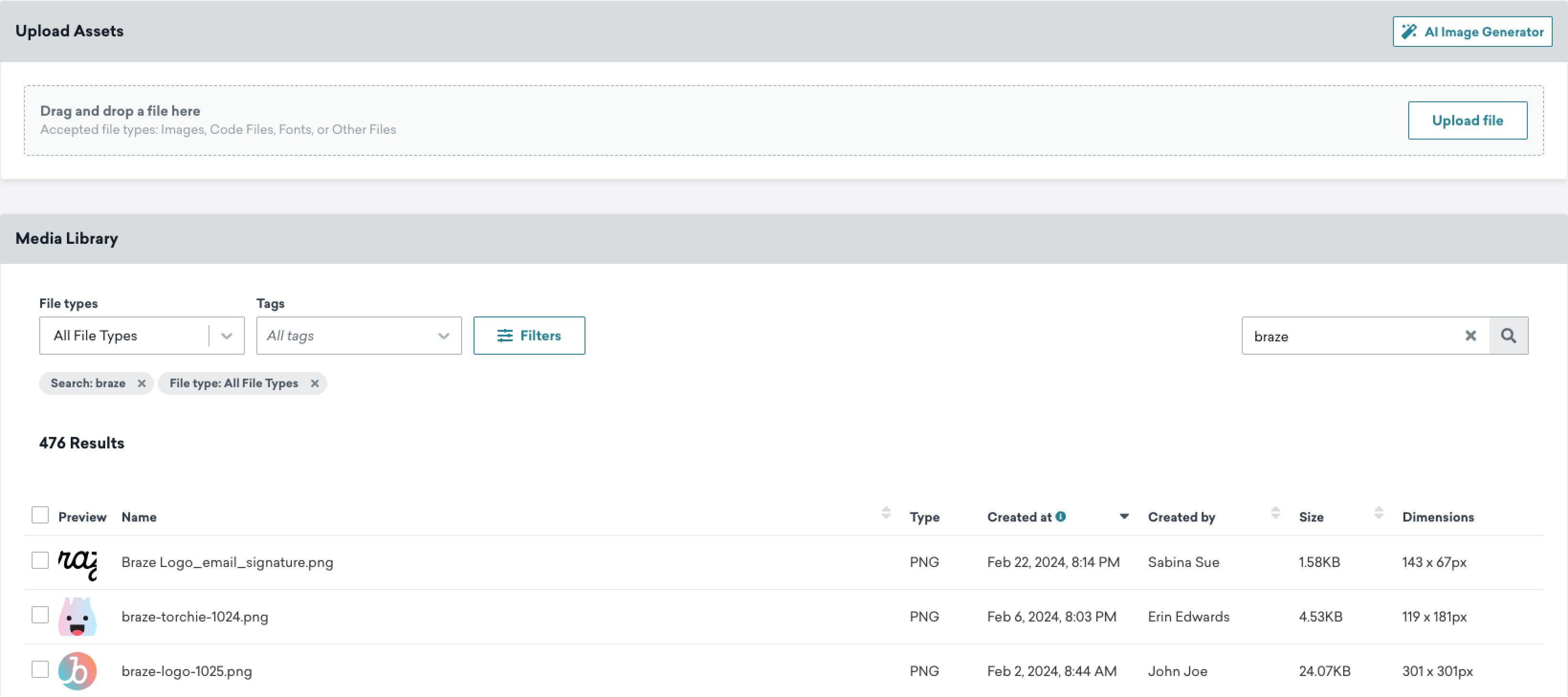
Within the media library, you can see the asset type, size, dimensions, URL, the date it was added to the library, and other information. To access your Braze media library, go to Content > Media Library. Here, you can:
- Upload multiple images at one time
- Upload Virtual Contact Files (.vcf)
- Upload video files for use in WhatsApp messages
- Upload a folder with your images (up to 50 images)
- Generate an image using AI and store it in the media library
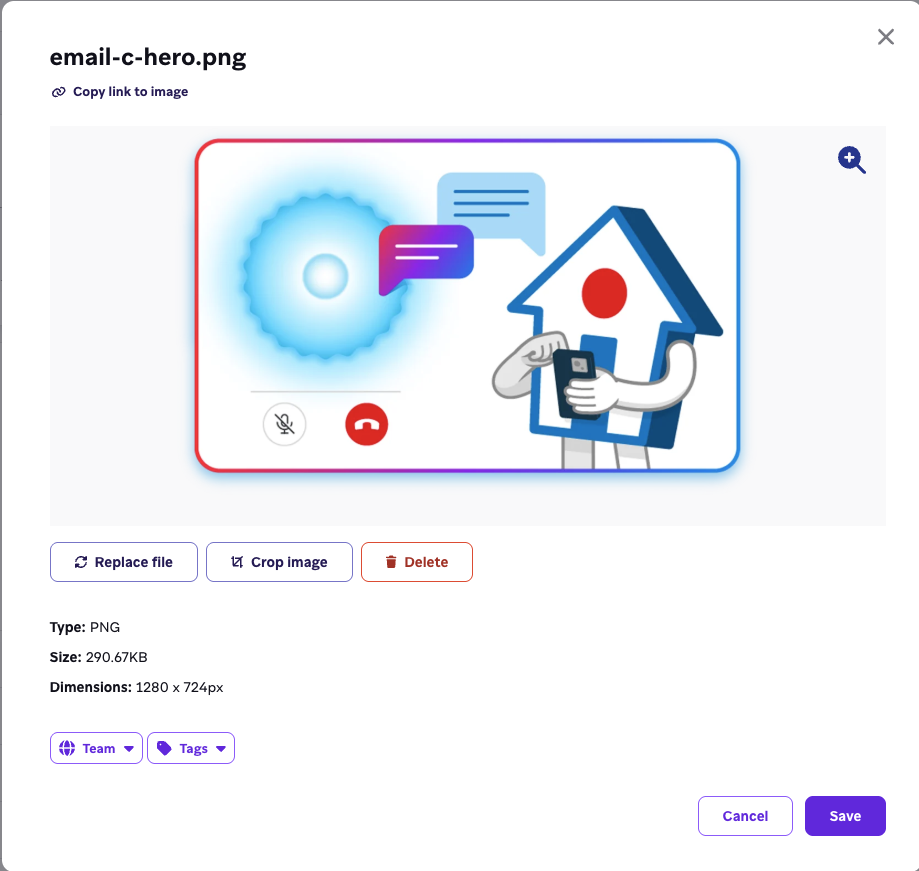
- Crop an existing image to create the right ratio for your messages
- Replace the file of an existing asset while keeping its URL stable
- Add tags or teams to help further organize your images
- Search by tags or teams in the media library grid
- Drag and drop images or folders to be uploaded
- Delete images
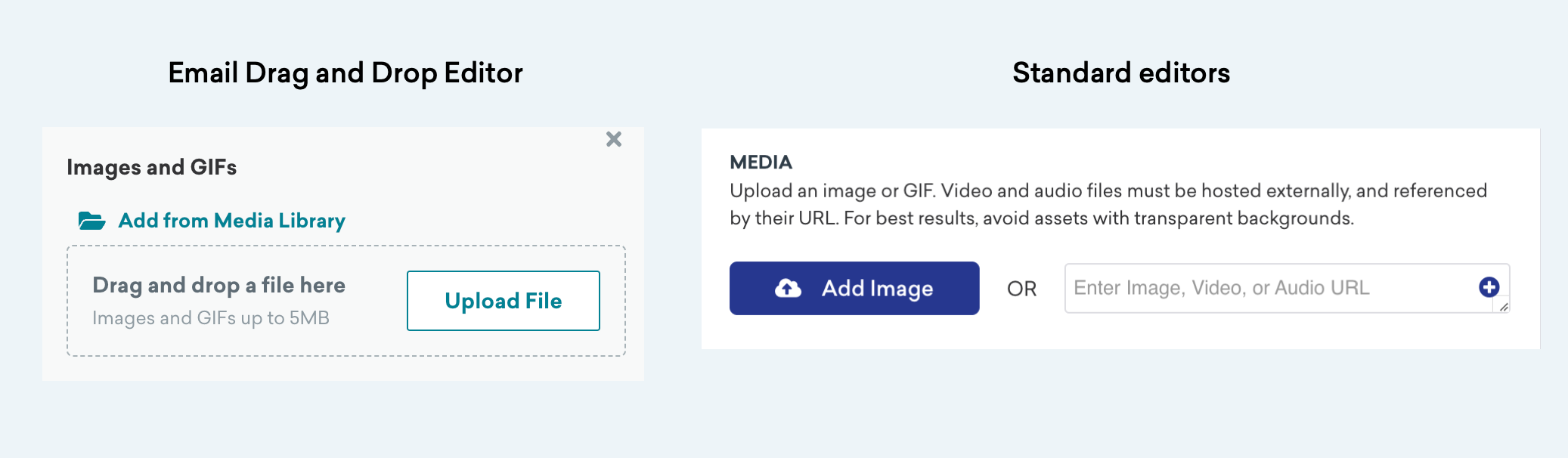
Later, when drafting a message in Braze, you can pull in your images from the media library.

ZIP file uploads
When you upload a ZIP file to the media library, all files must be in the root of the ZIP folder—do not include subdirectories.
This applies to every file in the archive—including font files (.ttf, .woff, .otf, .woff2), HTML, CSS, JavaScript, and images. Place each file in the root of the ZIP alongside the others.
Alternatively, upload assets individually to the media library without zipping them.
Replace a file
You can replace the file of an existing asset in the media library while keeping its URL and asset ID stable. Because the URL doesn’t change, any message or campaign that references that asset—including already-sent emails—automatically reflects the updated file. This is useful when you want to update a shared asset (such as a logo) in one place rather than updating every campaign individually.
To replace an asset, you must have the “Replace Media Library Assets” permission:
- Go to Content > Media Library.
- Select the asset you want to replace.
- In the modal, select Replace file.
- Upload the replacement file.
Requirements and limitations
- The replacement file must have the same file extension as the original. For example, you can’t replace a
.pngasset with a.jpgfile. - Video assets cannot be replaced.
- After replacement, the updated file may take some time to display for all consumers due to CDN caching.
Channels with processed image copies
Some channels create an optimized copy of the image when the message is set up, resulting in a separate URL. This applies whether the image was added from the media library or through an external URL (for example, from an S3 bucket). Replacing the original media library asset does not update what consumers see for messages created using those channels, including Content Cards, push notifications, and banners.
Traditional in-app messages (modal, slideup, and fullscreen) also follow this behavior. However, HTML in-app messages and drag-and-drop in-app messages do not. For those types, Braze does not cache the image, so changing or removing the original image URL breaks the image in live campaigns.
You can also replace an asset programmatically using the PUT /media_library/replace_file endpoint.
Image specifications
All images uploaded to the media library must be less than 5 MB. Supported file types are PNG, JPEG, GIF, SVG, and WebP. For recommended image sizes and specifications by messaging channel, refer to Image specifications.

GIFs with very elongated shapes (for example, 3000 x 2 pixels) or 300 or more frames may fail to upload, even if the total file size is small.
Generating images with BrazeAITM
You can generate images for your own media library using GPT Image 2.0, an AI system from OpenAI and a Braze third-party provider. This lets you create realistic images and art from a description in natural language. Uploading a reference image to guide generation isn’t supported. Each request generates four variations of your prompt, and your company can generate images 10 times per day. This total applies to all users in your company.
If you don’t see Generate with Operator on the Media Library page, confirm you have “Edit Media Library Assets” permission. If the option is still missing, contact your Braze account team to confirm your workspace has access to BrazeAI image generation. If generation fails, review the OpenAI content policy.