CSV import
Learn how to record and update user attributes, custom events, and recommended events using CSV import.
About CSV import
You can use CSV import to record and update the following user attributes, custom events, and recommended events. Braze accepts this data as standard CSV files within the maximum sizes in the following table.
| Type | Definition | Example | Maximum file size |
|---|---|---|---|
| Default Attributes | Reserved user attributes recognized by Braze. | first_name, email |
500 MB |
| Custom Attributes | User attributes unique to your business. | last_destination_searched |
500 MB |
| Custom Events | Events unique to your business that represent user actions. | trip_booked |
50 MB |
| Recommended Events | Standardized custom events with defined schemas and specialized processing. | order_placed |
50 MB |
Using CSV import
Step 1: Navigate to CSV import
To access CSV import, go to Audiences > Import Users. Here, you’ll find a table that lists details about the most recent imports, such as the upload date, uploader’s name, file name, targeting availability, number of imported records, and status of the import.
To get started, select Attributes, Custom Events, or Recommended Events from the Import Users dropdown. If you use the data mapper or already have a file, you can upload your file and skip to Step 5: Map your fields. You can also download the relevant template to help you build your CSV file for upload, but this is optional when using the data mapper.

Because recommended events use a defined schema, review the Recommended Events tab in Step 3: Build your CSV file before your first upload.
Step 2: Choose an identifier
The CSV file you import needs a dedicated identifier. Choose one of the following identifier types for your import:
When importing your customer data, you can use an external_id to serve as each customer’s unique identifier. When you provide an external_id in your import, Braze updates any existing user with the same external_id or creates a newly identified user with that external_id set if one is not found.
- Download: CSV Attributes Import Template: External ID
- Download: CSV Events Import Template: External ID

If you’re uploading a mix of users with an external_id and users without, you need to create one CSV for each import. One CSV can’t contain both external_id and user aliases.
To target users who don’t have an external_id, you can import a list of users with user aliases. An alias serves as an alternative unique user identifier, and can be helpful if you are trying to market to anonymous users who haven’t signed up or made an account with your app.
If you are uploading or updating user profiles that are alias only, you must have the following two columns in your CSV:
user_alias_name: A unique user identifier; an alternative to theexternal_iduser_alias_label: A common label by which to group user aliases
user_alias_name |
user_alias_label |
last_name |
email |
sample_attribute |
|---|---|---|---|---|
| 182736485 | my_alt_identifier | Smith | [email protected] | TRUE |
| 182736486 | my_alt_identifier | Nguyen | [email protected] | FALSE |
When you provide both a user_alias_name and user_alias_label in your import, Braze updates any existing user with the same user_alias_name and user_alias_label. If a user isn’t found, Braze creates a newly identified user with that user_alias_name set.

You can’t use a CSV import to update an existing user with a user_alias_name if they already have an external_id. Instead, this creates a new user profile with the associated user_alias_name. To associate an alias-only user with an external_id, use the Identify users endpoint.
To update existing user profiles in Braze by using an internal Braze ID value instead of an external_id or user_alias_name and user_alias_label value, specify braze_id as a column header.
This can be helpful if you exported user data from Braze through our CSV export option within segmentation and want to add a new custom attribute to those existing users.
You can’t use a CSV import to create a new user using braze_id. This method can only be used to update pre-existing users within the Braze platform.
The braze_id value might be labeled as Appboy ID in CSV exports from the Braze dashboard. This ID will be the same as the braze_id for a user, so you can rename this column to braze_id when you re-import the CSV.
You can omit an external ID or user alias and use either an email address or phone number to import users. Before importing a CSV file with email addresses or phone numbers, check for the following:
- Verify that you don’t have any external IDs or user aliases for these profiles in your CSV file. If you do, Braze will prioritize using the external ID or user alias before the email address to identify profiles.
- Confirm that your CSV file is formatted properly.
If you include both email addresses and phone numbers in your CSV file, the email address is prioritized over the phone number when looking up profiles.
If an existing profile has that email address or phone number, that profile is updated, and Braze doesn’t create a new profile. If there are multiple profiles with that same email address, Braze will use the same logic as the /users/track endpoint where the most recently updated profile will be updated.
If a profile with that email address or phone number doesn’t exist, Braze creates a new profile with that identifier. You can use the /users/identify endpoint to identify this profile later. To delete a user profile, you can also use the /users/delete endpoint.
Step 3: Build your CSV file
You can upload either of the following data types as a single CSV file. To upload more than one data type, upload multiple CSV files.
- User Attributes: This includes both default and custom user attributes. Default user attributes are reserved keys in Braze (such as
first_nameoremail) and custom attributes are user attributes unique to your business (such aslast_destination_searched). - Custom Events: These are unique to your business and reflect actions a user has taken, such as
trip_bookedfor a travel booking app. - Recommended Events: These are custom events with defined schemas and specialized processing, such as automatic field calculations or cart management, that generic custom events do not receive. These include
order_placed,product_viewed, andcart_updated.
When you’re ready to start building your CSV file, refer to the following information:
Required identifiers
While external_id is not required, your CSV file must include a user identifier that can be mapped to one of the following identifiers. For details about each one, review Choose an identifier.
external_idbraze_iduser_alias_nameanduser_alias_labelemailphone
Custom attributes
The following data types can be used as custom attributes for CSV import. Column headers that don’t exactly match a default attribute are imported as custom attributes in Braze unless changed during the mapping step.
| Data Type | Description |
|---|---|
| Datetime | Must be stored in ISO-8601 format. |
| Boolean | Accepts true or false. |
| Number | Must be an integer or float with no spaces or commas. Floats must use a period (.) as the decimal separator. |
| String | Can contain commas if the value is wrapped in double quotation marks (""). |
| Blank | Blank values won’t overwrite existing values on the user profile, and you don’t need to include all existing user attributes in your CSV file. |
Arrays, push tokens, and custom event data types aren’t supported in user import, as commas in your CSV file will be interpreted as a column separator and cause errors while parsing your file.
To upload these kinds of values, use the /users/track endpoint or Cloud Data Ingestion instead.
Default attributes
When importing default attributes, the column headers you use must exactly match the spelling and capitalization of default user attributes. Otherwise, Braze detects these as custom attributes instead.
For the complete list of standard attributes Braze recognizes (across SDK, API, CSV, and Cloud Data Ingestion), see Standard attributes. The following table covers only the subset that can be set through CSV import.
The following default attributes are available for user import.
| User Profile Field | Data Type | Description | Required? |
|---|---|---|---|
external_id |
String | A unique user identifier for your customer. | Conditionally. See Required Identifiers. |
user_alias_name |
String | A unique user identifier for anonymous users that’s an alternative to external_id. Must be used with user_alias_label. |
Conditionally. See Required Identifiers. |
user_alias_label |
String | A common label by which to group user aliases. Must be used with user_alias_name. |
Conditionally. See Required Identifiers. |
first_name |
String | The first name of your users as they have indicated (for example, Jane). |
No |
last_name |
String | The last name of your users as they have indicated (for example, Doe). |
No |
email |
String | The email of your users as they have indicated (for example, [email protected]). |
No |
country |
String | Country codes must be passed to Braze in the ISO-3166-1 alpha-2 standard (for example, GB). |
No |
dob |
String | Must be passed in the format “YYYY-MM-DD” (for example, 1980-12-21). This imports your user’s Date of Birth and enables you to target users whose birthday is “today”. |
No |
gender |
String | “M”, “F”, “O” (other), “N” (not applicable), “P” (prefer not to say), or nil (unknown). | No |
home_city |
String | The home city of your users as they have indicated (for example, London). |
No |
language |
String | Language must be passed to Braze in the ISO-639-1 standard (for example, en). Refer to our list of accepted languages. |
No |
phone |
String | A telephone number as indicated by your users, in E.164 format (for example, +442071838750). Refer to User Phone Numbers for formatting guidance. |
No |
email_open_tracking_disabled |
Boolean | true or false accepted. Set to true to disable the open tracking pixel from being added to all future emails sent to this user. | No |
email_click_tracking_disabled |
Boolean | true or false accepted. Set to true to disable the click tracking for all links within a future email, sent to this user. | No |
email_subscribe |
String | Available values are opted_in (explicitly registered to receive email messages), unsubscribed (explicitly opted out of email messages), and subscribed (neither opted in nor out). |
No |
push_subscribe |
String | Available values are opted_in (explicitly registered to receive push messages), unsubscribed (explicitly opted out of push messages), and subscribed (neither opted in nor out). |
No |
time_zone |
String | Time zone must be passed to Braze in the same format as the IANA Time Zone Database (for example, America/New_York or Eastern Time (US & Canada)). |
No |
date_of_first_session date_of_last_session |
String | May be passed in one of the following ISO 8601 formats: “YYYY-MM-DD” “YYYY-MM-DDTHH:MM:SS+00:00” “YYYY-MM-DDTHH:MM:SSZ” “YYYY-MM-DDTHH:MM:SS” (for example, 2019-11-20T18:38:57) | No |
subscription_group_id |
String | The id of your subscription group. This identifier can be found on the subscription group page of your dashboard. |
No |
subscription_state |
String | The subscription state for the subscription group specified by subscription_group_id. Allowed values are unsubscribed (not in subscription group) or subscribed (in subscription group). |
No, but strongly recommended if subscription_group_id is used |
Updating subscription group status (optional)
Additionally, you can add users to email or SMS subscription groups through user import. This is particularly useful for SMS, because a user must be enrolled into an SMS subscription group to be messaged with the SMS channel. For more information, refer to SMS subscription groups.
If you are updating subscription group statuses, you must have the following two columns in your CSV:
subscription_group_id: Theidof the subscription group.subscription_state: Available values areunsubscribed(not in the subscription group) orsubscribed(in the subscription group).
| external_id | first_name | subscription_group_id | subscription_state |
|---|---|---|---|
| A8i3mkd99 | Colby | 6ff593d7-cf69-448b-aca9-abf7d7b8c273 | subscribed |
| k2LNhj8Ks | Tom | aea02307-a91e-4bc0-abad-1c0bee817dfa | subscribed |
Only a single subscription_group_id can be set per row in the user import. Different rows can have different subscription_group_id values. However, if you need to enroll the same users into multiple subscription groups, you’ll need to do multiple imports.
Required identifiers
While external_id is not required, your CSV file must include a user identifier that maps to one of the following identifiers. For details about each one, review Choose an identifier.
external_idbraze_iduser_alias_nameanduser_alias_labelemailphone
Custom event fields
In addition to the standard fields listed in the following table, your CSV may also contain additional column headers for event properties. These properties should have a column header of <property name>. Braze detects the relevant properties for each event based on whether there is a value in the corresponding CSV cell.
For example, the custom event trip_booked may have the property destination. You can import this using the column header destination, and have a value in the corresponding CSV cell. This enables multiple events to have a property named destination without needing separate columns.
While the legacy format for event property headers is still supported, property headers do not need to follow the <event_name>.properties.<property name> format.
| User Profile Field | Data Type | Information | Required? |
|---|---|---|---|
external_id |
String | A unique user identifier for your user. | Conditionally. See Required identifiers. |
braze_id |
String | A Braze assigned identifier for your user. | Conditionally. See Required identifiers. |
user_alias_name |
String | A unique user identifier for anonymous users, that’s an alternative to external_id. Must be used with user_alias_label. |
Conditionally. See Required identifiers. |
user_alias_label |
String | A common label by which to group user aliases. Must be used with user_alias_name. |
Conditionally. See Required identifiers. |
email |
String | The email of your users as they have indicated (for example, [email protected]). |
No, and can only be used in the absence of other identifiers. See the following note. |
phone |
String | A telephone number as indicated by your users, in E.164 format (for example, +442071838750). Refer to User Phone Numbers for formatting guidance. |
No, and can only be used in the absence of other identifiers. See the following note. |
name |
String | A custom event of your users. | Yes |
time |
String | The time of the event. May be passed in one of the following ISO-8601 formats: “YYYY-MM-DD” “YYYY-MM-DDTHH:MM:SS+00:00” “YYYY-MM-DDTHH:MM:SSZ” “YYYY-MM-DDTHH:MM:SS” (for example, 2019-11-20T18:38:57) | Yes |
<property name> |
Multiple | An event property that you can use across multiple event types. An example is destination. This property is associated with an event when there is a non-null value in the corresponding CSV cell. |
No |
<event name>.properties.<property name> |
Multiple | An event property associated with a custom event. An example is trip_booked.properties.destination |
No |
Understanding custom event formatting
Correctly format your custom events CSV with a <property_name> header and a non-null value in the correct cell, or by using the legacy dot notation format. This ensures Braze maps each property to the correct event. If the format is incorrect, properties may be dropped or the import may fail, especially when multiple event types are included in one file.
One event per row
Each row in your CSV represents a single custom event for a single user. If a user has multiple events, you must include a separate row for each event, even if they share the same user identifier.
When a row contains data for a specific event, only populate the columns for that event’s properties. Leave the columns for other events blank.
Example CSV structure
The following table demonstrates the correct formatting for importing custom events with properties. This example shows two users who each performed different events: one rented a movie, and another bought a movie.
| external_id | name | time | movie_name | sitcom_name | genre |
|---|---|---|---|---|---|
| 123 | rented_movie | 2024-06-10T12:00:00Z | Ghostbusters | Action | |
| 456 | bought_sitcom | 2024-06-12T12:00:00Z | Scrubs | Comedy |
In this example:
- User
123triggered therented_movieevent with the propertiesmovie_name(Ghostbusters) andgenre(Action) - User
456triggered thebought_sitcomevent with the propertiessitcom_name(Scrubs) andgenre(Comedy) - Each event only populates its relevant property columns, leaving other event property columns blank
Required identifiers
While external_id is not required, your CSV file must include one of the following identifiers as a header. For details about each one, review Choose an identifier.
external_idbraze_iduser_alias_nameanduser_alias_labelemailphone
Recommended event fields
In addition to the following, your CSV must also contain additional column headers for required recommended event properties depending on the recommended event you are trying to import. These properties should have a column header of <property_name> and can be mapped to the corresponding recommended event property.
For example, the recommended event order_placed must have the properties order_id and total_value, amongst others. These can be imported by having the column headers order_id and total_value, or by having headers based on your data model and mapping to the correct property. For a full list of recommended event properties, see Recommended event schemas.
| User Profile Field | Data Type | Information | Required? |
|---|---|---|---|
external_id |
String | A unique user identifier for your user. | Conditionally. See Required identifiers. |
braze_id |
String | A Braze assigned identifier for your user. | Conditionally. See Required identifiers. |
user_alias_name |
String | A unique user identifier for anonymous users that’s an alternative to external_id. Must be used with user_alias_label. |
Conditionally. See Required identifiers. |
user_alias_label |
String | A common label by which to group user aliases. Must be used with user_alias_name. |
Conditionally. See Required identifiers. |
email |
String | The email of your users as they have indicated (for example, [email protected]). |
No, and can only be used in the absence of other identifiers. See the following note. |
phone |
String | A telephone number as indicated by your users, in E.164 format (for example, +442071838750). Refer to User Phone Numbers for formatting guidance. |
No, and can only be used in the absence of other identifiers. See the following note. |
name |
String | A custom event of your users. | Yes |
time |
String | The time of the event. May be passed in one of the following ISO-8601 formats: “YYYY-MM-DD” “YYYY-MM-DDTHH:MM:SS+00:00” “YYYY-MM-DDTHH:MM:SSZ” “YYYY-MM-DDTHH:MM:SS” (for example, 2019-11-20T18:38:57) | Yes |
<property_name> |
Multiple | An event property associated with a recommended event. An example is order_id. |
Conditionally. See Recommended event schemas. |
Format requirements for recommended events
When importing recommended events using CSV, you must format your file according to the following requirements for a successful data import. To reduce mapping errors, include only one event type per file.
Understanding recommended event formatting
It is important to format your recommended events CSV with proper headers so each identified property is mapped to the correct event property. If the format is incorrect, events may be dropped or the import may fail, especially when multiple event types are included in one file.
Recommended event groupings for nested properties
Recommended events have a defined schema. For example, order_placed has a required products property that is an array of objects, and each nested object has its own required nested properties.
The recommended events CSV supports grouping multiple rows that have the same identifier, event name, and time, as long as the rows are not separated in the file. This lets you use sequential rows to populate values for nested properties. When formatting your file, populate extra rows with only the identifier, event name, time, and relevant nested properties. You do not need to repeat top-level property values in every row.
Metadata and optional properties
Although recommended events have a defined schema (see Recommended event schemas), you can map and import optional properties such as image_url for the products array property. You can also pass additional properties into the top-level metadata property, the products-level metadata nested property, or the discounts property array. After mapping all required properties, click Load optional properties to load and map additional properties.
Example CSV structure
The following example demonstrates the correct formatting for importing recommended events with required properties and nested properties. This example shows three users, each placing one order with two distinct products.

In this example:
- Orders are identified and grouped by the same identifier, event name, and time, with all relevant rows in sequence.
- Users
user_101,user_102, anduser_103each triggered theorder_placedevent with the required properties and nested properties. - The orders for users
user_101anduser_102include metadata that is added to thediscountsproperty array.
When a row contains data for a specific event, only populate the columns for that event’s properties. Leave the columns for other events blank.
Step 4: Upload your file
To upload your file, select Attributes, Custom Events, or Recommended Events from the Import Users dropdown, click Browse Files, and upload your CSV. Braze displays a preview of the first few rows and a summary of the detected fields.
For large files (up to 500 MB for default attributes and custom attributes, or 50 MB for custom events), the dashboard may appear temporarily unresponsive while the file uploads and Braze calculates the import. These uploads and calculations can take longer to complete than they do for smaller files. Let this step complete. For more context on file limits and timing, see Constructing your CSV.
The file preview shows only the first few rows of your file. To check every row before importing, use file validation.
CSV user imports are available to download from the dashboard for 14 days after upload. After this period, the file is deleted from storage and is no longer accessible.
Step 5: Map your fields
After the preview, you can map your CSV headers to Braze attributes, events, or event properties. Braze automatically maps fields in your CSV file to attributes, events, or event properties with identical names, and creates new fields where necessary. You’ll also have the flexibility to manually adjust suggestions or select different attributes, events, or properties.
For event properties, Braze detects properties and associates them with relevant events based on whether a CSV cell contains a non-null value, or from headers that use the legacy dot notation format (such as <event name>.properties.<property name>).
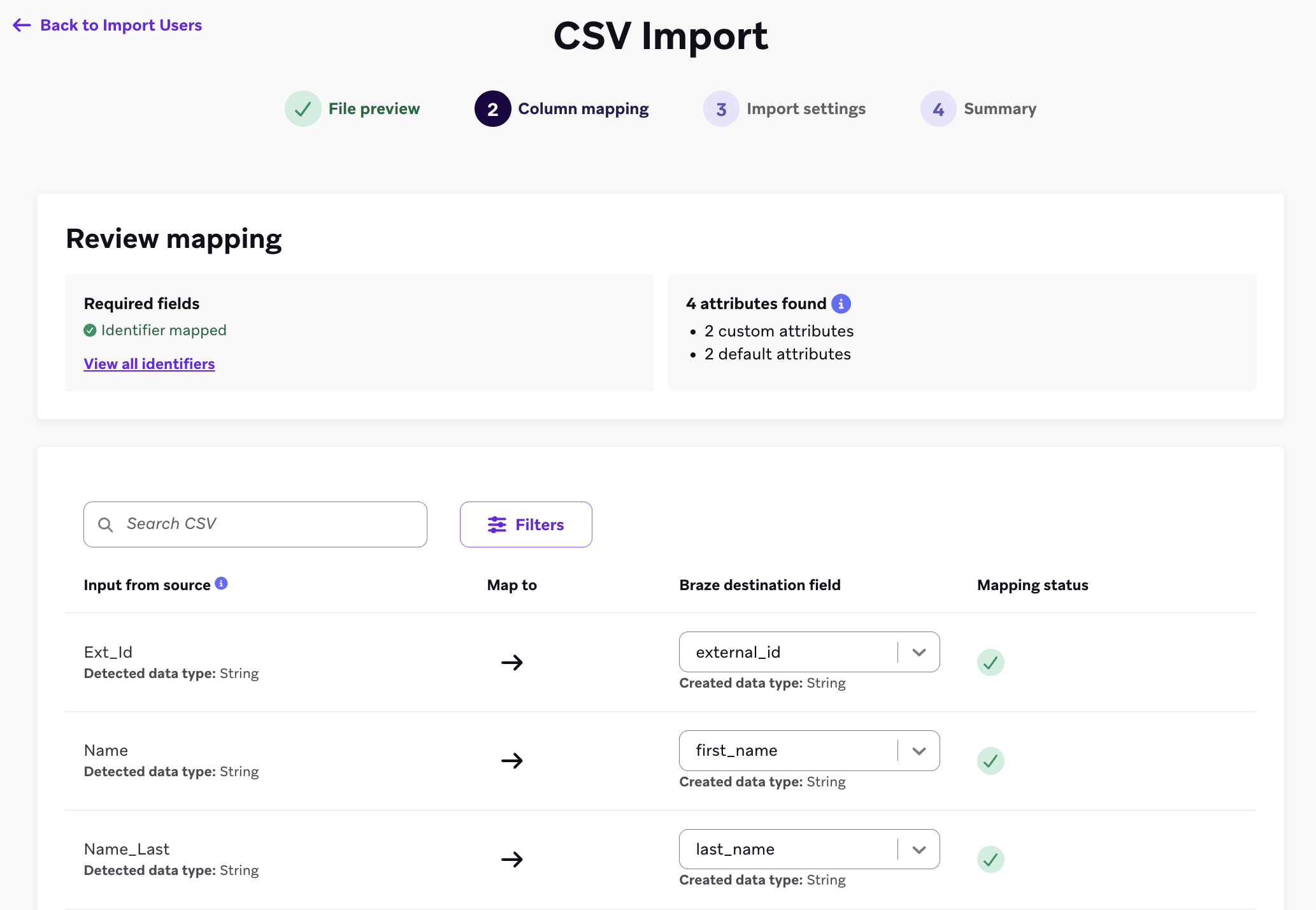
Mapping statuses
The mapping status column indicates the action that occurs when your CSV file is imported and can be any of the following.
| Mapping status | What it means |
|---|---|
| Mapped | Field mapped to an existing attribute, event, or identifier. |
| New attribute, New event, or New event property | Braze creates a new attribute or event on import. You can edit it by selecting the Edit new attribute, Edit new event, or Edit new property button. |
| Data type mismatch | The detected data type of the CSV column does not match the data type of the existing attribute, event, or identifier. Braze attempts to convert the data type on import to match the existing attribute. Braze drops the value if this isn’t possible. |
| Blocklist attribute or Blocklist event | The CSV field matches the name of a blocklisted attribute or event. Select a different attribute or event to map to, or it won’t be imported. |
| Duplicate attribute | There are one or more fields with the same name in your CSV file. Map the same-name columns to different attributes or only the first column is imported. |
| Reserved event key | The name of your event property matches a reserved event key in Braze, such as time or event_name. Input a different name or select a different property to map to, or it will be dropped. |
Editing new attributes, events, and properties
When a matching attribute, event, or event property does not exist in your workspace, Braze attempts to create a new attribute, event, or property on import using the name of the CSV field and the detected data type. You can edit this new field before import by selecting the Edit new attribute, Edit new event, or Edit new property button next to the mapping status.
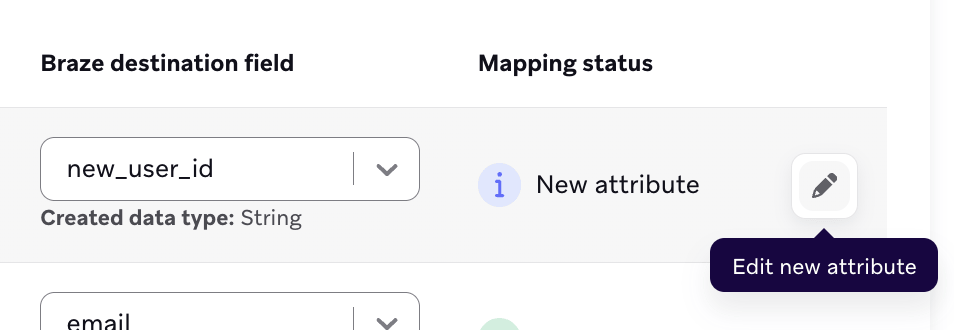
You can’t proceed beyond the mapping step until an identifier is mapped. Braze automatically maps an identifier when possible. For custom events, you must also map the name and time columns. Refer to the Required fields section for more information.
Step 6: Choose targeting preferences
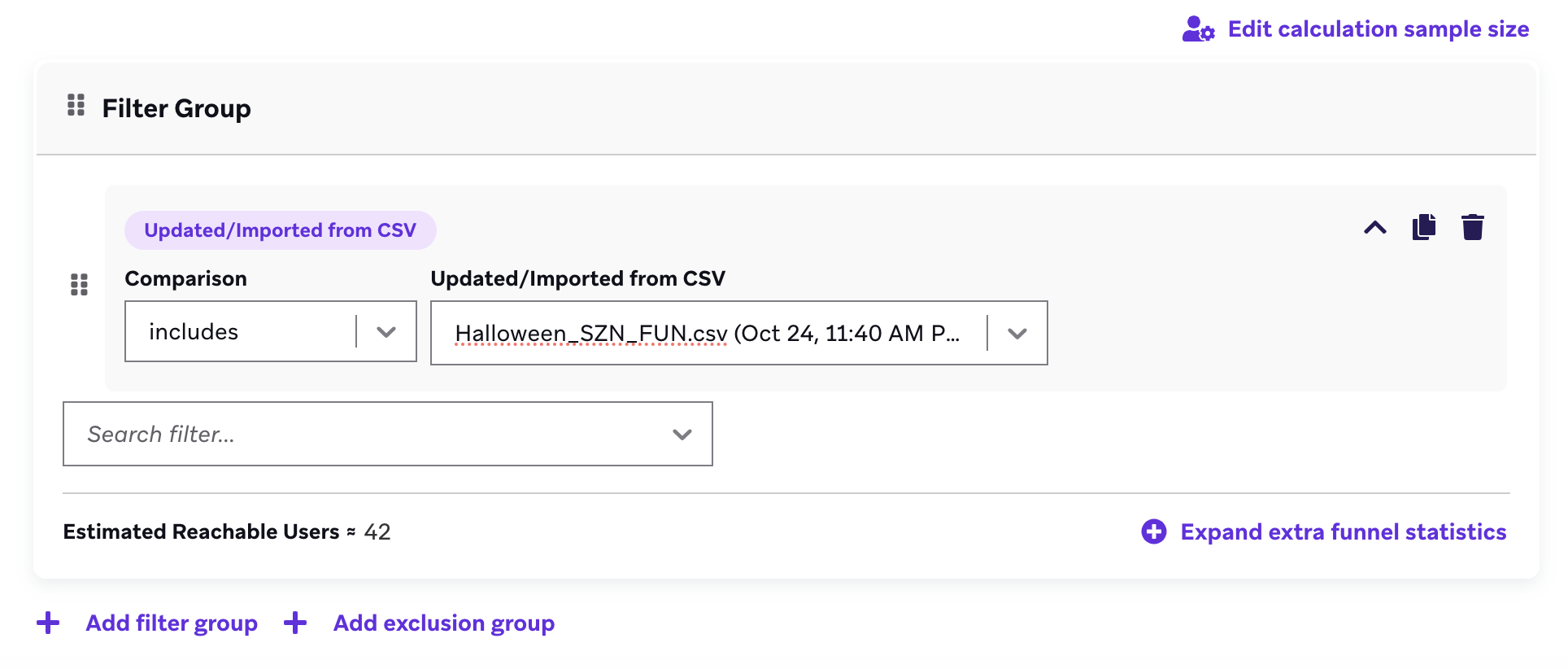
After mapping, you can choose from the following targeting preferences on the Import Settings page. If you don’t need to create a new targeting filter or segment from your import, select Do not make this list available as a targeting filter.
| Option | Description |
|---|---|
| Targeting filter | To convert your CSV file into a retargeting option when building user segments, choose your file from the Updated/Imported from CSV dropdown, then select Create targeting filter. |
| New segments | To also create a new segment from your new targeting filter, select Create targeting filter and add to new segment. |
Step 7: Validate your file (optional)
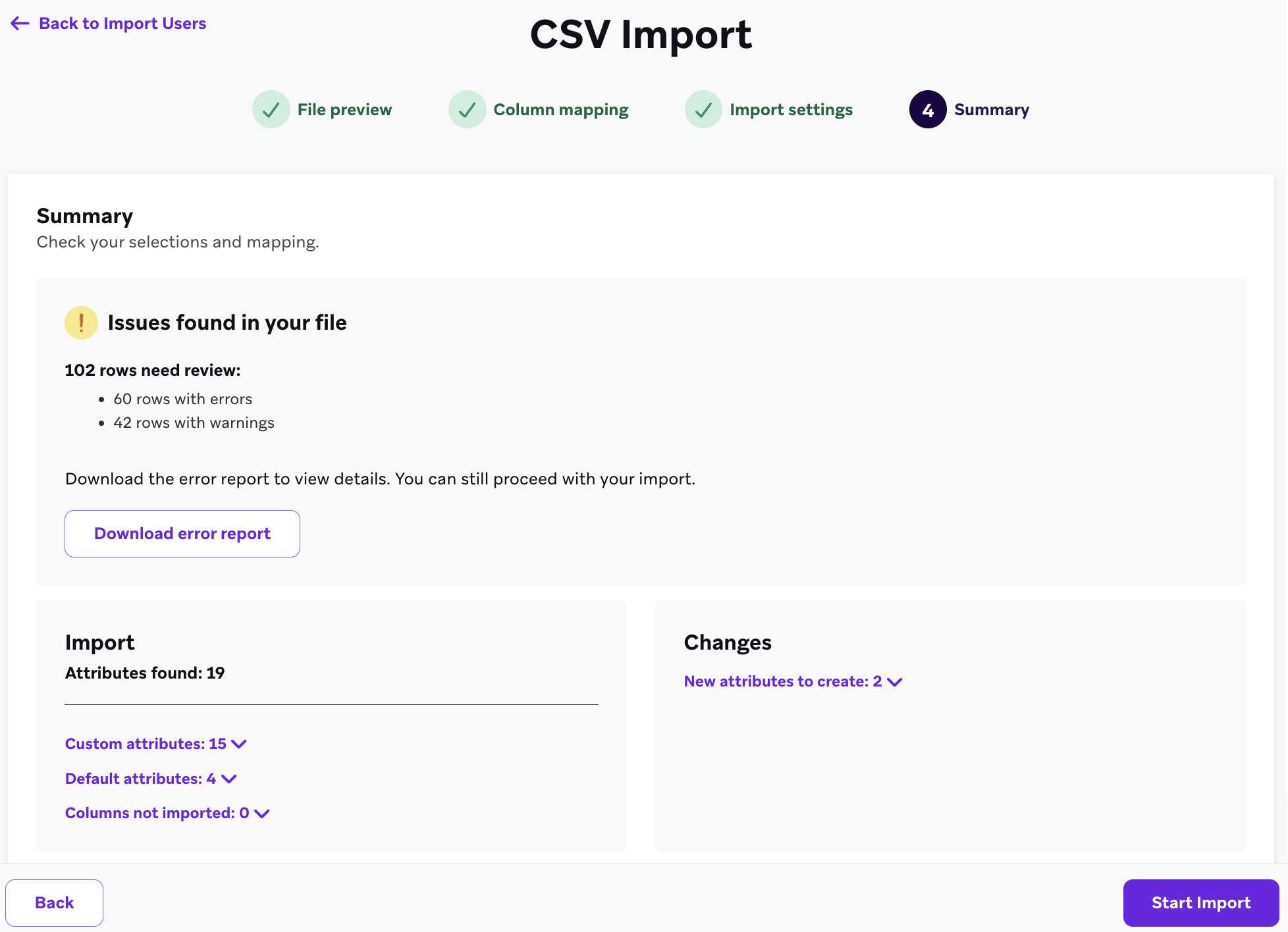
Before starting your import, you can run file validation to check every row for errors and warnings. To validate your file, select Validate file before importing on the Import Settings page, then select Next.
Validation can take up to 2 minutes for files at the maximum allowed size. While validation runs, you can select Skip validation to bypass it and proceed immediately.
Validation results
When validation completes, one of the following results appears.
| Result | What it means | Next step |
|---|---|---|
| Validation complete | No issues found. | Select Import data. |
| Issues found | Some rows have errors or warnings. | Download the error report to review them, then select Import anyway to proceed or Cancel to fix your file first. |
| Validation timed out | Validation ran out of time. The rows that were checked had no issues. | Select Import data. A full report will be available in a few minutes. |
| Validation timed out with issues | Validation ran out of time and found errors in some of the rows it checked. | Download the partial report to review what was found, then select Import anyway or Cancel. |
Understanding the error report
The error report is a CSV file that contains every flagged row along with its original data and a description of the issue.
| Issue type | Description |
|---|---|
| Error | The row will be skipped entirely during import. |
| Warning | The row will be imported, but some values will be dropped. |
After reviewing the report, you can correct the issues in your original file and re-upload, or proceed with the import and accept the partial results.
Step 8: Start your CSV import
When you’re ready, select Start Import. You can track the current progress on the Import Users page, which automatically refreshes every 5 seconds. Processing can take from a few minutes to a few hours depending on how large your CSV is. During this time, the dashboard may appear unresponsive or respond slowly, but the import is still running.
You can import more than one CSV at the same time. CSV imports run concurrently, so the order of updates is not guaranteed to be serial. If you require CSV imports to run one after another, wait until a CSV import has finished before uploading a second one.
Import statuses
After starting your import, you can check its status on the Import Users page.
| Status | Description |
|---|---|
| Complete | All rows imported successfully. |
| Partial success | Some rows failed. Select the three-dot menu next to the import to download an error report or the original uploaded CSV. |
| In progress | The import is currently running. |
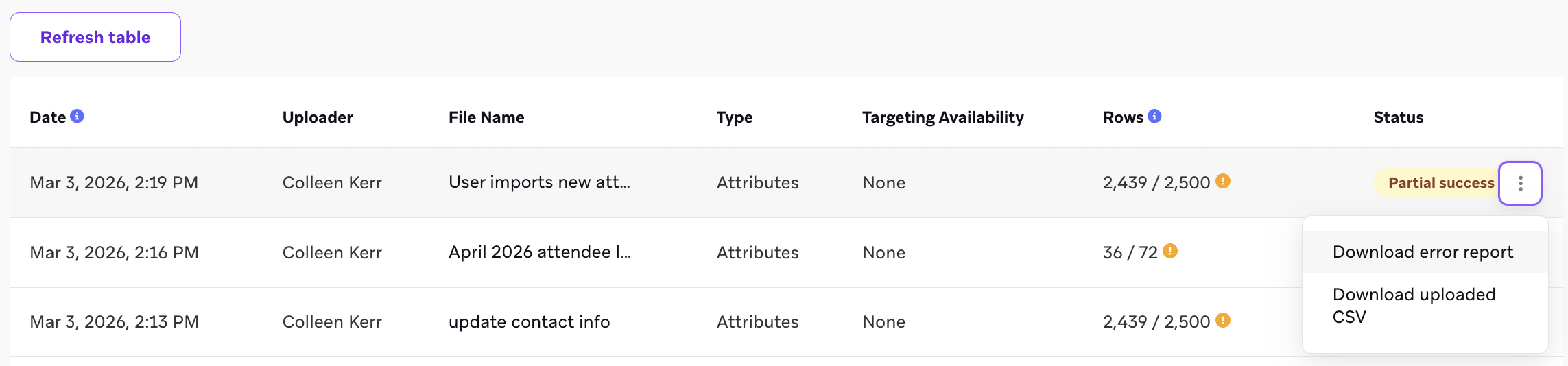
The post-import error report includes rows that failed for reasons validation doesn’t cover, such as when a user doesn’t exist in Braze.
Previously uploaded CSV files are available to download from the Import Users page for 14 days after the upload date. After 14 days, the file is permanently deleted and can no longer be accessed.
Data point considerations
Each piece of customer data imported from a CSV file overwrites the existing value on user profiles and logs a data point, except for external IDs and blank values. If you have any questions about the nuances of Braze data points, your Braze account manager can answer them.
| Consideration | Details |
|---|---|
| External IDs | Uploading a CSV with only external_id doesn’t log data points. This allows you to segment existing Braze users without impacting data limits. However, including fields like email or phone overwrites existing user data and does log data points. CSV imports used only for segmentation do not log data points, such as those containing just external_id, braze_id, or user_alias_name. |
| Blank values | Blank values in your CSV won’t overwrite existing user profile data. You don’t need to include all user attributes or custom events when importing. |
| Subscription states | Updating email_subscribe, push_subscribe, subscription_group_id, or subscription_state does not count toward data point usage. |
Setting language or country on a user through CSV import or API prevents Braze from automatically capturing this information through the SDK.
Troubleshooting
If you used file validation, start with the error report, as it includes the specific issue for each flagged row and a description of how to fix it. For rows that failed during import rather than validation, download the error report by hovering over the row and selecting the button on the Import Users page.
For troubleshooting CSV import, review these common issues in the following sections.
CSV import stuck on Calculating
In Import Users, Calculating means Braze is still preparing the file for processing. During this step, the row count can display as 0 / Calculating until preparation finishes.
If your import appears stuck on Calculating:
- Let the import continue. Don’t cancel and re-upload unless Braze Support advises it.
- Confirm your file is within supported limits in Constructing your CSV.
- Review Step 4: Upload your file and Step 8: Start your CSV import for expected dashboard behavior and processing times.
- Contact Braze Support if
Calculatinglasts far longer than expected for your file size after you’ve confirmed those checks.
Use email as external_id
Braze does not recommend using an email address as external_id. If you use email as external_id, include both external_id and email columns in your CSV so users remain targetable on the email channel. Use a comma (,) as the column delimiter—not a colon (:).
Quote characters in external_id values
If an external_id cell contains a double quotation mark, escape it by doubling the character (""), as described under Unescaped or unbalanced double quotation marks. CSV import does not use backslash escaping.
CSV import isn’t available as a segment filter
You can use a CSV import as a segment filter only if you enabled a targeting preference during upload.
To check whether targeting availability is enabled for an existing import:
- On the Import Users page, find your CSV import.
- Check whether Go to Segment appears for that import.
- If Go to Segment appears, your CSV is available in the
Updated/Imported from CSVsegment filter. - If Go to Segment doesn’t appear, targeting availability wasn’t enabled for that import.
You can’t enable targeting availability after a CSV upload is complete. To use that CSV as a segment filter, re-upload the file, and in Step 6: Choose targeting preferences, select Create targeting filter or Create targeting filter and add to new segment.
If your goal is to create a segment without updating profile data, upload a CSV that includes only identifier columns (for example, external_id or alias identifier columns), then select Create targeting filter and add to new segment.
File formatting issues
Malformed row
If your upload completed with errors, there may be a malformed row in your CSV file.
To properly import data, there must be a header row. Each row must have the same number of cells as the header row. Rows with a length of more or fewer values than the header row will be excluded from the import. Commas in a value will be interpreted as a separator and can lead to this error.
Additionally, all data must be UTF-8 encoded. If the file is saved with a legacy encoding (for example, some Excel defaults), special characters and URLs in cells can be corrupted and may appear as question marks (?) in Braze or in sent messages.
If your CSV file has blank rows and imports fewer rows than the total lines in the CSV file, this may not indicate a problem with the import since the blank rows wouldn’t need to be imported. Check the number of lines that were correctly imported and make sure it matches the number of users you’re attempting to import.
Missing row
There are a few reasons why the number of users imported might not match the total rows in your CSV file:
| Issue | Resolution |
|---|---|
| Duplicate external IDs, user aliases, Braze IDs, email addresses, or phone numbers | If there are duplicate external ID columns, this may cause malformed or unimported rows even if the rows are correctly formatted. In some cases, this may not report a specific error. Check for duplicates and remove them before re-uploading. |
| Accented characters | Your CSV may include names or attributes with accents. Ensure the file is UTF-8 encoded to prevent import issues. |
| Braze ID belongs to an orphaned user | If a user was merged into another and Braze cannot associate the Braze ID with the remaining profile, the row won’t be imported. |
| Empty row | Blank rows in the CSV can cause malformed data errors. Check using a plain text editor, not Excel or Sheets. |
Unescaped or unbalanced double quotation marks (") |
Double quotation marks wrap string values that contain commas. If a value itself contains a double quotation mark, escape it by doubling it (""). Unescaped or unbalanced double quotation marks cause a malformed row. |
| Inconsistent line breaks | Mixed line breaks (e.g., \n and \r\n) may cause the first row of data to be treated as part of the header. Use a hex or advanced text editor to inspect and fix. |
| Incorrectly encoded file | Even if accents are allowed, the file must be UTF-8 encoded. Other encodings may work partially but are not fully supported. |
String quotation
Values encapsulated in single ('') or double ("") quotation marks will be read as strings on import.
Incorrectly formatted dates
Dates not in ISO-8601 format won’t be read as datetimes on import.
Data structure issues
Invalid email addresses
If your upload completed with errors, there may be one or more invalid encrypted email addresses. Confirm that all email addresses are encrypted properly before importing them into Braze.
- When updating or importing email address in Braze, use the hashed email value wherever an email is included. These hash email values are provided by your internal team.
- When creating a new user, you must add
email_encryptedwith the user’s encrypted email value. Otherwise, Braze won’t create the user. Similarly, if you’re adding an email address to an existing user who doesn’t have an email, you must addemail_encrypted. Otherwise, Braze won’t update the user.
Data imported as custom attribute
If a piece of default user data (such as email or first_name) is imported as a custom attribute, check the case and spacing of your CSV file. For example, First_name is imported as a custom attribute, while first_name is correctly imported into the “first name” field on a user’s profile.
Change a custom attribute’s data type
If you need to change the data type of an existing custom attribute (for example, from string to boolean), update the data type on the Custom Attributes page in the dashboard before importing your CSV. If the data type in your CSV doesn’t match the attribute’s currently defined data type, the import fails with an error.
Multiple data types
Braze expects each value in a column to be of the same data type. Values that don’t match their attribute’s data type cause errors in segmenting.
Additionally, beginning a number attribute with zero will cause issues because numbers starting with zeros are considered strings. When Braze converts that string, it may be treated like an octal value (which uses digits from zero to seven), meaning it is converted to its corresponding decimal value. For example, if the value in the CSV file is 0130, the Braze profile shows 88. To prevent this issue, use attributes with string data types. However, this data type isn’t available in the segmentation number comparison.
Default attribute types
Some default attributes may only accept certain values as valid for user updates. For guidance, refer to Constructing your CSV.
Trailing spaces and differences in capitalization can cause a value to be interpreted as invalid. For example, in the following CSV file, only the user in the first row (brazetest1) has their email and push statuses updated successfully because the accepted values are unsubscribed, subscribed, and opted_in.
external_id,email,email_subscribe,push_subscribe
brazetest1,[email protected],unsubscribed,unsubscribed
brazetest2,[email protected],Unsubscribed,Unsubscribed
“Select CSV File” is not working
There are several reasons the Select CSV File button may not work:
| Issue | Resolution |
|---|---|
| Pop-up blocker | This may prevent the page from displaying. Confirm that your browser is allowing pop-ups on the Braze dashboard website. |
| Outdated browser | Make sure your browser is up to date; if not, update it to the latest version. |
| Background processes | Close every browser instance, then restart your computer. |