External MCP servers
External MCP servers let BrazeAI OperatorTM, the AI assistant in Braze, use tools from other products your team works with, such as Jira, Notion, or GitHub. Operator can pull in the context a task needs, like a brief in Jira, and take action in that product, all from a conversation in Braze.

External MCP servers is currently in early access. Contact your Braze account manager if you’re interested in participating in the early access.
About MCP servers
The Model Context Protocol (MCP) is an open standard that lets AI tools connect to other software. Many products offer an MCP server that makes their data and actions available as tools.
When you add an MCP server to Braze, Operator can use its tools alongside the tools it already has in Braze. For example, you can ask Operator to:
- “Pull the holiday launch brief from Jira and build the Canvas it describes.”
- “Use the hero image from our Notion database to build a new email template.”
- “Post a summary of last week’s email performance to our team channel.”
Setup has three parts:
- An admin adds the server. The admin connects to it if it uses personal access, then chooses which of its tools Operator can use.
- Each user connects their own account to the tool, if the server requires it. Operator only sees and does what that user can see and do in the tool.
- Users ask Operator. Operator finds the right tool for the task and asks for approval before it changes anything in the other tool.
You can add any remote MCP server that Braze can reach by URL, including servers behind an enterprise MCP gateway such as MintMCP, but a server only works if it accepts Braze as a client. Some servers register Braze automatically, some need a registered app, and some vendors only accept AI clients they’ve approved. Check Servers that need extra setup before you plan around a specific product. Local MCP servers that run on your own computer aren’t supported.

External MCP servers are different from the Braze MCP server, which lets AI tools such as Claude, ChatGPT, and Cursor work in Braze. External MCP servers work the other way: they let Operator work in other products. You can’t add the Braze MCP server as an MCP server, because Operator already has its tools built in.
How MCP servers work
MCP servers belong to your company, not to a workspace. After an admin adds a server and allows its tools, Operator can use those tools for everyone in your company who uses Operator, in every workspace.
Each server uses one of two access types:
- Personal access: Each person connects their own account before Operator can use the server for them. Operator uses the server with that person’s account, so it can only see and do what that person can in the other product.
- Shared access: Everyone can use the server’s allowed tools as soon as an admin allows them. No personal account is needed.
Risks and safety
Only add MCP servers you trust. Connecting Operator to an untrusted MCP server can have unintended consequences, including the disclosure of customer data and unintended actions within the Braze product.
Operator Connect is used through your MCP client, so it doesn’t ask for explicit approval before it performs actions in Braze, unlike Operator in the Braze dashboard. If your company uses Operator Connect, any MCP server tools you approve can run without a person approving each action.
To limit risk:
- Allow only the tools Operator needs.
- If your security team manages an MCP gateway, consider adding servers through it.
Prerequisites
Not every MCP server works with Operator. Whether a server works depends on the vendor as well as on Braze. Before you promise a specific tool to your team, add the server and try it in Operator to confirm it works.
Permissions
MCP servers use company-level permissions. You assign them on the Company tab of each user’s page, not in permission sets or roles.
| Permission | What it lets you do |
|---|---|
| View MCP Servers | Open the MCP Servers page and see each server’s details and tools. |
| Edit MCP Servers | Add and edit servers, connect to them, and choose which tools Operator can use. |
| Archive MCP Servers | Delete servers. |
To connect your own account to a server and use its tools in Operator, you need the “Use BrazeAI OperatorTM” permission for your workspace or the “Edit MCP Servers” permission. For more information, see User permissions.
Set up an MCP server
Setting up a server takes three steps. You need the “Edit MCP Servers” permission.
- Add the server.
- Connect your own account to load the server’s tools, if the server uses personal access.
- Choose the tools Operator can use.
No tools are allowed until an admin chooses them, so Operator can’t use a new server until you finish step 3.
Step 1: Add the server
Check the vendor’s MCP documentation for the server URL and any extra setup before you start. For more information, see Servers that need extra setup.
- Go to Agents > MCP Servers.
- Select Add MCP server.
- Enter a Name. People see this name in Operator.
- Enter the Server URL. This is the vendor’s remote MCP URL, and it starts with
https://. When you pause typing or leave the field, Braze checks the server and whether it registers Braze on its own. - If Braze shows Client ID and Client secret fields, the server needs a registered app. Enter the app’s details. For more information, see Use an app registered with the vendor.
- Read the risk notice, then select I understand and want to continue. For more information, see Risks and safety.
- Select Add server. If Braze is still checking the server, the button stays unavailable until the check finishes.
The server’s details page opens.
Step 2: Connect to load the tools
If the server uses shared access, skip this step. Its tools appear and it shows Ready as soon as you add it.
If the server uses personal access, select Connect at the top of the server’s details page and sign in to the other product. Many servers list their tools only to people who have signed in, so Braze lists the tools after you connect.
Connecting right away also tests the setup. Until someone connects, the server shows Not tested. A successful connection confirms that sign-in works and that any client ID and secret are correct.
Step 3: Choose tools
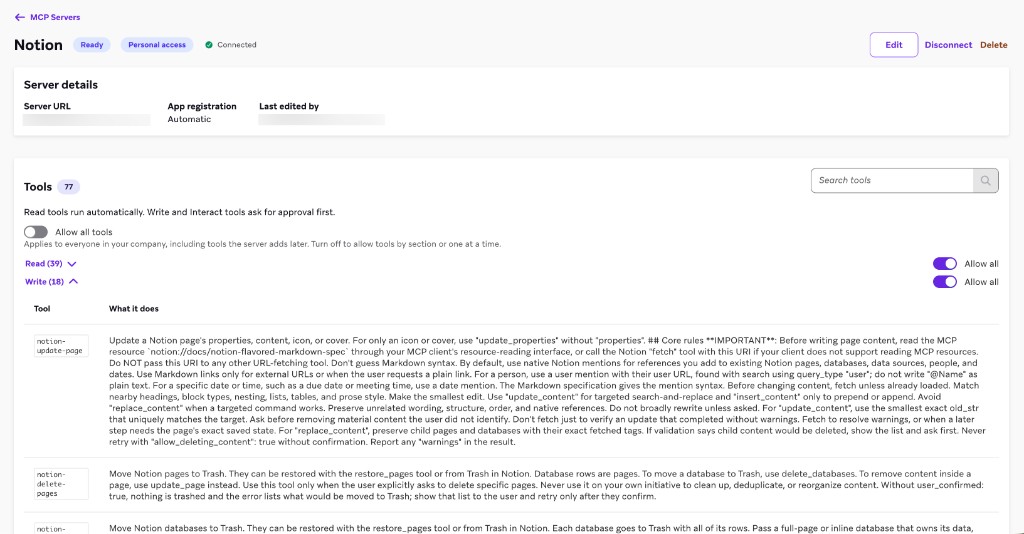
Allowed tools are available to Operator for everyone in your company. The Tools section groups the server’s tools by what the server says each tool does:
- Read: Tools the server marks as read-only.
- Write: Tools the server marks as able to delete or overwrite data.
- Interact: All other tools, including tools the server doesn’t describe.
To limit risk, allow only the tools Operator needs.
- On the server’s details page, go to the Tools section.
- Allow the tools Operator can use:
- To allow every tool, including tools the server adds later, turn on Allow all tools.
- To allow a group’s current tools, expand the group and turn on Allow all. Tools the server adds to the group later stay off until you allow them.
- To allow one tool, expand its group and turn on the tool in the Allowed column. To find a tool, use Search tools.
- Select Save tool access.
Servers that need extra setup
Not every MCP server works as soon as you add it, so check the vendor’s MCP documentation before you start. The following table lists the extra setup a server might need:
| Setup | What happens | What to do |
|---|---|---|
| Automatic | The server registers Braze on its own. This is the most common case. | Nothing. Add the server and connect. |
| Your own registered app | The vendor requires you to register an app with them first. GitHub, PagerDuty, and Slack work this way. When you enter the server URL, Braze shows Client ID and Client secret fields. | Register an app in the vendor’s developer settings. See Use an app registered with the vendor. |
| Vendor approval | The vendor only accepts AI clients it has approved, such as clients listed in its own MCP catalog. Figma works this way. Signing in fails, or the vendor refuses Braze. | You can’t complete this setup on your own: the vendor has to approve Braze. Contact your Braze account manager, and the vendor if you have a contact there. Approval depends on the vendor’s own review process, and Braze can’t guarantee whether or when a vendor approves it. Until then, you can’t use the server with Operator. |
| Admin settings in the other product | Some products require an admin in that product to allow third-party AI clients or MCP access, and some limit MCP features to certain plans. Connecting fails, or some tools are missing. | Check with that product’s admin. |
If your company routes MCP traffic through a gateway, such as MintMCP, your IT team may also need to allow the Braze callback URL or add the server to the gateway before it works.
Use an app registered with the vendor
- In Braze, start adding the server. Copy the Callback URL that appears.
- In the vendor’s developer settings, register an app and add the callback URL to its settings.
- In Braze, enter the app’s Client ID and Client secret. Leave the secret blank if the vendor gave you only a client ID.
To stop using a registered app later, edit the server and clear the Client ID.
Connect your account
If a server uses personal access, connect your own account before you ask Operator to use it. You need the “Use BrazeAI OperatorTM” permission or the “Edit MCP Servers” permission.
- In the Operator chat panel, select MCP servers.
- Find the server and select Connect.
- Sign in to the other product and approve access for Braze.
If you have the “View MCP Servers” permission, you can also connect from the server’s row on the MCP Servers page, or from the top of the server’s details page.
Your connection applies only to you. To disconnect, select Disconnect.
Use MCP server tools in Operator
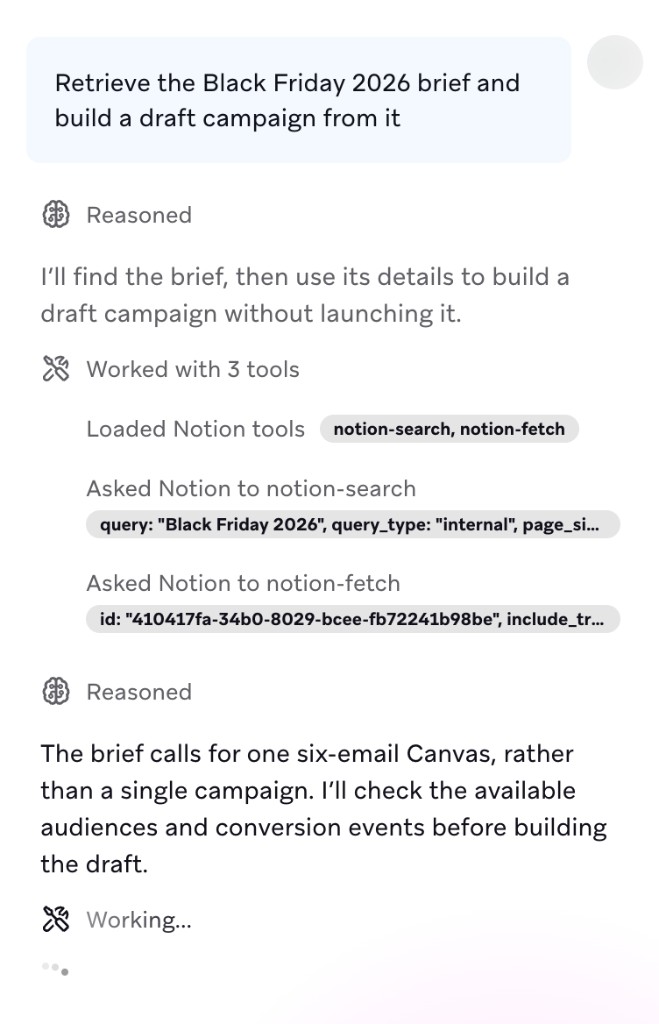
When a server is set up and you’re connected, ask Operator for what you need. You don’t need to name the server or the tool. Operator decides when to use a tool, the same way it decides which Braze tools to use.
- Tools in the Read group, like looking up a page or searching tickets, run automatically.
- Tools in the Write and Interact groups show an action card first. Nothing runs until you approve it.
To see which tools Operator used, expand the list of tools in its response.
Manage MCP servers
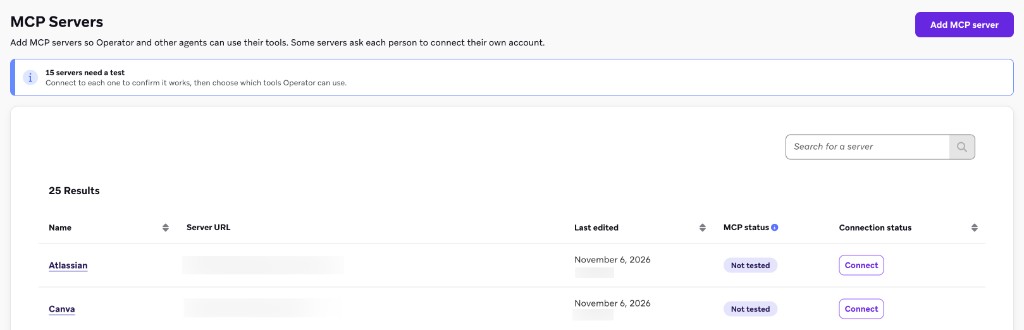
Go to Agents > MCP Servers to see every server your company has added. You need the “View MCP Servers” permission.
Statuses
The list shows two statuses. MCP status applies to the server for your whole company, and only people with the “Edit MCP Servers” permission see it. Connection status applies to you alone.
| Column | Status | What it means |
|---|---|---|
| MCP status | Not tested | Applies only to servers with personal access. No one has connected to the server yet, so Braze can’t confirm that it works. The server also returns to this status when an admin changes its server URL, client ID, or client secret. |
| MCP status | Ready | Someone has connected to the server successfully, or the server uses shared access. |
| Connection status | Connected | You’re connected, or the server uses shared access. |
| Connection status | Not connected | You haven’t connected your account yet. |
Edit a server
You need the “Edit MCP Servers” permission.
- Open the server and select Edit.
- Make your changes, then select Save changes.
Changes apply to everyone in your company who uses the server in Operator. If you change the Server URL or the registered app, everyone is disconnected and each person needs to connect again. Changing only the name doesn’t disconnect anyone.
Delete a server
You need the “Archive MCP Servers” permission.
- Open the server and select Delete.
- Select the checkbox to confirm that deleting the server removes its tools from Operator for everyone, then select Delete.
Deleting a server can’t be undone. Operator can no longer use its tools for anyone in your company, and everyone’s sign-ins to the server are removed.
Troubleshooting
| Message | What to do |
|---|---|
| “Braze couldn’t reach this server” | Check the server URL and make sure the server is online. |
| “Braze couldn’t connect to this server” | Check that the server URL points to an MCP server and that the server is online. |
| “Braze can’t connect to this address” | Check the server URL and make sure the server is on the public internet. |
| “This server needs a registered app” | Register an app with the vendor, then enter its client ID and secret. See Use an app registered with the vendor. |
| “{Vendor} refused Braze” or “{Vendor} refused the sign-in” | Check that the client ID and secret match the app registered with the vendor and that the app’s settings include the Braze callback URL, then connect again. The vendor may also need to approve Braze. |
| “Allow popups for this site, then connect again.” | Your browser blocked the sign-in window. Allow popups for the Braze dashboard, then select Connect again. |
| “{Server} has not finished signing in.” | Finish signing in to the other product in the sign-in window, or select Connect again. |
| “This server changed while you were signing in.” | An admin edited the server while you were connecting. Select Connect again. |
| “No tools approved yet” | An admin hasn’t allowed any of the server’s tools. Ask someone with the “Edit MCP Servers” permission to allow the tools you need. |
Frequently asked questions
Which MCP servers can I add?
Any remote MCP server that Braze can reach at an https:// URL, including servers behind an enterprise MCP gateway. MCP servers that run on your own computer aren’t supported. Some servers need more than a URL. For more information, see Servers that need extra setup.
Can Operator see everything in a connected product?
For servers with personal access, Operator acts with your account, so it can only see and do what you can in that product. Admins can limit Operator further by allowing only some tools.
Who can use a server after it’s added?
Everyone in your company who uses Operator, in any workspace, can use a server’s allowed tools. For servers with personal access, each person needs to connect their own account first.
How is this different from the Braze MCP server?
MCP servers and the Braze MCP server connect in opposite directions. The following table compares them, along with MCP clients:
| Feature | What it is | Where to find it |
|---|---|---|
| External MCP servers (this page) | Servers from other products whose tools Operator can use, such as Jira, Notion, or GitHub. | Agents > MCP Servers |
| Braze MCP server | Braze’s own MCP server, which AI tools such as Claude, ChatGPT, and Cursor use to work with Braze. | Set up in your AI tool |
| MCP clients | AI tools that your company has approved to connect to the Braze MCP server. | Settings > Admin Settings > External Connections |