 Set up Currents
This page outlines and describes the generic process for integrating and configuring Braze Currents.

Currents are included with certain Braze packages. Contact your Braze representative if you have any questions or want to gain access.
Troubleshooting
Cannot add a new Currents integration
If you see “You do not have any remaining Currents integrations” when adding a new integration, or if the button to add a new Currents connector is greyed out, common causes are:
- No Currents entitlement has been purchased for this workspace.
- The Currents entitlement is available in a different workspace in your company.
To resolve this, check other workspaces within your company. A different workspace may show an available Currents entitlement. If you need to request an entitlement or adjust your configuration, contact your Braze account manager.
Cannot enable additional event tracking
If you can create or edit a connector but can’t enable one of the optional tracking switches, your workspace may have reached an entitlement limit for that event category.
- Track Customer Behavior and User Events requires available Customer Behavior Events entitlements.
- Track user profiles and attributes requires available User Profiles and Attributes entitlements.
If you need additional entitlements or help adjusting your configuration, contact your Braze account manager.
Requirements
Using Currents with any of our partners requires the same basic parameters and connection methodology.
Each partner requires that Braze has permission to write and send data files to them, and Braze asks for the location they should write those files to, specifically bucket names or keys.
The following requirements are the basic, minimum requirements to integrate with most of our partners. Some partners will require additional parameters, which are listed in their respective partner documentation along with any nuances associated with these basic requirements.
| Requirement | Origin | Access | Description |
|---|---|---|---|
| Account with partner | Arrange account with that partner or contact your Braze account manager for suggestions. | Check that partner’s site or contact that partner to sign up. | Braze will not send data to a partner if you don’t have access to that data through your company’s account. |
| Partner API Key or Token | Usually the partner’s dashboard. | Copy and paste it into the designated Braze field. | Braze has a designated field for this in the integrations page for that partner. We need this to map where we send your data. Keep your Partner Keys or Tokens up to date; invalid credentials may disable your connector and drop events. |
| Authentication Code/Key, Secret Key, Certification File | Contact a representative for your account with that partner. May also exist in the partner’s dashboard. | Copy and paste keys into the designated Braze field. Generate and upload .json or other certification files into the appropriate place in Braze. |
Braze has a designated field for this in the integrations page for that partner. This gives Braze credentials and authorizes us to write files to your partner account. It’s important to keep your authentication details up to date; invalid credentials may result in disabling your connector, and dropping events. |
| Bucket, Folder Path | Some partners organize and sort data by buckets. This should be found in the partner’s dashboard. | If this is required, copy the bucket name or file path exactly into the designated space in Braze. | Though this is required for some partners, it’s important to get right when you do need it. |
It’s important to keep your Partner Keys, Partner Tokens, and authentication details updated; if your connector’s credentials expire, the connector will stop sending events. If this persists for more than 5 days, the connector’s events will be dropped and data will be permanently lost.
Setting up Currents
Step 1: Choose your partner
Braze Currents allows you to integrate through Data Storage using flat files or to our behavioral analytics and customer data partners using a batched JSON payloads to a designated endpoint.
Before you begin your integration, it’s best to decide which integration is best for your purposes. For example, if you already use mParticle and Segment and would like Braze data to stream there, it would be best to use a batched JSON payload. If you would prefer to manipulate the data on your own or have a more complex system of data analysis, it might be best to use Data Storage (Braze uses this method!)
Step 2: Open Currents
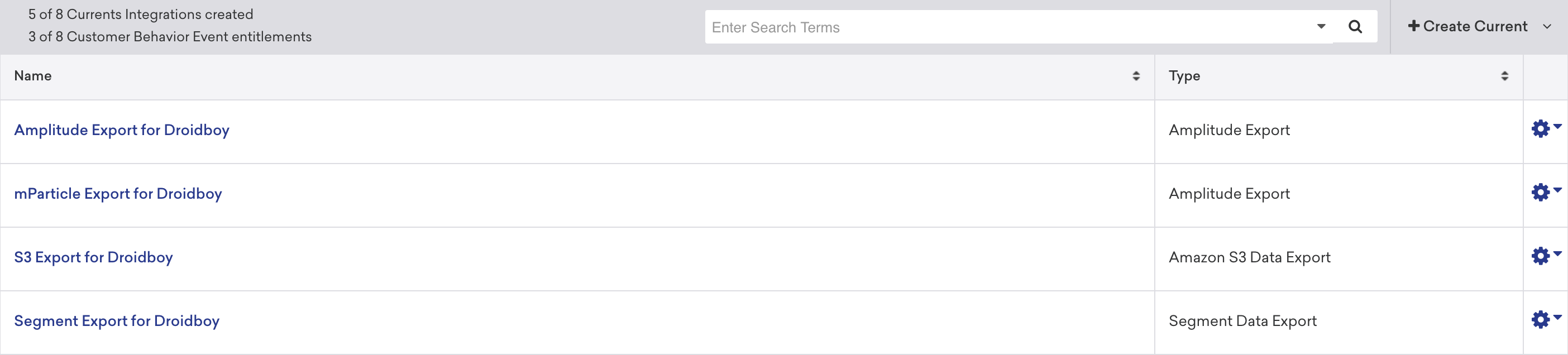
To get started, go to Partner Integrations > Currents. You’ll be taken to the Currents integration management page.
Step 3: Add your partner
Add a partner, sometimes called a “Currents connector,” by selecting the dropdown at the top of the screen.
Each partner requires a different set of configuration steps. To enable each integration, refer to our list of available partners and follow the instructions on their respective pages.
Provide a contact email for integration error notifications. Braze sends notifications to this address if the integration encounters errors, such as credential issues or connectivity problems. To help ensure the right people receive alerts, use a distribution list or group email address.
Step 4: Configure your events
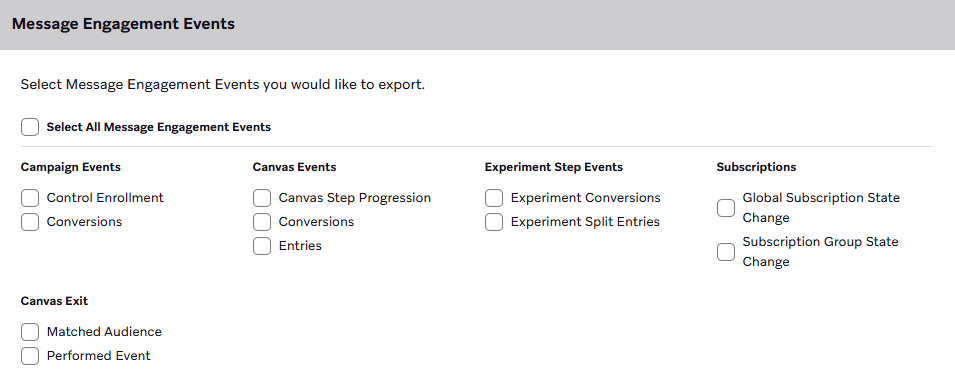
Choose the events you wish to pass to that partner by checking from the available options. You can find listings of these events in our Customer Behavior Events and Message Engagement Events libraries.
If needed, you can learn more about our events in our event delivery semantics article.
Step 5: Set up field transformations
You can use Currents field transformations to remove or hash a string field.
- Remove: Replaces the string field with
[REDACTED]. This is helpful if your partner rejects events with missing or empty fields. - Hash: Applies an SHA-256 hashing algorithm to the string field.
Selecting a field for one of these transformations will apply that transformation to all events in which that field appears. For example, selecting email_address for hashing will hash the email_address field in Email Send, Email Open, Email Bounce, and Subscription Group State Change events.
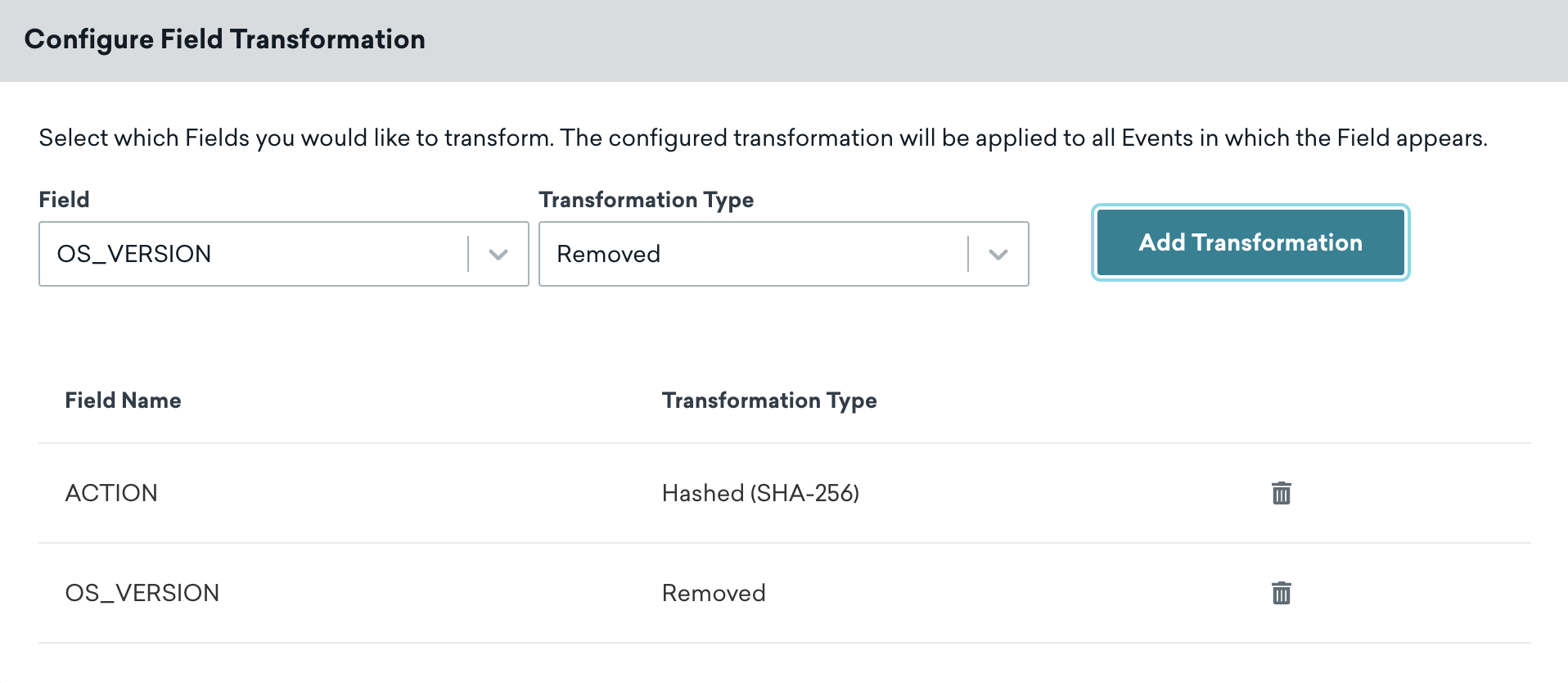
Field transformations work only on string fields. Other field types, such as arrays, aren’t available to select, so you can’t remove or hash them. For example, the suspected_bot_click_reason array field in Email Click events stays in your export.
Edit field transformations on a live connector
You can add, change, or remove field transformations on a live connector without relaunching it. After you update the connector, your changes take effect in about 5 minutes.
Editing field transformations doesn’t change the Avro schema version or the version=<currents_version> segment in your storage path. Only Currents releases change that segment. For more information, see Avro schema changes.
Step 6: Test your integration
Currents will drop events with excessively large payloads of greater than 900 KB.
Before you test, consider checking out our sample Currents data in GitHub. When you’re ready to test, you choose an option in the following section:
Sending test events
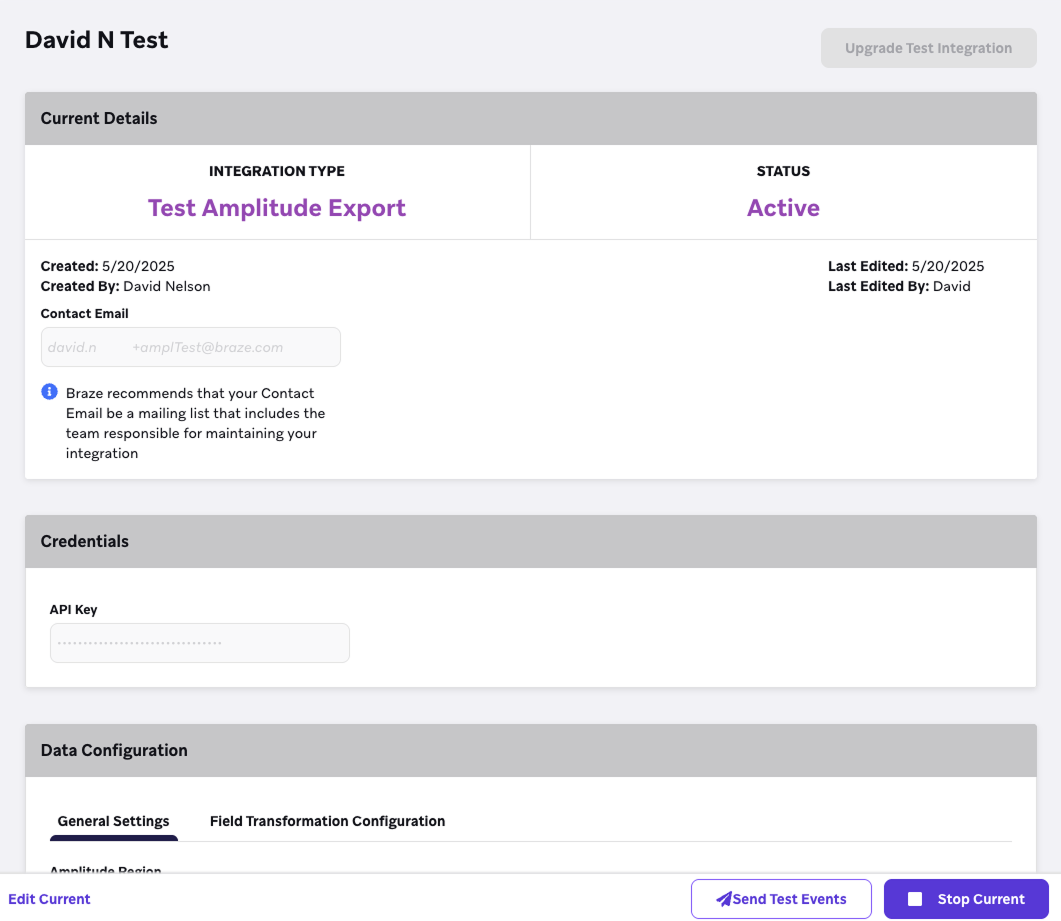
To test your integration, you can select Send Test Events to send one event from each of your selected event types to this Current. For detailed information about each event type, refer to our Customer Behavior Events and Message Engagement Events libraries.
Testing Currents connectors
Test Currents connectors are free versions of our existing connectors that can be used for testing and trying out different destinations. Test Currents have:
- Up to 10 Test Currents connectors per workspace.
- An aggregate maximum of 1,500 events per fixed 24-hour period, resetting at midnight UTC. On the Currents page, you can track your current sending volume against this limit. Braze updates this total hourly.
After your Test Currents connectors reach the sending limit, Braze disables the connector and drops events that are created while the limit is reached. Event syncing resumes after the limit resets at midnight UTC.
To upgrade your Test Currents connector, edit the integration in the dashboard and select Upgrade Test Integration.
Updating Currents
To update your Currents connector after launching, do the following:
- In Braze, navigate to Partner Integrations > Data Export.
- Locate and your Currents connector in the list.
- Select Edit.
- Make your changes.
- Select Update Current.
This will not stop your existing export and will begin sending events according to your new selection.

It may take some time for your changes to take effect.
IP allowlisting
Braze will send Currents data from the listed IPs:
For instances US-01, US-02, US-03, US-04, US-05, US-06, US-07, these are the relevant IP addresses:
23.21.118.19134.206.23.17350.16.249.952.4.160.21454.87.8.3454.156.35.25152.54.89.23818.205.178.15
For instance US-08, these are the relevant IP addresses:
52.151.246.5152.170.163.18240.76.166.15740.76.166.17040.76.166.16740.76.166.16140.76.166.15640.76.166.16640.76.166.16040.88.51.7452.154.67.1740.76.166.8040.76.166.8440.76.166.8540.76.166.8140.76.166.7140.76.166.14440.76.166.145
For instance US-10, these are the relevant IP addresses:
100.25.232.16435.168.86.17952.7.44.1173.92.153.1835.172.3.12950.19.162.19
For instances EU-01 and EU-02, these are the relevant IP addresses:
52.58.142.24252.29.193.12135.158.29.22818.157.135.973.123.166.463.64.27.363.65.88.253.68.144.1883.70.107.88
For instance AU-01, these are the relevant IP addresses:
13.210.1.14513.211.70.15913.238.45.5452.65.73.16754.153.242.23954.206.45.213
For instance ID-01, these are the relevant IP addresses:
108.136.157.246108.137.30.20716.78.128.7116.78.14.13416.78.162.20843.218.73.35
For instance JP-01, these are the relevant IP addresses:
13.159.155.21254.199.221.24113.192.23.1654.250.120.13918.181.114.2323.114.38.100
For instance KR-01, these are the relevant IP addresses:
43.200.215.452.79.67.17552.79.113.603.34.212.9254.116.134.2313.37.197.225