Multiple platform push messages
This article describes what to know when you create a push campaign or Canvas to target multiple platforms and devices from one composer.
When creating a push campaign or Canvas in Braze, you can select multiple platforms and devices to craft one message for all platforms in a single editing experience.
Use cases
This editing experience is best for the following use cases:
- Mobile push campaigns and Canvas Message steps that need to be sent to multiple device types (such as both iOS and Android).
- Time-sensitive push notifications that need to target multiple platforms quickly and accurately, where content is the same across platforms (such as breaking news or live game updates).
Creating a multiple platform push campaign or Canvas
To create a campaign targeting multiple platforms and devices:
- Create a campaign or add a Message step to a Canvas.
- Select Push notification.
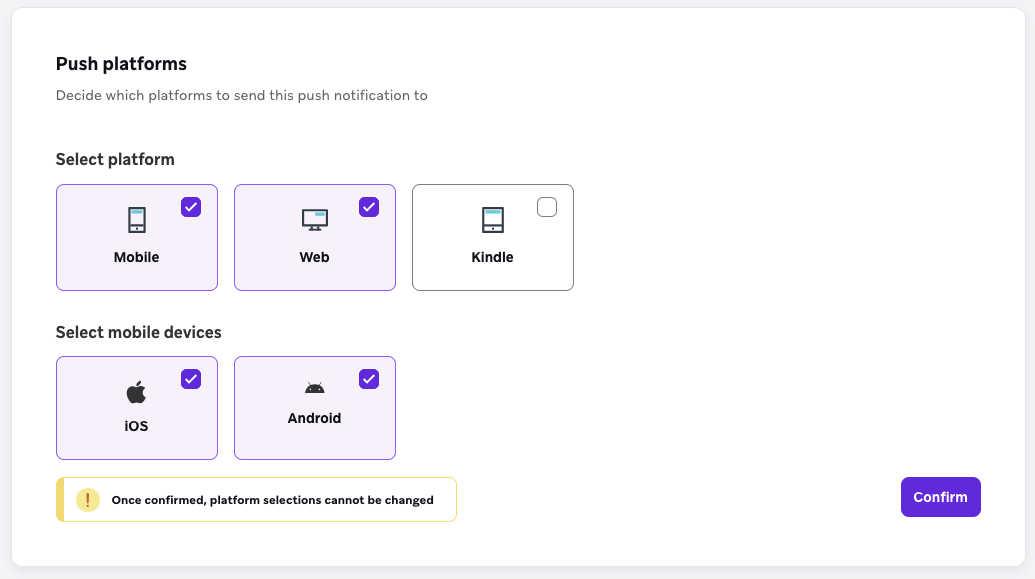
- Select your desired platforms (Mobile, Web, Kindle) and mobile devices (iOS, Android). If you select multiple devices, multivariate testing will not be available for your campaign.
Selecting platforms for a campaign
Selecting platforms for a Canvas step
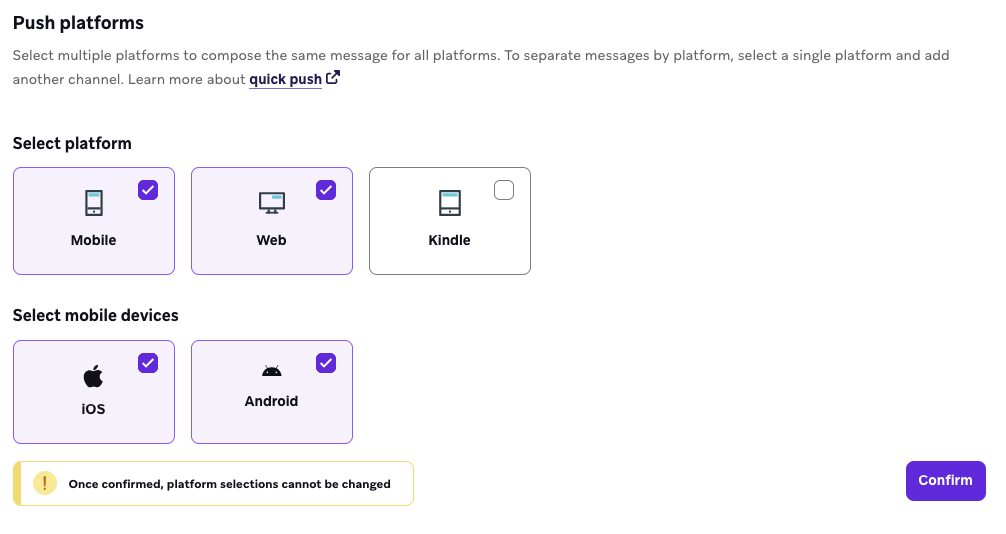
- Select Confirm. After selecting Confirm, you are unable to change your selected platforms or devices.
- Continue setting up your campaign or Canvas.
Running a multi-platform, multivariate test
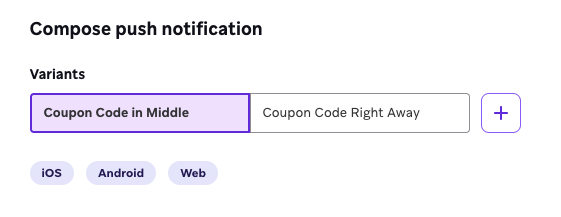
Multivariate testing is supported on multi-platform campaigns, simply select the plus icon beside the variant name as you normally would for single platform campaigns. We recommend you read our guide to creating multivariate tests and utilize BrazeAI™ Variant Selection to automate and maximize your engagement.
Things to know
Unified messaging
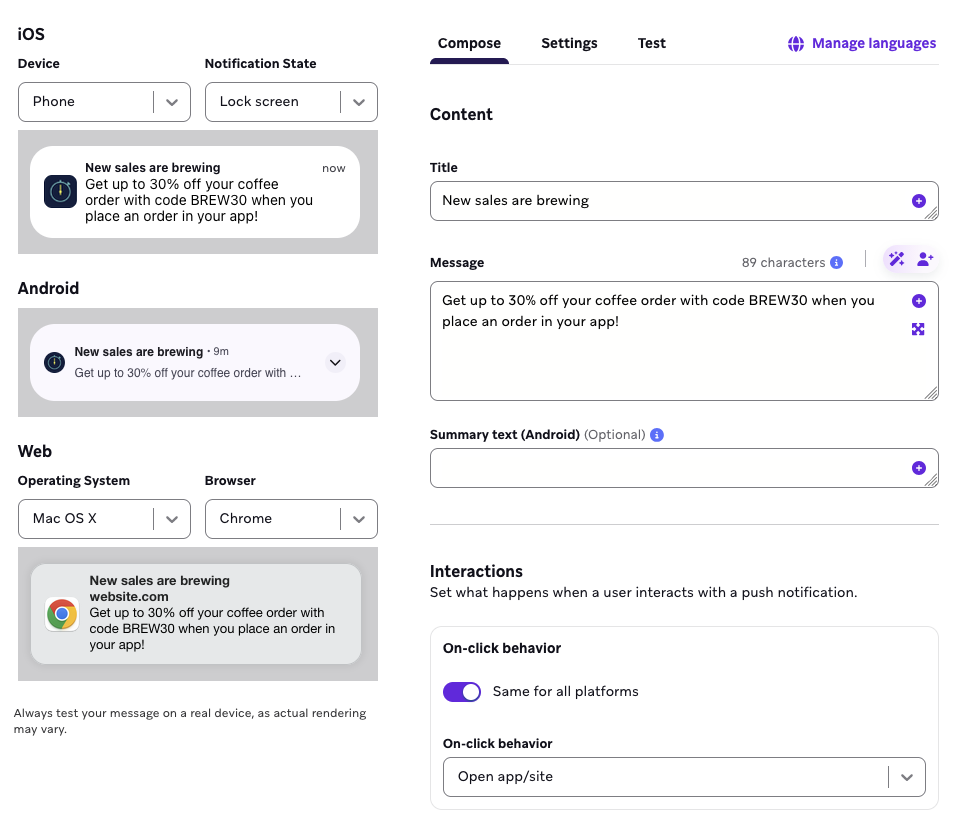
On the Compose tab, you can specify one title, message, and on-click behavior for all of your chosen platforms and devices.
The preview pane shows an approximation of what your message looks like for each platform. While it can give you a good indicator of where you might reach character limits, remember to always test your messages on a real device before sending your campaign.
Separate assets
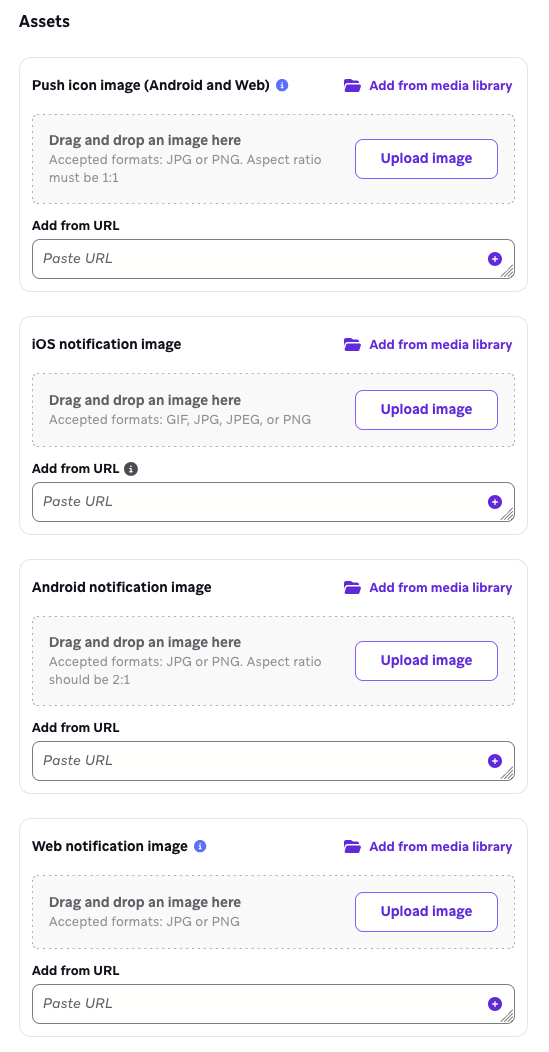
In the Assets section, select or upload the images you want to appear for each platform. Keep in mind that different devices have different specifications for images and character counts. Refer to Push message and image formats for help.
Notification type
The notification type defaults to “Standard Push” and cannot be changed. If you want to create a different push, such as Push Stories or Inline Image (Android), create separate campaigns for each device type.
Device-specific settings
You can edit platform-specific settings in the editor. This includes settings like push action buttons, notification channels and groups, TTL, display priority, sounds, and more.
For more information on device-specific settings, refer to the following article collections:
Push Stories
Push stories are available multi-platform on Android and iOS only, if you select Web or Kindle as a platform to send to then this option is unavailable.