SCIM group role mapping
SCIM group role mapping lets you provision Braze dashboard permissions through your identity provider (IdP). Your IdP pushes groups and their members to Braze over SCIM, you map each group to a custom role, and every member of that group inherits the role’s permissions.
SCIM group role mapping moves permission assignment to your IdP, so you can manage membership where you manage access, and Braze keeps your permissions in sync. This means you don’t have to grant permissions one user at a time or make matching changes in your IdP and Braze.
How it works
Group role mapping connects two relationships:
| Relationship | Managed by | How it works |
|---|---|---|
| Users to groups | Your IdP | When you add or remove a member of a mapped group, the IdP syncs the change to Braze over the SCIM /Groups protocol. Group creates, updates, and deletes sync automatically. |
| Groups to roles | Braze admin | In the dashboard, you map each SCIM group to one or more custom roles. |
A user’s effective permissions are the union of their directly assigned permissions and roles and every role reached through their group memberships. Directly assigned permissions include the default permission set that Braze gives every new SCIM user. Group-derived roles are additive—they never remove a permission a user already has. When membership or a mapping changes, Braze re-evaluates the affected users’ permissions on their next request.
Group members must already be SCIM-provisioned Braze users. Mapping a group grants a custom role, and the role carries the underlying permissions, so custom roles must be enabled for your company.
Prerequisites
| Requirement | Details |
|---|---|
| SCIM provisioning | You must have an active SCIM integration with Okta or Microsoft Entra ID. Group role mapping reuses the same SCIM token, IP allowlist, and rate limits as automated user provisioning. |
| Custom roles | Custom roles must be enabled for your company. SCIM groups map to custom roles, not to individual Braze permissions or permission sets. |
Supported identity providers
Braze supports SCIM group role mapping with the same IdPs it supports for user provisioning.
| Identity provider | Notes |
|---|---|
| Okta | Provisions groups and members through the Okta SCIM integration. |
| Microsoft Entra ID | Provisions groups and members through the Entra ID SCIM integration. Entra ID matches groups by display name, so each group name must be unique in your workspace. |
Step 1: Provision groups from your identity provider
Configure your IdP to push the groups you want to use for provisioning. Group provisioning uses the SCIM integration you already set up for users, so no new token or endpoint is required.
| Identity provider | Provisioning steps |
|---|---|
| Okta | Assign the groups you want to sync to your Braze SCIM application and turn on group push. |
| Microsoft Entra ID | Add the groups to your Braze enterprise application’s provisioning scope. |
After a group syncs, its members—who must be existing SCIM-provisioned Braze users—become available for role mapping in Braze.

Members that your IdP sends but that don’t yet exist as Braze users are skipped rather than rejected. Provision the user first, then the group membership takes effect.
Manually provisioned users
Users created in Braze before your SCIM integration was set up lack the identity link (externalId) required for SCIM management. These manually provisioned users can’t be automatically updated or deprovisioned through SCIM group role mapping, even if they’re added to a mapped group in your IdP.
To convert manually provisioned users to SCIM-managed users, perform a user import within the Braze application in your IdP. This import connects existing Braze users to their IdP identities by email and creates the externalId link.
Step 2: Map a group to a custom role
- Go to Settings > User Management > Roles.
- Create a new custom role or open an existing one.
- In the role’s info panel, find SCIM user group mapping.
- Select one or more groups provisioned from your IdP.
- Save the role.
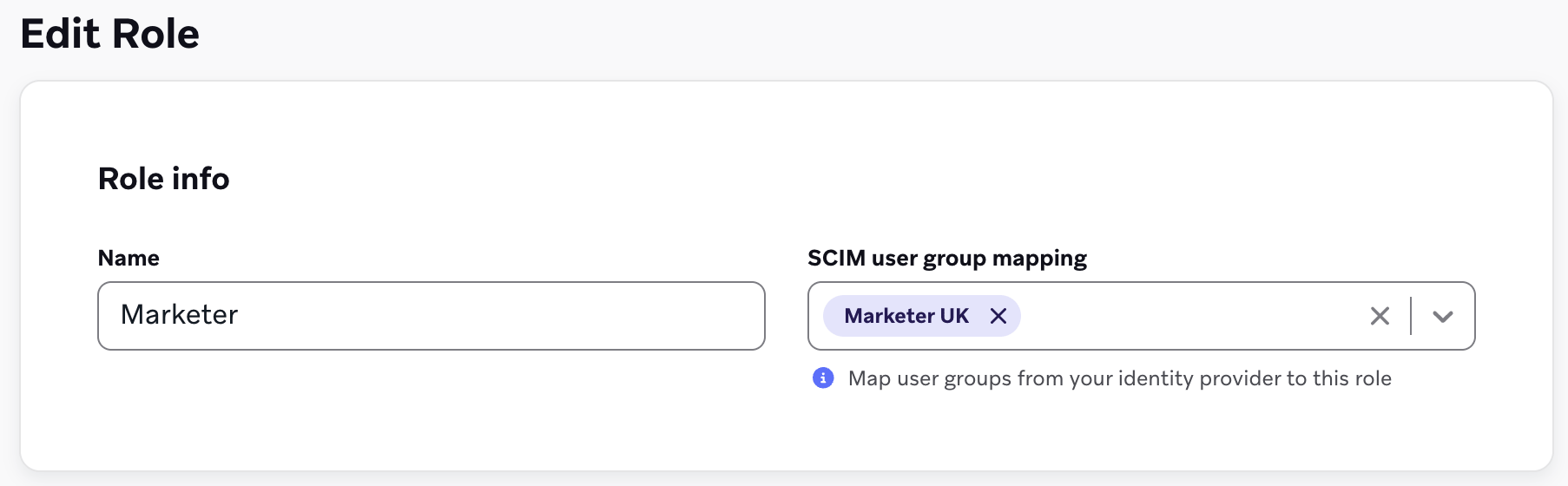
Every member of the selected groups inherits the role’s permissions. The roles list shows how many SCIM groups map to each role.
To stop granting a role through a group, remove the group from the role’s mapping and save. To change who receives the role, update the group’s membership in your IdP.
Frequently asked questions
What happens to a user’s directly assigned roles?
Nothing. Group-derived roles are added on top of direct assignments. Directly assigned roles remain editable in Braze; roles granted through a group are managed by editing the mapping or the group’s membership.
Does group role mapping replace the default permissions?
No. Every user that your IdP creates starts with the default permission set. Roles from group mapping add to that set and don’t remove any of it. To remove a default permission, edit the user in Braze.
Can one group map to more than one role?
Yes. A group can map to multiple custom roles, and a role can be mapped from multiple groups.
Where do I manage who is in a group?
In your identity provider. Braze receives membership from the IdP over SCIM and does not let you edit group membership directly in the dashboard.
Does removing a user from a group revoke their permissions?
Yes, for permissions granted through that group. When the IdP removes the user from the group, Braze re-evaluates their permissions and drops any role they held only through that group. Permissions from direct assignments or other groups are unaffected.
Depending on your IdP and how you assign your Braze SCIM integration, removing a user from a group can also delete their Braze dashboard user:
- Microsoft Entra ID: If the user is in a group that is assigned to your Braze SCIM application, and the user isn’t assigned to that application independently of that group, removing them from the group (or removing the group) deletes the user in Braze.
- Okta: If the group is assigned to your Braze SCIM application and the user isn’t assigned to that application independently, removing them from the group may delete the user in Braze.