Automated user provisioning
Automated user provisioning lets you create and manage Braze users through an API instead of manually in the dashboard. Braze supports this through System for Cross-domain Identity Management (SCIM). This article walks you through what information to provide, how to generate your SCIM token, and where to find your SCIM API endpoint.

You can only set up one SCIM integration per company. If you use an identity provider (IdP) integration (Okta or Entra ID), you can’t use the custom SCIM API endpoints. The IdP integrations create and delete user accounts automatically. To set permissions and workspace assignments, use SCIM group role mapping to map IdP groups to custom roles.
Accessing SCIM provisioning settings
SCIM provisioning availability depends on your platform edition. If this feature isn’t in your workspace, contact your customer success manager for information.
- In the Braze dashboard, go to Settings > Company Settings > Admin Settings > SCIM Provisioning, and then select Configure SCIM integration.
- In the Braze configuration step, select a provisioning method and provide access settings.

- In the IdP configuration step, follow the steps within the platform for your selected provisioning method.
Use the Okta - Braze app option if you set up the Braze app for SAML SSO in Okta. If you set up a custom app for SSO, follow the instructions in the Okta - Custom app integration tab.
The Okta integration creates and deletes user accounts automatically. To set permissions and workspace assignments, use SCIM group role mapping to map IdP groups to custom roles. Additionally, you can’t use the custom SCIM API endpoints when using the Okta integration; only one SCIM bridge can be set up per company.

Okta doesn’t send Braze permissions when it creates a user. Each new user gets the default permission set on your default workspace. To give users more access, use SCIM group role mapping. To remove access, edit the user in Braze. Okta doesn’t overwrite permissions you change in Braze.
Step 1: Set up SCIM provisioning
Step 1.1: Enable SCIM
- In Okta, go to Applications > Applications, then select Create App Integration. Select SAML 2.0 as the sign-in method.
- Fill in the following details (which are located in the Braze IdP configuration step) to create a custom app:
- App logo
- Single sign-on URL
- Audience URL (SP entity ID)
- Select Finish.
- Select the General tab.
- In the App Settings section, select Edit.
- In the Provisioning field, select SCIM.
Step 1.2: Disable application visibility
- In the Application visibility field, select the Do not display application icon to user checkbox. This prevents users from accessing SSO through the app, which is intended solely for SCIM.
- Select Save.
Step 1.3: Set up the SCIM integration
- Select the Provisioning tab.
- In Settings > Integration > SCIM Connection select Edit and fill in the field values that populate within the table on the Setup SCIM provisioning page.
Step 1.4: Test the API credentials
Select Test API Credentials. A verification message appears if the integration is successful and you can save.
Step 1.5: Enable provisioning to the app
- In Provisioning > Settings > To App > Provisioning to App, select Edit.
- Enable the following:
- Create Users
- Update Users Attributes
- Deactivate Users
- Review and configure the Attribute Mapping section with the mappings that populate within the table on the Setup SCIM provisioning page.
Step 2: Assign users to the app
- Select the Assignment tab.
- Select Assign and select an option.
- Assign the app to the people who should have access to Braze.
- Select Done when you’ve completed the assignment.
Use the Okta - Custom app integration option if you set up a custom app for SSO. If you set up the Braze app for SAML SSO in Okta, follow the instructions in the Okta - Braze app tab.
The Okta integration creates and deletes user accounts automatically. To set permissions and workspace assignments, use SCIM group role mapping to map IdP groups to custom roles. Additionally, you can’t use the custom SCIM API endpoints when using the Okta integration; only one SCIM bridge can be set up per company.
Okta doesn’t send Braze permissions when it creates a user. Each new user gets the default permission set on your default workspace. To give users more access, use SCIM group role mapping. To remove access, edit the user in Braze. Okta doesn’t overwrite permissions you change in Braze.
Step 1: Set up SCIM provisioning
Step 1.1: Enable SCIM
- In Okta, go to your Braze app.
- Select the General tab.
- In the App Settings section, select Edit.
- In the Provisioning field, select SCIM.
- Select Save.
Step 1.2: Set up SCIM integration
- Select the Provisioning tab.
- In Settings > Integration > SCIM Connection, select Edit, and fill in the field values that populate within the table on the Setup SCIM provisioning page.
- Test the API credentials by selecting Test API Credentials.
- Select Save.
Step 1.3: Enable provisioning to the app
- In Provisioning > Settings > To App > Provisioning to App, select Edit.
- Enable the following:
- Create Users
- Update Users Attributes
- Deactivate Users
- Review and configure the Attribute Mapping section with the mappings that populate within the table on the Setup SCIM provisioning page.
Step 2: Assign users to the app
- Select the Assignment tab.
- Select Assign and select an option.
- Assign the app to the people who should have access to Braze.
- Select Done.
The Entra ID integration creates and deletes user accounts automatically. To set permissions and workspace assignments, use SCIM group role mapping to map IdP groups to custom roles. Additionally, you can’t use the custom SCIM API endpoints when using the Entra ID integration; only one SCIM bridge can be set up per company.
Entra ID doesn’t send Braze permissions when it creates a user. Each new user gets the default permission set on your default workspace. To give users more access, use SCIM group role mapping. To remove access, edit the user in Braze. Entra ID doesn’t overwrite permissions you change in Braze.
Step 1: Set up SCIM provisioning app
Step 1.1: Log into Microsoft Entra admin center
Log in to your Microsoft Entra admin center.
Step 1.2: Create and set up your SCIM app
- In the navigation menu, go to Entra ID > Enterprise apps.
- Select New application.
- Select Create your own application.
- In the panel, input a name for your app.
- In the What are you looking to do with your application? section, select Integrate application you don’t find in the gallery (Non-gallery).
- Select Create.
Step 1.3: Set up SCIM integration
- Go to the Manage > Provisioning section of your SCIM application.
- Select Connect your application or New configuration and fill in the field values that populate within the table on the Setup SCIM provisioning page.
Step 1.4: Enable provisioning to the app
- Go to the Manage > Attribute mapping (Preview) section of your SCIM application.
- Select Provision Microsoft Entra ID Users.
- Review and configure the Attribute Mapping section to match the attributes that populate within the table on the Setup SCIM provisioning page.
- Close the Attribute Mapping page.
The userName attribute must exactly match the user’s email address in Braze for SCIM to correctly identify and manage users. Users who were manually provisioned in Braze before SCIM was enabled won’t be automatically converted to IdP-managed users, even if they’re added to the SCIM application. Their provisioning method remains manual.
Step 2: Assign users to the app
- Go to Manage > Users and Groups.
- Select Add user/group.
- Select None Selected to assign users to the app.
- Select the Select button to confirm assignment.
Step 1: Configure your SCIM settings
- Default Workspace: Select the workspace where new users should be added by default. If you don’t specify a workspace in your SCIM API request, Braze assigns users to this workspace. If your request doesn’t include
permissions, Braze gives the user the default permission set on this workspace. - Service Origin: Enter the origin domain of your SCIM requests. Braze uses this in the
X-Request-Originheader to verify where requests are coming from. - IP Allowlisting (optional): You can restrict SCIM requests to specific IP addresses. Enter a comma-separated list or range of IP addresses to allow. The
X-Request-Originheader in each request is used to check the request IP address against the allowlist.
Step 2: Generate a SCIM token
After completing the required fields, press Generate SCIM token to generate a SCIM token and see your SCIM API endpoint. Make sure to copy the SCIM token before you navigate away. This token appears only once.
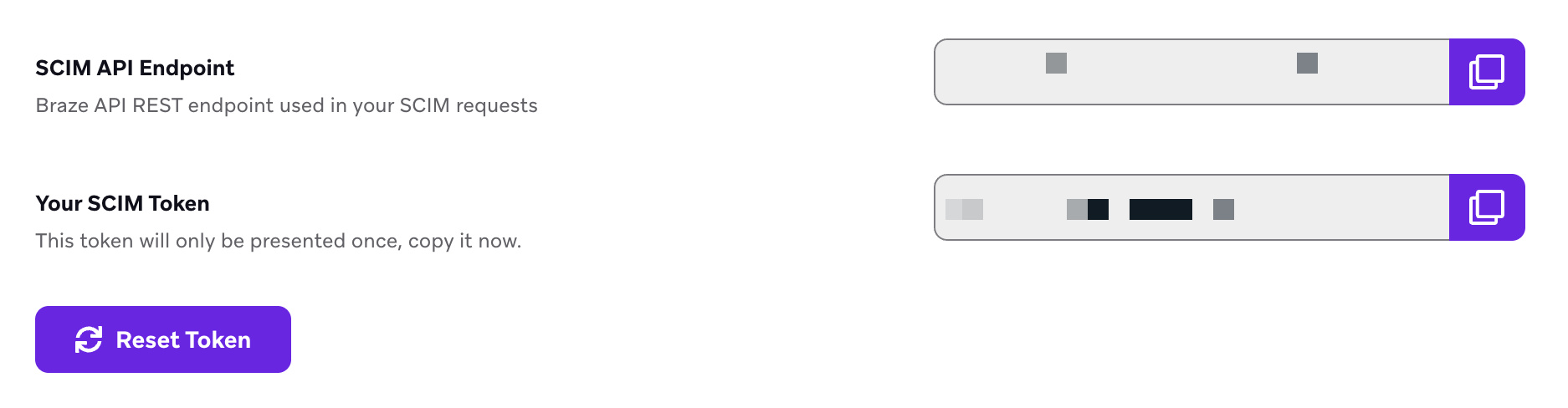
Braze expects all SCIM requests to contain the SCIM API bearer token attached via an HTTP Authorization header.
Default permissions for new users
When SCIM creates a user through the Okta or Entra ID integration without a permission list, Braze gives that user a default set of view-only permissions on your default workspace. This also applies to custom SCIM API requests that leave out permissions.
The default set doesn’t include any permission to create, edit, archive, delete, export, or send. To give users more access, use SCIM group role mapping or edit the user in Braze.
| Product area | Permissions |
|---|---|
| Messaging | View Campaigns, View Canvases, View Canvas Templates, View Feature Flags, View Placements, View Message Prioritization Settings, View Frequency Capping Rules, View Messaging Rate Limits, View Global Control Group, View Quiet Hours Settings, View Dashboard Reports |
| Content | View Content Blocks, View Email Templates, View Email Link Templates, View IAM Templates, View Webhook Templates, View Media Library Assets, View Preference Centers, View Promotion Codes, View Locations, View Localization Settings |
| Audience and data | View Segments, View Custom Attributes, View Custom Events, View Catalogs, View User Merge Records, View Audience Sync Settings |
| Channel settings | View Email Settings, View Push Settings, View WhatsApp Settings, View WhatsApp Catalog, View WhatsApp Flows, View WhatsApp Message Templates From Meta |
| Decisioning Studio | View Decisioning Studio Agent, View Decisioning Studio Audience, View Decisioning Studio Action Banks, View Conversion Event, View Decisioning Studio Guardrails, View Decisioning Studio Timing |