Edit your campaign after launch
This article gives an overview of the result of editing certain aspects of a campaign post-launch.
Why you should stop a campaign before editing

Braze recommends stopping a campaign before making changes, rather than editing it while it’s live. Editing a live campaign without stopping it first can lead to unexpected behavior, including users receiving the message twice.
When a campaign is launched, all eligible users are enqueued to receive the message. However, a user isn’t marked as having received the campaign until the message is actually delivered, not when they’re enqueued. If you edit a live campaign without stopping it first, Braze re-enqueues eligible users for the updated version while the original queue is still being processed. Users who haven’t yet received the original message will be in both queues, which can result in:
- Users receiving the campaign twice (the original and the updated version), even if re-eligibility is turned off.
- The original version of the campaign still being delivered to users in the first queue.
- Unexpected audience counts in campaign analytics.
This is most likely to occur with campaigns that target a large audience and are scheduled to send immediately, since there’s a large queue of users being processed at once. For action-based campaigns with gradual triggers (such as sign-up events), the risk is lower because only a small number of users are typically queued at any given time.
To safely make changes, stop the campaign first, then either edit the stopped campaign or duplicate it with your changes.
Stopping your campaign
To stop a campaign, open your Campaign Details page and select Stop Campaign. When a campaign is stopped:
- Messages scheduled to be sent will be canceled.
- A/B tests where the initial test has already been sent will be permanently canceled.
- Events for messages that have already been sent (for example, open clicks) will still be tracked.
To restart your campaign, select Resume. Your campaign will continue sending messages and A/B tests, but any missed messages will not be re-sent or re-scheduled.
Stopping your campaign during sending
For campaigns with a larger audience and rate limits, Braze partitions and schedules batches of messages to send at different times. When a campaign is stopped, sends aren’t canceled immediately. Instead, they are canceled when they begin to run and detect that the campaign has been stopped.
For example, if you start a rate-limited email campaign, pause it for a few hours, and then resume it, all messages that were scheduled to send during the paused hours are canceled and never send. Any remaining messages scheduled after the campaign resumes continue to send. If re-eligibility is enabled for the campaign, users can become eligible to receive the campaign again in addition to any messages that were already queued before the campaign was stopped.
In-app message campaigns
Unlike push or email, in-app messages are delivered to devices at session start and cached locally until the trigger fires. When you edit a live in-app message campaign—such as stopping it, setting an end date, turning on Re-evaluate campaign eligibility before displaying, updating content, changing the message trigger, or updating the target audience—the updated configuration propagates when devices fetch triggers at their next session start.
Expect the following:
- Devices that haven’t started a new session since your change may continue using the previous configuration until they sync triggers again.
- Devices that start a session after your change receive the latest configuration.
Stop a mistaken launch
If you launched the wrong in-app message campaign, select Stop Campaign on the Campaign Details page. This is the fastest way to prevent new sessions from downloading the message. Users who already cached the payload before you stopped the campaign can still see it when they meet the trigger conditions until their device syncs updated triggers on a later session.
Archiving and end dates follow the same propagation rules: they stop delivery for future syncs but don’t remove messages already cached on devices. If you may need to review, duplicate, or edit the campaign, stop it first and archive it later when you’re finished.
Limit stale deliveries
Select Re-evaluate campaign eligibility before displaying in your campaign’s delivery settings so Braze confirms audience membership and campaign status right before each display. This helps prevent impressions after a campaign is stopped, archived, or past its end date. You can turn this setting on or off after launch, but it follows the same propagation rules as other changes: devices don’t receive the updated configuration until their next trigger sync.
For more information, refer to Choose users to target and Why is my archived in-app message campaign still delivering in-app message impressions?.
Triggered campaigns
All changes to action-based delivery campaigns and API-triggered delivery campaigns take effect immediately for go-forward sends.
If these campaigns have been triggered but not yet sent (for example, an action-based delivery campaign with a 1-day delay is edited during the 1-day delay period), refer to the following guidance for scheduled campaigns.
Scheduled campaigns
If you need to make changes to a campaign post-launch, take note of the following items when editing your campaign to check that your changes have the desired effects.
Message content
Any message content changes (including titles, bodies, and images) take effect immediately on saving for all message sends going forward. It isn’t possible to change the contents of messages that have already been dispatched.
Scheduling and audience
If you edit your campaign’s scheduled send time or its audience, those changes are reflected in the actual campaign immediately.
Considerations
If your campaign uses Intelligent Timing or local time zone delivery, edits to the scheduled send time will not be reflected if the edit is made within 24 hours of the original send time. This is because:
- Intelligent Timing: Braze begins calculating the optimal send time at midnight Samoa time. If this time has already passed, the message will have begun processing. For more information, refer to Intelligent Timing.
- Local time zone delivery: Editing a local time zone campaign that is scheduled less than 24 hours in advance will not alter the message’s schedule. For more information, refer to the How do I schedule a local time zone campaign?.
Send rate
When using a send rate limit, Braze “schedules” your messages in minute-granularity time slots, so if you want to change the message sending rate, adhere to the following process for making immediate changes.
Pausing campaigns with delivery speed rate limiting
When you pause a campaign that uses delivery speed rate limiting, Braze distributes sends across minute-based slots. Resume does not re-send messages from slots that were canceled while the campaign was paused, and not all messages are necessarily sent when the campaign is resumed.
If some users didn’t receive messages because the campaign was paused, duplicate the campaign and target only those users rather than relying on Resume to deliver the missed messages.
Making immediate changes
If you need changes to take effect immediately, do the following:
- Stop the affected campaign.
- Duplicate the campaign.
- Make edits on the duplicate campaign.
This resets eligibility for people who already received the original campaign, so you may need to filter the duplicate campaign for people who did not receive the original.
Saving drafts of active campaigns
Drafts are great for making large-scale changes to active campaigns. By creating a draft, you’re able to pilot planned changes before your next launch.

A campaign can only have one draft at a time. Additionally, analytics aren’t available since the drafted changes haven’t been launched yet.
To create a draft, do the following:
- Go to your active campaign.
- Make your changes.
- Select Save as Draft. Note that after creating a draft, you cannot edit the active campaign until you either launch or discard your draft.
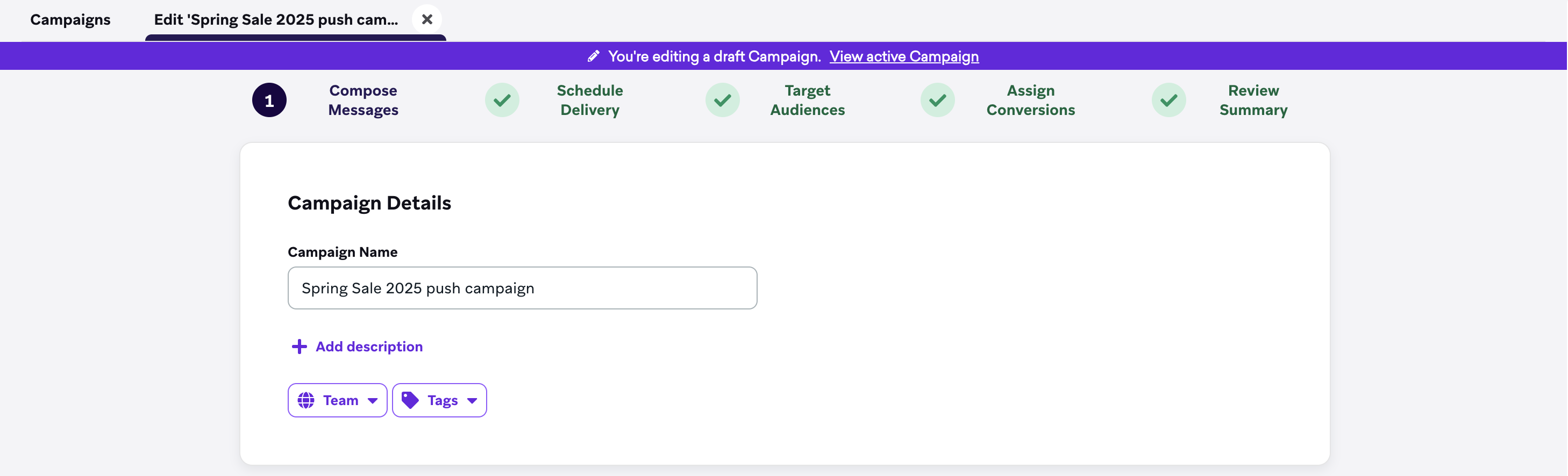
As you’re making edits to the draft, you can also reference the active campaign in the header of the campaign draft or the footer of the campaign analytics.
To return to an active campaign, select Edit Draft from the analytics view or the active campaign view.
In-app message prioritization
In-app message priority will update immediately (before the draft launches) when you select Set Exact Priority and specify the priority in relation to other campaigns or Canvases.