Cloud Data Ingestion for Google Cloud Storage
This page covers everything you need to sync data from Google Cloud Storage (GCS) to Braze using Cloud Data Ingestion (CDI): the Google Cloud resources to create, how to connect the source and create a sync in Braze, the file format for each data type, and GCS-specific troubleshooting.
How it works
Google Cloud Storage integrations are event-driven rather than scheduled. When new files are finalized in the bucket, GCS publishes an OBJECT_FINALIZE notification to a Pub/Sub topic. Braze consumes those notifications from a Pub/Sub subscription to ingest the new file.
The integration requires the following resources:
- A Cloud Storage bucket for data storage
- A Pub/Sub topic and subscription for new file notifications
- A service account that Braze accesses through one of the supported authentication methods
GCP definitions
| Term | Definition |
|---|---|
| Google Cloud project | A project organizes all your Google Cloud resources and is identified by a unique project ID and project number. |
| Cloud Storage bucket | A bucket is the container that holds the data files you want Braze to ingest. |
| Pub/Sub topic | A topic is the named resource that receives new-file notifications from your Cloud Storage bucket. |
| Pub/Sub subscription | A subscription attaches to a topic and delivers its messages. Braze consumes new-file notifications from a pull subscription. |
| Service account | A service account is a non-human identity that Braze uses to access your bucket and subscription. Braze impersonates it through Workload Identity Federation, or uses a JSON key you upload. |
| Workload Identity Federation | Workload Identity Federation (WIF) lets Braze impersonate your service account with a short-lived identity, so you don’t create or upload a key. |
| IAM role | An Identity and Access Management (IAM) role is a collection of permissions that you assign to the service account on your bucket and subscription. |
Set up Cloud Data Ingestion in Google Cloud
Step 1: Create a Cloud Storage bucket
In the Google Cloud console, go to Cloud Storage > Buckets > Create. Note the project ID and the bucket name. You’ll need them when you configure the source in Braze. Braze recommends enabling uniform bucket-level access so that permissions are managed with IAM.
Step 2: Create a Pub/Sub topic and subscription
In the Google Cloud console, go to Pub/Sub > Topics > Create topic. You can let Google create a default subscription, or create one separately. Then, create a pull subscription on that topic.
Note the subscription ID. Braze needs the subscription (not the topic) when you create the sync. The subscription must be a pull subscription.

Don’t configure a dead-letter queue on this subscription. Braze doesn’t support dead-letter queues for Cloud Data Ingestion subscriptions. To learn more, see Dead-letter topics in the Google Cloud documentation.
Step 3: Send bucket notifications to the topic

Creating a Cloud Storage to Pub/Sub notification isn’t available in the Google Cloud console. You must use gcloud (shown here), Terraform, or the JSON API. To learn more, see Configure Pub/Sub notifications for Cloud Storage in the Google Cloud documentation.
First, assign the Cloud Storage service agent permission to publish to the topic, then create the notification for OBJECT_FINALIZE. The OBJECT_FINALIZE event fires whenever a new object is created or finalized in the bucket.
# Get the Cloud Storage service agent for your project
gcloud storage service-agent --project=YOUR-PROJECT-ID
# Assign it Pub/Sub Publisher on the topic
gcloud pubsub topics add-iam-policy-binding YOUR-TOPIC \
--project=YOUR-PROJECT-ID \
--member="serviceAccount:service-YOUR-PROJECT-NUMBER@gs-project-accounts.iam.gserviceaccount.com" \
--role="roles/pubsub.publisher"
# Create the OBJECT_FINALIZE notification (optionally scope to a folder with --object-prefix)
gcloud storage buckets notifications create gs://YOUR-BUCKET-NAME \
--topic=YOUR-TOPIC \
--event-types=OBJECT_FINALIZE \
--payload-format=json
Replace YOUR-PROJECT-ID, YOUR-BUCKET-NAME, and YOUR-TOPIC with your own values. YOUR-PROJECT-NUMBER is the numeric identifier in the service agent’s email address, which differs from the project ID. Find it on the Dashboard in the Google Cloud console, or run gcloud projects describe YOUR-PROJECT-ID --format="value(projectNumber)".
Step 4: Create a service account
In the Google Cloud console, go to IAM & Admin > Service Accounts > Create service account. This example uses braze-cdi-gcs as the account name.
Step 5: Assign permissions
The connector needs exactly these permissions: storage.buckets.get, storage.objects.get, and storage.objects.list on the bucket, and pubsub.subscriptions.consume on the subscription. You can assign them with either a custom role or predefined roles.
Custom role: Create a custom role with exactly those permissions and bind it to the bucket and the subscription:
gcloud iam roles create brazeCdiGcs --project=YOUR-PROJECT-ID \
--title="Braze CDI GCS" \
--permissions=storage.buckets.get,storage.objects.get,storage.objects.list,pubsub.subscriptions.consume \
--stage=GA
gcloud storage buckets add-iam-policy-binding gs://YOUR-BUCKET-NAME \
--member="serviceAccount:[email protected]" \
--role="projects/YOUR-PROJECT-ID/roles/brazeCdiGcs"
gcloud pubsub subscriptions add-iam-policy-binding YOUR-SUBSCRIPTION \
--project=YOUR-PROJECT-ID \
--member="serviceAccount:[email protected]" \
--role="projects/YOUR-PROJECT-ID/roles/brazeCdiGcs"
Predefined roles: Instead of a custom role, assign roles/storage.objectViewer and roles/storage.legacyBucketReader on the bucket, and roles/pubsub.subscriber on the subscription. The objectViewer role provides storage.objects.get and storage.objects.list, and legacyBucketReader provides storage.buckets.get.
Step 6: Set up authentication
Braze can access the service account with any of the following authentication methods:
| Method | How Braze authenticates | What you enter in Braze |
|---|---|---|
| Workload Identity Federation | Braze impersonates your service account with a short-lived identity, so you don’t create or upload a key. | Project number, Workload identity pool ID, Provider ID, and Service account email |
| Service account key | Braze authenticates with a JSON key that you create for your service account. | JSON key file for the service account |
Workload Identity Federation
With Workload Identity Federation (WIF), Braze authenticates to Google Cloud with a short-lived identity from its own AWS environment, and then impersonates the service account you created for Braze. You configure your project to trust that identity for your workspace only. You don’t create or share a service account key.
You set up WIF once per Google Cloud project. One WIF credential serves both Google Cloud Storage and BigQuery sources. If you’ve already completed these steps for a BigQuery source, grant the existing service account the permissions for this source and skip the rest of this section.
Prerequisites
To complete these steps in the Google Cloud console, you need permission to create workload identity pools and to manage Identity and Access Management (IAM) policies on the service account and your data. For example, you can use the Workload Identity Pool Admin (roles/iam.workloadIdentityPoolAdmin) and Service Account Admin (roles/iam.serviceAccountAdmin) roles.
Trust only your workspace’s principal
Grant access to the full Braze principal Amazon Resource Name (ARN) from your credential form. Don’t grant access to the Braze AWS role or AWS account. A role-level or account-level grant lets other Braze customers read your data.
Every Braze workspace on the same Braze instance presents the same AWS role. Only the session name at the end of the principal ARN, which is your workspace ID, is unique to you.
Google’s default attribute mapping for AWS providers sets aws_role to the role ARN without the session name. This means granting access to identities that match an aws_role value, such as principalSet://iam.googleapis.com/projects/PROJECT_NUMBER/locations/global/workloadIdentityPools/POOL_ID/attribute.aws_role/ROLE_ARN, trusts every Braze workspace on your instance, including yours.
To keep your data scoped to your workspace:
- Grant access only to identities whose
subjectis your full Braze principal ARN. This is theprincipal://iam.googleapis.com/projects/PROJECT_NUMBER/locations/global/workloadIdentityPools/POOL_ID/subject/BRAZE_PRINCIPAL_ARNprincipal. - Don’t grant access to All identities in the pool, or to identities filtered by
aws_roleoraccount. - Don’t write an attribute condition that checks only the AWS account or role.
- Keep the default attribute mapping for
google.subject, which isassertion.arn.
The Braze principal ARN differs for each workspace and Braze instance, and Braze uses a separate AWS role for Google sources than for other sources such as Snowflake. Always copy the value from a BigQuery or Google Cloud Storage credential form in the workspace you’re connecting.
Copy the Braze principal ARN
In Braze, start creating your Google Cloud Storage source and select Workload Identity Federation as the authentication method. Copy the value in step 1 of the credential form, Copy the Braze principal ARN, and keep the form open.
If the field shows Unavailable, WIF isn’t available for your Braze instance. Use a service account key instead.
Enable the required APIs
In the Google Cloud console, go to APIs & Services > Library, and enable the following APIs for your project:
- IAM Service Account Credentials API
- Security Token Service API
- Identity and Access Management (IAM) API
Create the workload identity pool and provider
- Go to IAM & Admin > Workload Identity Federation, and then select Create pool.
- Enter a name for the pool, such as “Braze CDI”. Note the Pool ID, and then select Continue.
- For Select a provider, select AWS.
- Enter a provider name, such as “Braze AWS”, and note the Provider ID.
- For AWS account ID, enter the 12-digit number that follows
arn:aws:sts::in the Braze principal ARN, and then select Continue. - Under Configure provider attributes, keep the default mapping, including
google.subject=assertion.arn. - Select Save.
Pool and provider IDs must be 4 to 32 characters, using lowercase letters, numbers, and hyphens.
Restrict the provider to your principal (optional)
For defense in depth, add an attribute condition so the provider accepts only your workspace’s principal. Google then rejects every other identity at the token exchange, before Google checks any service account permission.
- In the pool, select the provider, and then select Edit.
- Under Attribute conditions, select Add condition.
-
Enter the following condition, replacing
BRAZE_PRINCIPAL_ARNwith the full value that you copied from the credential form:assertion.arn == 'BRAZE_PRINCIPAL_ARN'
- Select Save.
This condition dedicates the provider to one Braze workspace. To connect another workspace, create a separate provider for it, or list both principals, as in assertion.arn in ['FIRST_BRAZE_PRINCIPAL_ARN', 'SECOND_BRAZE_PRINCIPAL_ARN'].
Bind the Braze principal to the service account
Grant your workspace’s principal permission to impersonate the service account:
- Go to IAM & Admin > Workload Identity Federation, and then select your pool.
- Select Grant access, and then select Grant access using service account impersonation.
- For Service account, select the service account you created for Braze.
- Under Select principals, select Only identities matching the filter.
- For Attribute name, select subject. For Attribute value, paste the full Braze principal ARN from the credential form.
- Select Save. If Google offers to download a client library configuration file, select Dismiss. Braze doesn’t need it.
This grants the Workload Identity User role (roles/iam.workloadIdentityUser) on the service account to a principal in this form:
principal://iam.googleapis.com/projects/PROJECT_NUMBER/locations/global/workloadIdentityPools/POOL_ID/subject/BRAZE_PRINCIPAL_ARN
To confirm, open the service account and select the Permissions tab. The Workload Identity User role should list this principal, ending in your full Braze principal ARN.
Don’t select All identities in the pool, and don’t filter by aws_role. Both match every Braze workspace on your Braze instance, because they all share the same AWS role. For details, see Trust only your workspace’s principal.
Grant this role on the service account only. A project-level grant lets the principal impersonate every service account in the project.
IAM changes can take a few minutes to take effect. If a connection test fails right after you grant access, wait a few minutes and try again.
The service account also needs access to your data. Make sure you’ve granted it the permissions for this source. If you use one credential for both BigQuery and Google Cloud Storage, grant both sets of permissions to the same service account.
Enter the values in Braze
Return to the Braze credential form, and enter the following values from the Google Cloud console:
| Braze field | Where to find it |
|---|---|
| Project number | The Project info card on the console Dashboard. Use the numeric project number rather than the project ID. |
| Workload identity pool ID | The Pool ID from the pool you created |
| Provider ID | The Provider ID from the provider you created |
| Service account email | The service account’s Email on the Service Accounts page |
Braze combines the project number, pool ID, and provider ID into the audience, which tells Google which provider validates the request from Braze. By default, a provider accepts its own resource name as the audience. If you set custom allowed audiences on your provider, include the provider’s full resource name.
How Braze tests the connection
When you test the connection in Braze, Braze also checks that your configuration trusts only your workspace. During the test, Braze attempts the same exchange with a test session name of all zeros, in this form:
assumed-role/cdi-gcs-bigquery-sync-<deployment>/000000000000000000000000
Your configuration must reject this identity, either at the token exchange or when it tries to impersonate your service account. If both steps succeed, the test fails, because your configuration trusts identities other than your workspace’s principal. To fix this, refer to Your configuration trusts identities other than your workspace.
If you set the optional attribute condition, Google rejects the test identity at the token exchange. Otherwise, Google rejects the test identity when that identity tries to impersonate your service account. Either way, the test passes.
You may see this rejected attempt in your Google Cloud audit logs each time you test the connection. This behavior is expected. The attempt comes from the Braze check, and the attempt doesn’t give anyone access to your data.
Don’t add a condition that rejects only this test session. Such a condition passes the test while your configuration still trusts other Braze workspaces.
Remove Braze access
To stop Braze from accessing your data, remove the Workload Identity User role for the Braze principal from the service account’s Permissions tab, or delete the provider.
Set up with the gcloud CLI
If you prefer the command line, the following commands enable the APIs, create the pool and provider, and bind the Braze principal to your service account. Replace the values in the first block, and paste the Braze principal ARN exactly as copied.
PROJECT_ID="YOUR-PROJECT-ID"
POOL_ID="braze-cdi"
PROVIDER_ID="braze-aws"
SA_EMAIL="YOUR-SERVICE-ACCOUNT-EMAIL"
BRAZE_PRINCIPAL_ARN="PASTE-THE-BRAZE-PRINCIPAL-ARN-FROM-YOUR-CREDENTIAL-FORM"
PROJECT_NUMBER="$(gcloud projects describe "$PROJECT_ID" --format='value(projectNumber)')"
BRAZE_AWS_ACCOUNT_ID="$(echo "$BRAZE_PRINCIPAL_ARN" | cut -d: -f5)"
gcloud services enable iam.googleapis.com iamcredentials.googleapis.com sts.googleapis.com \
--project="$PROJECT_ID"
gcloud iam workload-identity-pools create "$POOL_ID" \
--project="$PROJECT_ID" --location="global" --display-name="Braze CDI"
gcloud iam workload-identity-pools providers create-aws "$PROVIDER_ID" \
--project="$PROJECT_ID" --location="global" --workload-identity-pool="$POOL_ID" \
--account-id="$BRAZE_AWS_ACCOUNT_ID"
# Optional: restrict the provider to your principal
gcloud iam workload-identity-pools providers update-aws "$PROVIDER_ID" \
--project="$PROJECT_ID" --location="global" --workload-identity-pool="$POOL_ID" \
--attribute-condition="assertion.arn == '${BRAZE_PRINCIPAL_ARN}'"
gcloud iam service-accounts add-iam-policy-binding "$SA_EMAIL" \
--project="$PROJECT_ID" \
--role="roles/iam.workloadIdentityUser" \
--member="principal://iam.googleapis.com/projects/${PROJECT_NUMBER}/locations/global/workloadIdentityPools/${POOL_ID}/subject/${BRAZE_PRINCIPAL_ARN}"
Service account key
Braze authenticates with a JSON key for your service account. Existing service account key credentials keep working, and you don’t need to migrate them.
In the Google Cloud console, open the service account, go to Keys > Add key > Create new key, and select JSON. Download the key file. You upload it to Braze when you create the source.
Alternatively, use gcloud:
gcloud iam service-accounts keys create braze-cdi-key.json \
--iam-account=SERVICE_ACCOUNT_EMAIL
Replace SERVICE_ACCOUNT_EMAIL with the email address of the service account. For more information, see Create and delete service account keys.
Set up Cloud Data Ingestion in Braze
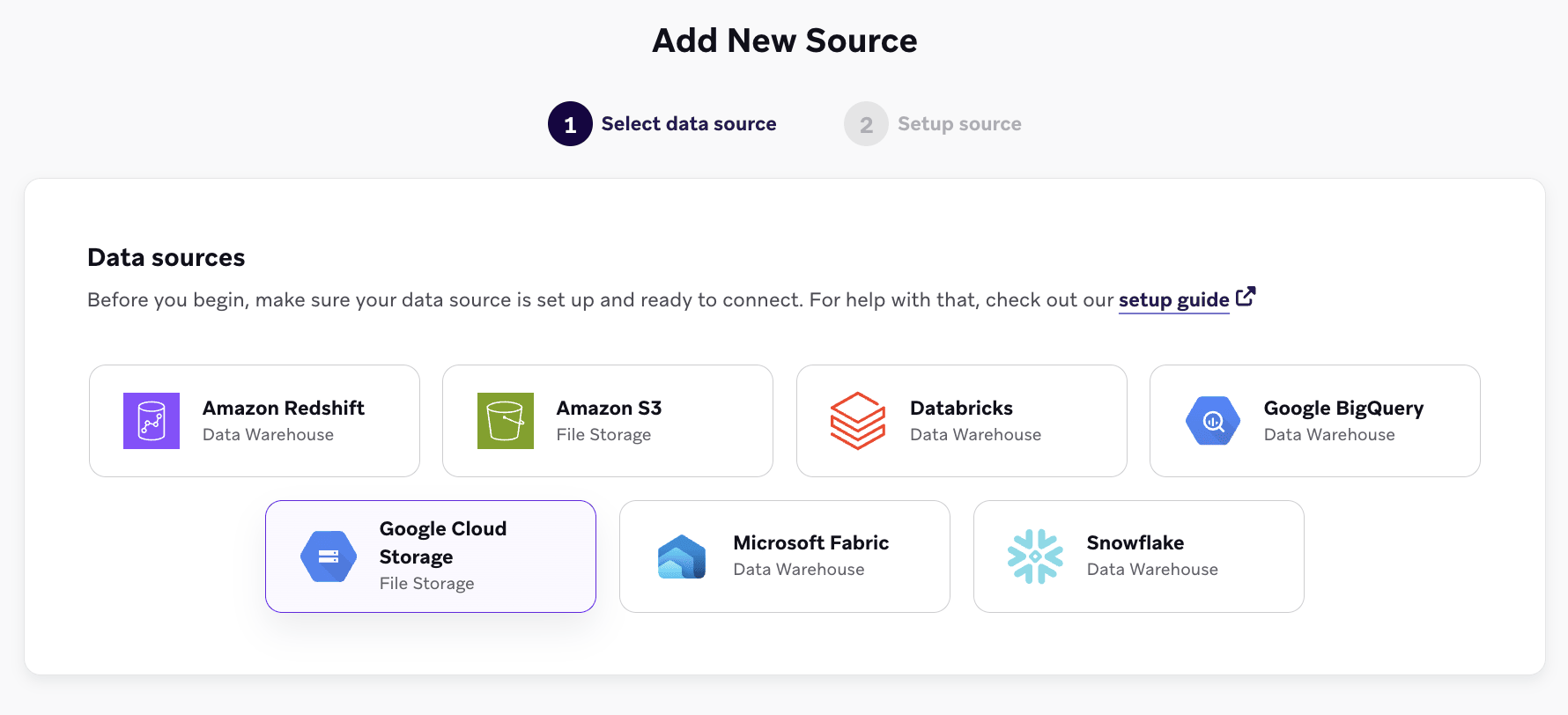
- In Braze, go to Data Settings > Cloud Data Ingestion > Sources, select Add data source, and then select Google Cloud Storage.
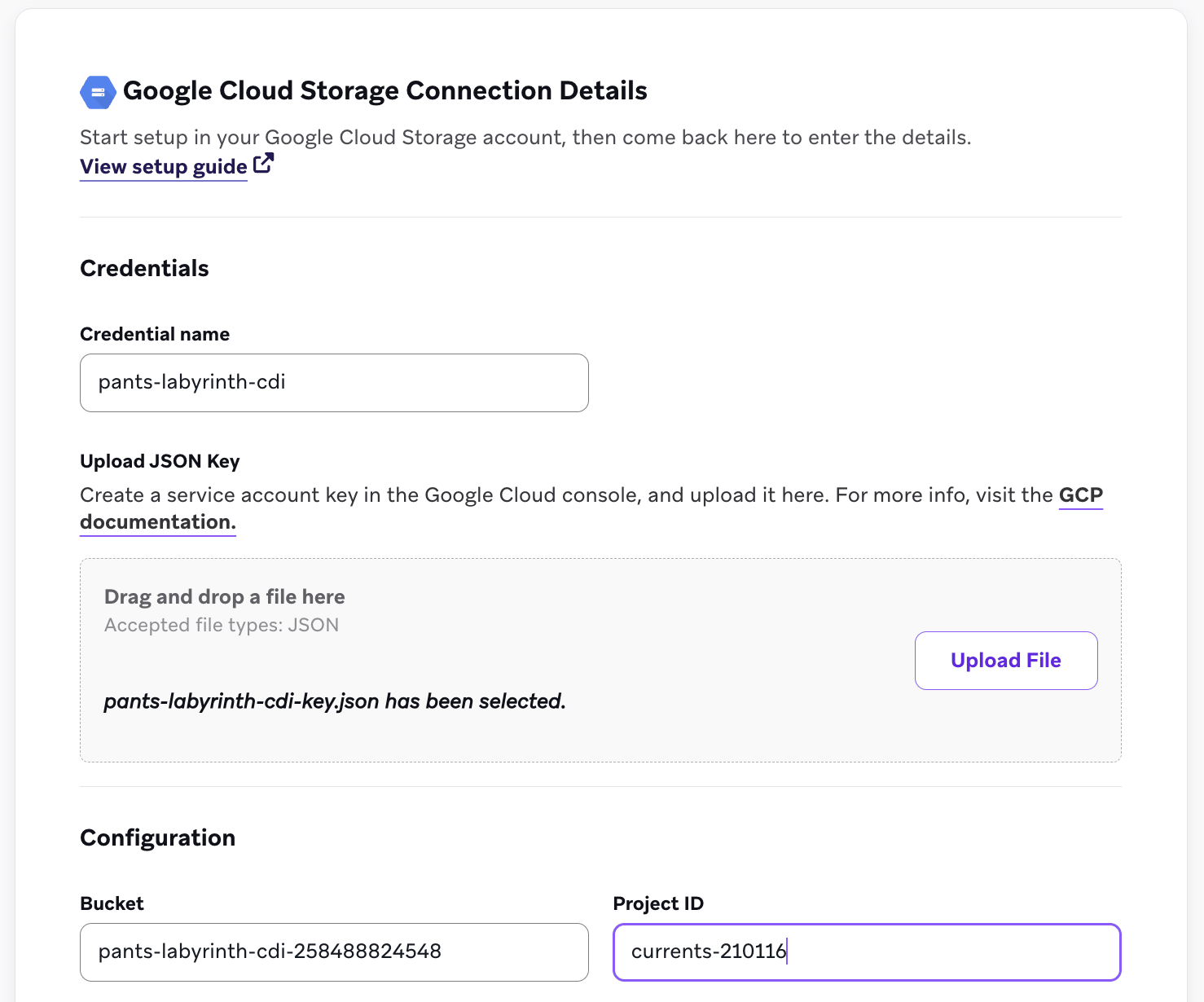
- Complete the source fields:
- Bucket: your bucket name
- Project ID: your GCP project ID
- Credential: give the credential a name and select the authentication method you set up in Step 6. For Workload Identity Federation, enter Project number, Workload identity pool ID, Provider ID, and Service account email. For Service account key, enter JSON key file for the service account.
- Select Test connection, then select Connect to Source.
- Create a sync. Go to Data Settings > Cloud Data Ingestion > Syncs and select Create data sync. Choose a sync name and a Data Type (such as User Attributes, Custom Events, Purchase Events, Catalog, or Delete Users), then select Next.
- On the Data definition step, select your GCS source, then specify the following:
- Pub/Sub subscription ID: the subscription ID from step 2 (not the topic)
- Folder path (optional): a path prefix within the bucket (see Syncing a folder in a shared bucket)
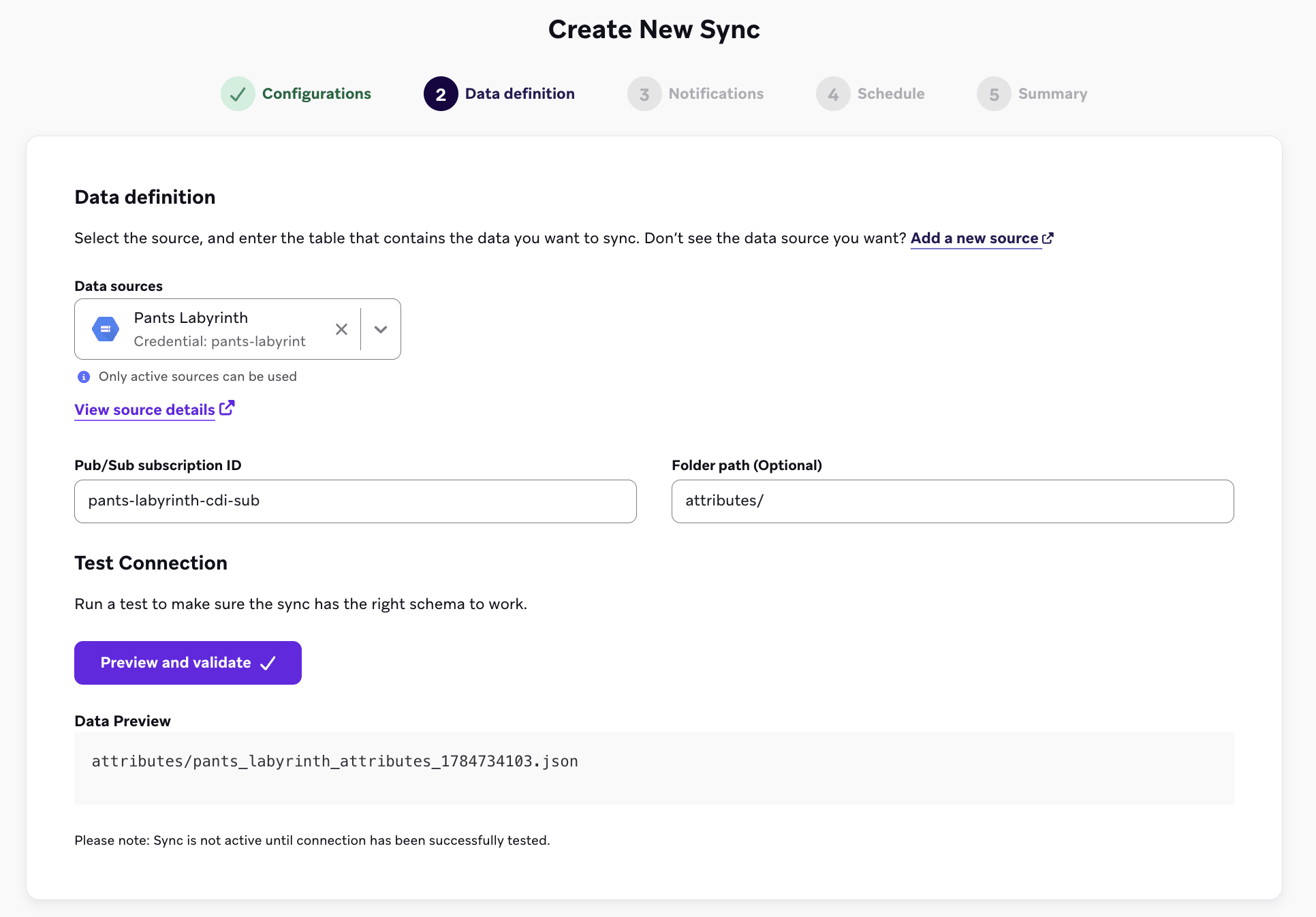
- Select Preview and validate to confirm Braze can reach the subscription and list the files available to ingest. A successful test lists existing files in the bucket, but those files aren’t synced automatically.
- Add contact email addresses for error notifications. Google Cloud Storage syncs are event-driven, so no schedule is required. Braze ingests new files as they’re uploaded. Review the summary, then select Create sync.
Syncing a folder in a shared bucket
You can reuse one bucket across multiple syncs, but each sync must target a distinct folder and have its own dedicated Pub/Sub subscription.
The folder path and the subscription must both be unique across syncs in a workspace for multiple syncs sharing the same source bucket. As in Step 2, don’t configure a dead-letter queue on any of these subscriptions.
For each folder you want to sync in a shared bucket:
- Set the sync’s Folder field to the path prefix (for example,
attributes/). Braze only lists and ingests objects whose path starts with that prefix. -
Create a dedicated topic and a prefix-scoped notification for that folder, then create a subscription on that topic:
# One topic per folder gcloud pubsub topics create YOUR-ATTRIBUTES-TOPIC --project=YOUR-PROJECT-ID # Assign the Cloud Storage service agent publisher on the topic gcloud pubsub topics add-iam-policy-binding YOUR-ATTRIBUTES-TOPIC \ --project=YOUR-PROJECT-ID \ --member="serviceAccount:service-YOUR-PROJECT-NUMBER@gs-project-accounts.iam.gserviceaccount.com" \ --role="roles/pubsub.publisher" # Notification scoped to the folder with --object-prefix gcloud storage buckets notifications create gs://YOUR-BUCKET-NAME \ --topic=YOUR-ATTRIBUTES-TOPIC --event-types=OBJECT_FINALIZE \ --payload-format=json --object-prefix=attributes/ # One subscription per sync gcloud pubsub subscriptions create YOUR-ATTRIBUTES-SUBSCRIPTION \ --topic=YOUR-ATTRIBUTES-TOPIC --project=YOUR-PROJECT-ID --ack-deadline=60
-
Assign the Braze service account consume permission on that subscription, as in Step 5:
gcloud pubsub subscriptions add-iam-policy-binding YOUR-ATTRIBUTES-SUBSCRIPTION \ --project=YOUR-PROJECT-ID \ --member="serviceAccount:[email protected]" \ --role="roles/pubsub.subscriber"
If you created the custom role in Step 5, use
--role="projects/YOUR-PROJECT-ID/roles/brazeCdiGcs"instead. - When you create the sync in Braze, enter this folder’s new Pub/Sub subscription ID and Folder path so the sync ingests only that folder’s files.
Required file formats
Cloud Data Ingestion supports JSON, CSV, and Parquet files. The required columns depend on the data type. Braze doesn’t enforce any additional filename requirements beyond what’s enforced by your file storage provider. Filenames should be unique, and appending a timestamp helps ensure uniqueness.

Unlike with data warehouse sources, the UPDATED_AT column is neither required nor supported for file storage syncs.
For examples of all supported file types, see the sample files in braze-examples.
Select the tab for the data type you want to sync.
Each row requires exactly one user identifier and a PAYLOAD column. A source file may contain rows with different identifier types, but each individual row should only use one.
| Identifier | Description |
|---|---|
EXTERNAL_ID |
This identifies the user you want to update. This should match the external_id value used in Braze. |
ALIAS_NAME and ALIAS_LABEL |
These two columns create a user alias object. alias_name should be a unique identifier, and alias_label specifies the type of alias. Users may have multiple aliases with different labels, but only one alias_name per alias_label. |
BRAZE_ID |
The Braze user identifier. This is generated by the Braze SDK, and new users cannot be created using a Braze ID through Cloud Data Ingestion. To create new users, specify an external user ID or user alias. |
EMAIL |
The user’s email address. If multiple profiles with the same email address exist, the most recently updated profile is prioritized for updates. If you include both email and phone, Braze uses the email as the primary identifier. |
PHONE |
The user’s phone number. If multiple profiles with the same phone number exist, the most recently updated profile is prioritized for updates. |
The PAYLOAD column contains a JSON string of the fields you want to sync to the user in Braze, following the user attributes object format.
JSON example
{"external_id":"s3-qa-0","payload":"{\"name\": \"GT896\", \"age\": 74, \"subscriber\": true, \"retention\": {\"previous_purchases\": 21, \"vip\": false}, \"last_visit\": \"2023-08-08T16:03:26.600803\"}"}
{"external_id":"s3-qa-1","payload":"{\"name\": \"HSCJC\", \"age\": 86, \"subscriber\": false, \"retention\": {\"previous_purchases\": 0, \"vip\": false}, \"last_visit\": \"2023-08-08T16:03:26.600824\"}"}
{"external_id":"s3-qa-2","payload":"{\"name\": \"YTMQZ\", \"age\": 43, \"subscriber\": false, \"retention\": {\"previous_purchases\": 23, \"vip\": true}, \"last_visit\": \"2023-08-08T16:03:26.600831\"}"}
CSV example
external_id,payload
s3-qa-load-0-d0daa196-cdf5-4a69-84ae-4797303aee75,"{""name"": ""SNXIM"", ""age"": 54, ""subscriber"": true, ""retention"": {""previous_purchases"": 19, ""vip"": true}, ""last_visit"": ""2023-08-08T16:03:26.598806""}"
s3-qa-load-1-d0daa196-cdf5-4a69-84ae-4797303aee75,"{""name"": ""0J747"", ""age"": 73, ""subscriber"": false, ""retention"": {""previous_purchases"": 22, ""vip"": false}, ""last_visit"": ""2023-08-08T16:03:26.598816""}"
Every line in your source file must contain valid JSON, or the file is skipped.
Custom events use the same user identifier columns as user attributes. The PAYLOAD column follows the events object format.
{"external_id":"s3-qa-0","payload":"{\"app_id\": \"YOUR_APP_ID\", \"name\": \"view-206\", \"time\": \"2024-04-02T14:34:08\", \"properties\": {\"bool_value\": false, \"preceding_event\": \"unsubscribe\", \"important_number\": 206}}"}
{"external_id":"s3-qa-1","payload":"{\"app_id\": \"YOUR_APP_ID\", \"name\": \"view-206\", \"time\": \"2024-04-02T14:34:08\", \"properties\": {\"bool_value\": false, \"preceding_event\": \"unsubscribe\", \"important_number\": 206}}"}
Every line in your source file must contain valid JSON, or the file is skipped.
Purchase events use the same user identifier columns as user attributes. The PAYLOAD column follows the purchases object format.
{"external_id":"s3-qa-0","payload":"{\"app_id\": \"YOUR_APP_ID\", \"product_id\": \"product-11\", \"currency\": \"BSD\", \"price\": 8.511527858335066, \"time\": \"2024-04-02T14:34:08\", \"quantity\": 19, \"properties\": {\"is_a_boolean\": true, \"important_number\": 40, \"preceding_event\": \"click\"}}"}
{"external_id":"s3-qa-1","payload":"{\"app_id\": \"YOUR_APP_ID\", \"product_id\": \"product-11\", \"currency\": \"BSD\", \"price\": 8.511527858335066, \"time\": \"2024-04-02T14:34:08\", \"quantity\": 19, \"properties\": {\"is_a_boolean\": true, \"important_number\": 40, \"preceding_event\": \"click\"}}"}
Every line in your source file must contain valid JSON, or the file is skipped.
Catalog files use different identifiers than user data files. Before you create a catalog sync, create the target catalog in Braze. For the full catalog workflow, see Sync and delete catalog data.
| Column | Required | Description |
|---|---|---|
ID |
Yes | The unique identifier for the catalog item. Used to create, update, or delete the item in Braze. |
PAYLOAD |
Yes | A JSON string of the catalog fields and values to sync. Must match the schema of your catalog in Braze. |
DELETED |
No | When true, the catalog item with the matching ID is removed from the catalog in Braze. Omit this column or set to false for create or update operations. |
JSON example
{"id":"85","payload":"{\"product_name\":\"Product 85\",\"price\":85.85}"}
{"id":"86","payload":"{\"product_name\":\"Product 86\",\"price\":86.86}"}
{"id":"1","payload":"{\"product_name\":\"Product 1\",\"price\":1.01}","deleted":true}
CSV example with the DELETED column
ID,PAYLOAD,DELETED
85,"{""product_name"": ""Product 85"", ""price"": 85.85}",false
86,"{""product_name"": ""Product 86"", ""price"": 86.86}",false
1,"{""product_name"": ""Product 1"", ""price"": 1.01}",true
CSV example without the DELETED column
ID,PAYLOAD
85,"{""product_name"": ""Product 85"", ""price"": 85.85}"
86,"{""product_name"": ""Product 86"", ""price"": 86.86}"
Canvas triggers power zero-copy personalization. For the destination Canvas setup and considerations, see Zero-copy personalization.
| Field | Required | Description |
|---|---|---|
EXTERNAL_ID |
Yes, one of external_id or alias_name and alias_label |
This identifies the user you want to update. This should match the external_id value used in Braze. |
ALIAS_NAME and ALIAS_LABEL |
Yes, one of external_id or alias_name and alias_label |
These two columns create a user alias object. alias_name should be a unique identifier, and alias_label specifies the type of alias. Users may have multiple aliases with different labels, but only one alias_name per alias_label. |
PROPERTIES |
Yes | JSON string of fields to make available as personalization properties in your Canvas. This should contain user-specific information. |
To get started, select the Canvas Triggers data type when creating a new sync.
To delete user profiles in Braze using files in your source bucket:
- Create a new Cloud Data Ingestion sync, using the same setup as for other syncs.
- When configuring the sync in Braze, set Data Type to Delete Users.
- Upload files to your source bucket that contain only user identifier columns. Do not include a
PAYLOADcolumn—the sync fails if payload is present, to avoid accidental deletions.
Each row in the file must identify exactly one user using one of:
| Identifier | Description |
|---|---|
EXTERNAL_ID |
Matches the external_id used in Braze. |
ALIAS_NAME and ALIAS_LABEL |
Both columns together identify the user by alias. |
BRAZE_ID |
Braze-generated user ID (existing users only). |
JSON example
{"external_id":"user-to-delete-001"}
{"external_id":"user-to-delete-002"}
{"braze_id":"braze-id-from-profile"}
CSV example
external_id
user-to-delete-001
user-to-delete-002
When the sync runs, Braze processes new files in the bucket and deletes the corresponding user profiles.
Deleting users is permanent and cannot be undone. Include only users you intend to remove. For more details, see Delete users with Cloud Data Ingestion.
Deleting catalog items
To remove items from a catalog using file storage:
- Use the same sync you use to sync catalog data (data type Catalogs).
- In your CSV or JSON files, add an optional
deleted(orDELETED) column. - Set
deletedtotruefor any catalog item you want removed from the catalog in Braze.
Each row still needs ID and PAYLOAD. For rows marked for deletion, the payload can be minimal; Braze removes the item by ID.
When the sync runs, rows with deleted: true cause the matching catalog item to be deleted in Braze. For full catalog sync and delete behavior, see Sync and delete catalog data.
Things to know
- Files added to the source bucket or container should not exceed 512 MB. This limit applies to Amazon S3, Google Cloud Storage, and Azure Blob Storage. Files larger than 512 MB result in an error and are not synced to Braze. Azure Blob Storage itself allows much larger files, but CDI applies the same 512 MB limit across all file storage sources.
- While there is no additional limit on the number of rows per file, Braze recommends using smaller files to improve how fast your syncs run. For example, a 500 MB file would take considerably longer to ingest than five separate 100 MB files.
- There’s no additional limit on the number of files uploaded in a given time.
- Ordering isn’t supported in or between files. Braze recommends batching updates periodically if you’re monitoring for any expected race conditions.
- CDI only processes files that are added after the sync is created. You can use existing files to validate that Braze can access your bucket and detect files to ingest, but they are not synced to Braze. To have CDI process them, re-upload to the source bucket any existing files that you want synced.
Troubleshooting
Uploading files and processing
CDI only processes files uploaded after the sync is created. Each new object triggers an OBJECT_FINALIZE message to your Pub/Sub topic. To ingest files that already exist in the bucket, re-upload them.
Handling unexpected file errors
If files are not ingested, verify the following:
- The bucket notification exists. List the notifications on the bucket with
gcloud storage buckets notifications list gs://YOUR-BUCKET-NAME. - The Cloud Storage service agent has
roles/pubsub.publisheron the topic. - The Braze service account has consume permission on the subscription (
pubsub.subscriptions.consume, assigned through either the custom role orroles/pubsub.subscriber). - The subscription doesn’t have a dead-letter queue configured. Braze doesn’t support dead-letter queues for Cloud Data Ingestion subscriptions.
For more information, see Pub/Sub notifications for Cloud Storage in the Google Cloud documentation.
Your configuration trusts identities other than your workspace
If you use Workload Identity Federation, the connection test can fail with the following error:
Your workload identity pool trusts every Braze customer, not only this workspace. Braze authenticated against it with a test identity (000000000000000000000000) that belongs to no Braze workspace, and your Google Cloud project accepted it, so another Braze customer could read this data. Grant the Workload Identity User role on your service account to the full Braze principal shown on the credential screen (principal://…/subject/<full ARN>) rather than to the role (principalSet://…/attribute.aws_role/…); restricting the pool provider’s attribute condition to that same principal works as well. Then test the connection again.
This means Google accepted the Braze test identity at both the token exchange and the service account impersonation, as described in How Braze tests the connection. This error usually happens when the service account grants access to all identities in the pool, or to identities filtered by aws_role.
To fix this error:
- In the Google Cloud console, open the service account and select the Permissions tab.
- Find every principal with the Workload Identity User role that starts with
principalSet://and references your pool. Remove the role from each one. - Make sure your full principal has the role, as described in Bind the Braze principal to the service account.
- Go to IAM & Admin > IAM and check for project-level Workload Identity User grants to your pool. Remove them.
- Test the connection again.
Alternatively, restrict the provider’s attribute condition to your full principal, as described in Restrict the provider to your principal (optional). Google then rejects every other identity at the token exchange. We still recommend granting access to your full principal only.
Braze couldn’t confirm that your pool trusts only this workspace
If you use Workload Identity Federation, the connection test can fail with the following error:
Braze could not confirm that your workload identity pool trusts only this workspace. The check needs Google to explicitly refuse an identity that is not yours, and this attempt failed for another reason instead. Please try again; if it keeps happening, contact support.
The Braze check described in How Braze tests the connection didn’t reach a result. For example, a network error or a temporary Google Cloud error interrupted the check. This error doesn’t mean your configuration is too broad. Test the connection again. If the error keeps happening, contact Braze Support.
Permission denied when Braze impersonates the service account
If you use Workload Identity Federation and the connection test fails with a permission error on iam.serviceAccounts.getAccessToken, check the following:
- The service account’s Permissions tab lists the Workload Identity User role for a principal that ends in your full Braze principal ARN, copied from a BigQuery or Google Cloud Storage credential form in the same workspace.
- The IAM Service Account Credentials API is enabled.
- You’ve waited a few minutes since granting access.
The token exchange is rejected
If you use Workload Identity Federation and the connection test fails at the Google Security Token Service token exchange, check the following:
- The project number, pool ID, and provider ID that you entered in Braze match your Google Cloud configuration.
- The provider’s AWS account ID matches the account ID in the Braze principal ARN.
- If you set an attribute condition, it contains your full principal ARN, exactly as copied.
- If you set custom allowed audiences, they include the provider’s full resource name.
- The pool and provider are enabled.
Incorrect Integration Object error
This error occurs when two or more workspaces have integrations pointing to the same cloud storage bucket or folder. Each cloud storage location can only be used by one integration at a time. For resolution steps, see the FAQ.
Related pages
- Table setup for required columns and payload formatting
- Best practices for sync scheduling and data point efficiency
- Sync logs and observability for monitoring sync runs
- FAQ for common questions across all sources