Abandoned intent
Engage with users in real-time to encourage them to complete their purchases while products are still top of mind. This API-triggered template enters users immediately when they abandon a cart, sends timely reminders on the optimal channel (email, SMS, or in-app), checks for purchase completion at two points in the journey, and syncs users who don’t convert to ad audiences for retargeting.
In this article, we’ll guide you through a use case for the Abandoned Intent template, which is intended for the consideration stage of the user lifecycle. After this article, you’ll have customized a user journey that encourages purchases from users who haven’t made purchases after adding items to their carts.

Use BrazeAI OperatorTM to set up and customize this template. Select BrazeAI OperatorTM next to your user profile while creating or editing your Canvas. Then, describe your goal, such as “Help me configure the Abandoned Intent template to re-engage users who abandoned their cart”.
Prerequisites
To successfully use this template, you need the following:
- A separate post-purchase user journey Canvas since making a purchase in this Canvas will cause users to exit the Canvas.
- A configured Braze Audience Sync with the partners and audiences you use.
Tailoring the template to your needs
Let’s say we work at Kitchenerie, a retail brand specializing in kitchenware, and our goal is to reengage users who have added the latest product “Enormous Paper Plate” to their carts but haven’t made their purchases.
Before creating the Canvas, we set up the Braze Audience Sync to Facebook integration so that we can add user data from Braze to Facebook Audiences to send advertisements based on behavioral triggers, segmentation, and more.
The Abandoned Intent template follows this flow: check for purchase, send an immediate reminder, wait, route to the optimal channel, follow up, check again, and retarget non-converters. It includes the following steps:
| Canvas step | Template step name | Purpose |
|---|---|---|
| Action Paths | Made purchase? | First completion check; users who already purchased exit the Canvas. |
| Message | Itemized Reminder | Immediate cart reminder sent right after entry. |
| Delay | Delay | 30-minute wait so the follow-up lands while the product is still top of mind. |
| Audience Paths | Intelligent Channel split | Routes users to email or SMS based on Intelligent Channel ranking. |
| Message | Abandoned Cart Email, Abandoned Cart SMS, and Abandoned Cart In-App Message | Channel-specific follow-ups. Intelligent Channel selects between email and SMS; the in-app message is sent on a separate path in the template. |
| Action Paths | Made purchase? (2) | Second completion check before retargeting. |
| Audience Sync | Ad Retargeting | Syncs non-converters to ad audiences (such as Facebook) for off-channel retargeting. |
Step 1: Set up the details
Let’s apply the Canvas template and update the details to reflect our goal.
- Go to Messaging > Canvas.
- Select Create Canvas > Use a Canvas Template.
- Select the Braze templates tab, then select Apply Template next to Abandoned Intent.
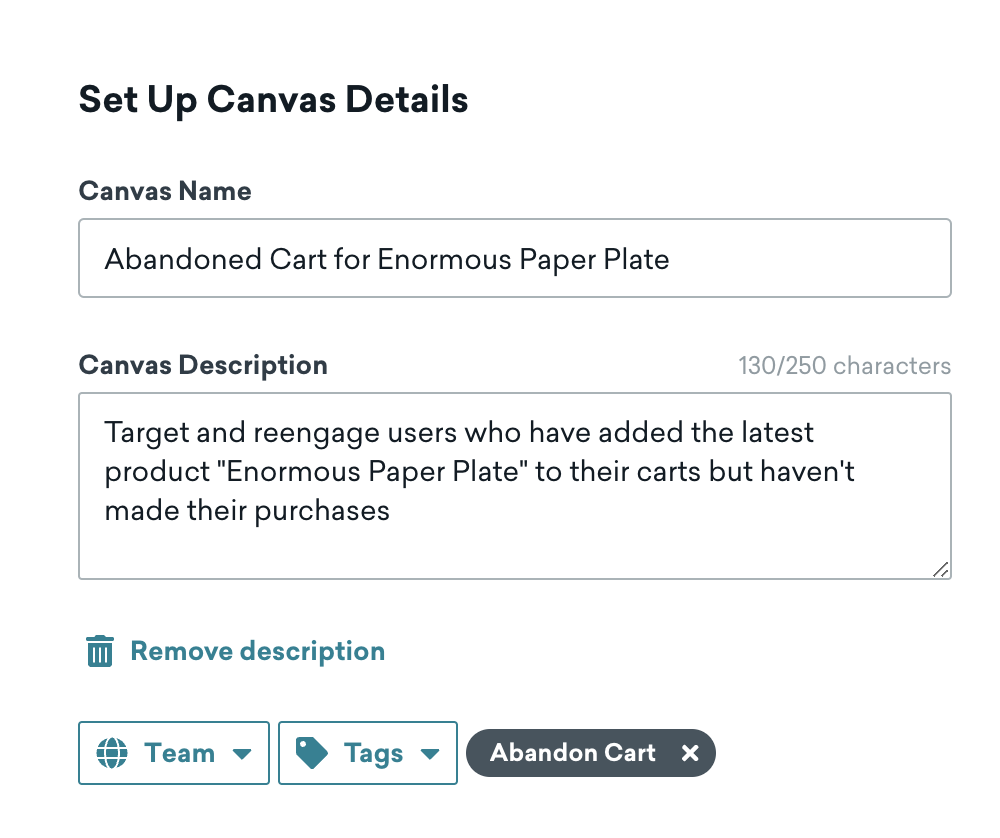
- Update the description to specify that the Canvas is for encouraging users to complete purchases from the latest seasonal kitchenware launch.
- Add the tag Intent so we can filter for it on the Canvas home page.
Step 2: Assign your conversion events
The template sets Primary Conversion Event - A to Makes Purchase (Legacy) with Make any purchase (Legacy) selected by default. Because our focus is on our “Enormous Paper Plate” product, we customize the conversion event as follows:
- Select Make a specific purchase (Legacy).
- For Product name, enter Enormous Paper Plate.
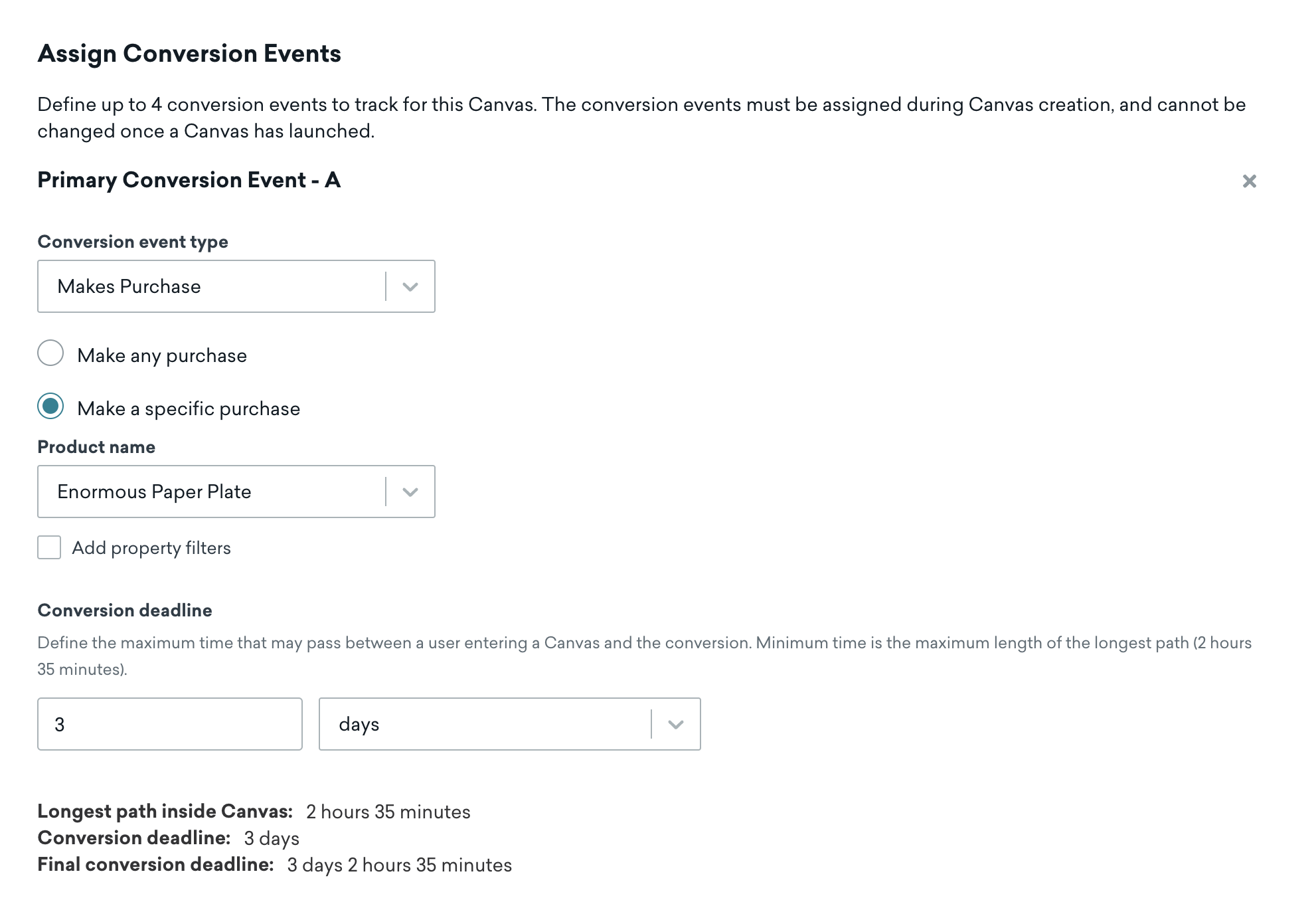

If your workspace uses the Places order conversion event, purchase-related options may appear with (Legacy) in the label. The steps in this article use the legacy purchase conversion flow.
Step 3: Set an entry schedule
The Abandoned Intent template uses an API-Triggered entry schedule so you can enter users into the Canvas as soon as they abandon their cart. This fits our use case because we want to respond while the product is still top of mind.
- Keep API-Triggered as the entry schedule type.
- Note the Canvas ID and use the
/canvas/trigger/sendendpoint to add users when your app or website detects an abandoned cart. - Optionally, you can pass context variables (such as product name or cart details) to personalize downstream messages.
If you prefer action-based entry instead, select Action-Based and choose a trigger that matches how your brand tracks abandoned carts—for example, Perform Custom Event for a logged abandoned_cart event.
Step 4: Determine who enters the Canvas
Next, let’s define our target audience as users who have shopped exclusively online with us in the past 90 days. This helps us narrow our audience down to users we know are engaged with our products.
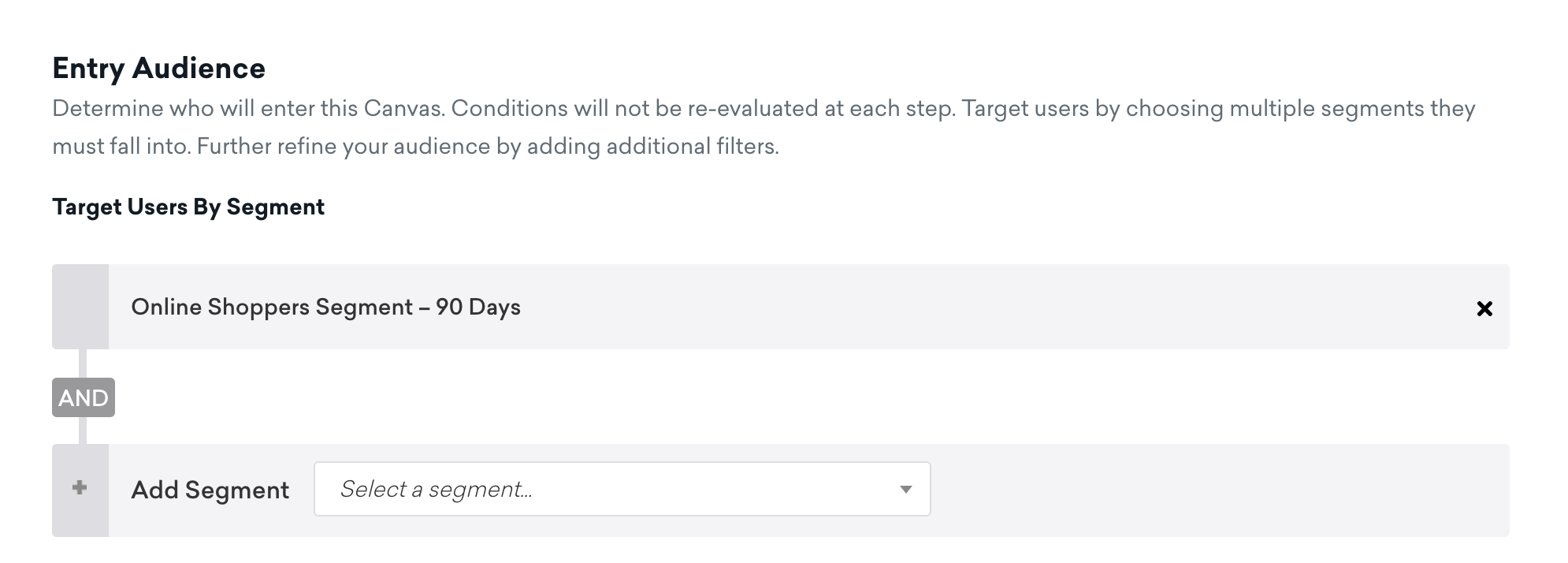
We leave the entry controls as is, so users aren’t allowed to re-enter this Canvas and there’s no limit to the number of people who can potentially enter this Canvas.
The template does not set global exit criteria by default. Instead, users exit when they make a purchase in the Made purchase? Action Paths steps, which we’ll customize in Step 6.
Step 5: Select your send settings
We keep the default subscription settings, so we only send to users who have subscribed or opted into receiving messages or notifications, and leave the other settings as is.
Step 6: Customize your Canvas
Customize the Canvas steps in the order users experience them:
Check for purchase at entry
- Select the Made purchase? Action Paths step, then select the Made purchase action group.
- For Make Purchase, select Make a specific purchase (Legacy) and choose Enormous Paper Plate for the product. Users who purchase this product will exit the Canvas.
Send the immediate reminder
- Select the Itemized Reminder Message step, then select Edit message to customize the first reminder email. This message sends immediately after entry, before the delay.
- Keep the Delay step as is. The template uses a 30-minute delay before follow-up messages send, giving users time to complete checkout while the product is still top of mind.
You can use Canvas context properties to customize the messages in your Canvas based on which product you’re referring to.
Route to the optimal channel
- Review the Intelligent Channel split Audience Paths step. This routes users to Abandoned Cart Email or Abandoned Cart SMS based on Intelligent Channel ranking. Adjust the paths if needed.
- Customize the Abandoned Cart Email, Abandoned Cart SMS, and Abandoned Cart In-App Message steps. Select Edit message on each step to update the copy and message for that channel. The in-app message runs on a separate path from the Intelligent Channel split and isn’t selected by Intelligent Channel ranking.
Retarget non-converters
- Select the Made purchase? (2) Action Paths step, then select the Made purchase action group.
- Select Make a specific purchase (Legacy) and choose Enormous Paper Plate for the product. Users who purchase here exit the Canvas before reaching retargeting.
- Select the Ad Retargeting Audience Sync step and configure it to sync to Facebook. Users who reach this step haven’t purchased — sync them to your ad audience for off-channel retargeting.
Step 7: Test and launch the Canvas
After testing and reviewing our Canvas to make sure it works as expected, select Launch Canvas to launch the Canvas. Now, we can mindfully target users with a personalized user journey to encourage them to checkout the product they’ve added to their carts!