Push Settings
The Push Settings page allows you to configure key settings for your push notifications, including the Push Time to Live (TTL) and the default FCM priority for Android campaigns. These settings help optimize the delivery and effectiveness of your push notifications, ensuring a better experience for your users.
What is Push TTL?
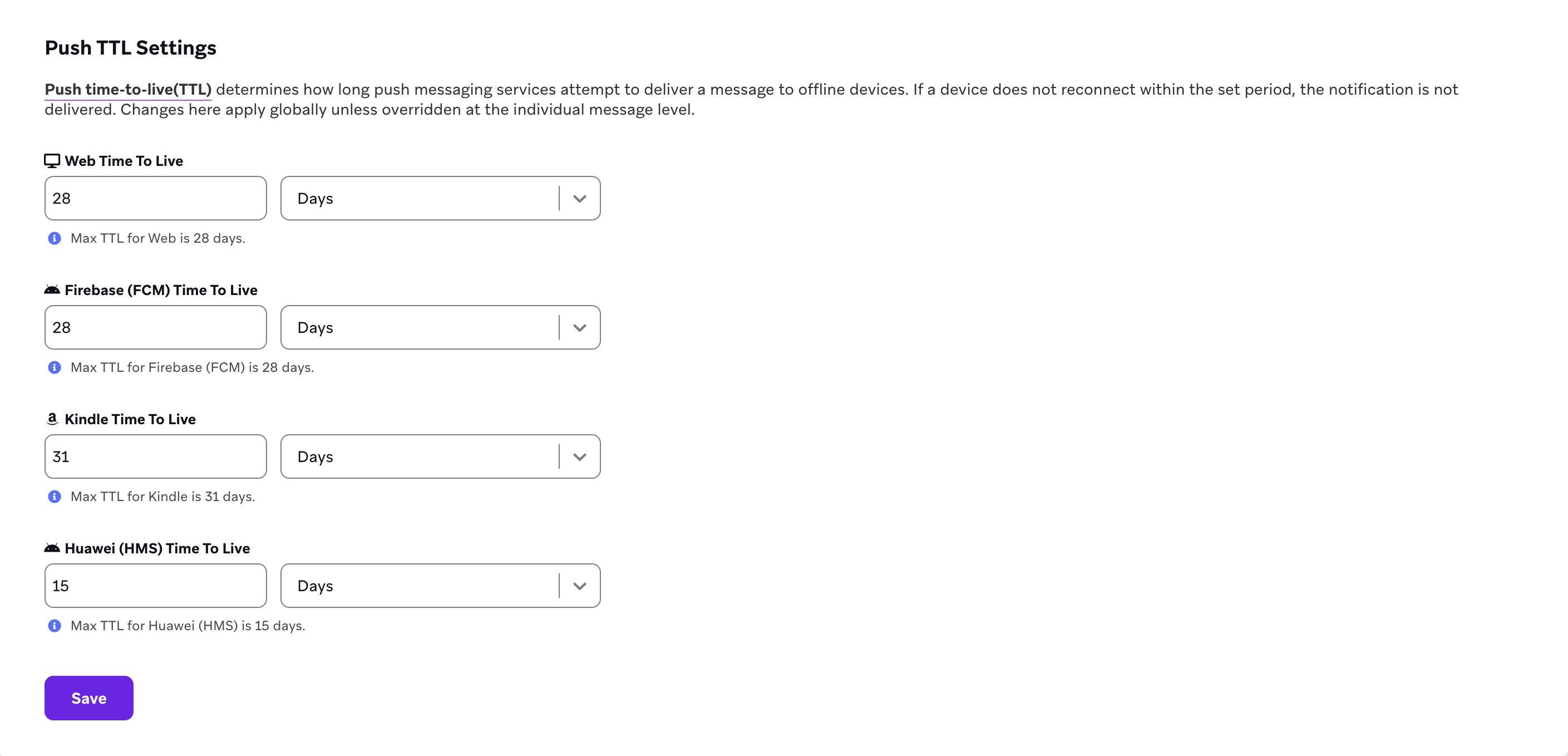
Push Time to Live (TTL) controls how long Braze will attempt to deliver a push notification to devices that are offline at the time the campaign is sent. If a device reconnects after the TTL expires, the message won’t be delivered. This setting will not remove a notification if it has already been received by the user’s device—it only controls how long the push provider attempts to deliver a notification.
Setting default Push TTL values
By default, Braze sets the Push TTL to the maximum for each push messaging service.
| Push messaging service | Maximum TTL |
|---|---|
| Web (through FCM or Web Push services) | 28 days |
| Firebase Cloud Messaging (FCM) | 28 days |
| Kindle (ADM) | 31 days |
| Huawei (HMS) | 15 days |
These settings apply globally to all push campaigns unless a different TTL is set for a specific message. To adjust a message’s TTL, see Advanced campaign settings.
To set a different default Push TTL:
- Go to Settings > Manage Settings > Push Settings.
- For each Android platform, define a default time to live value. You can set smaller increments like hours or seconds for more precise control.
- Select Save to apply your changes.
Default FCM Priority for Android Campaigns
You can set the default Firebase Cloud Messaging (FCM) priority for all Android push campaigns. This priority determines how the push notification is delivered to users’ devices.
FCM priority options include:
| Priority | Description | Use Case |
|---|---|---|
| Normal | Standard delivery priority that optimizes for battery usage | Content that doesn’t require immediate attention |
| High | Messages are sent immediately | Time-sensitive notifications that require prompt delivery |
To set the default FCM priority:
- Go to Settings > Manage Settings > Push Settings.
- In the FCM Priority section, select either “Normal” or “High” as the default setting.
- Select Save to apply your changes.

This setting applies globally to all new Android push campaigns unless a different priority is selected when creating a specific campaign.

If FCM detects that your app frequently sends high-priority messages that don’t result in user-visible notifications or user engagement, those messages may be automatically deprioritized to normal priority.
For more detailed information about FCM priority levels and deprioritization, see Advanced campaign settings.