Custom event properties
This article describes custom event properties, their expected format, how to use them for messaging and segmentation, and custom event property storage.
Custom event properties are custom event metadata or attributes that describe a specific occurrence of an event. These properties can be used for further qualifying trigger conditions, increasing personalization in messaging, tracking conversions, and generating more sophisticated analytics through raw data export.
Custom event properties aren’t stored on the Braze profile and therefore don’t log data points (see Data points for exceptions).
Each custom event or purchase can have up to 256 distinct custom event properties. If a custom event or purchase is logged with more than 256 properties, only the first 256 will be captured and available for use.
Expected format
Property values must be an object: keys are the property names (non-empty strings, 255 characters or fewer, no leading $), and values are the property values. For supported data types, format requirements, and payload limits, see Data types.
You can change the data type of your custom event property, but be aware of the impacts of changing data types after data has been collected.
Reserved keys
You cannot use reserved keys as event property names. Using a reserved key in the properties object returns the error “Invalid ‘properties’ field”.
| Property | Reserved Key |
|---|---|
| Custom events | time and event_name |
| Purchase events | time, product_id, quantity, event_name, price, currency |
Using custom event properties
Custom event properties can be used to qualify campaign triggers, track conversions, and personalize messaging.
Trigger messages
Use custom event properties to further narrow your audience for a particular campaign or Canvas. For example, if you have an eCommerce application and want to send a message to a user when they abandon their cart, you can add a custom event property of item price to improve your target audience and allow for increased campaign personalization.
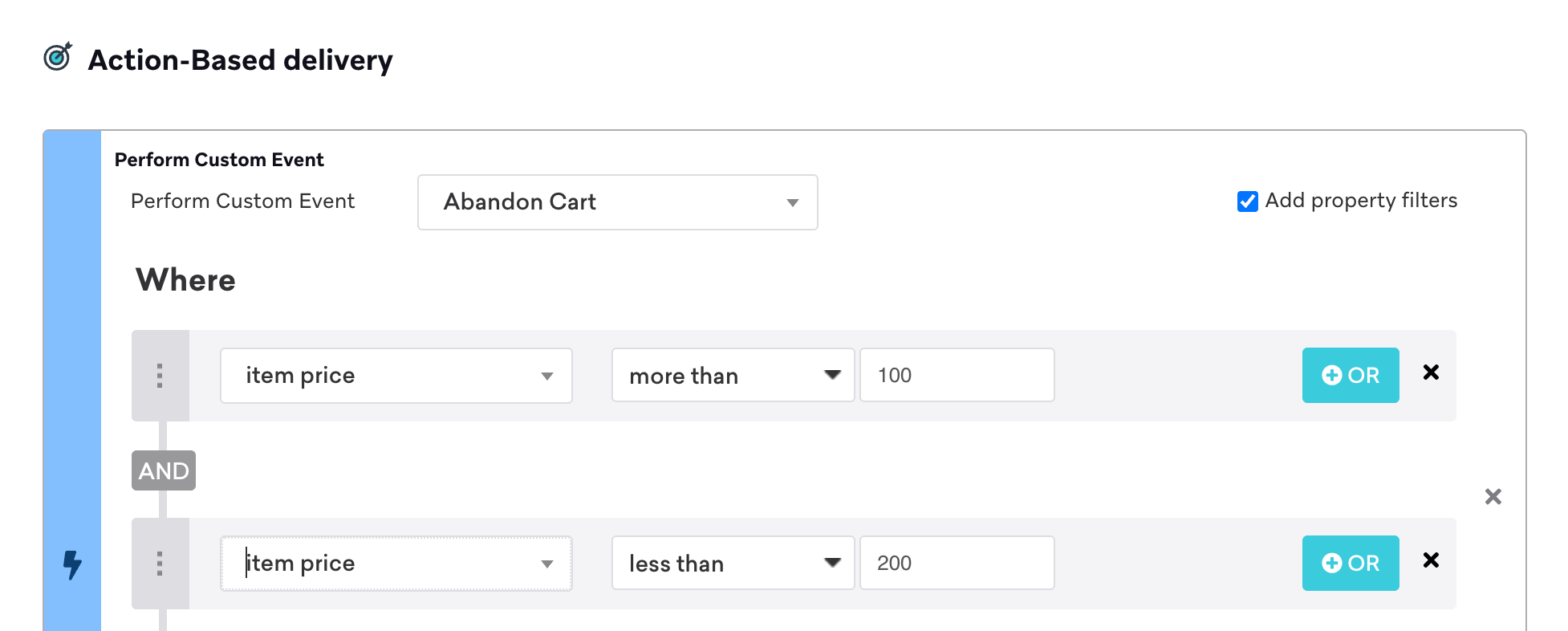
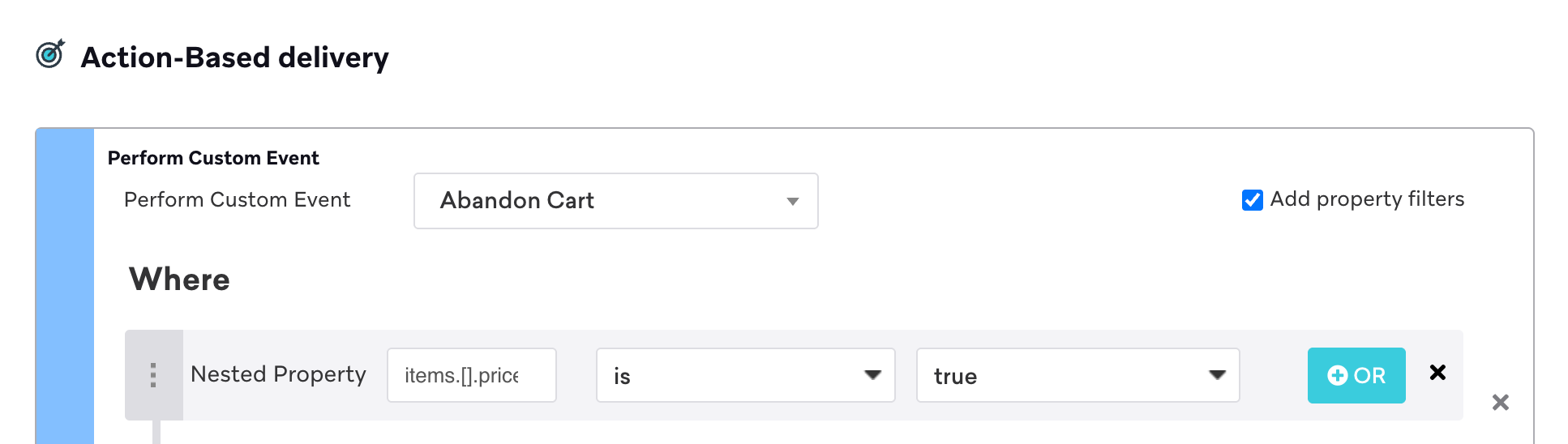
Nested custom event properties are also supported in action-based delivery.
Personalize messages
You can also use custom event properties for personalization within the messaging template. Any campaign using action-based delivery with a trigger event can use custom event properties from that event for messaging personalization.
For example, if you have a gaming app and want to send a message to users who completed a level, you could further personalize your message with a property for the time it took users to complete that level. In this example, the message is personalized for three different segments using conditional logic. The custom event property called time_spent can be included in the message by calling {{event_properties.${time_spent}}}.
1
2
3
4
5
6
7
{% if {{event_properties.${time_spent}}} < 600 %}
Incredible work, hero! Are you ready to test your skills against other powerful heroes? Visit the Arena for real-time battles with top players from around the globe.
{% elsif {{event_properties.${time_spent}}} < 1800 %}
Great job, hero! Don't forget to visit the town store between levels to upgrade your tools.
{% else %}
Well done, hero! Talk to villagers for tips on how to beat levels faster and unlock more rewards.
{% endif %}
If the user doesn’t have an internet connection, triggered in-app messages with templated custom event properties (for example, {{event_properties.${time_spent}}}) will fail and not display.
For a full list of Liquid tags that will cause in-app messages to deliver as templated in-app messages, refer to Frequently asked questions.
Considerations with filters
- API calls: When making API calls and using the “is blank” filter, a custom event property is considered “blank” if excluded from the call. For example, if you were to include
"event_property": "", then your users would be considered “not blank”. - Integers: When filtering for a number custom event property and the number is very large, don’t use the “exactly” filter. If a number is too large, it may be rounded at a certain length, so your filter won’t work as expected.
Segmentation
Use event property segmentation to target users based on custom events taken and the properties associated with those events. This increases your filtering options when segmenting by purchase and custom events.
Event properties for custom events are updated in real-time for any segment that uses them. You can manage properties by going to Data Settings > Custom Events and selecting Manage properties for the associated custom event. Custom event properties used in certain segment filters have a maximum look-back history of 30 days.
Adding event properties for segmentation
You need the “Edit Custom Event Property Segmentation” user permission to create segments based on event property recency and frequency.
Braze is transitioning to granular user permissions. If you are using the legacy permissions, refer to the definitions in List of permissions. Early access to the granular permissions is available for select customers. All customers will be migrated to the new permissions in March 2026.
By default, you can have 20 segmentable event properties per workspace. Contact your Braze account manager to increase this limit.
To add event properties for segmentation, do the following:
- Go to your custom event and select Manage properties.
- Select the Enable segmentation toggle to add the event property for segmentation. You can access additional filtering options when segmenting.
The event property segmentation filters include:
- Has done a custom event with property A with value B, X times in the last Y days.
- Has made any purchases with property A with value B, X times in the last Y days.
- Adds the ability to segment within 1 to 30 days.
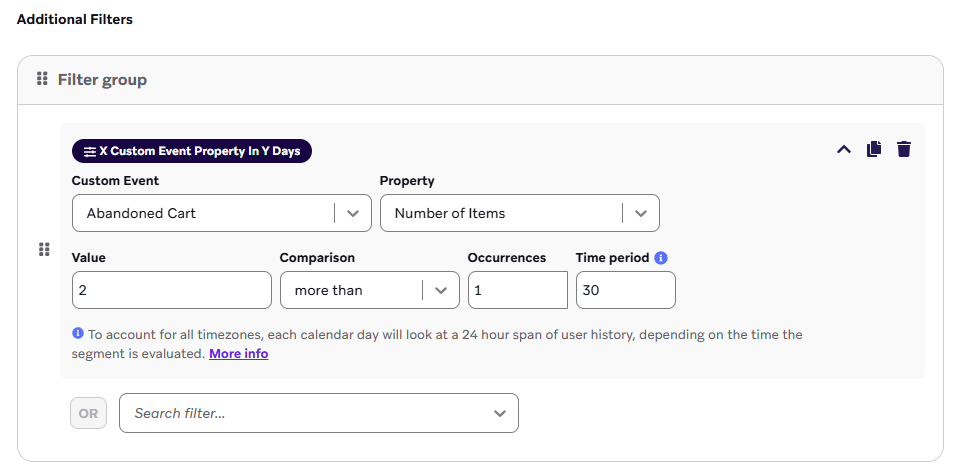
Data is logged only for a given event property after you enable it, and event properties are available only from that date moving forward.
Data points
In regards to subscription usage, custom event properties enabled for segmentation with the following filters are all counted as separate data points in addition to the data point counted by the custom event itself:
X Custom Event Property in Y DaysX Purchase Property in Y Days
Canvas entry properties and event properties
You can use Canvas entry properties and event properties in your Canvas user journeys.
Canvas entry properties are the properties you map for Canvases that are action-based or API-triggered. Note that the canvas_entry_properties object has a maximum size limit of 50 KB.
For in-app message channels specifically, context can only be referenced in Canvas.
You can reference context in any Message step with this Liquid format: context.${property_name}. Note that the events must be custom events or purchase events to be used this way.
Use case
Let’s say a retail store, RetailApp, has the following request: \"context\" : {\"product_name\" : \"shoes\", \"product_price\" : 79.99}.
RetailApp can pull the product name (shoes) into a message with this Liquid: {{context.${product_name}}}.
RetailApp can also trigger specific messages to send for different product_name properties in a Canvas that targets users after they’ve triggered a purchase event. For example, they can send different messages to users who purchased shoes and users who purchased something else by adding the following Liquid into a Message step.
1
2
3
4
5
6
{% if  {{context.${product_name}}} == "shoes" %}
  Your order is set to ship soon. While you're waiting, why not step up your shoe care routine with a little upgrade? Check out our selection of shoelaces and premium shoe polish.
{% else %}
  Your order will be on its way shortly. If you missed something, you have until the end of the week to add more items to your cart for the same discounts.
{% endif %}
Expand for original Canvas editor
You can no longer create or duplicate Canvases using the original editor. This section is available for reference only. For the Canvases built with the original editor, Canvas entry properties can be referenced in the first full step of a Canvas only.
Event properties refer to the properties you set for custom events and purchases. These event_properties can be used in campaigns with action-based delivery and Canvases.
You can’t use event_properties in the first Message step of your Canvas. Instead, you must use context or add an Action Paths step with the corresponding event before the Message step that includes event_properties.
In Canvas, custom event and purchase event properties can be used in Liquid in any Message step that follows an Action Paths step. Make sure to use {{event_properties.${property_name}}} if you’re referencing these event properties. These events must be custom events or purchase events to be used this way in the Message component.
In the first Message step following an Action Path, you can use event properties related to the event referenced in that Action Path. However, these event properties can only be used if the user actually performed the action (and didn’t get sorted into the Everyone Else group). You can have other steps (that are not another Action Paths or Message step) in between this Action Paths and the Message step.
Expand for original Canvas editor
You can no longer create or duplicate Canvases using the original editor. This section is available for reference only. For the original Canvas editor, event properties can’t be used in scheduled full steps. However, you can use event properties in the first full step of an action-based Canvas, even if the full step is scheduled.
Refer to Canvas entry properties and event properties for more information and examples.
Nested objects
You can use nested objects (objects inside of another object) to send nested JSON data as properties of custom events and purchases. This nested data can be used for templating personalized information in messages, triggering message sends, and segmenting users.
To learn more, refer to our dedicated page on Nested objects.
Custom event property storage
Custom event properties are designed to help you increase targeting precision and make messages feel even more personalized. Custom event properties can be stored within Braze in both the short and long term.
You can segment based on the values of event properties in two ways:
- Within 30 days: You can use event property segmentation based on the frequency and recency of specific event property values within Braze segments. This option impacts data usage.
- Within and beyond 30 days: To cover both short-term and long-term event property segmentation, you can use Segment Extensions. This feature segments users based on custom events and event properties tracked within the past two years. This option does not impact data usage.
Contact your Braze customer success manager for recommendations on the best approach depending on your specific needs.
 Edit this page on GitHub