Lapsed user
Use the lapsed user template to remind users of the value your brand brings to them, and encourage their return with exciting offers and incentives based on their past engagements.
This article walks you through a use case for the Lapsed User template, which is designed for the retention and loyalty step of the user lifecycle. When you’re finished, you’ll have created a Canvas that encourages users to return to your app with promotions that vary based on their behavior, such as whether they started a session in your app after receiving a promotional message.
Prerequisites
To successfully use the lapsed user template, you need to configure Braze Audience Sync with the partners and audiences you use.
Tailoring the template to your needs
Imagine you’re working for MovieCanon, a streaming service with exclusive content for movies and shows. You can use the lapsed user template to promote perks and premium content for users who haven’t visited your app in 30 days.
Before creating the Canvas, set up the Braze Audience Sync to Google integration so that you can add user data from Braze to Google Audiences to send advertisements based on behavioral triggers, segmentation, and more.
To access the lapsing user template, when creating a new Canvas, select Use a Canvas template > Braze templates. Then, next to Lapsing User, select Apply Template. Now you can go through the template to fit it for your needs.
Step 1: Set up the details
Adjust the Canvas details to reflect your goal.
- Select Edit next to the template name.
- Update the Canvas name to specify that this Canvas messages users with promotions and does an audience sync for those who start a session.
- Update the description to explain that this Canvas contains perks and promotions.
- Add the tag Lapsing/Retention so that you can filter for this Canvas on the Canvas home page.
Step 2: Assign your conversion events
Update Primary Conversion Event - A to target users from your app (MovieCanon), and leave Primary Conversion Event - B as the default of making any purchase.
Step 3: Tailor the entry schedule
Keep the entry schedule as Scheduled and the default time-based options, so that the Canvas checks for lapsed users daily.
Make two adjustments to this step:
- Select a start date and time.
- Select ending parameters of On a specific date and a date two months out. In this example, there’s another lapsing user Canvas starting after this one ends.
Step 4: Select your target audience
Keep the default settings for the entry audience, which targets users who haven’t used your app in over 30 days. Also keep the default entry controls so that users can re-enter the Canvas after four weeks. This means every time a user doesn’t visit your app for over 30 days straight, they are entered into the Canvas.
Step 5: Select your send settings
Keep most of the default subscription settings:
- Only send to users who have subscribed or opted into receiving messages or notifications.
- Apply your frequency capping rules so that you don’t overwhelm your audience with the number of messages they receive. In this case, set your frequency capping to limit the number of campaigns or Canvas steps tagged with “Lapsing/Retention” that a user can receive to two every week.
- Don’t send messages during quiet hours in the user’s local time (12 am to 8 am).
The only setting to change is what happens when a message triggers during quiet hours. Instead of cancelling the message, select Send at next available time so that your users don’t miss out on any promotions.
Step 6: Customize your Canvas
Now, build your Canvas by customizing the templated steps:
- Customize the first email that sends to all users who haven’t visited your app in over 30 days. In this use case, customize an email that tells users they unlock new perks when they visit your app today.
- Customize the Action Paths step called “Start Session?” by selecting your app for the Started Session path.
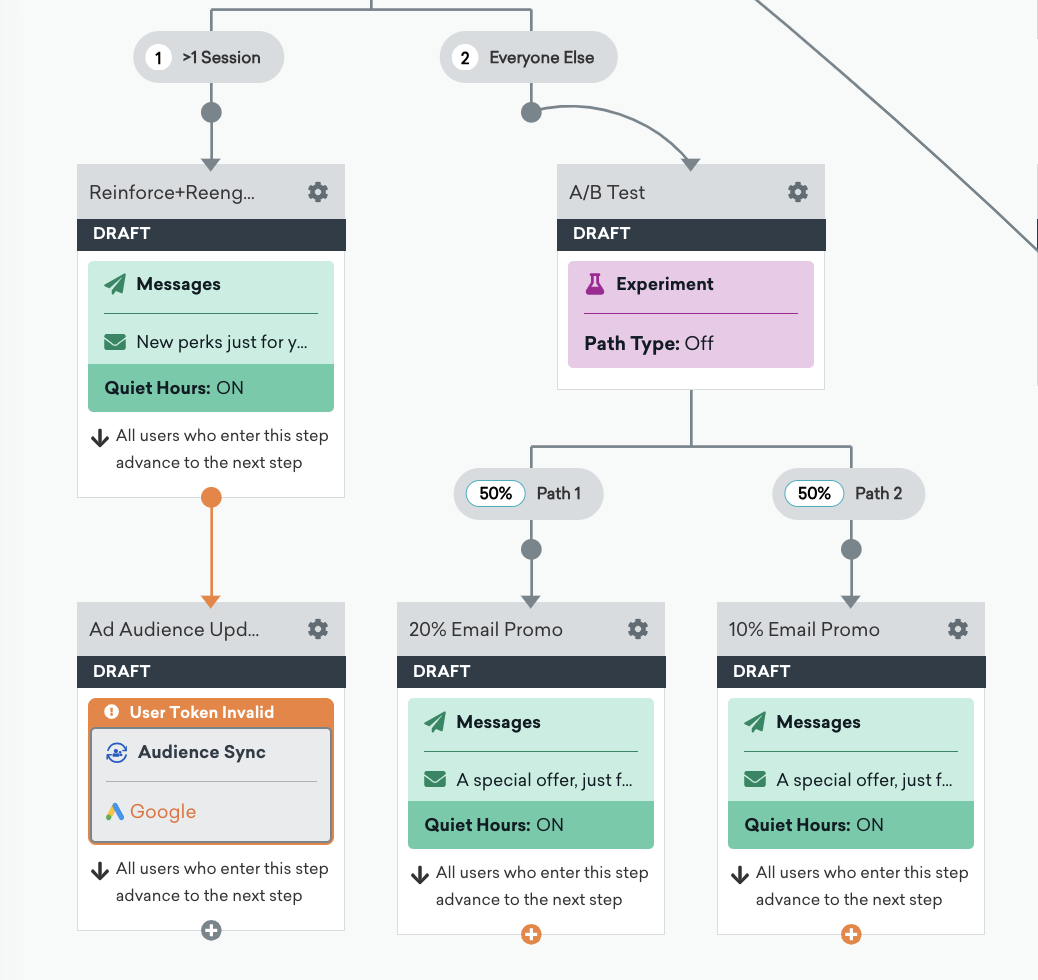
- Keep the default for the Decision Split step called “Sessions?”, which defines the “>1 Session” group as users who’ve used your app more than once in the last calendar day.
- Customize the Message step for users who fall into the “>1 Session” group. In this use case, thank users for visiting your app and highlight perks they’ve unlocked.
- Make sure your Google Audience sync is set up in the Ad Audience Update step, so that you update and sync the user data of users who had multiple sessions after receiving the first email.
- Keep the default for the Experiment Path component called “A/B Test”. This randomly sends one of two promotions (that you customize in the next step) to users who’ve had fewer than two sessions.
- Customize the two promotions that send to users as part of the Experiment Path. In this use case, make one a 20% promotion for a three-month subscription and the other a 10% promotion for a one-month subscription.
Step 7: Test and launch the Canvas
After testing and reviewing your Canvas to make sure it works as expected, launch it by selecting Launch Canvas. Users who haven’t visited your app in over 30 days and have subscribed to your messaging channels will now receive emails encouraging them to return!
