Landing page surveys
Braze surveys collect feedback on landing pages that you can analyze and use in follow-up messaging. To start a survey, select Survey as your message type on the message composition page before opening the landing page drag-and-drop editor.
For an overview of Surveys and the capabilities shared across channels, see Surveys.
Prerequisites
Before creating a survey, you must:
- Have access to landing pages in your Braze workspace
- Be familiar with creating landing pages
Create a survey
Surveys are built inside your existing message composition flow. On the message composition page, select Survey as your message type before you open the editor—this switches the editor into survey mode, with form blocks and survey-specific reporting instead of standard message content.
- Go to Messaging > Landing Pages.
- Create a new landing page.
- On the message composition page, select Survey as your message type before opening the editor.
Use survey form blocks
For shared styling and composition controls, see:
You can add the following form blocks to surveys:
- Phone capture
- Email capture
- Radio button group
- Short text capture
- Long text capture
- Dropdown
- Single checkbox
- Checkbox group
- Rating scale
- NPS
Randomize answer choices
Radio button group, checkbox group, and dropdown blocks support randomized answer choices. Turn on Randomize choice order to shuffle the choices each time the survey loads. For more information, see Randomized choice order.
Long text capture
Long text capture is useful for qualitative feedback, up to 1,000 characters. For more information, see Long-form text capture.
Rating scale
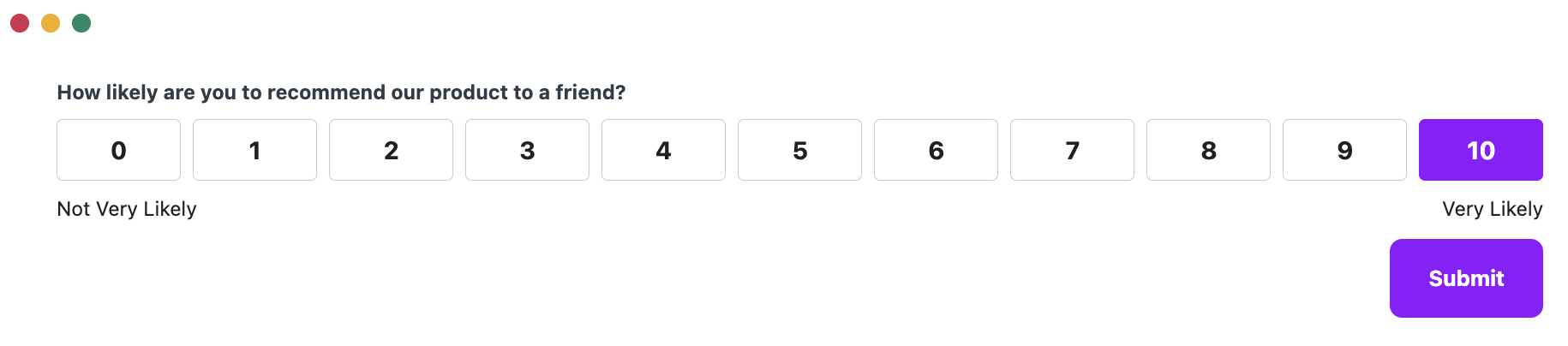
Rating scale (also called a number scale question) is useful for capturing sentiment, satisfaction, or likelihood to recommend as a single number. For more information, see Number scale questions.
Configure required fields and attributes
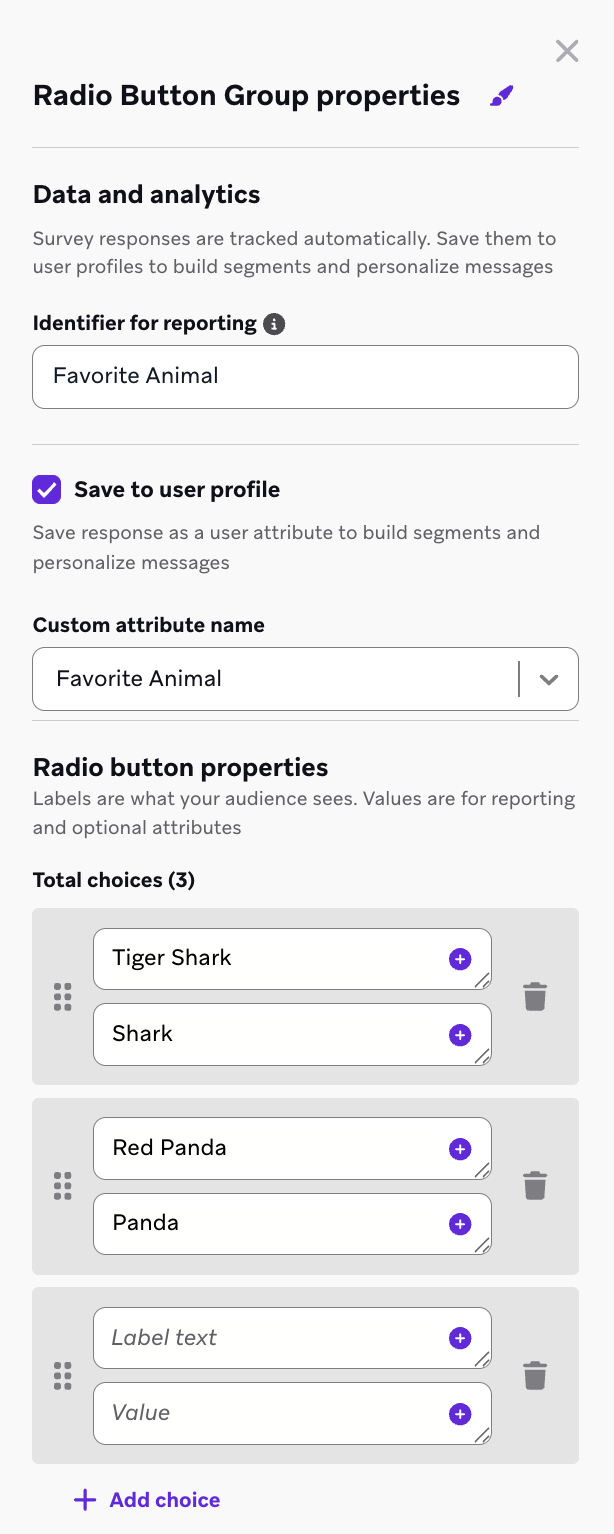
For each form block, enter an Identifier for Reporting in the right-side settings panel. This identifier appears in survey reporting and CSV exports.
Keep in mind:
- You can log most survey responses to user profile custom attributes.
- Long text responses can’t be logged as custom attributes.
- If you choose not to log a response as a user attribute, you can’t segment users by that response value.
View reporting and analytics
After launch, review results in:
- The landing page analytics view for landing page surveys
For definitions of the top-level analytics available for every survey (all responses, completed, partially complete, and unique impressions), see Analytics.

You can also review per-question response breakdowns, choose among three chart types, and export data as CSV. For more information, see Chart types.
Retarget and trigger
You can:
- Segment users by survey responses that are logged as user attributes.
- Segment users by survey completion status.
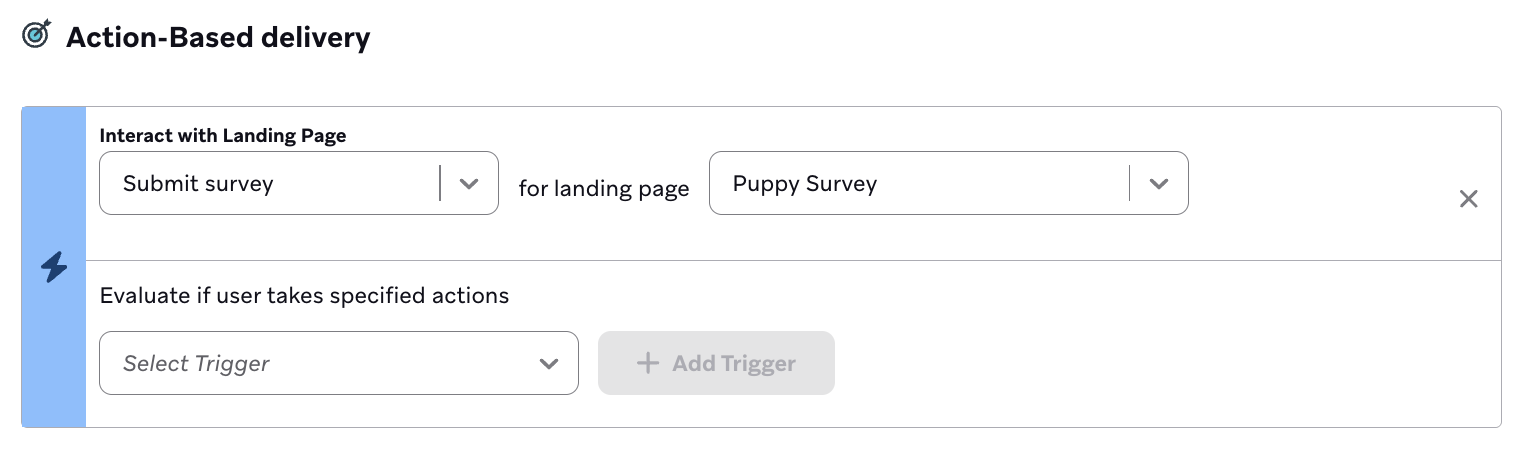
- Trigger campaigns and Canvases when a user completes a survey on a landing page.
Limitations
You’re restricted by the following:
- You can’t segment users by long-form text responses.
- Question-and-answer triggering that does not rely on logged user attributes is not available.