Create a Canvas
Use Canvas when you want to guide users through a multi-step journey. Canvas connects delays, decisioning, and messages so you can branch experiences based on what users do and when they do it. For a single messaging step across one or more channels, use campaigns.
Prerequisites
- Permissions to create and launch Canvases (see Permissions)
- Segments or filters that define who should enter
Before you begin
- Review Canvas basics so entry, messaging, and conversion goals align with your use case.
- For a guided walkthrough, take the Canvas Braze Learning course.
- Start from a Braze Canvas template, or ask Operator to draft a Canvas from a brief.
Step 1: Set Canvas basics
- Go to Messaging > Canvas.
- Select Create Canvas.
- Name your Canvas, assign Teams, and create or add Tags. You can also assign conversion events for the Canvas.
Tag your Canvases so they’re easy to find and build reports out of. For instance, when using Report Builder, you can filter by particular tags.
Choose conversion events
Choose your conversion event type, then select the conversions to record. These conversion events measure the efficiency of your Canvas.
If your Canvas has multiple variants or a control group, Braze uses this conversion event to determine the best variation for achieving this conversion goal. Using the same logic, you can create multiple conversion events.
Step 2: Choose an entry schedule
You can choose one of three ways in which users can enter your Canvas.
With scheduled delivery, users enter on a time schedule, similarly to how you schedule a campaign. You can enroll users in a Canvas as soon as it is launched, enter them into your journey at some point in the future, or on a recurring basis (daily, weekly, or monthly).
If you select a monthly recurring schedule, note that some months may not have the selected day. For example, let’s say you set a Canvas to send monthly on the 31st day. In this scenario, Braze sends on the last day of that month, such as April 30, because April 31 doesn’t exist.
When using local time zone delivery, Braze evaluates entry eligibility twice: first at Samoa time (UTC+13) on the scheduled day, and again at the user’s local time. A user must be eligible for both checks to enter the Canvas. If your entry filters use relative time windows (for example, “more than 2 days ago”), the 24-hour period may not have elapsed at the time of the first check, causing users to enter one day late. To avoid this, use a broader time window, such as at least two days. For more details, see When does Braze evaluate users for local time zone delivery?
With action-based delivery, users enter the Canvas and begin receiving messages when they take particular actions, such as opening your app, making a purchase, or triggering a custom event.
You can control other aspects of the Canvas behavior from the Entry Audience window, including rules for re-eligibility and frequency capping settings. You can use action-based Canvas entry with in-app Message steps. In-app messages aren’t available on classic action-based steps (trigger and delay).

Interact with Canvas Step is not available as an action-based entry trigger for Canvases. It can only be used as a trigger for campaigns. To trigger one Canvas from another, use the Send to Destination Canvas component, or create a Braze-to-Braze webhook that calls the /canvas/trigger/send endpoint.

If your action-based Canvas sends messages earlier than expected, check that your custom event timestamp is sent with the current time instead of a backdated time. For example, if an action-based Canvas has a three-hour delay after a user performs a custom event, Braze uses the timestamp sent with the custom event to evaluate that delay. If the timestamp is backdated by more than three hours, Braze treats the delay as already elapsed and sends the message immediately.
With API-triggered delivery, users enter your Canvas and begin receiving messages after you add them with the /canvas/trigger/send endpoint. The dashboard includes an example cURL request.
The entry properties key in that request depends on the features available in your workspace:
- If the dashboard shows Context Variables, pass optional entry data in the
contextobject. - If the dashboard shows Canvas Entry Properties, use the legacy
canvas_entry_propertiesobject shown in the dashboard sample.
For example, the recipient object uses one of the following entry data keys:
Context Variables:
{"external_user_id": "user_123", "context": {"product_name": "shoes"}}
Canvas Entry Properties:
{"external_user_id": "user_123", "canvas_entry_properties": {"product_name": "shoes"}}
You can use the following endpoints for API-triggered delivery:
After selecting your delivery method, adjust the settings to match your use case, then continue to set your target audience.
Deduplicate behavior for Canvases using the original editor
If the window of re-eligibility is less than the maximum duration of the Canvas, a user can re-enter and receive more than one component’s messages. In the edge case where a user’s re-entry reaches the same component as its previous entry, Braze deduplicates that component’s messages.
If a user re-enters the Canvas, reaches the same component as their previous entry, and is eligible for an in-app message for each entry, the user gets the message twice (depending on in-app message priority) as long as they re-open a session two times.
Step 3: Set the target audience
Only the users who match your defined criteria can enter the journey in the Target Audience step, meaning Braze evaluates the target audience for eligibility first before users enter the Canvas journey. For example, if you want to target new users, you can select a segment of users who first used your app less than a week ago.
In workspaces with multiple apps, Canvas entry audience eligibility is evaluated only when users enter the Canvas, not at individual Message steps. To restrict Message steps to users of a specific app, turn on Validate audience at message send and add an app-targeted segment in the Message step delivery validations, or use Liquid at send time. Filters such as Has app don’t restrict which app receives the message.
In Entry Controls, you can limit the number of users every time the Canvas is scheduled to run. For API trigger-based and action-based Canvases, this limit occurs at every UTC hour.
Avoid configuring an action-based campaign or Canvas with the same trigger as the audience filter (such as a changed attribute or performed a custom event). A race condition may occur in which the user is not in the audience at the time they perform the trigger event, which means they won’t receive the campaign or enter the Canvas.
Testing your audience
After adding segments and filters to your target audience, you can test if your audience is set up as expected by looking up a user to confirm if they match the audience criteria.
Selecting entry controls
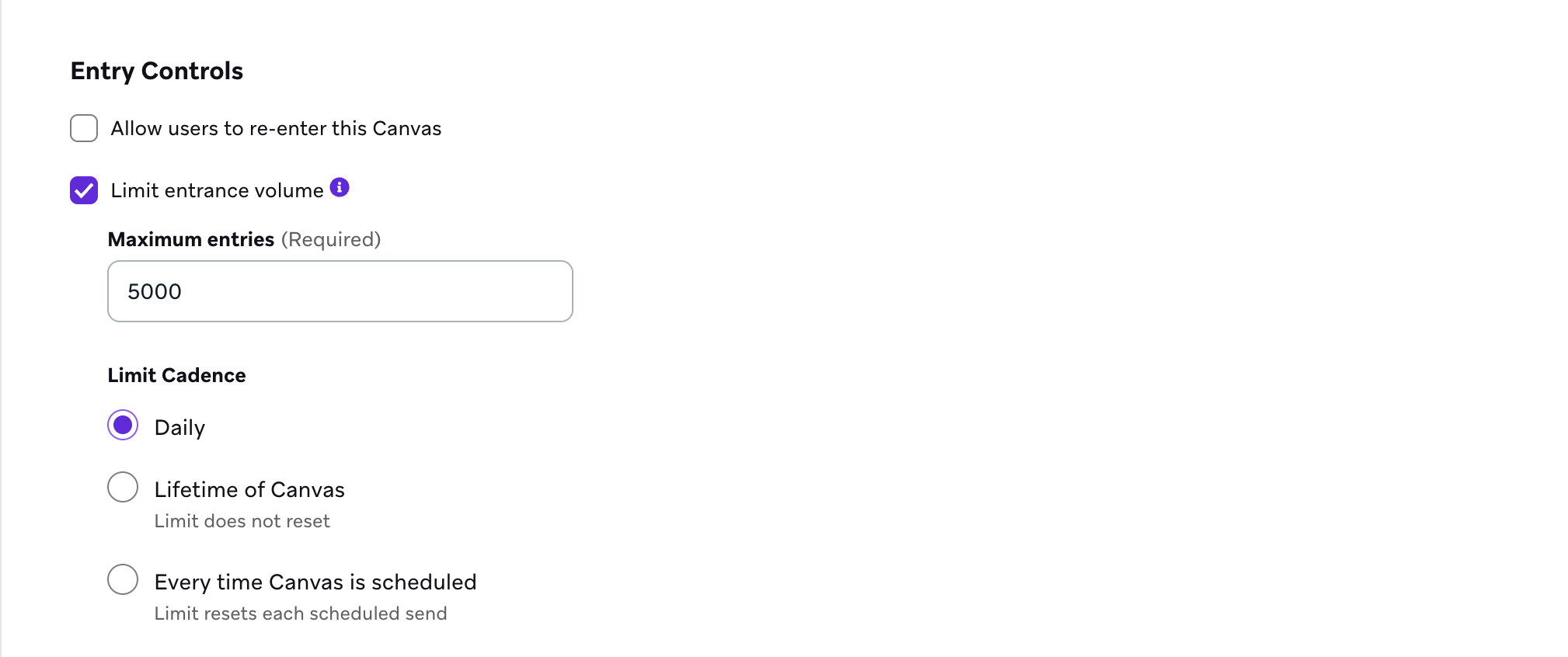
Entry controls determine if users are allowed to re-enter a Canvas. You can also limit the number of people who can enter this Canvas by a selected cadence depending on your entry schedule type:
- Scheduled: Lifetime of the Canvas or every time the Canvas is scheduled
- Action-Based: Hourly, daily, or the lifetime of the Canvas
- API-Triggered: Hourly, daily, or the lifetime of the Canvas
For example, if you have a scheduled Canvas and select Limit entrance volume and set the Maximum entries field to 500,000 users with Every time Canvas is scheduled as the limit cadence, then the Canvas only sends to 500,000 users per scheduled send.
Braze does not recommend selecting Every time the Canvas is scheduled for IP warming as this may lead to increased send volumes.
Setting exit criteria
Setting the exit criteria determines which users you want to exit a Canvas. If a user performs the exception event or matches the segments and filters, they don’t receive any further messages.
Calculating target population
In the Target Population section, you can view a summary of your audience, such as your selected segments and additional filters, and a breakdown of how many users are reachable per messaging channel. To calculate the exact number of reachable users in your target audience instead of the default estimation, select Calculate exact statistics.
Note that:
- Calculating exact statistics can take a few minutes to run. This function only calculates the exact statistics at the segment level, not at the filter or filter group level.
- While exact statistics are loading, a rounded estimate may appear. The exact figure appears in the Reachable Users section when loaded. You can select Show Additional Stats for a detailed breakdown.
- For large segments, it is normal to see slight variation even when calculating exact statistics. The accuracy of this feature is expected to be 99.999% or greater.
To view additional statistics, such as the average lifetime revenue for targeted users, select Show Additional Statistics.
Why the target audience count could differ from the reachable users count
The target population size that is displayed in a campaign or Canvas may differ from the reachable audience size for a segment, even if you’re directly adding that segment into your campaign or Canvas without additional filters. This may happen for several reasons:
- When a Global Control Group applies to a campaign or Canvas, users in that Global Control Group are excluded in the reachable users count.
- The target population size on a campaign or Canvas excludes users that aren’t contactable through various message channels; the behavior differs from channel to channel. For example, the reachable audience for a campaign or Canvas excludes users who are unsubscribed, marked as spam (for emails), or hard bounced (for emails). The segment itself, however, only excludes opt-outs when showing the estimated number of email reachable users.
- Braze only sends SMS messages to users within the selected subscription group, so the SMS target population for a campaign or Canvas will also exclude any users who aren’t part of your selected subscription group.
Step 4: Select send settings
Select Send Settings to edit your subscription settings, turn on rate limiting, and turn on quiet hours. By turning on rate limiting or frequency capping, you can ease the marketing pressure placed on your users and ensure you aren’t over-messaging them.
For Canvases targeting email and push channels, you may want to limit your Canvas so that only the users who are explicitly opted in receive the message (excluding subscribed or unsubscribed users). For example, say you have three users of different opt-in status:
- User A is subscribed to email and is push enabled. This user doesn’t receive the email but will receive the push.
- User B is opted-in to email but is not push enabled. This user will receive the email but doesn’t receive the push.
- User C is opted-in to email and is push enabled. This user will receive both the email and the push.
To do so, set the Subscription Settings to send this Canvas to “opted-in users only”. This option ensures that only opted-in users receive your email, and Braze only sends your push to users who are push enabled by default.
These subscription settings are applied on a per-step basis, meaning that there is no effect on the entry audience. So, this setting is used to evaluate a user’s eligibility to receive each Canvas step.
With this configuration, do not include any filters in the Target Audience step that limit the audience to a single channel (for example, Foreground Push Enabled = True or Email Subscription = Opted-In).
You can choose to specify quiet hours (the time during which your messages aren’t sent) for your Canvas. Turn on Enable Quiet Hours in your Send Settings. Then, select your quiet hours in your user’s local time and whether the message should abort or send at the next available time.
When Send at next available time is selected, quiet hours suppress the message and send it at the next available time outside quiet hours. For example, let’s say quiet hours are set up to prevent messages from being sent between 11:30am and 2:30pm in the user’s local time, and a user enters a Message step at 11:35am. Because this time is within quiet hours, the message is not sent yet, and the user receives the Message step at 2:30pm, which is after quiet hours.
Step 5: Build the journey
Save time by starting from a Braze Canvas template. Browse the library for a template that fits your use case, then customize it. For more information, see Canvas templates.
Step 5.1: Add variants
Select Add Variant, then add a new variant to your Canvas. Variants represent a journey that your users take and can contain multiple steps and branches.
You can add additional variants by selecting the plus button. When you add new variants, you can adjust how your users are distributed between them so that you can cross-compare and analyze the efficacy of different engagement strategies.
By default, Canvas variant assignment uses a deterministic hash of the user ID and Canvas ID (not a user’s random bucket number). A user stays on the same variant on re-entry if the distribution percentages are unchanged. If percentages change after launch, re-entering users may get a different variant.
For assignment that stays fixed when percentages change, use one variant, store a random number with a User Update step, then route with Audience Paths. Expand the following steps for the full pattern.
Expand for steps
- Create a Number custom attribute to store your random number. Name it something easy to locate, like
lottery_numberorrandom_assignment. In your dashboard, go to Data Settings > Custom Attributes. - Use a single Canvas variant (or add the same User Update step to each variant). Add a User Update step at the beginning of the journey. This step generates and stores the random number before users reach your Audience Paths step.
- In the User Update step, select the Advanced JSON Editor. Use the {% random %} tag to generate the number. For details, see Send messages with a random number. For example,
{% random 10 %}returns an integer from 0 through 9. Set the custom attribute from step 1 using JSON like this:
{% if {{custom_attribute.${lottery_number}}} == blank %} {% capture lottery_number_str %}{% random 10 %}{% endcapture %} { "attributes": [ { "lottery_number": {{ lottery_number_str | plus: 0 }} } ] } {% endif %}
The {% if %} block sets the number only when the attribute is blank, so users keep the same assignment when they re-enter the Canvas.
- Add an Audience Paths step after the User Update step. In each audience group, add filters based on your custom attribute instead of using variant distribution percentages.
For example, if you used{% random 10 %}, one group might uselottery_numberis less than 4, another is more than 3 and less than 7, and a third is more than 6 and less than 10.
Step 5.2: Add steps
You can add more steps to your Canvas workflow by dragging and dropping components from the Components sidebar. Or, select the plus button to add a component with the popover menu. For a full list of components, see Canvas components.
You can add up to 200 steps in a Canvas. If your Canvas exceeds 200 steps, loading issues may occur.
As you add more steps, you can change the zoom level to focus on details or view the entire user journey. Zoom in with Shift + + or zoom out with Shift + -.
Maximum duration
The maximum duration is the longest possible time a user can take to complete the Canvas. Braze calculates it by adding the delays and trigger windows along the longest path. For example, a Delay step of 3 days followed by a Message step has a maximum duration of 3 days.
Edit a step
Select any component to edit it. For example, select a Delay step to change the delay to a specific day such as March 1. On that day, users move to the next step.
You can also edit the Action Settings of an Action Paths step to hold users for an evaluation window and prioritize their next path based on actions in that window.
Messages in Canvas
Use a Message step to send email, mobile push, web push, or webhook messages. Select your Messaging Channels and adjust Delivery Settings, and personalize copy with Liquid.
For entry data and event properties in Liquid, see Context and event properties. Select Done after you finish configuring the step.
Step 5.3: Edit connections
To move a connection between steps, select the arrow connecting the two components and select a different component. To remove the connection, select the arrow followed by Cancel Connection in the footer of the Canvas composer.
If a single variant has multiple branches with the same audience and send time, Braze does not guarantee an even split across those branches. Distribution may favor the branch that was created first. For an even split, use Random Bucket Number filters on each branch. For more information, see What happens if the audience and send time are identical for a Canvas that has one variant, but multiple branches?.
Step 6: Add a control group
You can add a control group to your Canvas by selecting the plus button to add a new variant.
Braze tracks the conversions for users who are placed into the control group, although they don’t receive any messages. To preserve an accurate test, Braze tracks the number of conversions for your variants and the control group for exactly the same amount of time, as shown on the conversion event selection screen.
You can adjust the distribution between your messages by selecting the Variant Name headers.
Optimize Canvas variants with BrazeAI
For a Canvas with multiple top-level variants, turn on Optimize with BrazeAI (shown as Intelligent Selection in some workspaces) to automatically adjust the percentage of users entering each variant. BrazeAI uses variant performance to maximize the expected number of conversions.
Add at least two variants and one conversion event. Then, select a variant percentage to open Edit Variant Distribution and turn on Optimize with BrazeAI.
After the initial conversion deadline, BrazeAI reviews performance every 12 hours and shifts more users toward the variant that drives the most conversions. When the optimization identifies a decisive winner, all future eligible users enter that variant.
This optimization works best for Canvases that have new users entering frequently.
Step 7: Save and launch
Review the Canvas summary, then select Launch Canvas to save and launch. If you have the Canvas approval workflow turned on, approve the listed Canvas details before launching. After launch, view analytics on the Canvas Details page.