Operator Connect
With Operator Connect, you can take action in Braze from the AI tool you already use—Claude, Cursor, or another MCP client—and BrazeAI OperatorTM carries it out in your Braze dashboard.

Operator Connect is currently in beta and is available to select customers. Contact your customer success manager to request access.
Before you start
Operator Connect does not support action cards for pre-approval of each action
When you submit a prompt through your MCP client to perform an action, Operator does not pause and ask you to approve each step (as Operator does when used in the Braze dashboard). This means that the actions you request Operator Connect to perform through your prompt will be implemented immediately without the chance to ask for approval. If your team has strict change-control requirements, provision a Braze Dashboard User with limited permissions and authenticate as that user, or perform those workflows through BrazeAI Operator in the dashboard instead.
Operator cannot currently launch campaigns or Canvases.
For help setting up a Dashboard User with limited permissions, see Manage company users. This also makes Operator’s changes easier to identify in the dashboard.
Using a Third-Party Provider MCP
When using Operator Connect, Braze receives instructions from your Third-Party Provider MCP client, such as Claude, ChatGPT, Copilot, Gemini CLI, Codex, or Cursor, exactly as that provider’s underlying AI model formulates them. When you type a request in natural language, the AI model interprets your request and translates it into a prompt for Operator when the model chooses to use the send_operator_prompt tool. Braze does not see your original natural-language prompt and cannot verify that the generated prompt fully or accurately reflects your intended request.
When BrazeAI Operator returns data or a result, that response is sent back to your Third-Party Provider MCP client, which then interprets, formats, and presents it to you. Braze does not control how the AI model presents, summarizes, or describes returned information.
Braze is not liable for instructions generated by, or responses conveyed through, any Third-Party Provider MCP client. Review AI-generated summaries against source data in your Braze dashboard and review any AI-proposed action before implementing it through your Third-Party Provider MCP client.
Use Operator Connect for agentic, judgment-heavy work
Use it for things like building a campaign from a brief, restructuring a Canvas, or answering a complex question about your workspace. Operator Connect is not the right tool for high-volume, high-frequency programmatic operations. For those workflows, use the Braze REST API.
Change tracking and edit history
Campaign and Canvas edits made through Operator Connect appear in the dashboard edit history with your user name. Braze tracks these changes the same way it tracks edits you make directly in the dashboard.
When you edit a campaign or Canvas using the send_operator_prompt tool, the edit history displays the change under your dashboard user account. This applies to both BrazeAI Operator in the dashboard and Operator Connect via the Braze MCP server.
Edits made using other Braze MCP server tools (such as update_campaign_message_variation) do not appear in campaign edit history. If you need a full audit trail for all campaign changes, use Operator Connect rather than calling individual MCP update tools directly.

Canvas edit history works the same way as campaign edit history. To preserve a record of changes, use Canvas version history to manually save versions before making significant edits.
Prerequisites
Before you use Operator Connect, confirm the following:
| Prerequisite | Description |
|---|---|
| Hosted Braze MCP server | Operator Connect is exposed through the hosted, OAuth-based Braze MCP server only. Customers on the local API-key MCP server must migrate to the remote-hosted server first. See Set up the Braze MCP server. |
| US or EU cluster | Operator Connect is available on US and EU clusters only during the current beta stage. |
| Operator enabled for your workspace | BrazeAI Operator must be active for your workspace. |
| Use MCP Server permission | Your dashboard user needs the “Use MCP Server” permission. |
Re-authenticate after access is enabled
When Braze enables Operator Connect on your account, your existing MCP connection does not automatically pick up the new scope. After Braze confirms your access is enabled, remove and re-add the Braze MCP server in your client. For help, see Troubleshooting.
What you can do with Operator Connect
Operator Connect can do anything BrazeAI Operator in the dashboard can do, including:
- Build and edit campaigns and Canvases
- Create and update segments
- Draft email, SMS, push, and in-app message copy and templates
- Manage Content Blocks
- Generate reports and answer questions grounded in your workspace data
For the full list of capabilities, see What you can do with Operator.
How Operator Connect works
Write your prompt in natural language. Your MCP client typically chooses Operator Connect from the brief, without you naming Operator or its tools.
If the client skips Operator Connect for a task Operator can complete, you can add more explicit instructions to use Operator Connect.
When you send a prompt, your client submits it to Operator and retrieves the result automatically. Three tools on the hosted Braze MCP server handle this:
send_operator_prompt— Submits a natural-language prompt and returns a job ID. Operator runs the job asynchronously.get_operator_result— Retrieves the result for a given job ID.cancel_operator_job— Stops a running job.
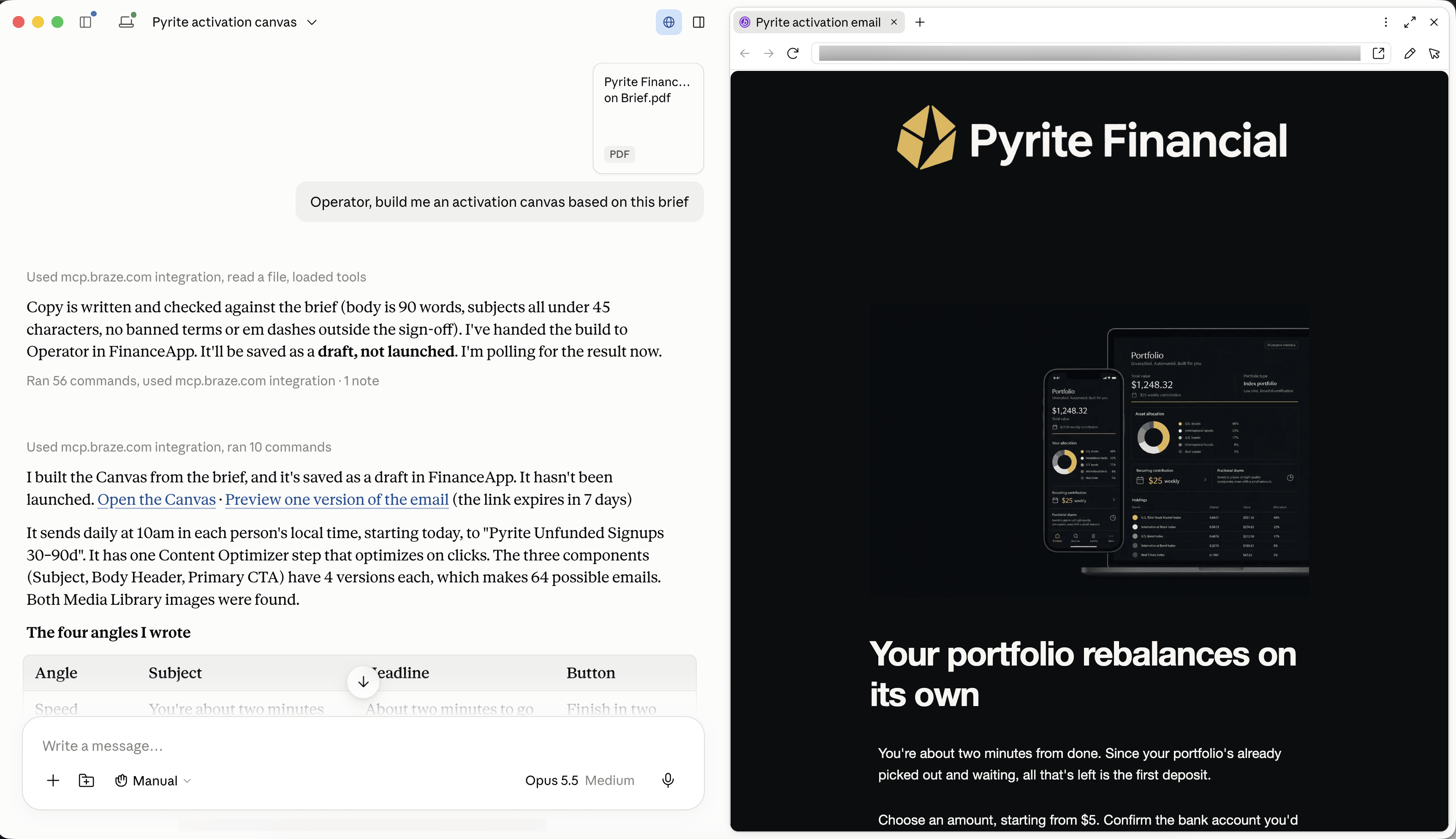
For example, you can ask your AI tool to create an activation Canvas based on a brief. Your client calls Operator Connect, which looks up the workspace and segment, then builds the Canvas in Braze as a draft for you to review and launch.
Example prompts
Start with a natural-language brief. Here are a few examples:
Build a three-step welcome Canvas for new loyalty members—email on day 1, push on day 3, and an in-app message on day 7. Save it as a draft in the Production workspace.
Review the Subject Line and Preheader of the 'Summer Sale Email' campaign in the Production workspace and suggest improvements for better open rates.
Create a segment for users who have made a purchase in the last 30 days but haven't opened a push notification in the last 14 days.
What were our top five email campaigns by click rate last quarter? Summarize the key differences between them.
What to expect
Operator Connect works differently from a synchronous API call. Here’s what to plan for.
Async responses
Responses could take a few minutes, not seconds. Operator Connect runs each job as a full agentic session—roughly as long as doing the equivalent work in the dashboard. Set expectations accordingly if you’re sharing Operator Connect outputs with other people or downstream systems. If you’re building a custom agent that calls these tools directly, design it to poll get_operator_result rather than expecting an immediate response. Responses return as text with no structured output format.
No session memory between calls
Each prompt runs in its own isolated session. Operator does not carry context from one call to the next. If your next prompt depends on the output of a previous one, include the relevant context in your new prompt.
No observability view
There is no dedicated dashboard UI, session log, or observability view for Operator Connect usage in this beta. Actions taken by Operator appear in the dashboard under normal attribution for the acting dashboard user.
Authentication and permissions
Operator Connect uses the same sign-in as the Braze MCP server—your normal Braze credentials, with no separate login. Operator Connect ties access to your dashboard user account, not a shared API key. This means:
- Operator acts with that user’s exact dashboard permissions. It cannot perform actions the user could not perform directly.
- Operator Connect does not use a service account or shared credential.
- The dashboard attributes all changes to the signed-in user. For example, if a user named “Alex” updates a campaign through Operator Connect, the dashboard shows Last updated by Alex, not Last updated by Operator.
- When a user loses access in Braze, Braze revokes their Operator Connect access on the next request.
Pricing
Operator Connect usage counts against the same company-wide daily Operator cost cap as dashboard usage. Because programmatic use typically consumes more than interactive use, beta participants receive a temporarily raised daily cap for the duration of the program.
- The raised cap applies only for the duration of the beta program and is subject to change.
- Braze cannot guarantee you stay within the cap. If you hit it, contact your customer success manager.
Operator Connect is expected to be a paid feature at general availability. Participation in the beta is free, but does not reflect future pricing.
Data privacy and security
Operator Connect follows the same privacy and security model as BrazeAI OperatorTM, including the same data processor relationships. For more information, see Data privacy and security for BrazeAI Operator.
Troubleshooting
Operator tools do not appear after access is enabled
When Braze enables Operator Connect on your account, your existing MCP client connection may not automatically pick up the updated access permissions. If you submit a prompt and receive an authentication error, or if the Operator tools do not appear in your client:
- In your MCP client, remove the Braze MCP server connection.
- Re-add the Braze MCP server using your endpoint URL (
https://mcp.braze.com/mcpfor US,https://mcp.braze.eu/mcpfor EU). - Complete the OAuth sign-in flow again.
After re-adding, your client registers with the updated access permissions, including Operator Connect. If the issue continues, contact your customer success manager.
Next steps
- Set up the Braze MCP server (prerequisite for Operator Connect)
- BrazeAI Operator
- What you can do with Operator