Feature Flag
Feature flags allow you to experiment and confirm your hypotheses around new features. Marketers can use feature flags to segment your audience in Canvas and track the impact of feature rollout on conversions. Moreover, Experiment Paths allow you optimize these conversions by testing different messages or paths against each other and determining which is most effective. Use the Winning Path as you progressively rollout your feature to a wider audience.
Looking for more information about feature flags and how they can be used in Braze? Check out our dedicated Feature flags articles.
Creating a feature flag
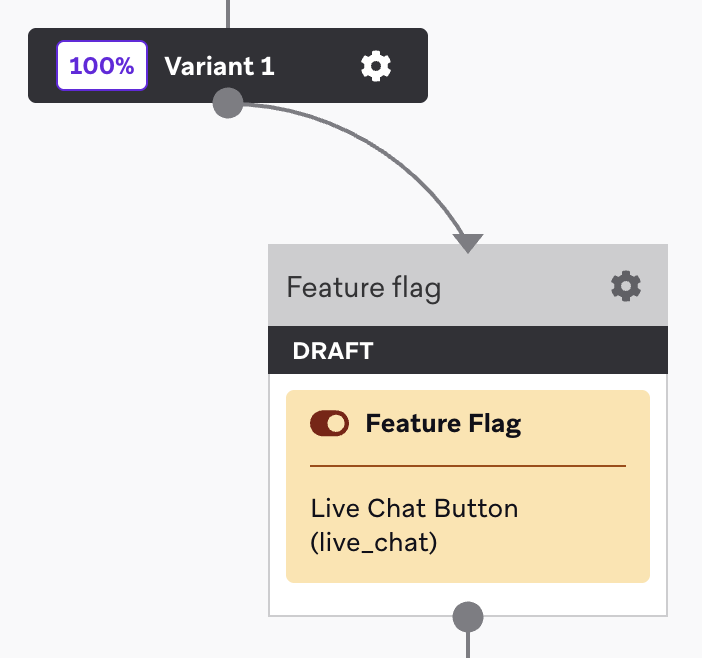
To create a Feature Flag component, first add a step to your Canvas. Drag and drop the component from the sidebar, or click the plus button at the bottom of a step and select Feature Flag. Next, select the feature flag from the dropdown, which contains any feature flags that are not archived.
How this step works
When a Canvas is stopped, archived, or a Feature Flag step is removed, users who went through that step no longer receive that step’s feature flag and its properties.
For a feature flag that has no rollout and no feature flag experiment, after you stop a Canvas that contains a Feature Flag step referencing that flag:
- No users have that feature flag in the Feature Flags Eligibility tab.
- No users match the
Feature Flagssegmentation filter for that feature flag.
If the feature flag has a rollout, a feature flag experiment, or another active Canvas that references it, users may still be eligible through those channels.
Properties in a Canvas step can be changed after launch, and even after a user goes through the step. Users always receive a real-time, dynamic version of the feature flag, instead of the older, previously saved version.
- Two Canvases reference the same feature flag, and a user enters both: The user receives the value set in the Canvas they entered most recently, not the earlier Canvas. That value appears in the Feature Flags Eligibility tab.
- A Canvas has two Feature Flag steps that reference the same feature flag: The user receives the value set in the second step while they are on that path, and that value appears in the Feature Flags Eligibility tab.
Overwrite properties
When creating a feature flag you specify default properties. When setting up a feature flag Canvas step, you can either keep the default values, or overwrite the values for users who enter this step.
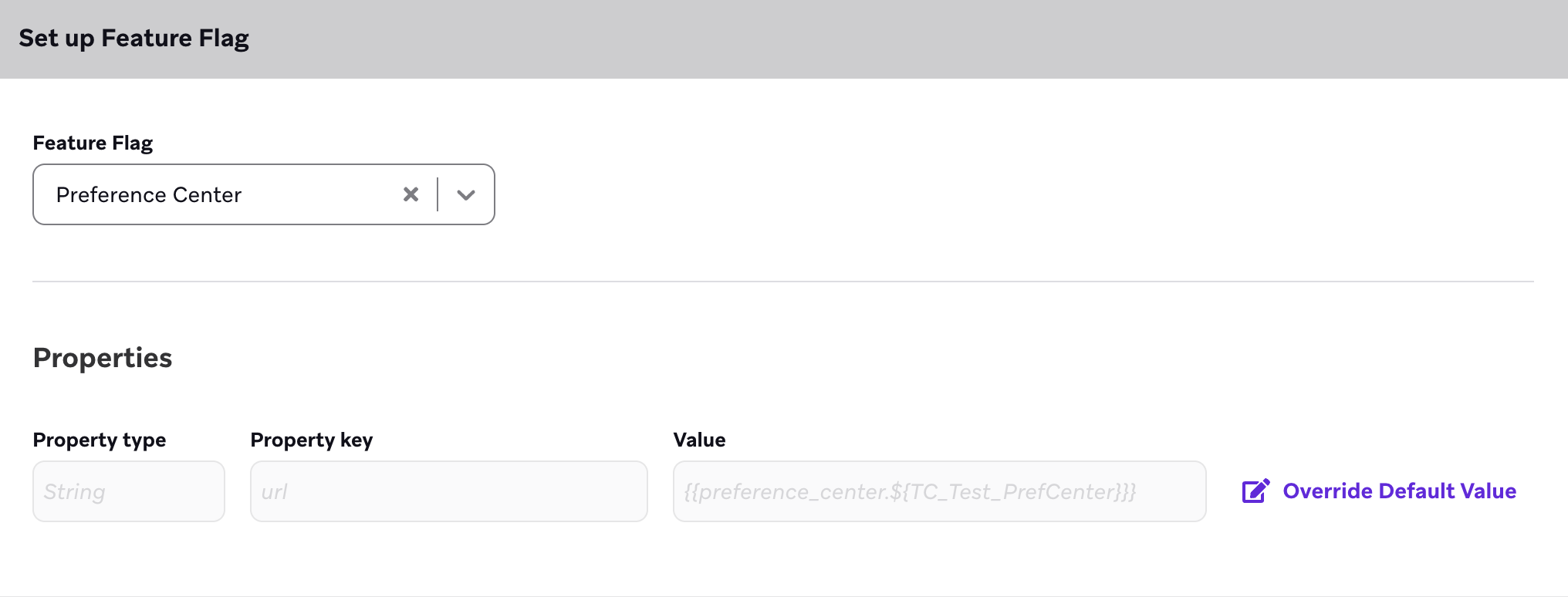
Go to Messaging > Feature Flags to edit, add, or remove additional properties.
Canvas and rollout differences
Canvas and a feature flag rollout (dragging the slider) can work independently of each other. An important caveat is entry to a Canvas step will overwrite any default rollout configuration. This means if a user doesn’t qualify for a feature flag, a Canvas step can enable the feature for that user.
Similarly, if a user qualifies for a feature flag rollout with certain properties, if they also enter into the Canvas step, they will receive any overwritten values from that Canvas step.
 Edit this page on GitHub