 Custom attributes
This page covers custom attributes, which are a collection of your users’ unique traits. Custom attributes are best for storing attributes about your users, or information about low-value actions within your application.
When stored in Braze, custom attributes can be used to build out audience segments and personalize messaging using Liquid. Keep in mind that Braze doesn’t store time-series information for custom attributes, so you can’t get any graphs based on them like you can for custom events.

Names are exact matches. Custom attribute keys are case-sensitive—for example, Home_City and home_city are two different attributes. When you send data through the REST API or an SDK, Braze strips leading and trailing spaces from attribute names, so greeting and ` greeting ` resolve to the same key. Use the same spelling and casing everywhere you reference an attribute—in Data Settings > Custom Attributes, API and SDK payloads, and CSV imports. For how Braze coerces incoming values when you force a data type, see Managing custom data.
Use cases
Some common custom attribute use cases include:
- Targeting and suppressing audiences by segmenting users based on traits like loyalty tier, subscription status, preferred language, or plan type
- Personalizing messages with Liquid by referencing attributes such as a user’s first name, rewards points, or favorite category
- Tracking lifecycle stages and user states, such as onboarding stage, account status, or trial end date
- Counting low-value actions with numeric attributes, such as incrementing a
feature_views_countattribute each time a user views a feature - Recording when low-value actions last occurred using time attributes, such as
last_support_ticket_atorlast_password_reset_at - Storing user interests and history as arrays, such as favorite genres or recently viewed content, for interest-based targeting
- Storing richer profile data as objects or arrays of objects, such as structured preferences or multiple saved addresses
- Triggering action-based messages when an attribute value changes using attribute triggers, such as sending a tier-up notification when a user’s
rewards_tierchanges
Manage custom attributes
To create and manage custom attributes in the dashboard, go to Data Settings > Custom Attributes.
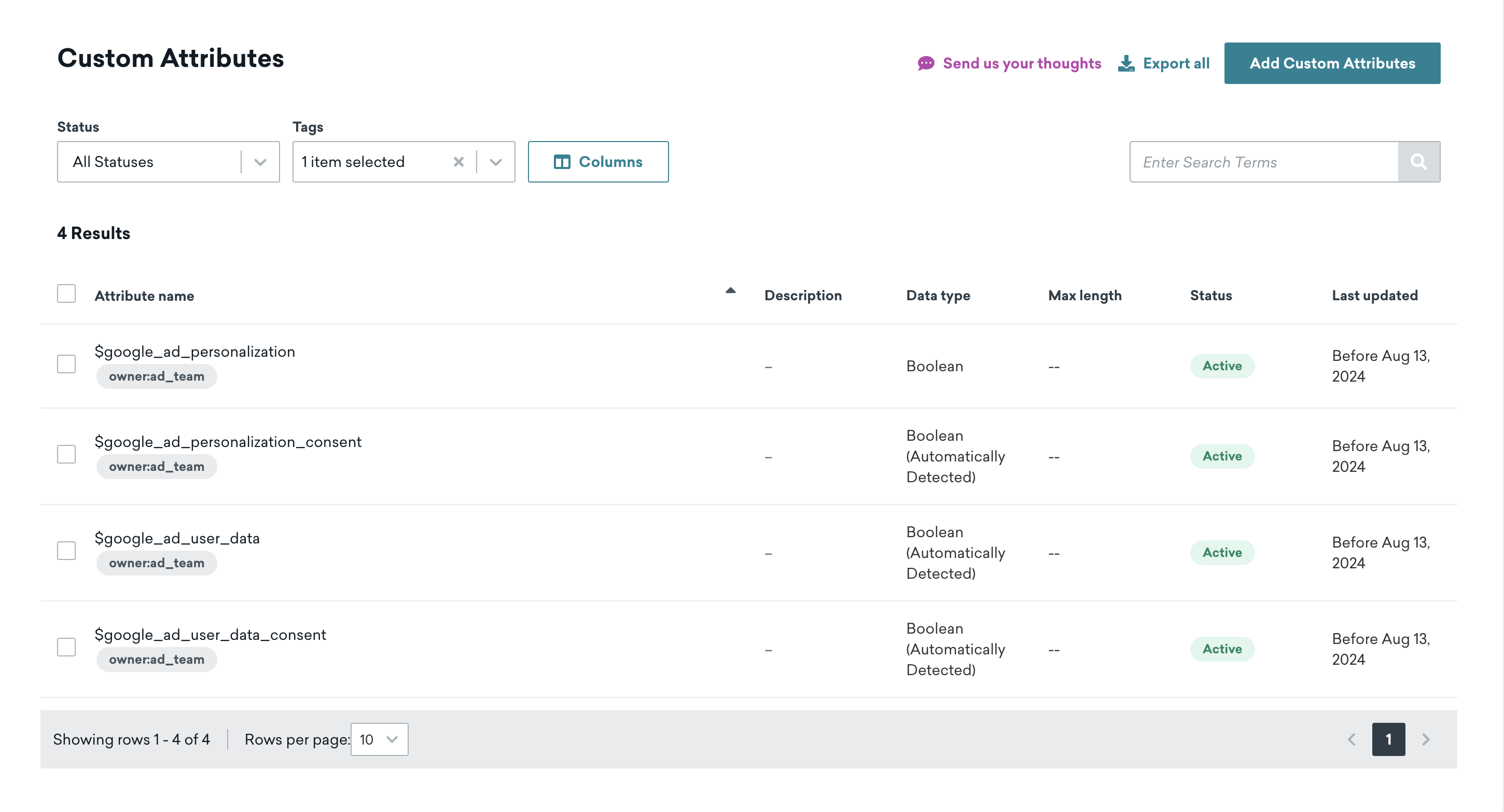
The Last updated column lists the last time the custom attribute was edited, such as when it was last set to blocklist or active.

If an array custom attribute appears on a user profile without values, verify that the attribute’s Max Length is greater than 0. For step-by-step troubleshooting, see Data types.
For proper message targeting, be sure that your custom attribute data type matches the actual custom attribute.
For example, if newsletter_subscribed is defined as a string, your Liquid syntax should look like {% if {{custom_attribute.${newsletter_subscribed}}} == 'true' %}. If newsletter_subscribed is defined as a Boolean, the Liquid syntax shouldn’t have single-quotation marks: {% if {{custom_attribute.${newsletter_subscribed}}} == true %}.
Troubleshooting duplicate custom attributes or events
If you see two custom data entries with the same visible name, one entry may include an invisible leading or trailing space.
To troubleshoot and fix this:
- Go to Data Settings > Custom Attributes or Custom Events, then locate the two entries that appear to have the same name.
- Confirm whether one name contains hidden whitespace:
- Right-click each name and select Inspect.
- Check the HTML text value in your browser developer tools.
- Compare the values (for example,
emailversus ` email`). - If needed, refer to Inspect and edit pages and styles with Chrome DevTools.
- Decide which name should remain as your canonical key, and standardize on that exact spelling and casing.
- If one entry includes leading or trailing spaces and was created directly in the dashboard, stop using that entry and move to the canonical key:
- Update any dashboard workflows, CSV imports, and internal runbooks to use the canonical key.
- Blocklist custom data for the incorrect entry when you’re ready to retire it.
- Verify your ingestion paths:
- API and SDK payloads automatically strip leading and trailing spaces.
- Dashboard-created names do not auto-trim, so manual entry and governance are required.
From this page, you can view, manage, create, or blocklist existing custom attributes. Select the menu next to a custom attribute for the following actions:
Blocklist
You can blocklist individual custom attributes through the actions menu, or select and blocklist up to 100 attributes in bulk.
When you block a custom attribute:
- Future data won’t be collected for that attribute.
- Existing data won’t be available unless that attribute is unblocked.
- That attribute won’t show up in filters or graphs.
Additionally, if a blocked custom attribute is currently referenced by filters or triggers in other areas of Braze, a warning modal will appear explaining that all instances of the filters or triggers that reference it will be removed and archived.
For more details on blocklisting and deleting custom data, see Blocklist custom data.
Mark as personally identifiable information (PII)
Administrators can also create custom attributes and mark them as PII from this page. These attributes are only visible to admins and dashboard users with the “View Custom Attributes Marked as PII” permission.
Add descriptions
You can add a description to a custom attribute after it’s created if you have the Manage Events, Attributes, Purchases user permission. Select Edit description for the custom attribute and input whatever you like, such as a note for your team.
Add tags
You can add tags to a custom attribute after it’s created if you have the “Manage Events, Attributes, Purchases” user permission. The tags can then be used to filter the list of attributes.
Remove custom attributes
There are two ways you can remove custom attributes from user profiles:
- Select the custom attribute name to be removed in a User Update step.
- Set the
nullvalue in your API request to the/users/trackendpoint.
Export data
To export the list of custom attributes as a CSV file, select Export all at the top of the page. The CSV file is generated, and a download link is emailed to you.
Change custom attribute type
Prerequisites
The custom attribute must not currently be in use in any active campaigns, Canvases, or segments. If you try to change the data type while the attribute is still referenced, the dashboard displays an error and block the change.
Changing the data type
- Stop any active campaigns or Canvases that use the attribute in segments or filters.
- Remove the attribute from all segment, campaign, and Canvas filters.
- Go to Data Settings > Custom Attributes (or Custom Events), find the attribute, and update it to the desired data type.
- Update the attribute values on existing user profiles to match the new data type (for example, using the
/users/trackendpoint). - Reapply the attribute to relevant segments, campaigns, and Canvases, then reactivate any stopped campaigns or Canvases.
Things to know
- User data is not retroactively updated. If a user profile had the attribute with the old data type, that value remains unchanged. The segmentation filter looks for the new data type, so users with the old value are excluded from matching segments until their profile is updated.
- New data must match the new data type. After the change, API calls or SDK events that send the previous data type for this attribute will not be accepted. Only values matching the new data type are ingested.
- Filters are not automatically updated. Segments and campaign filters referencing the changed attribute are not retroactively updated. You must remove and re-add them after the change.
View usage reports
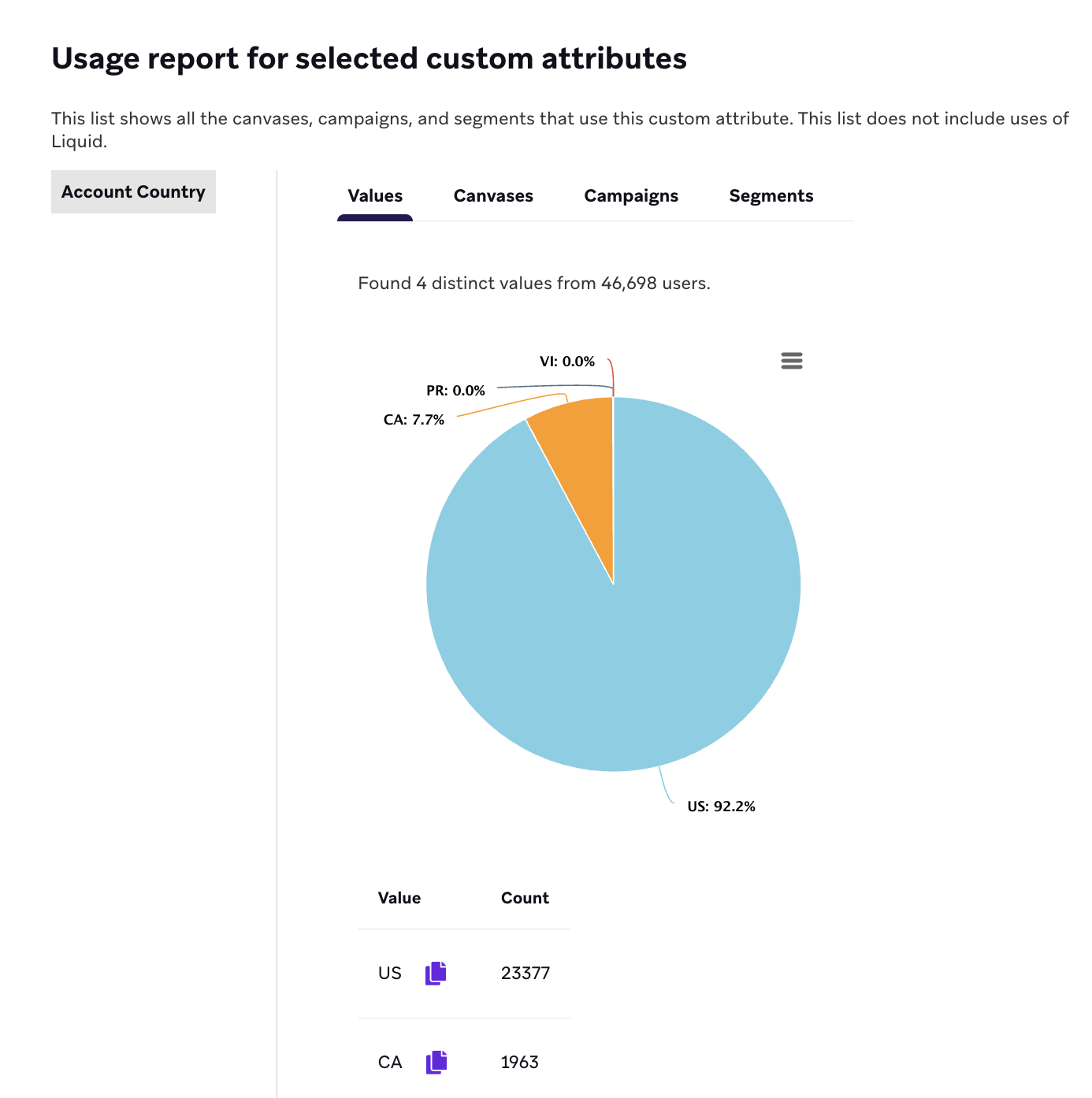
The usage report lists all the Canvases, campaigns, and segments using a specific custom attribute. This list doesn’t include uses of Liquid.
You can view up to 100 usage reports at a time by selecting the checkboxes next to the respective custom attributes and then selecting View usage report.
Values tab
When viewing a usage report, select the Values tab to view the top values of the selected custom attributes based on a sample of approximately 250,000 users. Note that because the results are sampled from a subset of users, the sample won’t include all existing values. This means the Values tab shouldn’t be used for troubleshooting or for use cases that require incorporating data from all users.
Set custom attributes
The following lists methods across various platforms that are used to set custom attributes.
Expand for documentation by platform
Custom attribute storage
All data stored on the User Profile, including custom attribute data, is retained indefinitely as long as each profile is active.
For a full reference of all data types you can store as custom attributes—including booleans, numbers, strings, arrays, time, objects, and arrays of objects—see Custom attribute data types.
Blank strings versus null values
When clearing or unsetting a custom attribute, the behavior differs depending on whether you pass a blank string ("") or null:
| Value | Behavior |
|---|---|
"" (blank string) |
The attribute is set to an empty value and remains visible on the user profile. |
null |
The attribute is removed from the user profile entirely. |
This behavior also affects segmentation. For custom attributes, the IS NOT BLANK filter checks for a non-empty value. This means a blank string ("") doesn’t match, even though the attribute remains visible on the profile. A null value also doesn’t match, because the attribute is removed from the profile.
For non-string data types where the data type is manually set in the Braze dashboard (not auto-detected), you must use null to unset the value. Passing "" is valid for only string attributes — for example, setting a Boolean attribute to "" is treated as an empty string, which is an invalid value for that type. To unset a Boolean, pass null.
Note that CSV import does not support null — Boolean values in CSV imports must be TRUE or FALSE.