Manage custom data
This page covers how to pre-populate custom data in your campaigns and segments, manage custom events and attributes and their properties, and configure data types. For blocklisting and deleting custom data, see Blocklist custom data.
To learn how to manage custom attributes in particular (including adding descriptions, adding tags, and marking attributes as PII), refer to Managing custom attributes.
Pre-populate custom data
There may be times when you’d like to set up campaigns and segments using custom data before your development team has integrated that custom data. Braze allows you to pre-populate custom events and attributes on the dashboard before these pieces of data start tracking so that these events and attributes are available for use in dropdowns and as part of the campaign creation process.
To pre-populate custom events and attributes, do the following:
- Go to Data Settings > Custom Events or Custom Attributes or Products.
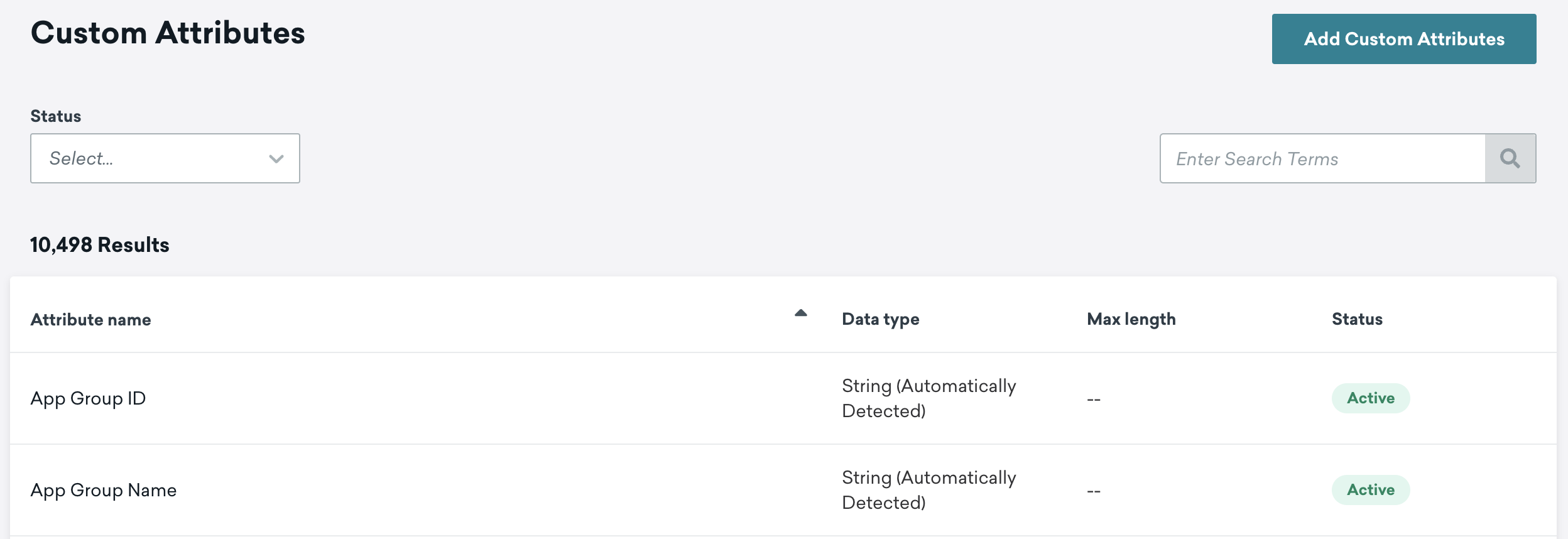
- To add a custom attribute, event, or product, go to the respective page and select Add Custom Attributes or Add Custom Events or Add Products.
For custom attributes, select a data type for this attribute (for instance, boolean or string). An attribute’s data type determines the segmentation filters available for that attribute.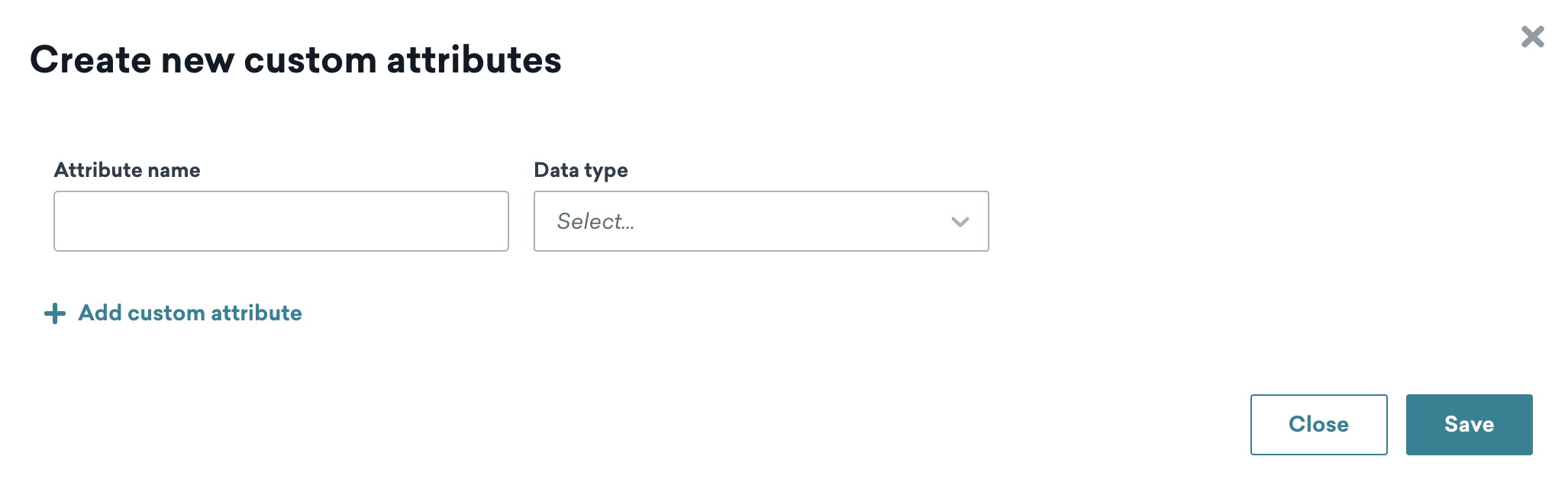
- Select Save.
Naming custom events and custom attributes
Custom events and custom attributes are case-sensitive. Keep this in mind when your development team integrates these custom events or attributes later. They must name the custom events or attributes exactly as you named them here, or Braze generates a different custom event or attribute.
Managing properties
After you have created a custom event or product, select Manage Properties for that event or product to add new properties, blocklist existing properties, and view which campaigns or Canvases use this property in a trigger event.
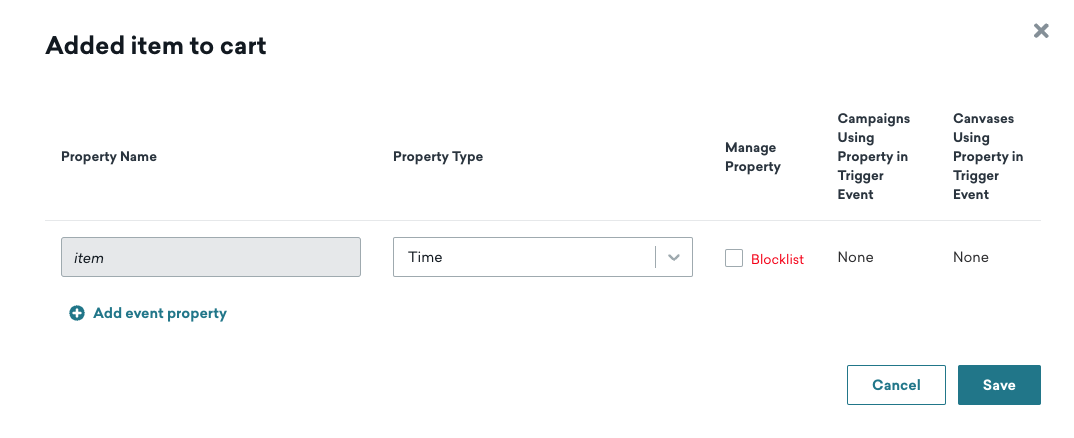
To blocklist event or product properties, use the actions menu on the properties page. For blocklisting custom attributes, events, or products entirely, see Blocklist custom data.
To make these added custom attributes, events, products, or event properties traceable, you must ask your development team to create them in the SDK using the exact name you used to add them earlier. Or, you can use the Braze API to import data on that attribute. After that, the custom attribute, event, or other is actionable and applied to your users.
Note:
All user profile data (custom events, custom attributes, custom data) is stored as long as those profiles are active.
Data type detection across environments
Braze automatically detects the data type of a custom attribute based on the first value it receives. If your development environment sends a numeric value like 100 first, the attribute is stored as a number. If your production environment’s first value arrives as a string (such as "100" wrapped in quotes), the attribute is stored as a string.
To prevent this, ensure your integration sends consistent data types across all environments. If the wrong type is already set, you can force the correct data type in Data Settings > Custom Attributes by using the data type dropdown.
Forcing data type comparisons
Braze automatically recognizes data types for attribute data that is sent to it. However, in the event multiple data types are applied to a single attribute, you can force the data type of any attribute to let Braze know what it is. Select from the dropdown in the Data Type column.
As of March 30, 2026, auto-detect only sets a data type upon initial ingestion. To change the data type after initial ingestion, update it manually using the following steps.
Forcing data types does not apply to event properties or purchase properties.
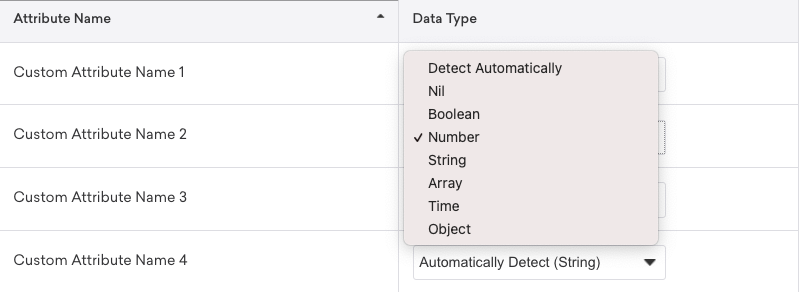
If you choose to force the data type for an attribute, any data that comes in that isn’t the specified type is coerced into that type. If such coercion is impossible (for example, a string containing letters being coerced into a number), the data is ignored. Any data ingested before the type change continues to be stored as the old type (and therefore may not be segmentable), and a warning appears next to the attribute on the affected users’ profiles.
Existing data after a type change
Forcing a data type change only affects new data coming into Braze. Any data ingested before the type change continues to be stored as the old type and may not be segmentable with the new type’s filters. A warning appears on the affected users’ profiles. For new incoming data, if a value doesn’t match the forced type, Braze may coerce it into the forced type (for example, the string "100" to the number 100); values that can’t be coerced are ignored and don’t update the attribute.
If you need all existing user data to match the new type, you must re-send the attribute values for those users through the SDK, API, or a CSV import. There is no automatic bulk conversion for existing data.
Data type coercion
| Forced Data Type | Description |
|---|---|
| Boolean | Inputs of 1, true, t (not case sensitive) are stored as true |
| Boolean | Inputs of 0, false, f (not case sensitive) are stored as false |
| Number | Integers or Floats (such as 1, 1.5) are stored as numbers |
For more information on specific filter options exposed by different data type comparisons, check out Configuring reporting. For more information on the different available data types, refer to Data types.
Data sent to Braze is immutable and cannot be deleted or modified after Braze receives it. However, you can use any of the steps listed in the preceding sections to exercise control over what you’re tracking in your dashboard. To blocklist or delete custom data, see Blocklist custom data.