Decision split
The decision split component in Canvas allows you to deliver personalized, real-time experiences for your users.
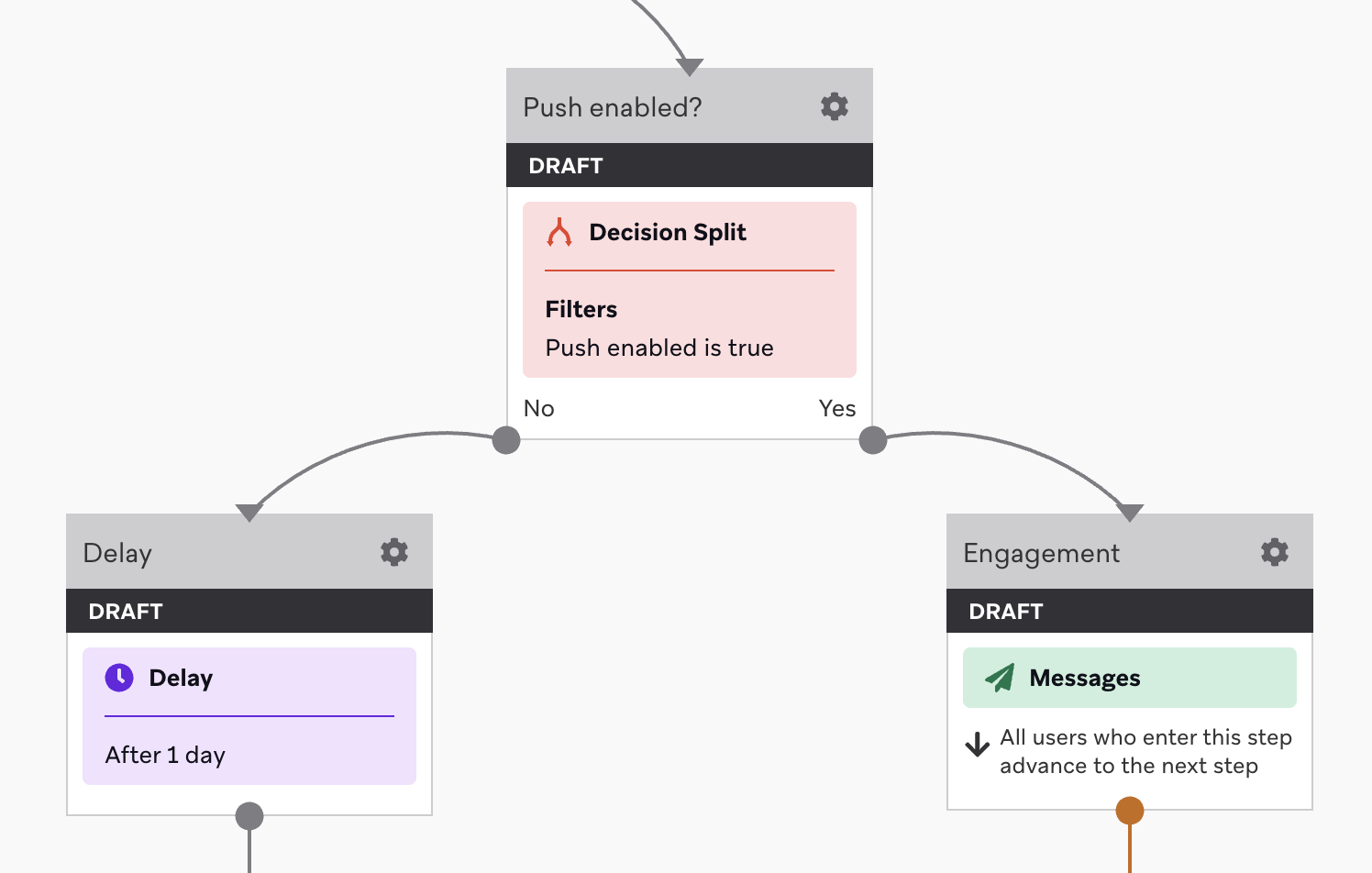
This component can be used to create Canvas branches based on whether a user matches a query.
Create a decision split
To create a decision split in your workflow, add a step to your Canvas. Then, drag and drop the component from the sidebar, or select the plus button at the bottom of a step and select Decision Split.
Define your split
How do you want to split your users? You can use segments and filters to draw the line. Essentially, you’re creating a true or false query that will evaluate your users and then funnel them to one step or another. You must use at least one segment or one filter. You do not need to use both a segment and a filter.
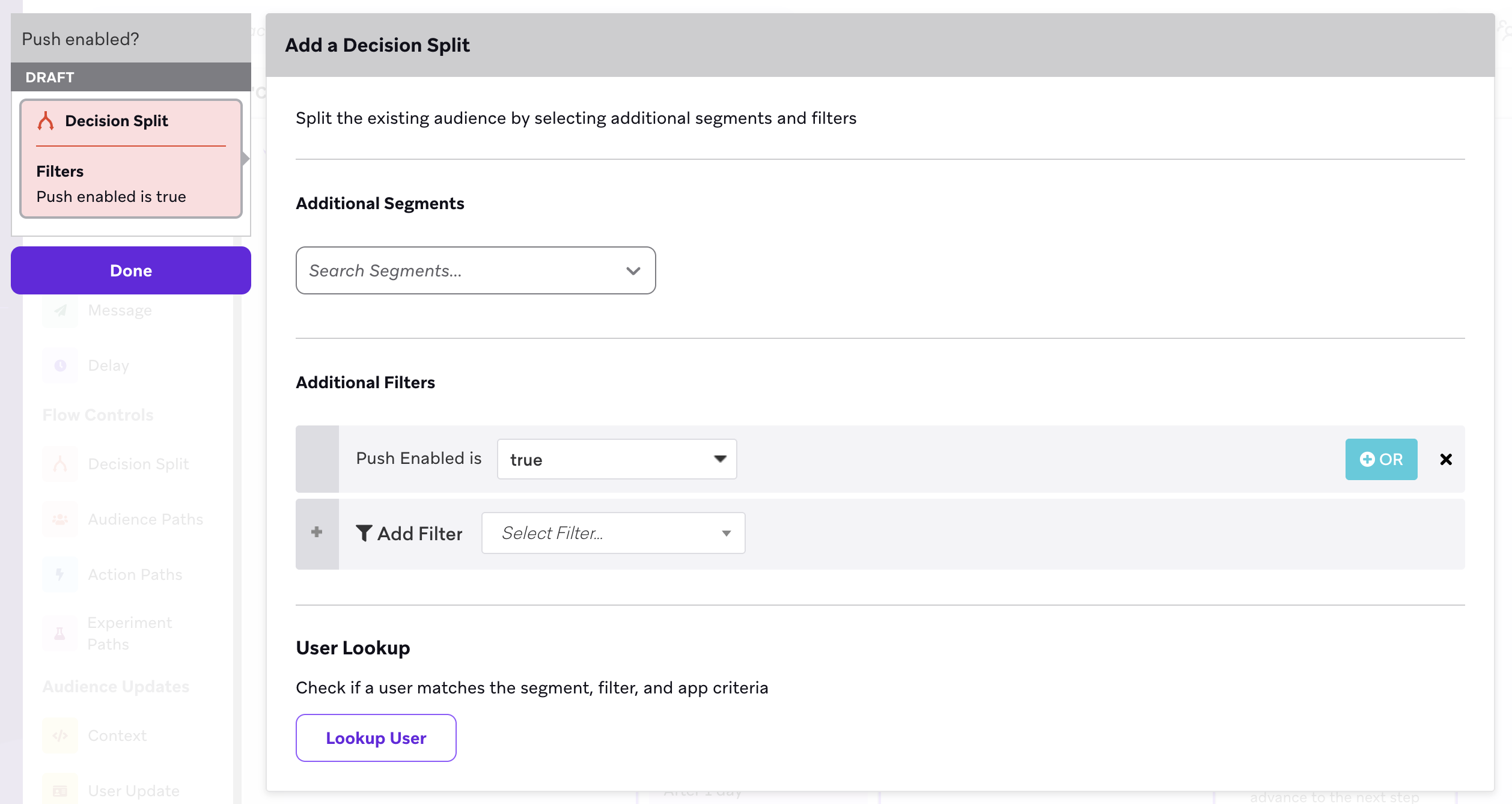

By default, segments and filters for a Decision Split step are checked right after receiving a previous step, unless you add a delay.
Retargeting filters in Canvases with re-entry
Retargeting filters in a Decision Split step, such as Clicked/Opened Step In This Canvas, evaluate engagement across all Canvas entries for a user, including prior entries. For example, if a user interacted with a step during a previous entry, the Decision Split recognizes that interaction when they re-enter the Canvas.
For Canvases with re-entry enabled, use an Action Paths step with the Interact with Step trigger when you need to evaluate engagement only during the current Canvas entry within a time window. Action Paths count only interactions that occur during the step’s evaluation window.
Use your split
Using a decision split can help you distinguish paths for your users based on their segment or their attributes, even whether they use certain messaging channels to receive your messages!
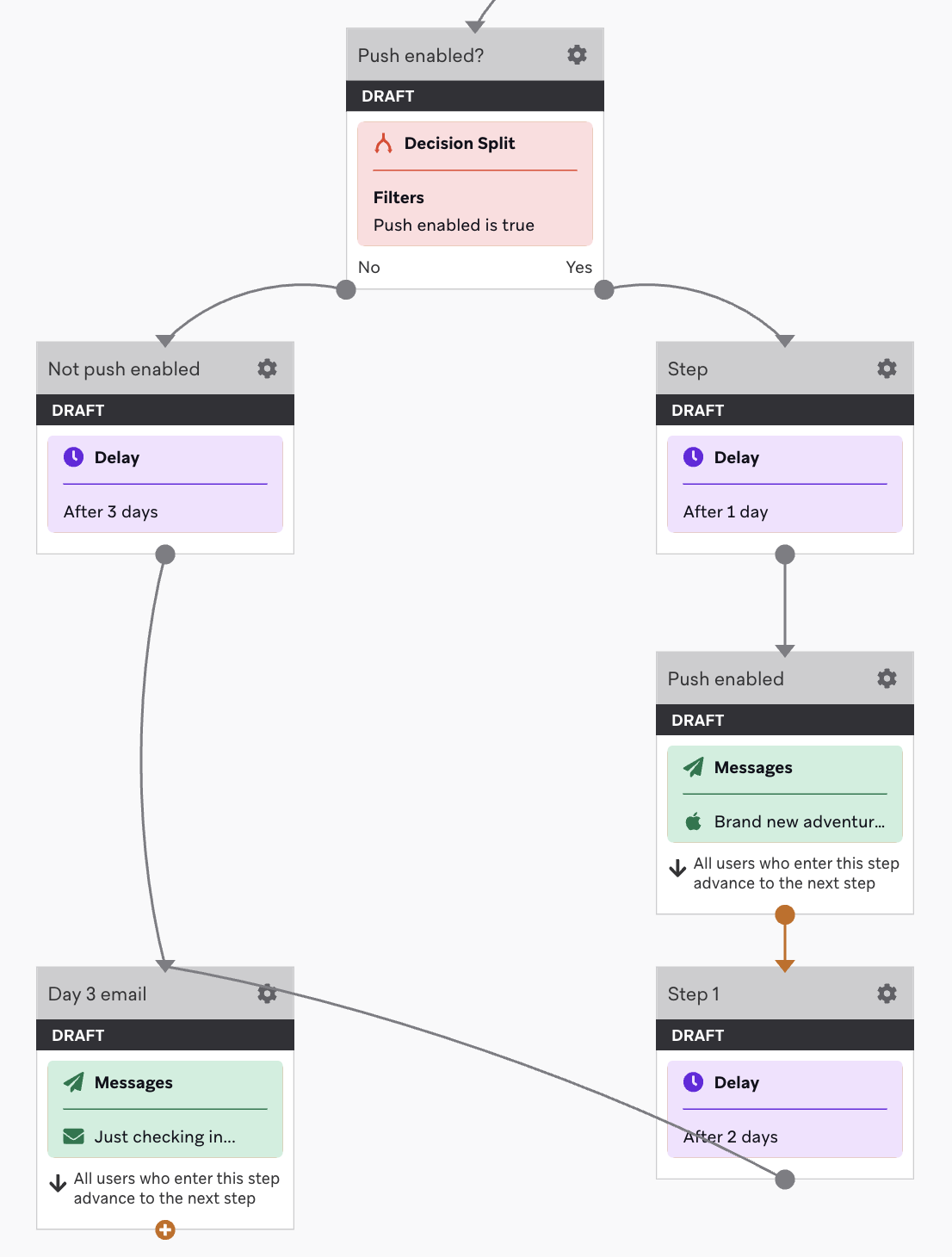
Let’s say that you’re creating an onboarding flow. You might start with a welcome email upon signing up. Then, two days later, you want to send a push message, but only to users who are push enabled. After that, all users get another email three days after they signed up. You could also use your decision split to send an in-app message to users who don’t have push enable to encourage them to enable push.
If there is no step following one of the paths, users who go down that path will exit the Canvas.
Analytics
Refer to the following table for descriptions of analytics for this step:
| Metric | Description |
|---|---|
| Entered | The total number of times the step has been entered. If your Canvas has re-eligibility and a user enters a Decision Split step twice, two entries will be recorded. |
| Yes | The number of entries that met the specified criteria and proceeded down the “yes” path. |
| No | The number of entries that did not meet the specified criteria and proceeded down the “no” path. |