Content Blocks
Content Blocks allow you to manage reusable, cross-channel content in a single, centralized location. Use them to create a consistent look and feel across your campaigns, distribute the same offer codes through different channels, or build pre-defined assets for consistent messaging at scale. You can also create and manage your Content Blocks using the API.
Create a Content Block
There are two types of Content Blocks: drag-and-drop and HTML. Each type corresponds to its editor.
- Go to Content > Content Block. Select Create Content Block and select Drag-and-drop Content Block.
- Drag and drop the editor blocks to build a drag-and-drop Content Block.
- Drag and drop a format block from the Rows tab into the editor to create the layout of your Content Block.
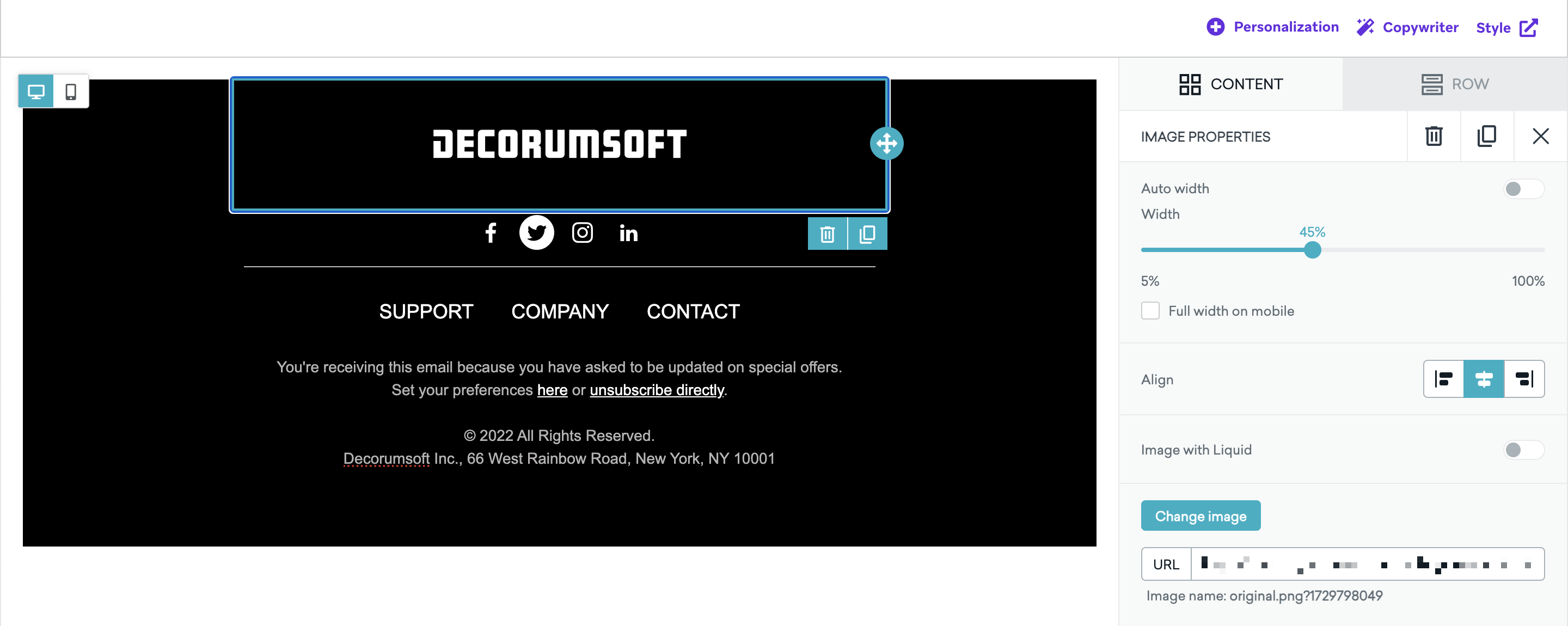
- Add drag-and-drop Content Blocks as needed to build out your email campaigns.
- After creating your Content Block, select Done.
- Give your Content Block a name. This name will auto-populate as part of the Content Block Liquid Tag.
- (Optional) Add a description.
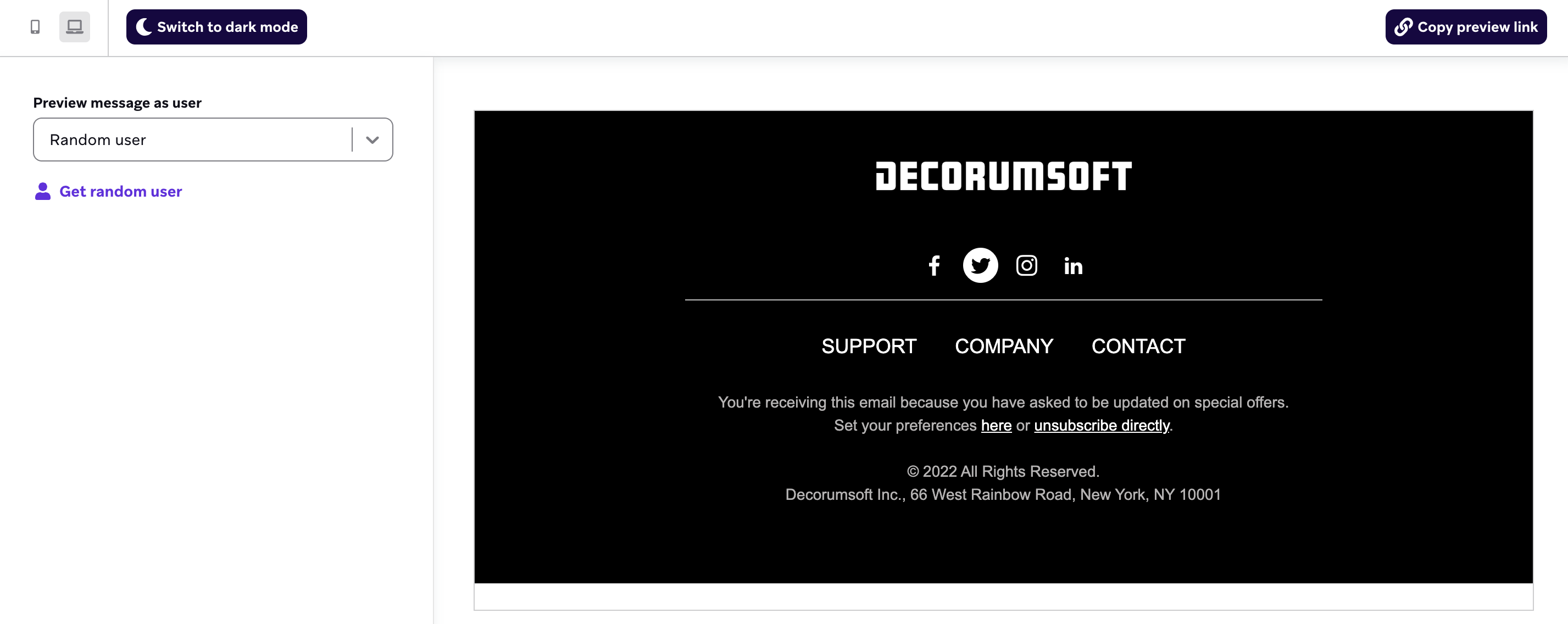
- Select the Preview tab to view how your Content Block will appear. Optionally select Copy preview link to generate and copy a shareable preview link that shows what the email will look like for a random user. The link will last for seven days before it needs to be regenerated.
- Select Launch Content Block.

Each drag-and-drop Content Block is limited to one row. However, you can use drag-and-drop editor blocks to build and customize the Content Block to suit your email messaging.
- Go to Content > Content Block. Select Create Content Block and select HTML code editor.
- Enter your HTML in the HTML tab, or build your Content Block in the Classic tab.
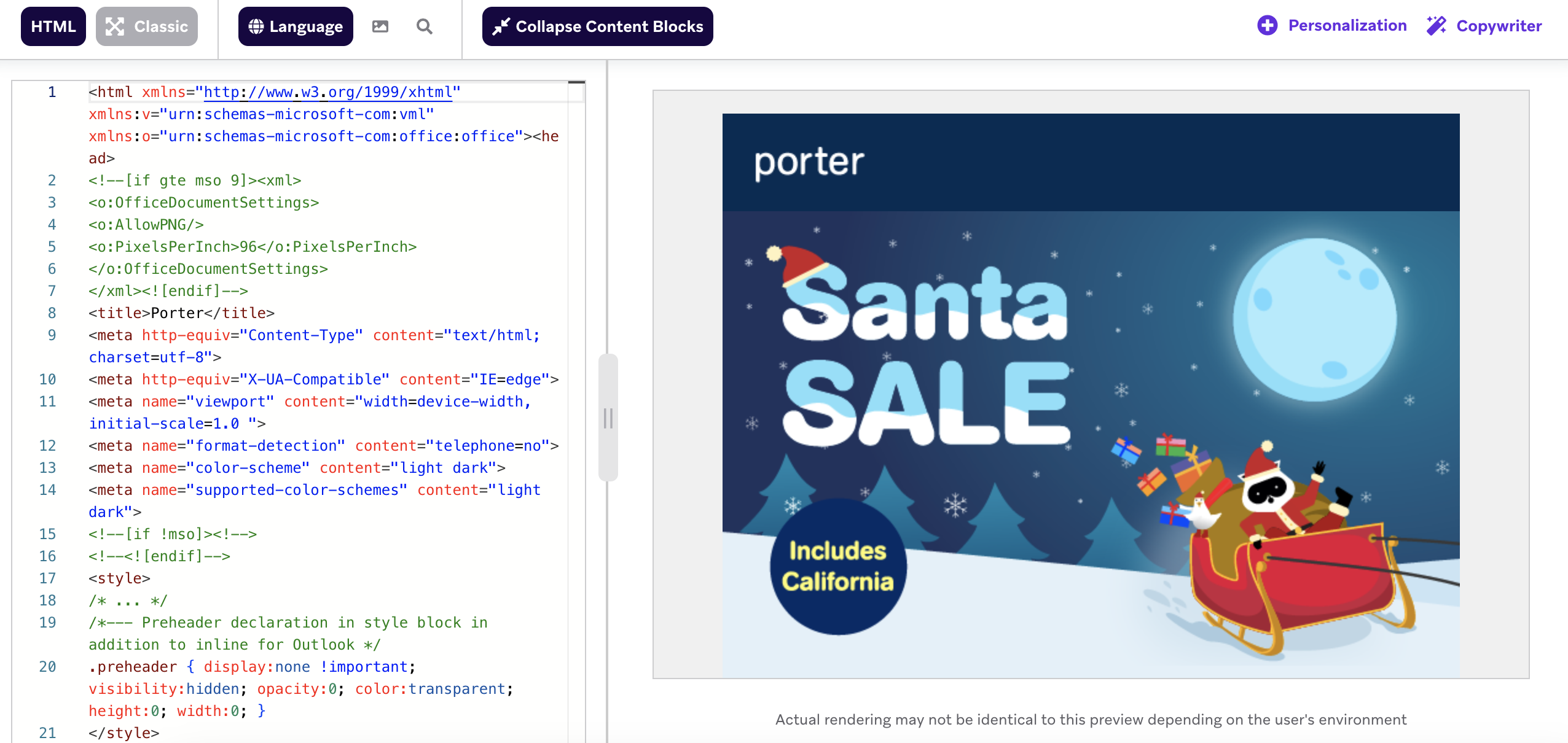
- After creating your Content Block, select Done.
- Enter a name for your Content Block. This name will auto-populate as part of the Content Block Liquid Tag.
- (Optional) Add a description.
- Select the Preview tab to view how your Content Block will appear. Optionally select Copy preview link to generate and copy a shareable preview link that shows what the email will look like for a random user. The link will last for seven days before it needs to be regenerated.

- Select Launch Content Block.
Content Block specifications
| Content Block attribute | Specifications |
|---|---|
| Name | Required field with a maximum of 100 characters. Content Block names can contain only letters (A-Z), numbers (0-9), dashes (-), and underscores (_). Spaces and other special characters are not allowed and are automatically converted (for example, spaces are replaced with underscores). Names cannot be changed after the Content Block is saved, and you cannot reuse the name of a previous Content Block, even if archived. |
| Description | (optional) Maximum of 250 characters. Describe the Content Block so that other Braze users know what it’s for and where it’s used. |
| Content Size | Maximum of 50 KB. |
| Placement | Content Blocks cannot be used within an email footer, but you can create a Content Block that includes a footer for use in your emails. |
| Creation | HTML editor or drag-and-drop editor. |

When creating Content Blocks, it can be beneficial to visualize HTML and Liquid by adding line breaks. If these line breaks are left in during sending, you risk having extraneous spaces that can affect how the block will render. To avoid this, use the Capture tag on your block along with the | strip filter.
{% capture your_variable %}
{{content_blocks.${your_content_block}}}
{% endcapture %}{{your_variable | strip}}
Use Content Blocks
After creating your Content Block, you can insert it in your messages using the editor or Liquid.
Using the drag-and-drop editor
To add a Content Block in the drag-and-drop editor:
- Go to the Rows tab in the editor and select Content Blocks.
- Drag and drop your Content Block into the email editor.
- (Optional) Adjust the width of your Content Block by selecting the button in the navigation menu. The default width is 100% when not specified in your email global style settings; otherwise, the global settings will be honored.
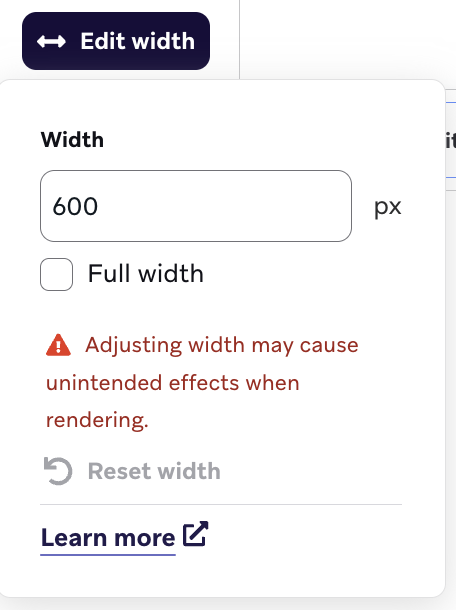

Content Blocks added by drag and drop are not linked to the original Content Block. To view changes made to the original, drag it into the email editor again.
Misalignment in the drag-and-drop editor can occur when multiple Content Blocks are added to a single row block. Try using separate row blocks to maintain alignment across your content at the row level.
Using Liquid
To insert a Content Block using Liquid:
- Copy the Content Block Liquid Tag from the Content Block Details section.
- Insert the Content Block Liquid tag into the message. You can also begin typing the Liquid and have the tag auto-populate.
In the drag-and-drop editor, you can also add a Content Block via the Personalization panel:
- Go to your email campaign and select Edit Email Body.
- Click Personalization.
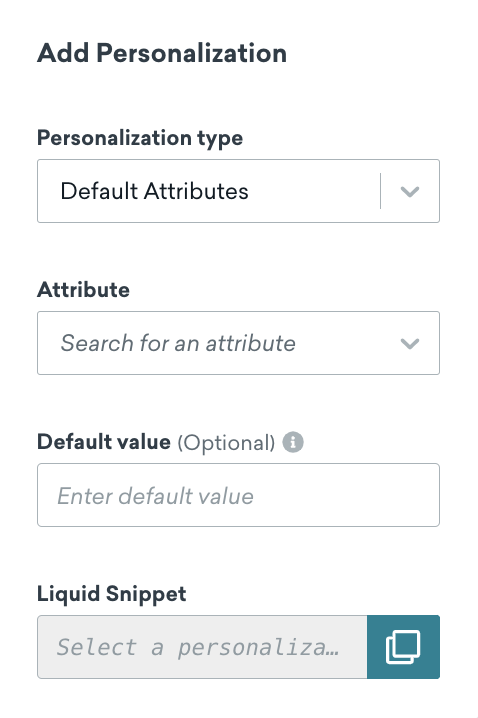
- Select Content Blocks in the Personalization Type dropdown.
- Select the name of your Content Block in the Attribute field.
- Copy and paste the Liquid snippet into a text editor block.
Content Blocks inserted via Liquid are linked to the original Content Block and will reflect any changes to the template.
Preview Content Blocks
After adding a Content Block in an active campaign or Canvas, you can preview it from the Content Blocks Library by hovering over the Content Block and selecting the Preview icon.
This preview includes information about the Content Block such as who created it, tags, creation date, last edited date, description, editor type, inclusion count with details (a clickable list of messages or Content Blocks that use the Content Block), and an actual preview of the Content Block.
When auditing where a Content Block is used, review each linked message or step individually to confirm its status.
Nest Content Blocks
Content Blocks can be nested, but only once. You can nest Content Block A into Content Block B, but you can’t then nest Content Block B into Content Block C.
Nothing prevents you from nesting a third level of Content Block, but you do not see the content expand in nests beyond the second. The content and the Liquid snippet are removed from the message.
Links inside a nested Content Block count toward the total link count of the parent message. If you use a single Content Block with many conditional links, such as country-specific URLs for localization, the parent message can accumulate a large number of links, which can slow down or prevent saving a Canvas. For large-scale localization, multi-language messages are a better fit than conditional links in a single Content Block.
Update and copy Content Blocks
If you choose to update a Content Block, it updates in all messages where the Content Block is inserted via Liquid. If the Content Block is imported using the Content Blocks dropdown under Rows in the drag-and-drop editor, it isn’t updated in all messages.
If you want to update a Content Block for a single message or make a copy to use in other messages, you can either copy the HTML from the original message to your new one, or edit the original Content Block (it must have been used in a message already) and save it. You will get a prompt that allows you to save it as a new Content Block.
After making edits to a Content Block, you can save and launch the updated Content Block by selecting Launch Content Block. Or, you can select More > Duplicate to create a duplicate of your Content Block.
Use email footers in Content Blocks
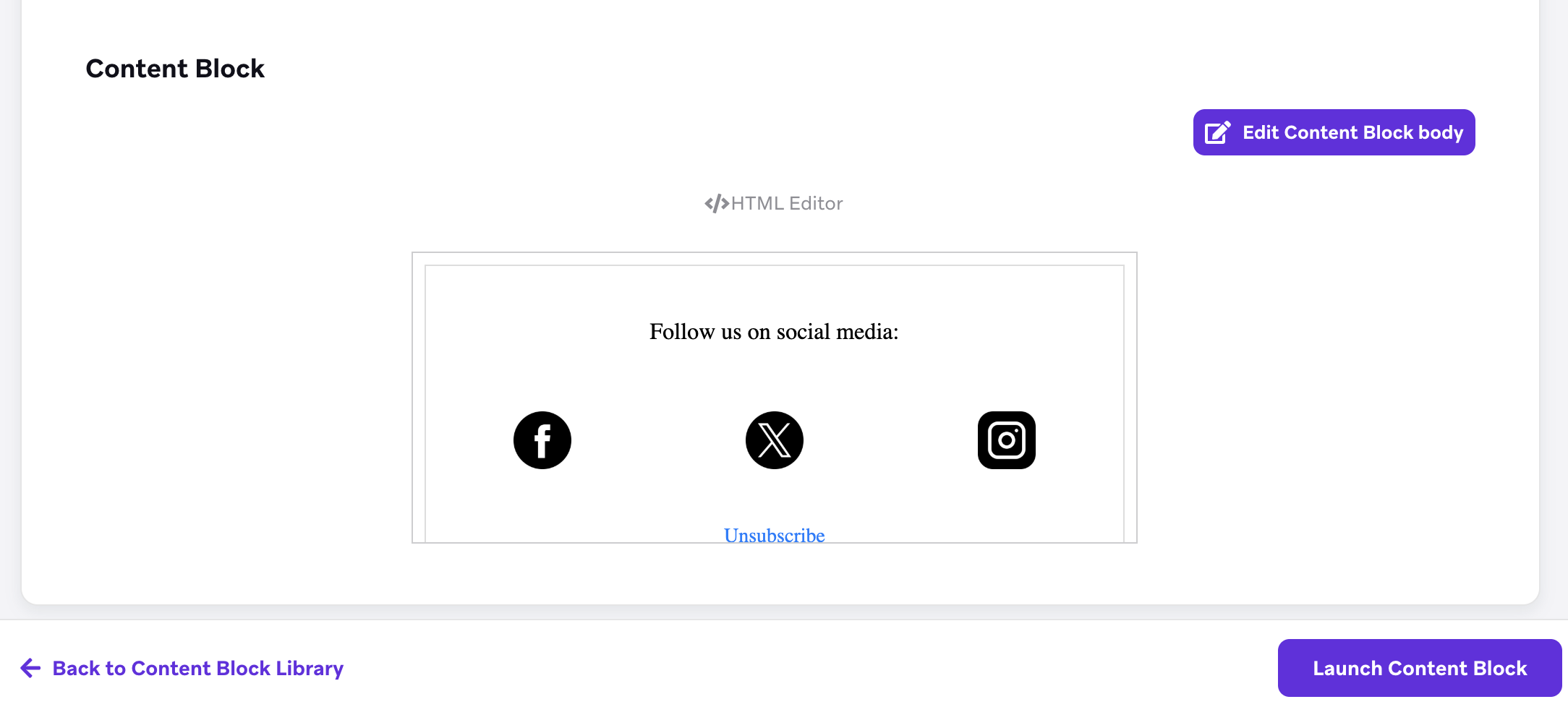
Content Blocks cannot be used within an email footer, but you can create a Content Block that includes footer content for use in your emails. To do so:
- Go to Settings > Email Preferences > Custom Footer and create the footer.
- Add the footer to a Content Block in the Content Blocks Library.
- Add that Content Block to your email templates or messages.
Things to know
- Using HTML Content Blocks in drag-and-drop emails or drag-and-drop Content Blocks in HTML emails may result in unexpected rendering issues. This is because the drag-and-drop editor generates HTML and CSS that dynamically render the content, whereas the HTML editor is more static.
- If you insert a drag-and-drop Content Block using Liquid, Braze doesn’t include styles from the block’s HTML
<head>. Responsive styles, such as mobile-specific CSS, may not render as expected. If the block relies on responsive CSS, add that CSS to the message or template that includes the Content Block. - Canvas entry properties are only supported in Canvases. If you reference a Content Block with Canvas entry properties in a campaign, it does not populate.
- If a message with multiple Content Blocks isn’t rendering as expected, such as when Liquid tags or HTML appear as visible text instead of being processed, an unclosed tag or other error in one of the Content Blocks is often the cause. To identify the source:
- Remove the Content Blocks from the affected message one at a time.
- Check whether the message renders correctly after each removal.
- The last Content Block you remove before the issue disappears is the one causing the problem.
<code>HTML tags render in monospace font in most email clients by default, regardless of any font styling set on the Content Block. Avoid wrapping text in<code>tags unless you want that monospace appearance.- When you insert a Content Block with Liquid into a custom HTML email template, CSS rules in the parent template can override styles defined inside the Content Block. To learn more, see Content Blocks in custom HTML templates.
Archive Content Blocks
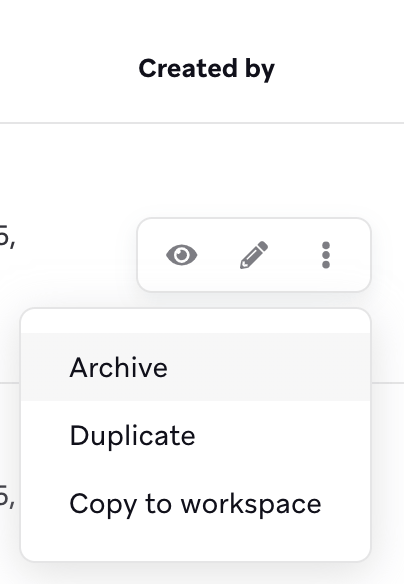
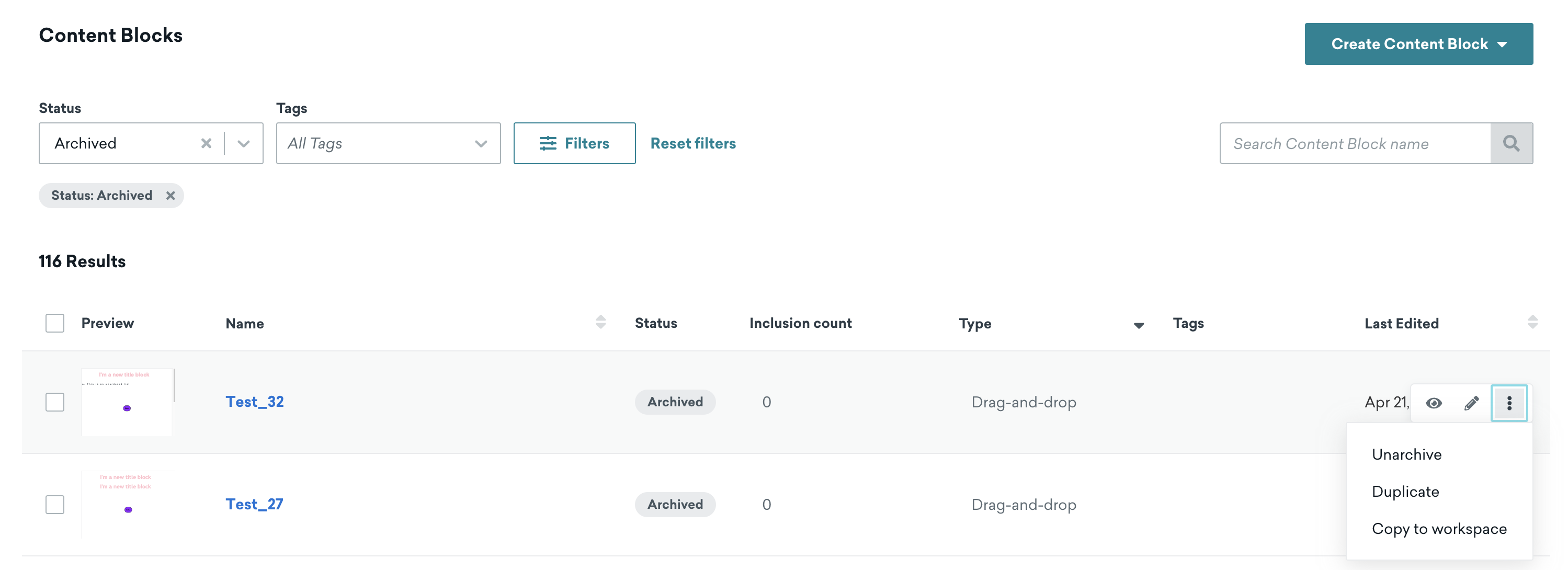
Once you have finished using a Content Block, you can archive it from the Templates page. Archived Content Blocks are read-only, so unarchive the Content Block before editing. Content Blocks cannot be archived if they’re used in any messages.
Best practices
- When your block is only used in a few emails, we recommend archiving the outdated block and updating your live messages with a newer block that has not been archived.
- When your block only has a typo or needs a minor change, we do not recommend archiving the block. Instead, update the block and get sending!
- When your block is used in more messages than you can reasonably manage with the first suggestion in this list, we recommend removing all content from the block. This prevents the inclusion of outdated information in any messages.
- If you accidentally archive a Content Block, you can unarchive it.